And throughout the course of these three iterations, only one thing changed- its name! In each of these three versions, the feature isn’t able to identify nearby devices in most cases and henceforth users are left with no choice but to opt for third-party alternatives or use Bluetooth [which itself has a slew of drawbacks, most noticeably being the slow transfer speed]. Truth be told, Android Beam was perhaps the best of the lot and it has gone downhill ever since!
Moreover, when it comes to sharing files, you can choose from Your Devices [you can send files only across those devices that are signed into the same Google ID], Contacts [only to your selected accounts], or to Everyone [anyone nearby, you may either have this feature turned on forever or only for 10 minutes]. It goes without saying that changing these settings every time before sending a file is quite a tedious task.
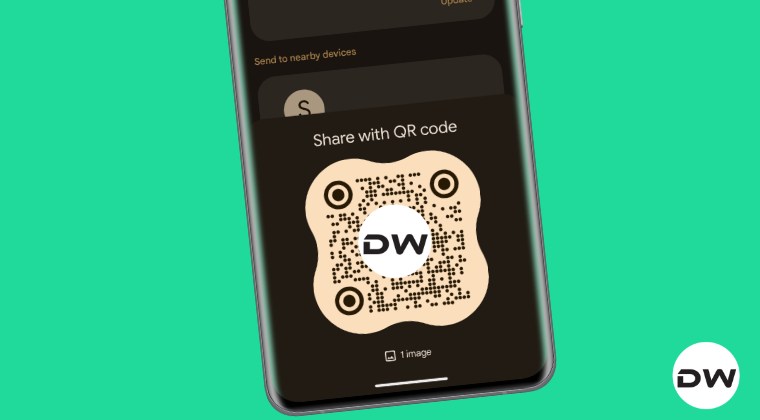
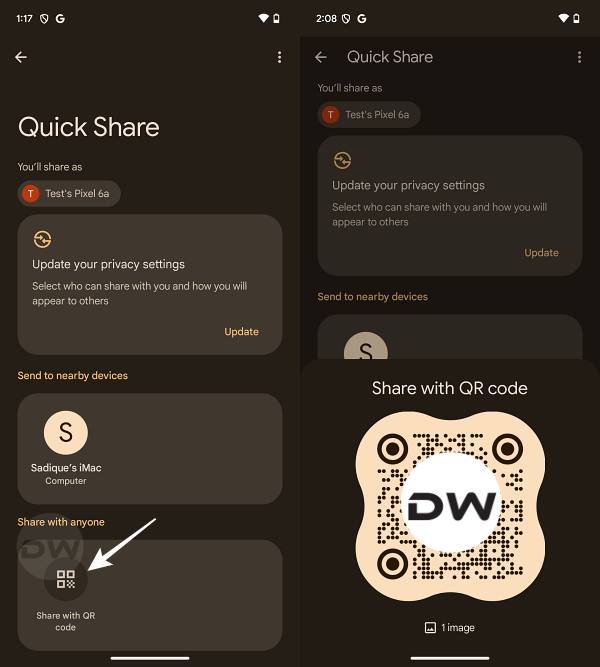
Fortunately, the Silicon Valley giant seems to have addressed this concern with the introduction of the QR Code. The receiver just needs to scan this QR Code [which is a near.by deep link URL that initiates the connection] and get the desired file without you having to manually tinker with the privacy settings. So without any further ado, let’s show you how this could be carried out.

At the time of writing, this feature is still in the internal testing phase and hasn’t even reached the beta stage. However, we can still enable this tweak by adding a value to the Play Services system app, but for that, the device needs to be rooted. If you haven’t done so yet, then you may refer to our detailed guide on How to Root Android Devices via Magisk . Once done, let’s get started with the below steps.
- To begin with, download and install the GMS Flags app from GitHub.
- Then tap on Root Required. You’ll get a SuperUser request, tap Grant.
- Now proceed with the rest of the app setup via on-screen instructions.
- Then go to Apps, search Google Play Services, and the below package: com.google.android.gms.nearby
- Tap on the overflow icon situated at the top right and select Add flag.
- Give it the below name [leave the other values intact] and hit Add Flag: sharing_enable_qr_v3_ui
- Finally, Force Stop Google Play Services a couple of times.
- Now try sharing a file via Quick Share; you should see the QR Code option.
- If you still don’t see that option, then force stop Google Play Services a few times and the feature should then be live.
- So tap on it and it’ll bring up the QR Code. Ask the recipient to scan it via their Camera, Google Lens, or any other app of their choice.
- Their device will now ask which app to use to open this near.by link [only for the first time]. Choose “Device” and the file transfer should now start.
- Enable Backup New Folders in Google Photos
- How to Hide Memes, Screenshots, GIFs from Google Photos!
- How to Enable Phone Number Lookup in Google Dialer/Phone
- Guide to Enable Gemini in Google Messages
- How to Enable Gemini toggle and Bottom menu bar in Google App

(Cancel Reply)
Δ
