How to Enable Tablet Mode and get Taskbar on any Android Device
In this guide, we will show you the steps to enable the hidden tablet mode as well as a taskbar on any Android device. We are slowly but surely moving towards a standalone version of Android-based OS specifically designed for tablets. The first major stepping stone in that direction was the Android 12L release and even the thirteenth iteration of the OS has some major chunks that are aimed at the tablet domain.
Guess what, those settings are present natively on your Android device as well! With the help of a nifty workaround, you could easily enable the hidden tablet mode and get a working taskbar on your Android device. You could then directly launch and minimize apps from the taskbar itself.
If you don’t have any opened apps, then the taskbar will bring out the list of suggested apps. Moroever, you could also drag and drop multiple apps from the taskbar and create a multi-screen working environment. So without any further ado, let’s welcome the taskbar and tablet mode onto your device right away.
How to Enable Tablet Mode and get Taskbar on any Android Device
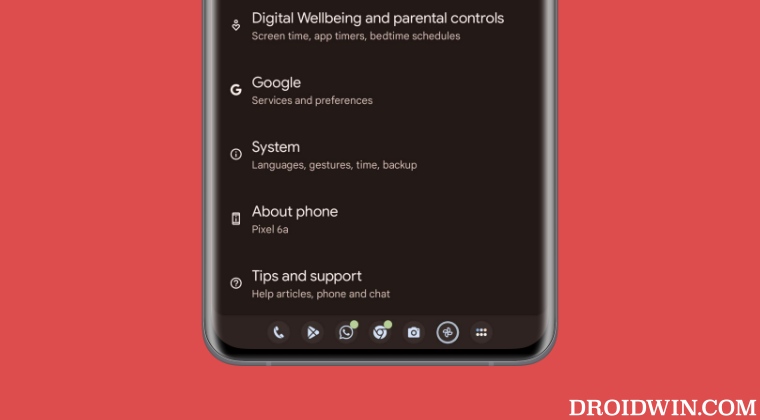
- Head over to Settings > System > Tap on Build Number 7 Times.
- This will enable Developer Options. Access it from Settings > System.
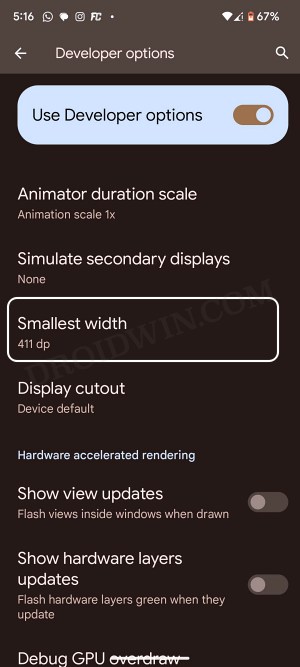
- Now scroll to Smallest Width and note down the current value.
- Then change its value to 600 and hit OK to save it. That’s it.
- This will enable both the tablet mode and the taskbar on your Android device.
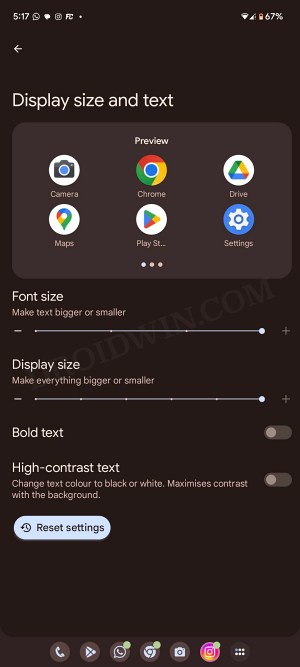
However, the text and display size might be a tad small for your comfort, so let’s increase it. For that, go to Settings > Display > Display Size and Text. Then increase both the “Font size” and “Display size” to the maximum.
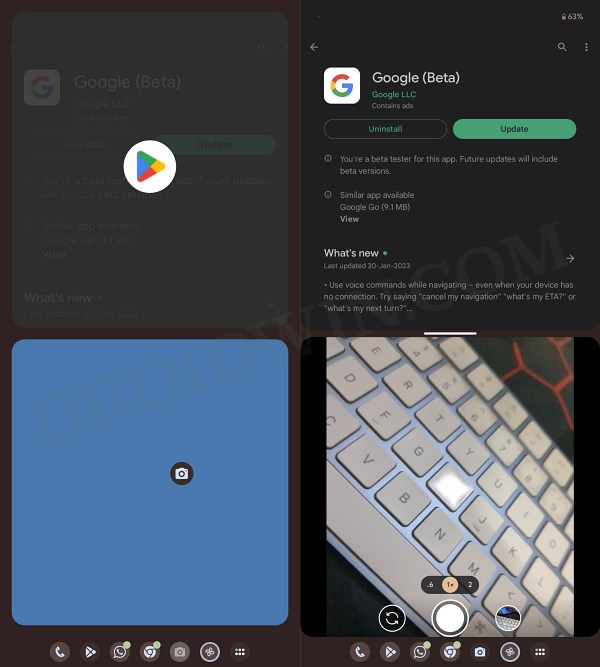
Moreover, to create a multi-screen window session, press and drag the app icon from the taskbar. Then bring it up to the home screen and place it in the upper or lower section of the screen.
How to Disable Tablet Mode on Android
As you might have noticed, adopting the tablet mode on your phone’s small screen might not result in the best user experience for a long period of time. Apart from that, the app drawer is also not yet fully optimized for your phone screen. So while this gives you bragging rights but from the usage perspective, it might not be able to checkmark all your prerequisite. Fortunately, you could easily disable the tablet mode and get back to the stock ecosystem.
- Hide/Remove the Gesture Pill in Navigation Bar on Android 13
- Google Pay not working on OnePlus Android 13 OxygenOS 13 [Fix]
- Android 13 Cannot Connect to Car Bluetooth [Fixed]
- How to Install Viper4Android on Pixel 6/7/Pro running Android 13

(Cancel Reply)
Δ
