How to Enable Tabs Group in Firefox from about:config page
In this guide, we will show you the steps to enable the new tabs group feature in the Firefox browser using the about:config page. When it comes to privacy-centric browsers, then the offering from Mozilla is right there at the top. But that’s not the only domain where it reigns supreme. In recent times, it has also turned its attention towards incorporating customization features and tweaks in its browsers.
The latest one to make its way is Tabs Group. As is evident by its name, this feature allows you to group similar tabs under one roof. You can also assign that group a particular color so that it is easily distinguishable from the rest of the groups. However, at the time of writing, it is slowly being rolled out in batches and hence not everyone is getting blessed with it at one go, even though they have already installed the latest version v137.0.1.
If you are also in the same boat, then fret not. In this guide, we will take you to the backend side of the browser [aka its about:config page] and show you the steps to enable this feature from there. So without any further ado, let’s get started.
How to Enable Tabs Group in Firefox from about:config page
- To begin with, head over to the below page: about:config
- Then click on Accept the Risks and Continue.
- Now, type in the following flag name in the search bar at the top: browser.tabs.groups.enabled
- It will be set to False. Change it to True and restart the browser.
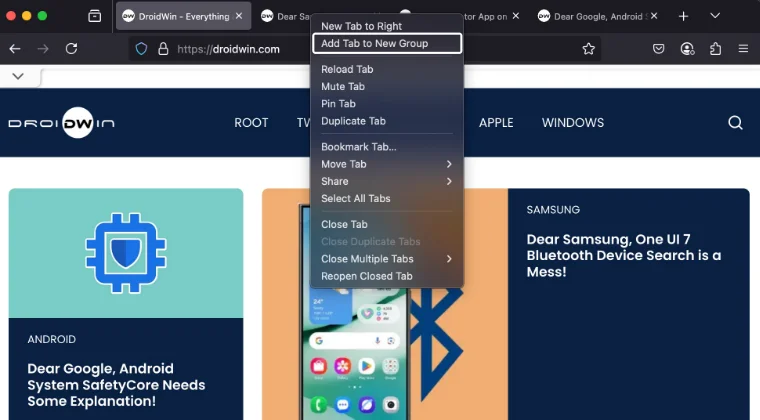
- Now, just right-click on a tab and you should see the “Add tab to new group” option.
- How to Customize Firefox using CSS
- How to Remove Firefox v136 Mute Tab and Revert to the Old One
- Firefox 135 brings new Fonts: Here’s how to bring back the Old One
- How to Remove the New Sidebar in Firefox Browser

(Cancel Reply)
Δ
