How to Enable Ultra Audio in BGMI/PUBG
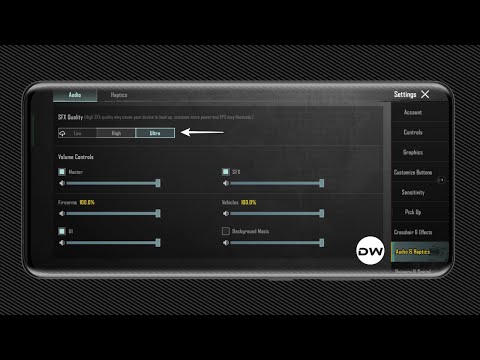
In this guide, we will show you the steps to enable Ultra Audio in PUBG/BGMI. When it comes to multiplayer battle royale games, then the offering from Krafton is right there at the top. But there are some aspects of this game that leave people scratching their heads, the biggest among which is the inability to enable 120 FPS , even though the device supports it.

Likewise, the inability to enable Super Smooth is also something that doesn’t make much sense. And now, there’s another entry to this list- the disabling of Ultra Audio. By default, you only get the Low and High VFX quality, with no traces of Ultra anywhere. Fortunately, I stumbled upon a workaround using which you can enable this audio quality. And in this guide, we will show you how to get this job done. Follow along.
How to Enable Ultra Audio in BGMI/PUBG
- To begin with, root your device via Magisk / KernelSU / APatch .
- After that install a root-supported file manager app like Solid.
- Then launch it and head over to the below location: Android -> data -> com.pubg.imobile -> Files -> UE4Game -> ShadowTrackerExtra -> ShadowTrackerExtra -> Saved -> Config -> Android
- There will be a UserSettings file present there; open it.
- Then change “SoundQualityType=1” to “SoundQualityType=2” and save the file.
- Relaunch BGMI/PUBG, head to Settings > Audio, and you’ll now get the Ultra option in SFX Quality.
- How to Get Super Smooth in BGMI [With and Without Shizuku]
- How to Enable 120 FPS in BGMI/PUBG Without Root [3 Methods]
- Fix PUBG/BGMI Touch Screen Issue on Android
- How to Change OnePlus Pad Screen Resolution for PUBG/BGMI
- How to Get 60 FPS on Low-End Devices in BGMI/PUBG

(Cancel Reply)
Δ
