How to Enable Vertical Tabs in Google Chrome
The Silicon Valley giant keeps on tinkering with the features present in its browser, whether you like it or not, that’s another discussion. The latest change to make its way is the availability of Vertical Tabs in Google Chrome. Truth be told, over a decade of using this browser, my muscle memory was set to take the cursor to the top to switch between tabs or open a new one.
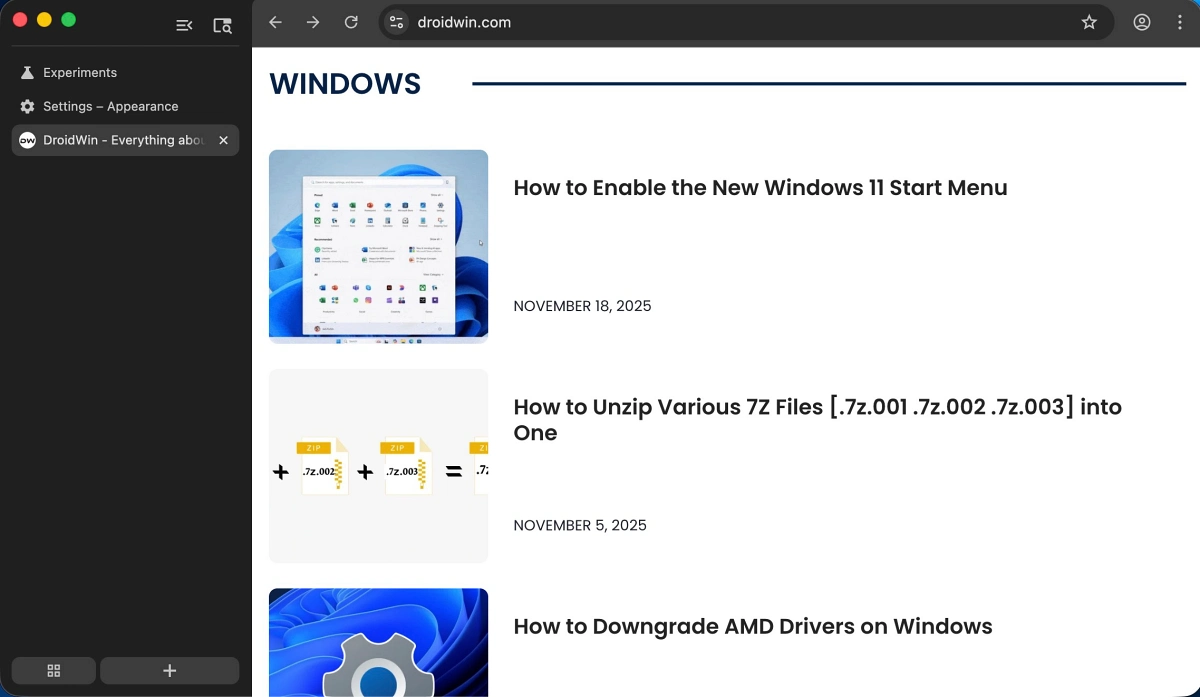
So this shift to the left proved to be quite a challenge for me, especially during the initial few days. Want to give it a try? Well, then this guide is all you need. The best part is that, unlike other Google changes, this tweak is easily reversible. So you can easily revert its position back to the top if you are not a fan of this new location [we will show you how]. So without any further ado, let’s get started.
How to Enable Vertical Tabs in Google Chrome

At the time of writing, this feature is only present in Chrome Beta [and it might take a while before it trickles down to the stable build]. Moreover, it is hidden behind a Chrome flag. So a beta build combined with the experimental flag doesn’t translate to the most stable usage experience. So keep this point in mind before trying out this tweak.
- Download and install Chrome Beta on your PC.
- Then launch it and head over to below location chrome://flags
- Now type in Vertical Tabs in the search bar or: chrome://flags/#vertical-tabs
- Change its state to Enabled and click Relaunch.
- Now go to Settings > Appearance > Tab Strip Position. chrome://settings/appearance
- Finally, change it to Side from Top. The tabs will now be sent to the left.
- At the bottom left is the Tab Group button, and just next to it is the button to open new tabs.
- At the top right, you have the option to collapse or expand this entire menu. Next to it is the tab search feature.
What’s My Gripe With This Feature?

- How to Bring Back the Expired Chrome Flags
- How to Remove AI from Google Chrome URL Address Bar
- How to Send the Chrome Address Bar Back to the Top
- Dark Mode Not Working in Chrome: How to Fix

(Cancel Reply)
Δ
