How to Enable WiFi 6E 6Ghz on Xperia 1 V
In this guide, we will show you the steps to enable the WiFi 6E 6Ghz on your Sony Xperia 1 V. US and Taiwan are the most popular regions where this device has made its presence felt. However, both these variants have their fair share of caveats and perks. While its US variant does not allow you to unlock the bootloader, it does have the support for WiFi 6E. On the other hand, it’s just the reverse for the Taiwan variant- supports bootloader unlocking but not 6Ghz.
So the users who have imported Sony Xperia 1 V from Taiwan are having a tough time in enabling the WiFi 6E 6Ghz on their device. Upon doing some further digging, it was ultimately found out that the device hardware does support 6E, it’s simply disabled on the software front [verifying via the iw list command in Termux], even though the country code was already set to the US [verified through the iw reg get country command].
Moreover, upon comparing both the region’s firmwares, we found out that they both have different props set for several RF-related values in /oem/etc/customization/config.prop. Making use of the aforementioned information, XDA Member ‘noellemercer’ wrote a short script to override the relevant props on the Taiwan firmware with the props from the US firmware and placed it in the/data/adb/post-fs-data.d directory.
The below script is set to executable, i.e. chmod +x to ensure Magisk would run it before most of the OS has booted, and after that, it was able to see and connect to 6GHz networks successfully.
How to Enable WiFi 6E 6Ghz on Xperia 1 V
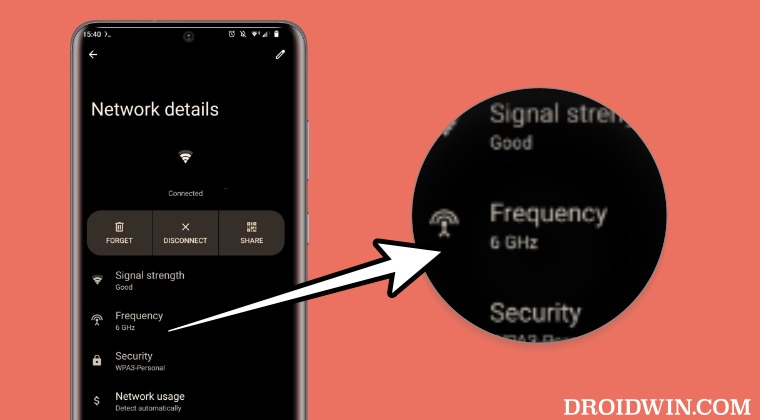
It goes without saying that you should root your device beforehand and only then try out this script to enable WiFi 6E 6Ghz frequency on the Sony Xperia 1 V. Apart from this script, we tried flashing the US modem firmware onto Taiwan via NewFlash, but this cross-flashing didn’t get the job done. So the below script might be your only way out.
#!/system/bin/sh

resetprop -n ro.vendor.sony.wlan.6e_cc_list US

resetprop -n ro.vendor.product.rf.id PDX223-A2US

resetprop -n ro.oem_ant_switch_index_table 0,0,2,0,0,2,2,0,2,2,2,2,2,2,2,2,0,0,2,0,0,2,2,0,2,2,2,2,2,2,2,2,0,0,2,0,0,2,2,0,2,2,2,2,2,2,2,2,0,0,2,0,0,2,2,0,2,2,2,2,2,2,2,2

resetprop -n ro.oem_sar_back_off_index_table 1,2,8,1,6,3,8,1,5,2,8,1,5,2,8,1,1,2,8,1,6,3,8,1,5,2,8,1,5,2,8,1
If you are still unable to enable WiFi 6E 6Ghz even after carrying out the aforementioned tweak, then add the below line to the above code and re-run the script
resetprop -n ro.boot.wificountrycode US
- How to Root Sony Xperia 1 V via Magisk Patched Init Boot
- Fix Sony Xperia 1 IV: Cannot Load Android System Data Corrupt
- Netflix Low Video Quality in Android 13 on Xperia: How to Fix
- Fingerprint not working on Sony Xperia 1 III/5 II/5 III [Fix]

(Cancel Reply)
Δ
Fingerprint not working on Sony Xperia 1 III/5 II/5 III [Fix]
In this guide, we will show you various methods that might help you fix the fingerprint not working issue on Sony Xperia 1 III/5 II/5 III. No smartphone is free from its fair share of bugs and issues. From the Samsung flagships to the Google and OnePlus, each of them gets bugged with an error or two at frequent intervals. However, they tend to hear the user’s feedback and subsequently release a patch in the next OTA update that rectifies the issue.
However, with Sony, things are a little bit different. And not for good. They hardly seem to give any weightage to the user opinions and feedback. The perfect example of the same is the issues with the fingerprint on Sony Xperia 1 III/5 II/5 III that users are voicing their concern over for the past year or so but all these concerns all falling on deaf ears.
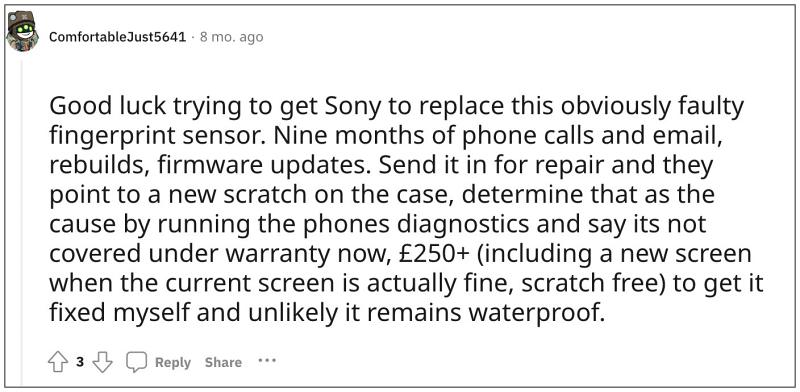
The inability of such a crucial function to work and ignorant behavior from the OEM has left users with no choice but to start looking for an alternative. This is really a sad state of affairs because if this is the kind of treatment users are getting after spending such a hefty sum of money, then the company is doomed for a downward spiral sooner than later.
With that said, there does exist a couple of workarounds that might give you a temporary respite from this bug [from a few hours to even a few days], and then you’ll have to again execute these fixes. While these are in no way the most feasible or viable way to get this job done, but as of now, these are the best tweaks that we have at our disposal. So with that in mind, let’s get started.
- Fix Fingerprint not working on Sony Xperia 1 III/5 II/5 III FIX 1: Boot to Safe Mode FIX 2: Re-Add Fingerprint FIX 3: Update Google Play System
Fix Fingerprint not working on Sony Xperia 1 III/5 II/5 III
It is recommended that you try out each of the below-mentioned workarounds and then see which one spells out success.
FIX 1: Boot to Safe Mode
Your first course of action should be to boot your device to Safe Mode. Doing so will disable all third-party apps and services and if the issue gets rectified, then the issue is with a third-party app, which needs to be uninstalled a the earliest. Here’s how it could be done:
- Long press the power key to bring up the Power menu.
- Then long tap on Power Off and you’ll get the Reboot to safe mode prompt.
- Tap OK and your device will then boot to Safe Mode.
- If the issue is no longer there in this mode, then boot your device to normal mode.
- Now uninstall the recently installed apps [one at a time] after which the issue first came to light.
- The last uninstalled app after which the issue doesn’t re-appear is your culprit and you should stay away from it.
FIX 2: Re-Add Fingerprint
For some users, deleting the existing fingerprint and re-adding it did the job. So do give it a try using the below-listed steps and check out the results.
- Head over to Settings and search Fingerprint Manager.
- Then hit Delete next to your existing fingerprint.
- Now tap on Add a new fingerprint and proceed with the on-screen instructions to add it.
- Check if it fixes the fingerprint not working issue on Sony Xperia 1 III/5 II/5 III.
FIX 3: Update Google Play System
For some, updating the Google Play System to the latest version managed to rectify the underlying issue. So let’s give it a try using the below-listed steps and then check out the results.
- Head over to Settings> Security > Google Play System.
- Then tap on Check for Updates and install the pending updates.
- Once done, restart your device and check out the results.
That’s it. These were the various methods to fix the fingerprint not working issue on Sony Xperia 1 III/5 II/5 III. As far as the official stance on this matter is concerned, the developers are yet to acknowledge this issue, let alone give out any ETA for the rollout of a fix. As and when any of these two things happen [chances of which are quite rare], we will update this guide accordingly. In the meantime, the aforementioned workarounds are your best bet.
- How to Install Android 13 Custom ROMs on Xperia 1 III
- Sony Xperia Battery Drain after January update: How to Fix
- How to Enable VoLTE and VoWiFi in Xperia 1 III
- Sony Xperia 1 IV Overheating Issue: How to Fix
(Cancel Reply)
Δ
