How to Extract OZIP Realme Stock ROM (Firmware)
In this tutorial, we will show you how to extract Realme Stock Firmware that comes in OZIP format. It hasn’t been long since the OEM has set its foot into India. But it is indeed quite commendable how it has managed to gather such a large fanbase in a short period. Offering feature-rich devices at an affordable price, well what else could one have asked for. Furthermore, it is quite rich in the custom development scenario.
From unlocking the bootloader to gaining administrative privileges in the form of the root, there exists a plethora of such tips and tricks. Along the same lines, there is no dearth of custom ROMs as well. As of now, rooting Realme devices seems to have generated maximum hype. In this regard, there exist two different ways of achieving root- via TWRP and without TWRP. The first one is pretty simple- just flash the Magisk Installer ZIP via TWRP Recovery and you will have achieved root.
The second method involves extracting the stock boot image file, patching it via Magisk, and then flashing the patched boot.img file via Magisk. And it is the latter in which most of the users seem to be interested in. But for that, you will need to extract the Realme stock firmware that comes in OZIP format. But first let’s check out why this need arises in the first place, after which we will list out the steps to extract the stock boot.img file from the Realme OZIP firmware package. Follow along.
How to Install OTA Updates in Rooted Android Device
How to Permanently Install TWRP without TWRP ZIP File (only using TWRP.img file)
Root Android Devices Without TWRP Recovery
How to Fix TWRP Error 7 (While Flashing Custom ROM via TWRP)
Everything to Know About OZIP Realme Stock Firmware
How to Extract OZIP Realme Stock Firmware Downloads STEP 1: Setting up the Working Environment STEP 2: Launch CMD Window STEP 3: Install Pycryptodome via CMD STEP 4: Install Docopt via CMD STEP 5: Extract Realme OZIP Stock ROM (Firmware) STEP 6: Extract Realme Boot.img Image File
How to Extract .DAT.BR from OZIP Firmware
User Requested Realme Stock Boot.img Extracted from OZIP
Everything to Know About OZIP Realme Stock Firmware
So here is the thing. Earlier the OEMs used to pack in the stock firmware in just a ZIP package. All that was needed is to simply extract that ZIP package and you could then easily get a hold of boot, vendor, vbmeta among other partition files. However, all this has now changed. OEMs like OnePlus and Google now pack all their firmware contents inside the payload.bin.
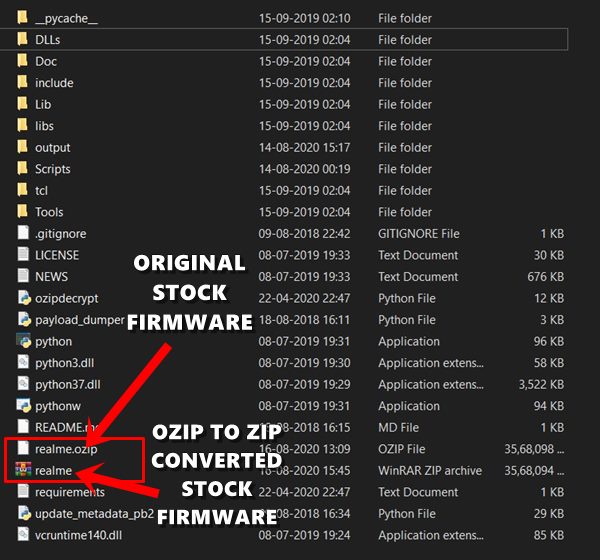
On the other hand, Realme packs its stock firmware in the OZIP format. So if you wish to root your device without using TWRP, then you will have to first extract this OZIP package. But this isn’t any normal file that you could extract via WinZIP or WinRAR. For this, you will have to make use of Python and the Ozipdecrypt file.
Once you decrypt the OZIP firmware using both these tools, you will then be presented with the stock firmware ZIP file. This could then easily be extracted via WinZIP or WinRAR. and then you could get your hands on the required files, including stock boot image. We will then patch this stock boot.img fi,e via Magisk, and then flash it via fastboot commands. Here are all the instructions related to how to extract the OZIP Realme Stock Firmware file using Python. Follow along.
How to Extract OZIP Realme Stock Firmware

To begin with, there are a couple of requirements that your device needs to satisfy. Make sure to download the files from the below section before proceeding with the steps.
Downloads
- First and foremost, download and install Python on your PC. The installation isn’t difficult, just follow the on-screen instructions that appear and it should be installed within minutes.
- Next up, download the Ozipdecrypt tool from GitHub. To download it from GitHub, you will have to click on the Code button and then click on the Download ZIP button.
- Finally, download your Realme device stock firmware . It will be in the OZIP format.
Once you have downloaded all these files, proceed with the below steps to extract the OZIP Realme Stock Firmware.
STEP 1: Setting up the Working Environment
- Install Python onto your PC. The installation isn’t difficult, just follow the on-screen instructions and the process should be completed within minutes. It is recommended (not compulsory though) not to change the installation directory. So, if you have chosen the default directory, then the installation directory will be C:\Users\YOURNAME\AppData\Local\Programs\Python\Python37-32. Keep this location in mind.
- Next up, extract the downloaded Ozipdecrypt tool inside the same folder where Python is installed. There should be four files within it- .gitignore, README.md, ozipdecrypt.py, and requirements.txt file. Make sure you place all these four files inside the Python installation folder.
- Finally, place the Realme stock firmware (in OZIP format) within the Python folder as well. So now, the Python folder will have the Python files, four Ozipdecrypt files, and an OZIP stock firmware.
TIP: Rename the stock ROM to something shorter, as we will have to input the same name later on in the command prompt. We have named the firmware file to Realme, hence the complete name becomes Realme.ozip.
- [GUIDE] Flash ROMs/Magisk/TWRP/Kernels on A/B Partition Devices
- Everything About Magisk- Manager, Modules, and More
- Best Magisk Modules of 2020 [PART-1]
- [3 METHODS] Unroot any Android Device-Uninstall Magisk
STEP 2: Launch CMD Window
Head over to the folder where you have installed Python. If you haven’t changed the installation directory, then the location will be C:\Users\YOURNAME\AppData\Local\Programs\Python\Python37-32. Inside the folder’s address bar, type in CMD and hit Enter. This will launch the Command Prompt.
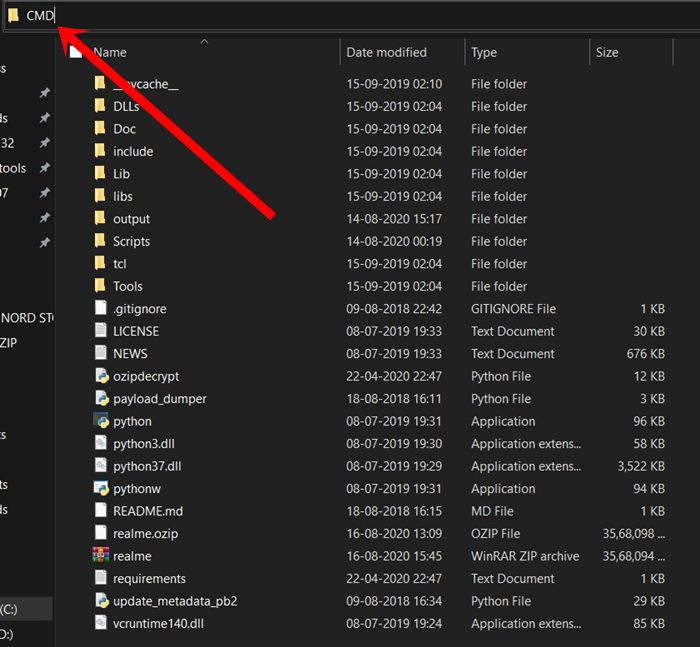
You could also launch Command Prompt from Start menu as an admin and then type ic CD followed by the Python installation directory. In our case, it will be CD C:\Users\YOURNAME\AppData\Local\Programs\Python\Python37-32. For ease, we would take the first route, i.e. directly opening CMD inside the Python folder only.
STEP 3: Install Pycryptodome via CMD
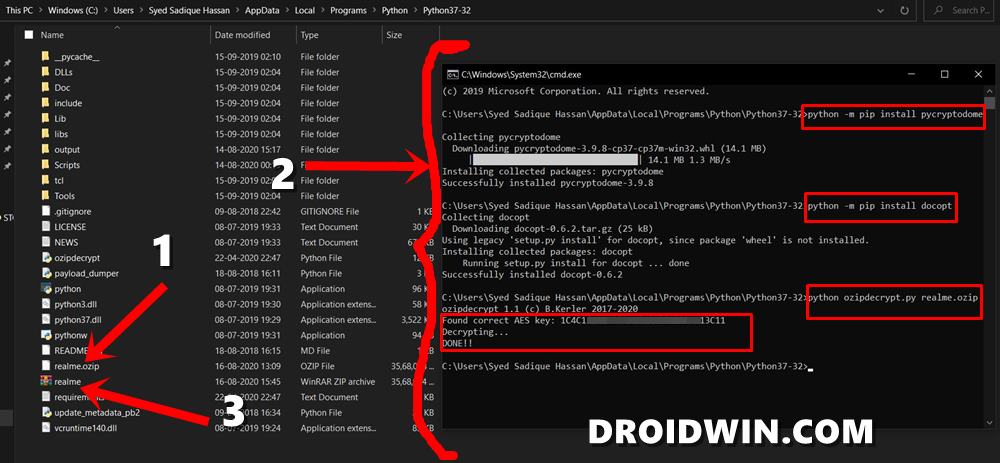
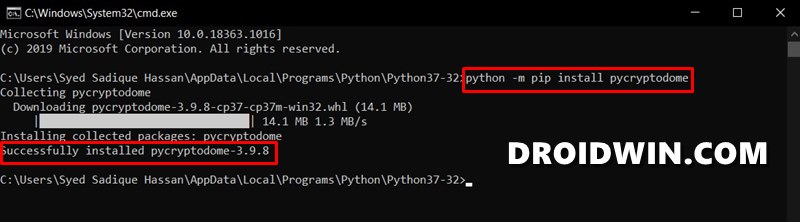
Copy-paste the below command in the opened CMD window to install Pycryptodome:
python -m pip install pycryptodome
STEP 4: Install Docopt via CMD
Now copy-paste the following command inside the same CMD window to install Docopt:
python -m pip install docopt

STEP 5: Extract Realme OZIP Stock ROM (Firmware)
Finally, execute the below command in the same CMD window to extract the Realme OZIP firmware package.
python ozipdecrypt.py realme.ozip
Since we have named the stock ROM as Realme, hence the above command. Make sure to modify the code accordingly as per the name of your Realme firmware file.

You should then see the message as
Found correct AES key: your_key Decrypting… Done!!
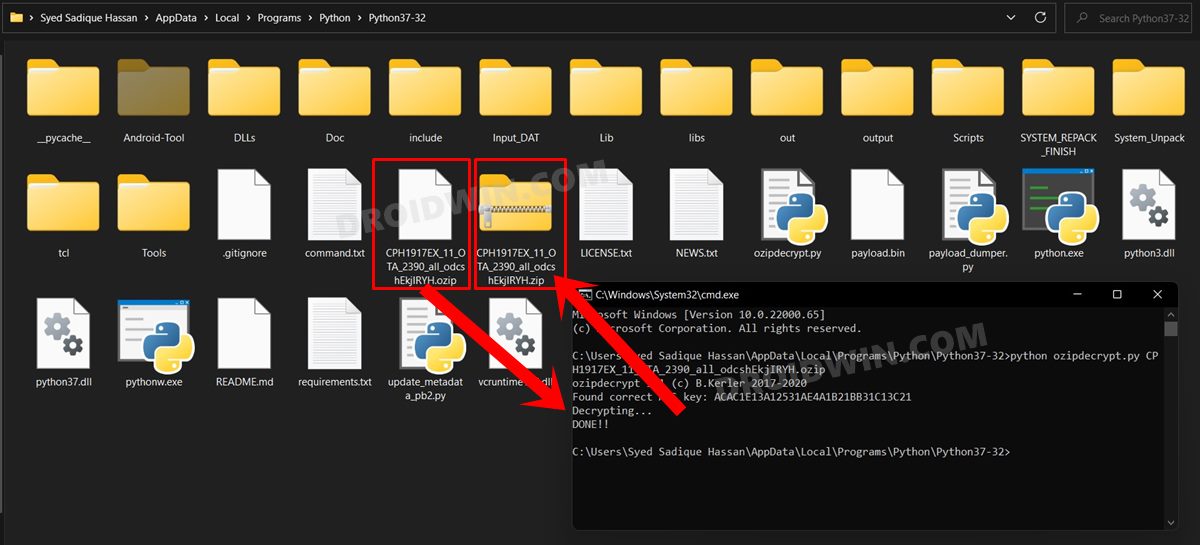
As soon as you see the above message, you should see the Realme stock firmware file in the ZIP format placed inside the same Python folder. In our case, this folder is C:\Users\YOURNAME\AppData\Local\Programs\Python\Python37-32.
- How to Disable Screenshot Captured Notification and Sound without Root
- How to Watch Netflix in HD on Rooted Devices ( Get Widevine L1 Support )
- Enable USB Debugging on a Broken Android Device’s Screen? Here’s a Workaround
- How to Go Back to Stock ROM from GSI ROM (All Android Devices)
STEP 6: Extract Realme Boot.img Image File
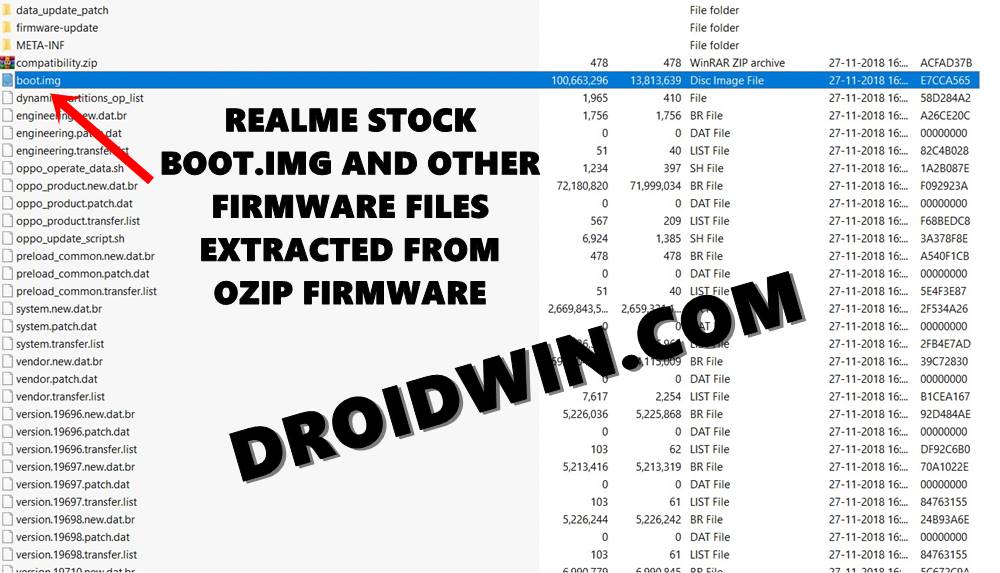
You could now simply extract the Realme stock ZIP firmware that you have got by executing the above steps. Take the help of the WinRAR or WinZIP software and extract the desired file/files. For this guide, we will only be needing the stock boot.img. So extract it to a convenient location and that’s all! You could now proceed ahead with rooting your device by taking the help of the following guides:
- Patch Stock boot image via Magisk and Flash it via Fastboot
- Root Android device without TWRP Recovery
How to Extract .DAT.BR from OZIP Firmware
As you might have noticed, upon executing the above steps, you got the stock boot.img file in IMG format. This could be flashed via Fastboot Commands. But what about other partition files? Well, other files such as system, vendor, etc are in .dat.br format, which cannot be directly flashed via Fastboot.
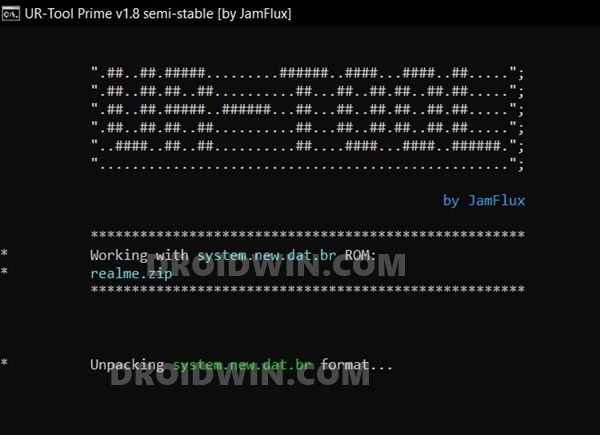
So how could you convert it to Fastboot flashable IMG format? Well, if you wish to do so, then please refer to this guide: How to Extract Fastboot Images from Realme/Oppo OZIP Firmware . The benefit of this conversion? If you end up bricking your device, then you could manually flash all the partition files via Fastboot Commands.
User Requested Realme Stock Boot.img Extracted from OZIP
Some users were facing issues in carrying out the decryption, so I extracted the OZIP firmware and uploaded the stock boot.img file. Here’s the direct link for the same. Double-check that the device, as well as the software version, are exactly the same.
- Realme 3 Pro: Realme_3_Pro_RMX1851EX_ 11.C.14 _droidwin.com_boot.img
- Realme 7: Realme_7_RMX2151PU_ 11.A.87 _droidwin.com_boot.img
- Realme X2 Pro: Realme_X2_Pro_RMX1931EX_ 11.C.36 _droidwin.com_boot.img
- Realme 7: Realme 7 RMX2151PU 11.A.91 _droidwin.com_boot.img

- Sravan 4 years ago Reply Hi .. Can U Pls help me with the img file of Realme 5 pro.. I tried the above method but facing the errors..
- Peter 4 years ago Reply Hello, can you upload the realme 7 pro Global ozip. Realme Stock Boot.img .Thank you
- Paul P. 4 years ago Reply FOR THOSE WHO ARE HAVING ERRORS FROM: Detected mode 2…. Finding key… realme.ozip Unknown mode2, boot.img wasn’t encrypted Extracting… realme.ozip Traceback (most recent call last): File “C:\Users\name\AppData\Local\Programs\Python\Python310\ozipdecrypt.py”, line 258, in main if zo.extract(‘oppo_metadata’, outpath): …. HERE ARE THE STEPS TO FIX THIS: 1. Right click the ozipdecrypt.py, and open it with notepad++ (you can use other source code editor that shows the lines of codes on the left. notepad alone is not recommended) 2. Go to line 208 and you will see: os.remove(os.path.join(temp,”out”)) 3.To fix the problem, simply add # to it to make it as a comment and turn it into something like this: # os.remove(os.path.join(temp,”out”)) 4. This will fix the problem Christian 3 years ago Reply After I put “# ” in line 208 , I got a new error “python.exe: can’t open file ‘C:\Users\Kevin\AppData\Local\Programs\Python\Python311\ozipdecrypt.pyRrealme.ozip’: [Errno 2] No such file or directory”
- Partha Sarathy Dash 4 years ago Reply its show oppo_metadata not found in archive
- ronald 4 years ago Reply Hi Mr. Hassan, kindly assist with my device please. Model: oppo A12 CPH2083EX_11_A.65 I get an error running the command python -m pip install pycryptodome please assist with the boot.img
- prem 4 years ago Reply hello sir, suddenly while iam trying to change from experience ui to realme ui in my real me 3 pro mobile i have unexpectedly deleted the vendor now the phone is starting continuously iam not able to use it…. could you please help me os to get installed in my mobile… only twrp is opening recovery mode… that also unable to flash ozip format files please help me sir …
- Cryoma 4 years ago Reply Bro, I did everything as said but it said, “There is no item named ‘OPPO metadata’ in the archive” and a bunch of other things. Pls help.
- Viol Voldegort 4 years ago Reply Bro help me extract CPH1853EX_11_A.39 boot image its in ozip file
- Arya 4 years ago Reply Please extract all the image file of realme c15 for me, cause I am not able to do. Thanks in advance
- Naoshi 4 years ago Reply Hello, can I request a recovery.img file for realme 3 pro version RMX1851EX_11.C.18 so that I can unlock the ramdisk? Thanks.
- Naoshi 4 years ago Reply Hello, can I request a recovery.img file for realme 3 pro? Thanks.
- varun 4 years ago Reply WindowsError: [Error 32] The process cannot access the file because it is being used by another process
- john 4 years ago Reply Can you help decrypt the OZIP for RMX1971EX? Doesn’t work for me.
- ichui 4 years ago Reply oplus verify fail need to verify signature of another brand oplus verify pass fastboot verify success fastboot_unlock_verify ok how to fix this? Sadique Hassan 4 years ago Reply So you are getting this error while trying to unlock the device’s bootloader? If yes, then let me know the device name as well. Mohammed elsaid 4 years ago Reply I got the same error when I Tried to unlock bootloader for my realme c25s. I used the deep testing tool but my bootloader still locked 😭, can you help me!
- Reguram 5 years ago Reply C:\Users\Reguram\AppData\Local\Programs\Python\Python39>python ozipdecrypt.py realme.ozip ozipdecrypt 1.31 (c) B.Kerler 2017-2021 “There is no item named ‘oppo_metadata’ in the archive” Detected mode 2…. Finding key… realme.ozip Unknown mode2, boot.img wasn’t encrypted Extracting… realme.ozip Traceback (most recent call last): File “C:\Users\Reguram\AppData\Local\Programs\Python\Python39\ozipdecrypt.py”, line 258, in main if zo.extract(‘oppo_metadata’, outpath): File “C:\Users\Reguram\AppData\Local\Programs\Python\Python39\lib\zipfile.py”, line 1616, in extract return self._extract_member(member, path, pwd) File “C:\Users\Reguram\AppData\Local\Programs\Python\Python39\lib\zipfile.py”, line 1655, in _extract_member member = self.getinfo(member) File “C:\Users\Reguram\AppData\Local\Programs\Python\Python39\lib\zipfile.py”, line 1429, in getinfo raise KeyError( KeyError: “There is no item named ‘oppo_metadata’ in the archive” Bro Iam Using Realme 2 (RMX1809).Pls help
- Abinesh 5 years ago Reply C:\Users\Abinesh\AppData\Local\Programs\Python\Python39>python ozipdecrypt.py realme.ozip ozipdecrypt 1.31 (c) B.Kerler 2017-2021 “There is no item named ‘oppo_metadata’ in the archive” Detected mode 2…. Finding key… realme.ozip Unknown mode2, boot.img wasn’t encrypted Extracting… realme.ozip Traceback (most recent call last): File “C:\Users\Abinesh\AppData\Local\Programs\Python\Python39\ozipdecrypt.py”, line 258, in main if zo.extract(‘oppo_metadata’, outpath): File “C:\Users\Abinesh\AppData\Local\Programs\Python\Python39\lib\zipfile.py”, line 1616, in extract return self._extract_member(member, path, pwd) File “C:\Users\Abinesh\AppData\Local\Programs\Python\Python39\lib\zipfile.py”, line 1655, in _extract_member member = self.getinfo(member) File “C:\Users\Abinesh\AppData\Local\Programs\Python\Python39\lib\zipfile.py”, line 1429, in getinfo raise KeyError( KeyError: “There is no item named ‘oppo_metadata’ in the archive” During handling of the above exception, another exception occurred: Traceback (most recent call last): File “C:\Users\Abinesh\AppData\Local\Programs\Python\Python39\ozipdecrypt.py”, line 317, in sys.exit(main(args.filename)) File “C:\Users\Abinesh\AppData\Local\Programs\Python\Python39\ozipdecrypt.py”, line 265, in main return mode2(filename) File “C:\Users\Abinesh\AppData\Local\Programs\Python\Python39\ozipdecrypt.py”, line 208, in mode2 os.remove(os.path.join(temp,”out”)) PermissionError: [WinError 32] The process cannot access the file because it is being used by another process: ‘C:\Users\Abinesh\AppData\Local\Programs\Python\Python39\temp\out’
- Bikash 5 years ago Reply Realme x2 pro. RMX1931 (IN) All my sensors were not working because i accidentally flashed vbmeta.img to persist partition using twrp. So i took persist partition of some other realme x2 pro and flashed it. My sensors are now working fine except fingerprint. Tried. 1. Flashed stock rom (ozip and ofp) 2. Flashed android 9 3. Took it to service center for calibration. They said 3 test (that is yellow rubber) fails 4. Tried to calibrate it myself 5. Rooted the device to fix partition files but couldn’t find exact folders in persist partition. Question: How to get persist.img file? Is it unique for ever device? Is service center themself couldn’t fix it, what’s my next hope? Why only fingerprint broke? Please help.
- Ajay sahani 5 years ago Reply ofp file for realme xt
- kaon 5 years ago Reply Hello. I tried this method but somehow i got 2(or 3?) errors – Finding key… C:\Users\Administrator\Downloads\realme.ozip Unknown mode2, boot.img wasn’t encrypted – KeyError: “There is no item named ‘oppo_metadata’ in the archive” – PermissionError: [WinError 32] The process cannot access the file because it is being used by another process: ‘C:\Users\Administrator\Downloads\temp\out’ i downloaded file from realme official site and turn out it was OTA packages, i searched for entire firmware file but i cant find it. what i can found is a firmware file with .ofp format that must be used with msmdownloadtools, which that tools need an account and password that i dont have. can you extract the boot.img for me? my device is Realme C1 thank you
- Debdut Majumder 5 years ago Reply C:\Users\DEBDUT MAJUMDER\AppData\Local\Programs\Python\Python39>python ozipdecrypt.py realme.ozip ozipdecrypt 1.31 (c) B.Kerler 2017-2021 Traceback (most recent call last): File “C:\Users\DEBDUT MAJUMDER\AppData\Local\Programs\Python\Python39\ozipdecrypt.py”, line 317, in sys.exit(main(args.filename)) File “C:\Users\DEBDUT MAJUMDER\AppData\Local\Programs\Python\Python39\ozipdecrypt.py”, line 255, in main with zipfile.ZipFile(filename, ‘r’) as zo: File “C:\Users\DEBDUT MAJUMDER\AppData\Local\Programs\Python\Python39\lib\zipfile.py”, line 1257, in init self._RealGetContents() File “C:\Users\DEBDUT MAJUMDER\AppData\Local\Programs\Python\Python39\lib\zipfile.py”, line 1324, in _RealGetContents raise BadZipFile(“File is not a zip file”) zipfile.BadZipFile: File is not a zip file I got this error. Can u help ?? Sadique Hassan 5 years ago Reply Hi Debdut, judging by the error, the issue seems to be with the ZIP file itself. You would have to re-download the entire file and then re-try with the process.
- A.J 5 years ago Reply Hello. I tried this method, and all was working fine until I got the following message. “Detected mode 2…. Finding key… r7.ozip Unknown mode2, boot.img wasn’t encrypted” What do I do? The file is for the Realme 7 RMX2151, in-case that is important. Any help will be greatly appreciated. Thank you! Sadique Hassan 5 years ago Reply Hi AJ, sorry for the late reply, was down with ill health. Anyways, have you downloaded the entire firmware right or just the OTA. Because incremental OTA packages don’t have all the necessary packages and could show in an error or two. Or if nothing works out, I will provide the boot.img file to you. As of now, the latest version for your device is RMX2151PU_11.A.87. If that’s fine, then let me know. I’ll extract and upload the boot.img
- Ayush Vahangna 5 years ago Reply hy i got an error while running command python -m pip install pycryptodome it says python.exe: no module named pip device – Realme 3 – RMX1825 thank you Ayush Vahangna 5 years ago Reply okay so i solved this issue , but now i have another after running python ozipdecrypt.py filename.ozip it shows errno 2 no such file or directory . Although i rechecked my file name , dragged it , changed name but nothing happened . can anyone help me ? Thank You Sadique Hassan 5 years ago Reply Hi Ayush, were you able to rectify the issue. If not, the issue might be with the output folder. Could you see the Output folder inside the Python folder? If not, then manually create it, REBOOT YOUR PC [important] and then try executing the command
- David 5 years ago Reply i cannot extract the ozip file : C:\Users\David\AppData\Local\Programs\Python\Python37>python ozipdecrypt.py realme.ozip ozipdecrypt 1.31 (c) B.Kerler 2017-2021 “There is no item named ‘oppo_metadata’ in the archive” Detected mode 2…. Finding key… realme.ozip Unknown mode2, boot.img wasn’t encrypted Extracting… realme.ozip Traceback (most recent call last): File “ozipdecrypt.py”, line 258, in main if zo.extract(‘oppo_metadata’, outpath): File “C:\Users\David\AppData\Local\Programs\Python\Python37\lib\zipfile.py”, line 1602, in extract return self._extract_member(member, path, pwd) File “C:\Users\David\AppData\Local\Programs\Python\Python37\lib\zipfile.py”, line 1641, in _extract_member member = self.getinfo(member) File “C:\Users\David\AppData\Local\Programs\Python\Python37\lib\zipfile.py”, line 1398, in getinfo ‘There is no item named %r in the archive’ % name) KeyError: “There is no item named ‘oppo_metadata’ in the archive” During handling of the above exception, another exception occurred: Traceback (most recent call last): File “ozipdecrypt.py”, line 317, in sys.exit(main(args.filename)) File “ozipdecrypt.py”, line 265, in main return mode2(filename) File “ozipdecrypt.py”, line 208, in mode2 os.remove(os.path.join(temp,”out”)) PermissionError: [WinError 32] The process cannot access the file because it is being used by another process: ‘C:\Users\David\AppData\Local\Programs\Python\Python37\temp\out’ any help? thanks! Sadique Hassan 5 years ago Reply Hey David, are you trying these steps on an incremental update/OTA. I would suggest you download the entire firmware and then try it out. However, if you are already trying it via the full firmware, then please let me know your device name as well as the current firmware version. I will try it from my side and upload the file. Dream 3 years ago Reply hello sir good day, sir can you please help me have the fastboot images of realme 5? because its been 3 days since my realme 5 has been bricked. I need the vbmeta ,recovery img, boot img, system img, vendor img, dtbo img and also twrp sir of REALME 5. I tried to extract those files by following the intructions above but I encounter the same problem with David. I also tried to download acervenky’s extracted files but it seems too slow to download and it fails. PLease help me sir! Daman 4 years ago Reply Sadique, I’m encountering the same error as David above. As far as OZIPs go, below is everything that’s available for download. So we’re a bit confused here as to how an “ENTIRE” firmware is defined,… and where to find one. Any pointer will be appreciated! Thank you! (Source: https://gist.github.com/techyminati/6e1181dbeedb8015343263b44dc19180 ) RealmeUI Recovery ROMs (OZIPs) for realme C11/12/15 realmeUI 1.0 RMX2185_11_A.65 – https://download.c.realme.com/osupdate/RMX2185_11_OTA_0650_all_jif6XLQEIp0p.ozip RMX2185_11_A.67 – https://download.c.realme.com/osupdate/RMX2185_11_OTA_0670_all_FLnpCtMH2xkx.ozip RMX2185_11_A.71 – https://download.c.realme.com/osupdate/RMX2185_11_OTA_0710_all_Jp7riqlsJmzK.ozip RMX2185_11_A.75 – https://download.c.realme.com/osupdate/RMX2185_11_OTA_0750_all_1iCbWOHHNxSO.ozip RMX2185_11_A.79 – https://download.c.realme.com/osupdate/RMX2185_11_OTA_0790_all_dsysIPFhgWAX.ozip RMX2185_11_A.81 – https://download.c.realme.com/osupdate/RMX2185_11_OTA_0810_all_jLGoLXnVv2Zm.ozip RMX2185_11_A.83 – https://download.c.realme.com/osupdate/RMX2185_11_OTA_0830_all_uLcb7GHvVHvP.ozip RMX2185_11_A.85 – https://download.c.realme.com/osupdate/RMX2185_11_OTA_0850_all_7NoWh6WgJDW4.ozip RMX2185_11_A.87 – https://download.c.realme.com/osupdate/RMX2185_11_OTA_0870_all_1TbYEnns8MEW.ozip RMX2185_11_A.93 – https://download.c.realme.com/osupdate/RMX2185_11_OTA_0930_all_wkNsTu5frhBK.ozip RMX2185_11_A.95 – https://download.c.realme.com/osupdate/RMX2185_11_OTA_0950_all_ok8HDIbdVBGM.ozip RMX2185_11_A.97 – https://download.c.realme.com/osupdate/RMX2185_11_OTA_0970_all_coCt7PPQe3Da.ozip realmeUI 2.0 No Public Releases Yet. Notes : RMX2185_11_A.65 was first ever realmeUI Public Release for realme C11. RMX2185_11_A.97 is latest build of realmeUI 1.0 for realme C11. There are no realmeUI 2.0 Public Releases Yet. Last Updated On : 01/09/2021 varun 4 years ago Reply sir my device is realme 3 pro and im having the same issue Gaga 5 years ago Reply bro i have same problem with him, maybe you can help me too? my devices is Oppo A3s (CPH 1803), Version : CPH1803EX_11_A.34 btw thanks for the tutorial bro its helps me a lot ! respect!! Gabriel 5 years ago Reply Having a problem like this too…can you help me please? Thanks..
- lucasymax 5 years ago Reply I have the same problem as fubuki same mistake my smartphone is realme 7 rmx2151 Build RMX2151_11_A.83 could you help me thanks for your attention regards Sadique Hassan 5 years ago Reply Give me a day or two, will upload the file here itself. Sadique Hassan 5 years ago Reply Uploaded Realme_7_RMX2151PU_11.A.87_droidwin.com_boot.img in this guide itself. This is the latest one that I could find from the Realme official site.
- shubham 5 years ago Reply can you help me with realme 2 pro i am useing it with color os but want to try realme os my computer does not supporting pyton Sadique Hassan 5 years ago Reply Hi Shubham, please let me know the current firmware version installed on your device as well. Bec 3 years ago Reply Hi Sadique. I’ve been reading a lot of your post over the last few days. Regarding currupt boot images ect. I’ve been looking everywhere for an ‘Oppo a74 5g cph2197’ stock firmware OZIP. So i can try your steps. I was wandering if you could point me in the right direction. Or preferably. If you could extract the Oppo cph2197’s OZIP firmware and upload the stock boot.img files please.
- Fubuki Shirou 5 years ago Reply used: python ozipdecrypt.py filename.ozip which resulted: ozipdecrypt 1.3 B.Kerler 2017-2021 Detected mode 2…. Finding key… filename.ozip Unknown mode2, boot.img wasn’t encrypted and nothing…..didn’t extract the ozip file. NEED HELP !!!! Sadique Hassan 5 years ago Reply Hi Fubuki, could you let me know your device name as well as the current firmware version. I will try extracting this OZIP file from my end, and if successful, will upload the files to Drive. Rkuinkel 5 years ago Reply Realme 3 pro device RMX1851EX_11_OTA_1140_all_r2G1igJtTlW1.ozip Sadique Hassan 5 years ago Reply Hi Rkuinkel, I was able to get hold of the RMX1851EX_11.C.14 firmware from Realme’s official site (the latest at the time I checked). Here’s the extracted stock boot.img file extracted from that firmware: Realme_3_Pro_RMX1851EX_11.C.14_droidwin.com_boot.img Eloy 5 years ago Reply Same problem in Realme 7 RMX2151PU_11.A.91 Firmware link : I want boot.img Please help me Thanks Sadique Hassan 4 years ago Reply Added the boot.img file for Realme 7 RMX2151PU_11.A.91 to the guide.
- michael 5 years ago Reply not working bro it say boot.img not enrypted Sadique Hassan 5 years ago Reply So Michael you were able to extract the boot.img file from OZIP but getting this error while flashing this file to your deivce? And please let me know your device name as well. Lucasymax 5 years ago Reply Hi good day Could you send me the realme 7 RMX2151 Build RMX2151_11_A.87 file already extracted in .ofp or .zip format to have backup in case I need to flash my device. Thank you greetings from Mexico
- Zabut 5 years ago Reply Thank you, very useful. I don’t understand why Realme is using ozip instead of zip… I just had to remove a line to install the zip on my device. And thanks to bkerler, great software. Sadique Hassan 5 years ago Reply Thanks for the appreciation. And Yes, Bkerler has indeed done a fantastic job with this software.
- alfarouq_zackyu 5 years ago Reply tanks.work for me
- bhupendra 5 years ago Reply noot working says wrong boot.img.didnt boot. Sadique Hassan 5 years ago Reply Hi Bhupendra, could you let me know at which stage did you faced this issue? Were you successful in extracting the boot.img file?
- Dipak 5 years ago Reply Hii I just broke my realme 2 (RMX1805) while rooting it. Now currently I have only bootloader and logo I dont even have recovery in my phone (maybe its called soft-brick?) I searched all the internet to flash it on stock firmware but could not find anything helpful. There are some videos which maybe true but they used something called pinout method and only repairing shop guy can do those things…Any solution for me?? Email: Thanks in advance!!! Sadique Hassan 5 years ago Reply Hi Dipak, apologies for the late reply. The solution that you saw in the video is indeed used by the service center and is quite possible for a general user like us to try it out. Fortunately, Qualcomm devices come with an EDL mode that you could boot into and hence flash the stock firmware to unbrick your Realme device. I have covered the detailed guide on this topic, [please refer to it: How to Boot Realme Devices to EDL Mode (3 Methods) | Unbrick It Do let me if this guide helps you out or not. If it doesn’t, then could you please take a screenshot of the bootloader screen that you are able to access. I would then list out other fixes accordingly.
- Tonmoy 5 years ago Reply bro i did something wrong and now my wifi and FP is not working on Realme x2… how could i manage to fix them?? bootloader is unlocked.. Sadique Hassan 5 years ago Reply I guess there are some issues with the modem. In that case, try flashing the OFP firmware package via the Realme Flash Tool built for the Realme X2 device. Here’s the official post having the required files and instructions: realme Flash tool Tutorial for realme X2
- Qaiser 5 years ago Reply If i compress the boot img file and flash it using twrp … will it be fine Sadique Hassan 5 years ago Reply Hi Qaser, once you have extracted the boot.img from OZIP, it is better that you flash it via Magisk… Compressing back that image to the stock firmware wouldn’t do any good, as TWRP doesn’t support OZIP format. Or if you already have a working TWRP build, I would suggest you save the efforts of firmware extraction and directly root via TWRP itself. Here are both the guides: Root without TWRP Root via TWRP I guess I have cleared your doubts, if not do drop in your further queries 🙂 daren 5 years ago Reply Can you direct where TWRP for ‘realme narzo 30 pro 5G’ is available?
(Cancel Reply)
Δ
