How to Fix ADB Device Offline Error: Detailed Guide
In this guide, we will show you various methods to fix the ADB device offline error. ADB and Fastboot commands are perhaps the most powerful tools that tech enthusiasts could have at their disposal. If we keep our focus on ADB, then its functionality is spread across both the basic and advanced domains. The basic tasks involve booting your device to recovery (stock or TWRP), rebooting to Fastboot or Bootloader Mode.
Then the advanced functionality usually involves unlocking/re-enabling the device’s features that have been disabled by the OEM. In this regard, recently I was trying to bring back the WiFi toggle on my Android 12 device which Google has removed from the stock OS. For that, I just needed to execute a single line of command and the task would have been complete. However, it proved to be easier said than done. Every time I executed the ADB command, it gave out the device offline error.
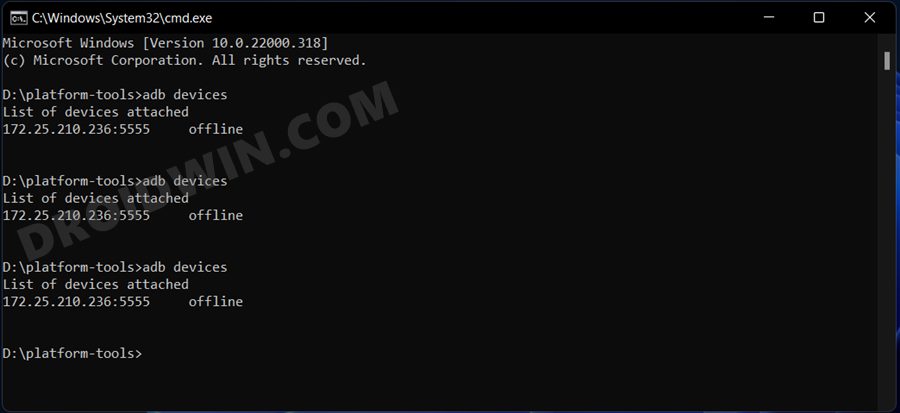
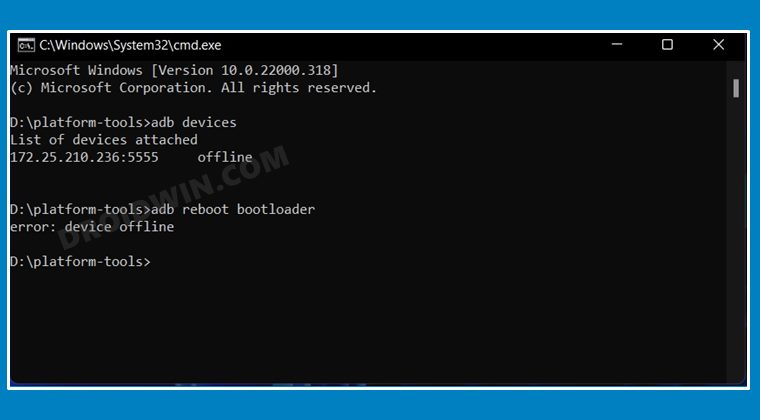
But in all of this, there was one interesting thing that I noticed- the command prompt was still able to identify the device ID upon executing the adb devices command. So my first course of action was that there might be something wrong with the device. So I re-enabled USB debugging/switched to a different cable and tried other such tweaks, but was still getting the same ADB Device Offline error. Just to tinker a little bit, I tried executing another command to boot my device to Fastboot Mode. But still got the same error.
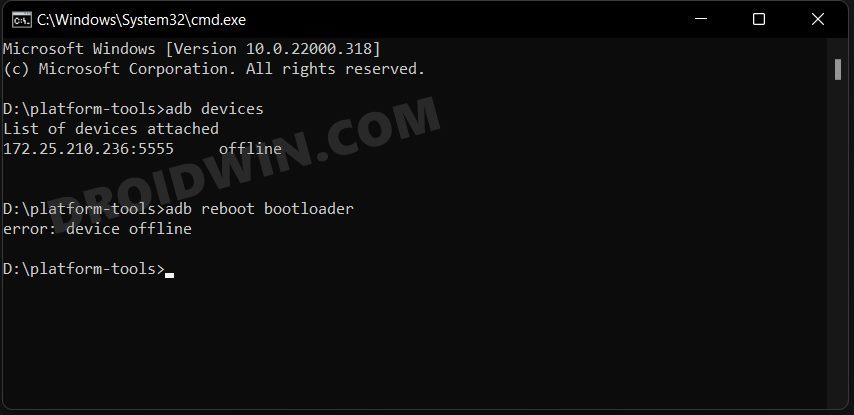
So this made me sure that the issue is with the PC itself. To double-check, I switched over to a different Android device and again got this error, but this time I noticed something interesting- it was still displaying the same device ID as what was shown for my first device. This isn’t possible since two devices cannot have the same ID. Well, the weirdest part was the fact that even when no device was connected it still showed the device ID.
So all this made perfect sense now- the ADB window wasn’t even checking the status of the device in the first place. Whatever cached values were saved, it just displayed that- irrespective of the device connected. Now that I got hold of the reason behind this issue, the fix was relatively easy to execute. And yes, it worked out on the first try itself. So without further ado, let’s check out the steps to fix the ADB device offline error. Follow along.
- How to Fix ADB Device Offline Error FIX 1: Try Basic USB Tweaks FIX 2: Re-Enable USB Debugging FIX 3: Use the Latest Android SDK Platform Tools FIX 4: Restart ADB Server
How to Fix ADB Device Offline Error

It is recommended that you try out each of the below-mentioned workarounds and then see which one spells out success. So with that in mind, let’s get started.
FIX 1: Try Basic USB Tweaks
First and foremost, you should try the below-listed USB workarounds, as in most cases, they are more than sufficient to rectify the underlying ADB issue. So give it a try and then check out the result.
- Use a different USB cable
- Use a USB 2.0 Port instead of the USB 3.0
FIX 2: Re-Enable USB Debugging
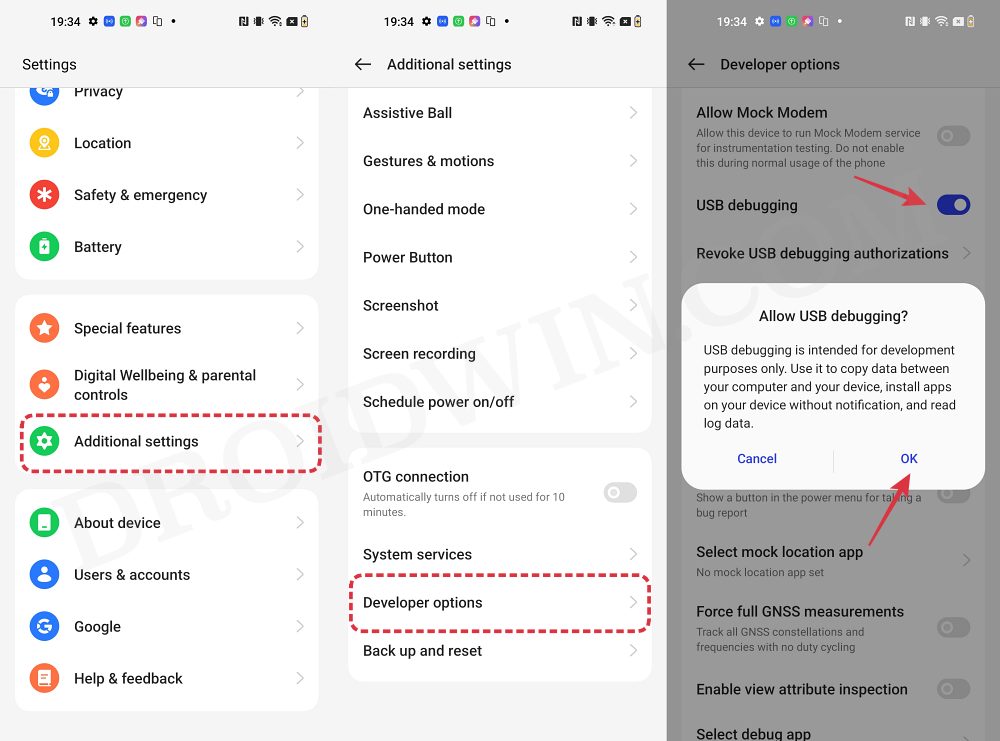
You should also consider disabling and then re-enabling USB Debugging. This will refresh its underlying settings and could well rectify the issue that we are currently dealing with. So head over to Developer Options and disable USB Debugging. Then wait for a few seconds and re-enable the toggle. Check if it fixes the ADB issue or not.
FIX 3: Use the Latest Android SDK Platform Tools
Next up, you should consider using the latest version of the Android SDK Platform Tools . You can get the same from my linked guide. So, use this build and then check if it fixes the ADB Device Offline error.
FIX 4: Restart ADB Server
- To begin with, download the Android SDK Platform Tools and extract it to any convenient location on your PC. Doing so will give you the platform-tools folder, which will be used throughout this guide.
- Next up, enable USB Debugging so that your device is recognizable by the PC in ADB mode. So head over to Settings > About Phone > Tap on Build Number 7 times > Go back to Settings > System > Advanced > Developer Options > Enable USB Debugging.
- Then head over to the platform-tools folder address bar, type in CMD, and hit Enter. This will launch the Command Prompt.
- Now type in the below command to kill the ADB Server: adb kill-server
- After that, use the below command to restart the ADB server: adb start-server
- The daemon will now restart and the underlying issue should be fixed.

- medical pharmacy 10 months ago Reply If some one wants expert view about blogging then i advise him/her to go to see this weblog, Keep up the nice work.
- Diego 11 months ago Reply Brooo u saved me!! worked for me and easy fix, GOAT
- vorko 3 years ago Reply doesn’t work. Device is offline.
- a 3 years ago Reply It doesn’t work. The device is still offline.
(Cancel Reply)
Δ
