How to Fix All ADB and Fastboot Errors
In this comprehensive tutorial, we will show you various methods to fix all the types of ADB and Fastboot Errors. When it comes to custom development, ADB and Fastboot Commands are literally unsung heroes. Their usage is so much important that you wouldn’t be able to carry out any of these in the first place had it not been for these commands. The first entry point to this domain requires you to unlock the device’s bootloader, which isn’t possible until you boot the device to the Fastboot Mode.
After this, be it for flashing custom ROMs, recoveries like TWRP , or even rooting the device via Magisk (either by flashing Magisk App or patching and flashing boot.img ), all these make use of Fastboot Mode. And for booting your device to Fastboot – you will need to use the ADB Commands. So this is a vicious cycle that is extremely hard to escape, and one which tech enthusiasts would like to escape from as well.
While there is no universal fix, (there are 5-6 methods to fix these issues), one thing stays the same. These five-six methods are known to rectify all these command errors. So rather than documenting each of them under separate guides, I decided to document them under one roof. Without any further ado, let’s get started with this tutorial to fix all the ADB and Fastboot Errors.
How to Execute Android ADB Fastboot Commands Wirelessly
Run ADB Fastboot Commands directly on Android without Root
How to Use ADB and Fastboot Commands on Android Without PC
List of Useful ADB and Fastboot Commands
How to Fix All ADB and Fastboot Errors Use USB 2.0 Port and Official USB cable Enable USB Debugging Install Android SDK Platform Tools Launch CMD inside ADB directory Authorize USB Debugging Restart ADB Server Prefer PTP Mode over MTP Install Android ADB Interface Drivers Set Up ADB Environmental Variables
Most Common ADB and Fastboot Errors and their Fixes
How to Fix All ADB and Fastboot Errors

Given below are the various methods to fix the ADB issues. However, there’s no universal fix as such. You will have to try each one of them until you are able to achieve success. Furthermore, we will start off with the basic fixes before moving on to the slightly advanced ones. Follow along.
Use USB 2.0 Port and Official USB cable
First and foremost, you should use the USB 2.0 Port of your PC or laptop. There have been numerous instances of the USB 3.0 Ports causing issues while executing ADB commands. So make sure you plug the device into a 2.0 Port. Since we are discussing USB, make sure to use the official USB cables that shipped with your device.
If that is not possible, then for alternatives use a cable that shipped in with other Android devices. Never try with a standalone USB cable as there are some that are only for charging purposes, and are unable to carry out any advanced functionalities. So use a USB 2.0 Port and an official USB cable and see if it fixes the ADB and Fastboot errors or not.
Enable USB Debugging
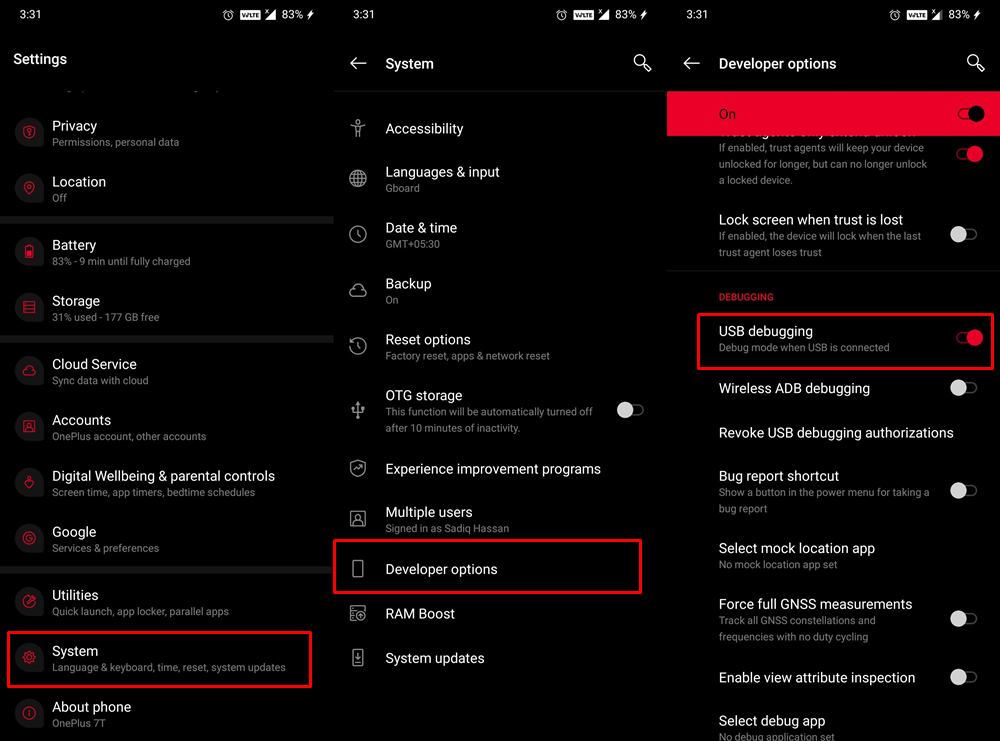
It goes without saying that to execute an ADB command, you will have to enable USB Debugging on your device beforehand. This helps your PC is identifying that the device is booted to this mode. So head over to Settings > About Phone > Tap on Build Number 7 times [MIUI Number in case of Xiaomi] > Go back to Settings > System > Advanced > Developer Options > Enable USB Debugging.
Install Android SDK Platform Tools
There are a plethora of ADB tools across the web. However, most of them have a missing binary or two. Hence you should always stick with the official ADB drivers provided by Google. So download the Android SDK Platform Tools on your PC and see if it fixes the ADB and Fastboot errors or not.
Launch CMD inside ADB directory
Firstly, maintain a safe distance from PowerShell and try executing all the commands in the Command Prompt itself. Furthermore, you should only launch the Command Prompt window inside the ADB directory. So once you have downloaded the Android SDK, extract it to any convenient location on your PC.
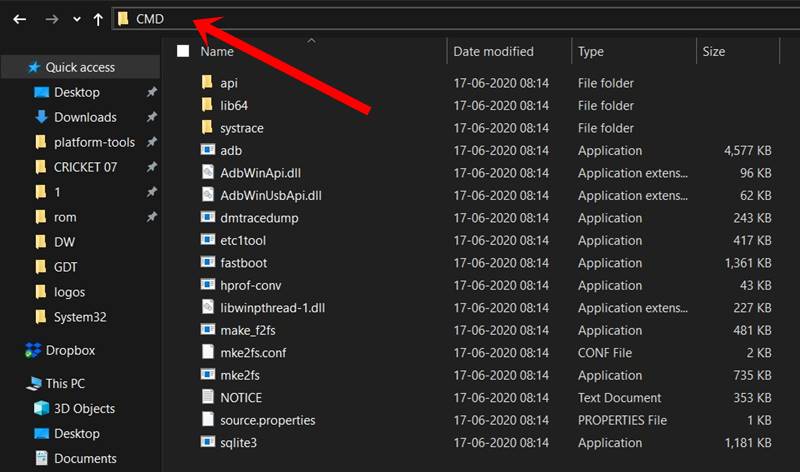
You should then get the platform-tools folder. Head over to its address bar, type in CMD, and hit Enter. This shall launch the Command Prompt window inside the ADB Directory (platform-tools). Now try executing the desired command and verify if it fixes the ADB and Fastboot errors or not.
Authorize USB Debugging
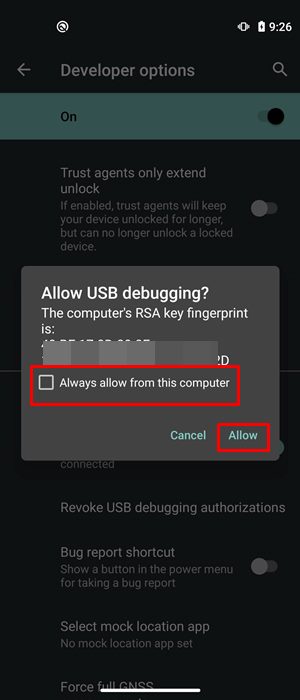
You might get an unauthorized ADB error when you haven’t responded to the prompt on your device to authorize the computer’s RSA key. So to authorize the connection, you could refer to our comprehensive guide on How to Fix Unauthorized Device with ADB Commands [3 methods] . The shorter instruction is to type in adb devices inside CMD and you should get the prompt on your device. Tap Allow and the connection stands authorized.
Restart ADB Server
- In some instances, you should consider killing the current running ADB server and relaunching its new instance.
- To do so, enter the following two commands in the CMD window that should be opened inside the platform-tools folder. adb kill-server adb start-server
- Once you have successfully executed both these commands, check if the ADB and Fastboot errors have been fixed or not.
Prefer PTP Mode over MTP
As strange as it may sound but the Media Transfer Protocol mode of USB connection has known to conflict with ADB commands. Hence you should consider switching over to the Picture Transfer Protocol mode. Here’s how it could be done:
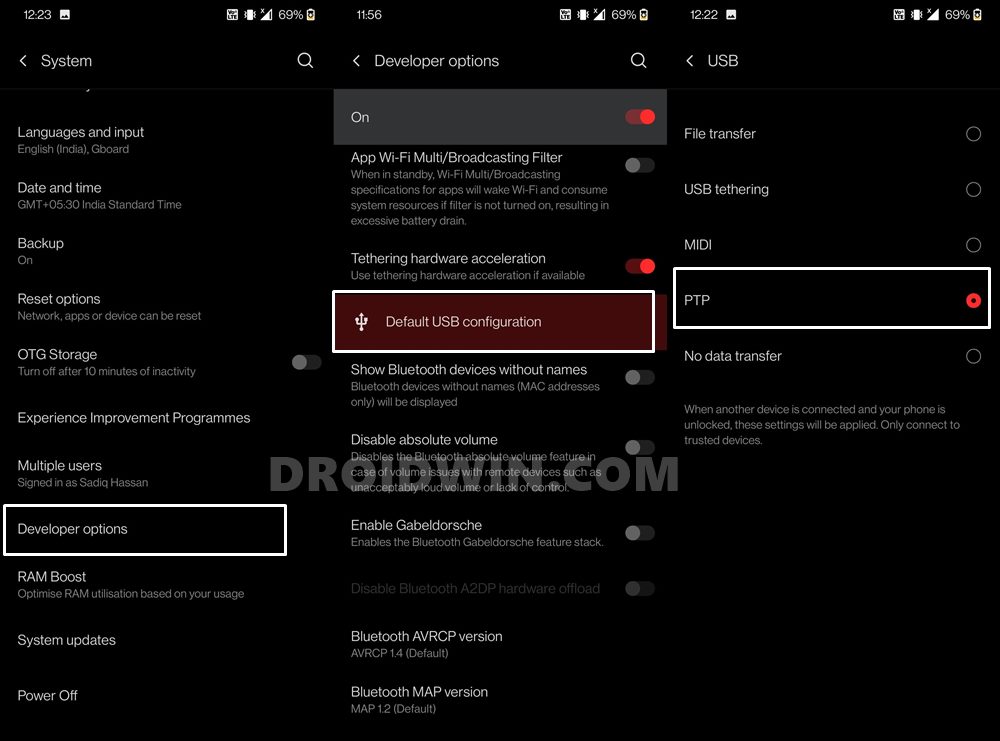
- Head over to Settings on your Android device.
- Then go to System > Developer Options.
- Scroll to Default USB Configuration and select PTP.
Now try executing the desired command in the CMD window and see if it fixes the ADB and Fastboot errors or not.
Install Android ADB Interface Drivers
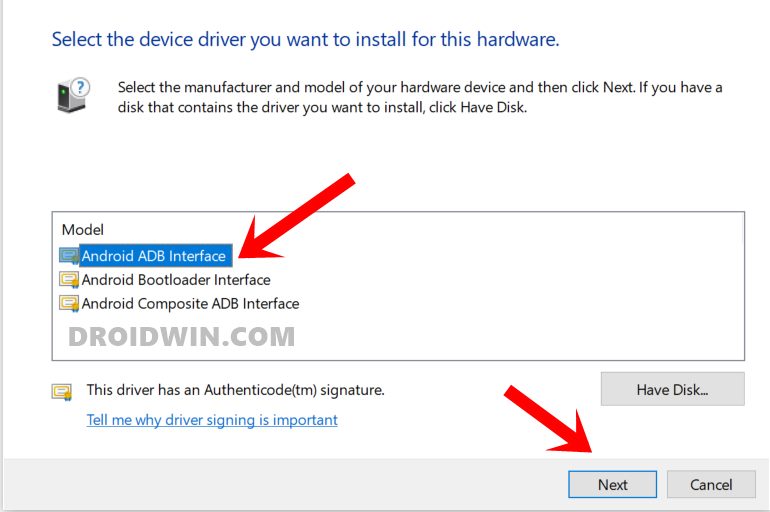
Nowadays these drivers are automatically installed the first time you connect your device to the PC via USB cable. But there have been a few instances where the drivers needed to be manually installed. Maybe your PC falls in this domain as well. So refer to our detailed guide to How to Install Google’s Android Bootloader Interface Drivers . Once done, check if it was able to fix the underlying ADB and Fastboot errors or not.
Set Up ADB Environmental Variables
The first time the ADB and Fastboot Drivers are installed, they automatically pick up the system variables. However, if at any point in time you had another instance of any ADB-related tools, then the environmental variables would overlap. As a result, your PC wouldn’t ne able to understand which ADB.exe file should it use. The fix for that is fairly simple, though a little lengthy. You will have to manually provide the ADB Environmental Variables to your system and delete all the other ones. Here’s how it could be done:
- Head over to the Start menu and search for View Advanced System Settings.
- Go to the Advanced tab and click on the Environmental Variables button.
- You should now see two sections: User Variables and System variables. As for this guide, we would be dealing with the latter. So select Path from the System Variables and click on Edit.
- It will bring up the Edit environment variable option, click Browse from the right-hand side. [If you find any duplicate ADB path already added there, then select it and hit Delete].
- Now navigate to the location where you have installed the ADB and Fastboot binaries and select the platform-tools folder and click OK.
- You should now see this directory successfully added to the environment variables. Click OK to close the dialog box.
- Likewise, the path will also be visible in System variables under Environment Variables, as shown in the below image. Click OK to close this dialog box as well. That’s it. Your error now stands rectified.
Most Common ADB and Fastboot Errors and their Fixes
Here are some specific ADB and Fastboor Errors that I have covered separately since they are known to be among the most frequently faced ones.
- Fix Waiting for Device Error in ADB or Fastboot Commands
- How to Fix Android Device stuck in Fastboot Mode
- Fix adb server version doesn’t match this client; killing.
- How to fix ADB Device not found [List of Devices Attached is blank]
- Detailed Steps to Fix adb is not recognized Error
- How to Fix Unauthorized Device with ADB Commands [3 methods]
- How to Fix Nokia Device Stuck in No Command Screen
- Fix Failed (remote: ‘flashing is not allowed for critical partitions)
- Fix FAILED (remote: Partition should be flashed in fastbootd)
- How to Fix FAILED (remote: Command not allowed)
- Fix fastboot: error: Couldn’t parse partition size ‘0x’
- How to Fix FAILED (remote: Check device console)
- Fix Fastboot Erase System Command Not Working

(Cancel Reply)
Δ
