How to Fix Auto Dimming issues in LG OLED Smart TV
In this guide, we will show you the steps to fix the auto-dimming issues in LG OLED Smart TVs. The offerings from LG have always occupied one of the top positions in the OLED TVs domain. However, as of late, users having numerous models of these TVs are concerned about one particular issue – auto-dimming. Their display keeps dimming and brightening, even when HDR is disabled. So why is this happening?
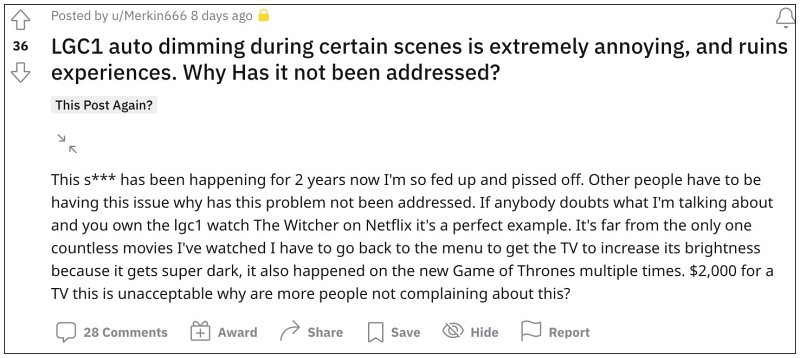
First off, let’s address the elephant in the room- it is an intended behavior and not a bug. All your pixels are working well and good and the culprit is neither hardware nor software. The reason why this is happening is due to Auto Static Brightness Limiter. For the unaware, the ASBL auto-dims the screen if it detects that the average brightness hasn’t changed in a while.
Owing to this reason, you witness these auto-dimming issues on your LG TVs. So this begs the all-important question- how to fix this issue or in other words, how to disable ASBL on your LG TV? Let’s check it out.
How to Fix Auto Dimming issues in LG OLED Smart TV
Since the culprit is Auto Static Brightness Limiter, so disabling it should fix the underlying issue? Yes, it will but turning it off is easier said than done. This is eb cause there exists no built-in option through which you could turn off ASBL, instead you will have to get hold of the service remote to get this job done. Moreover, some have even said that doing so might nullify the warranty. So if you are ready to take the plunge, then proceed ahead with the below steps:
- First off, purchase an LG service remote from Amazon, such as MKJ39170828 Replacement Service Remote Control.
- Now press the “IN START” button –> put in 0413 –> toggle down to “12-OLED” (depending on your TV, 12 OLED is for CX55 TV).
- Then toggle right to “TPC Enable” (default is “ON”) –> toggle right to change to “OFF” (or to “ON” if already “OFF”).
- Finally, press EXIT –> turn off the TV and turn it on again to make the change take effect.
- How to Disable Annoying Ads/Notifications on LG TV
- Netflix not working on LG Smart TV: How to Fix
- Plex Slow Lagging on Samsung and LG Smart TV: How to Fix
- Philips Smart TV Sound not working after update [Fix]

(Cancel Reply)
Δ
