How to Fix Black Screen issues with NVIDIA GPUs
In this guide, we will show you various methods to fix the black screen issue with Nvidia GPUs. The issue is mostly noticeable with the newer RTX 50 series cards and has been noticed in numerous ways. For some, it’s just the screen flickering, whereas for others, their screen goes completely blank.
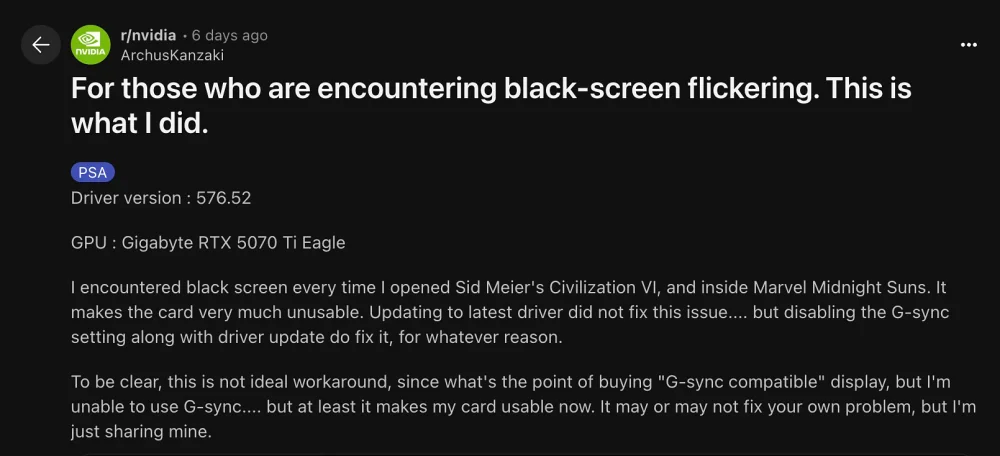
For instance, we came across a post on Reddit wherein a user having a Gigabyte RTX 5070 Ti Eagle reported this issue while launching games like Sid Meier’s Civilization VI and Marvel Midnight Suns. If you are also getting bugged by this issue, then this guide will make you aware of numerous methods to fix it. Follow along.
- How to Fix Black Screen Issues with Nvidia GPUs FIX 1: Disable GSync FIX 2: Via Safe Mode FIX 3: Use System Restore FIX 4: Upgrade to Higher Quality DisplayPort FIX 5: For Multiple Displays FIX 5: For HDR Displays
How to Fix Black Screen Issues with Nvidia GPUs

It is recommended that you try out each of the below-mentioned workarounds and then see which one spells out success. So with that in mind, let’s get started.
FIX 1: Disable GSync
Some users were able to rectify this issue by disabling the GSync. While this isn’t the most viable workaround because what will be the point then of buying a GSync compatible display, but at least it has rectified the black screen issue, which would any day be at a higher priority queue than GSync.

FIX 2: Via Safe Mode
Another nifty workaround involves booting into safe mode > using Display Driver Uninstaller (DDU) to uninstall the problematic driver > and installing an older and more stable one. In this regard, you can try reverting to the December 566 driver as that has proven to be a safe bet, at least for now.
FIX 3: Use System Restore
Some users were able to rectify this issue by using System Restore to roll back to a point before the problematic driver was installed.
FIX 4: Upgrade to Higher Quality DisplayPort
Upgrading to higher quality DisplayPort [such as the DP 2.1 cable] or HDMI cables also seems to have done the job for some. So, do try it out and check if it fixes the black screen issue with Nvidia GPUs.
FIX 5: For Multiple Displays
If you are having a multiple display setup and are facing black screen issues with Nvidia GPUs, then you can switch to have the GPU do the Scaling instead of the Display. Apart from that, you can also use the Windows+P shortcut to select “PC screen only” mode when gaming.

FIX 5:For HDR Displays
You can also consider disabling HDR or reducing refresh rates to 120Hz and see if it spells out success for you.
- Cannot Install Nvidia Driver update v531.18: How to Fix
- NVIDIA graphics card low FPS after Windows 11 22H2 update [Fixed]
- Elgato Wave Link not working with Nvidia Broadcast VST plugin [Fixed]
- NVIDIA GeForce Now Mouse Delay or Input Lag: How to Fix

(Cancel Reply)
Δ
