How to Fix FAILED (remote: unknown command) Error
In this tutorial, we will show you how to fix the FAILED (remote: unknown command) Error. Android ecosystem, thanks to its open-source nature allows for a plethora of tips and tricks to be carried out. Everyday users usually satisfy their taste with icon packs, themes, and custom launchers. But that isn’t it where the capabilities of Android is limited to. It’s just the tip of the iceberg. If you go ahead and unlock the bootloader of your device, you simply open the gate to tons of custom developments. For example, installing a custom recovery like TWRP, flashing custom ROMs, getting administrative privileges in the form of the root, flashing kernels, all this is now possible.
We get it. Not everyone is a fan of this, considering the risks associated with it. But now there has been a tectonic shift in the landscape. More users are changing ships than ever before. This change of guard has happened even more so in the past few years. Thanks to the ease with which one could easily repair even some hard-bricked devices, many users are now ready to take this giant leap forward and join hands with the developer community. And since you have landed on this page, you might very well be an esteemed guest of the same.
The thing is while performing these tweaks, you are bound to face an error or two. But as far as my experience and many others across the online community, the FAILED (remote: unknown command) Error is there most frequent one. But why does this error show up in the first place and more importantly how to fix the same? Well, today we are going to answer all such things in detail. Follow along.
- How to Root Android Devices Without TWRP Recovery
- [GUIDE] Flash ROMs/Magisk/TWRP/Kernels on A/B Partition Devices
- [3 METHODS] How To Transfer or Install Files via TWRP Recovery
- [3 METHODS] Unroot any Android Device-Uninstall Magisk
An Important Note
The entire guide written below has taken into consideration the Command Prompt. We always like to maintain a safe distance from Windows PowerShell as there’s always been a love-hate relationship with it. furthermore, the commands in Powershell are slightly different (prefixing ./ before every code). So to be safe from all these complications, we use the Command prompt or the CMD window and will recommend our users to do the same. here is how it could be done:
Head over to platform-tools on your PC.
Inside the platform-tool folder, type in cmd in the address bar and hit Enter.
That is it. This will open the Command Prompt. Now follow the below steps to fix the FAILED (remote: unknown command) Error.
FAILED (remote: unknown command) Error: Everything you need to know When Unlocking Bootloader Check ADB and Fastboot Binaries: Check the OEM Unlock Toggle Case 1 Case 2 Case 3 Check the Build/Version of the File Other General Fixes Case 1: Remove All Lock Screen Security Measures Case 2: USB Drivers Case 3: USB Port, Cable and Windows Version
Conclusion
FAILED (remote: unknown command) Error: Everything you need to know
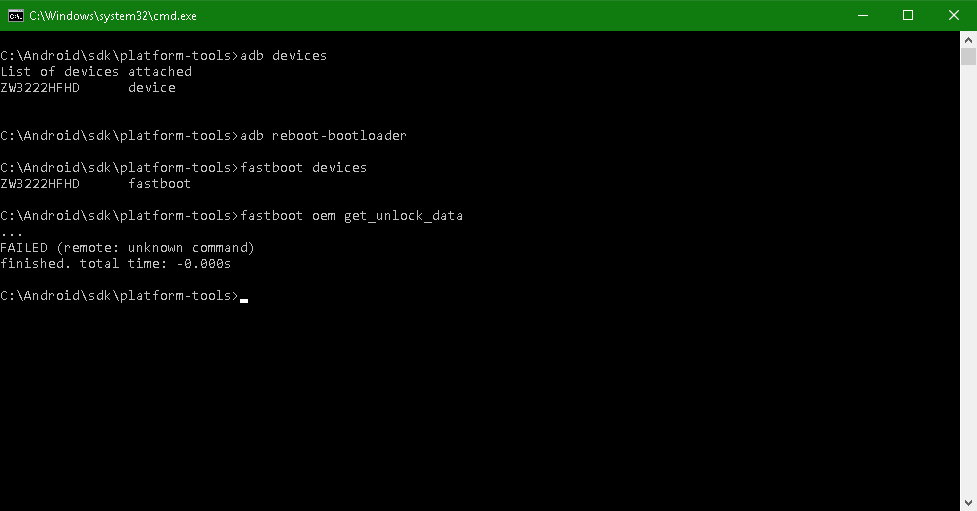
Error Message
Although not limited to one domain, but we are seeing reports of most users facing this error while unlocking the bootloader or flashing a file. In the case of former, Motorola devices seem to be the major culprit (though it’s not limited to it). For the latter, booting a TWRP IMG file takes a major share of the blame. But again, these are just two of the ocean causes why this may happen. So fastboot oem unlock and fastboot boot recovery.img are the two most frequent times users face this error.
Furthermore, the strange thing is that your device gets successfully recognized, even when you face the FAILED (remote: unknown command) Error. For example, try executing the adb devices command when your device is connected in the ADB command. Or enter fastboot devices when the device is connected in fastboot mode. In both these cases, you will get the device code as well. So if the PC successfully recognizes your device in ADB and Fastboot Mode, why this error occurs? Well here is everything you need to be aware of and the potential fixes. Follow along.
When Unlocking Bootloader
We have seen many users, especially from the Motorola OEMs being greeted with the following error:
C:\Minimal ADB and Fastboot>fastboot oem get_unlock_data

...

FAILED (remote: unknown command)

finished. total time: 0.000s
Apart from Motorola, you could also face this error on other OEMs as well. This is because the code in nearly all Android devices is either fastboot oem unlock or fastboot flashing critical. So here is what all you could try out as the fix:
Check ADB and Fastboot Binaries:
When: The Most General Cases
This is the most common error that many users end up committing. There are tons of ADB and Fastboot binaries present around. These include the 2Min ADB tools, the more popular Minimal ADB and Fastboot Tools, and many more. However, we would suggest you to never go for these tools. Only use the official Android SDK and Platform Tools provided by Google. The reason is these tools only contains a few files just necessary to carry out basis ADB and Fastboot commands.
While some times they work, most other times they wouldn’t. Likewise, these tools don’t even get regular updates. So we would request you to leave all the other tools aside and only go with the official one provided. However, if you are already using this build but even then facing the FAILED (remote: unknown command) Error, then refer to the next fix.
- Don’t Miss: How to Install OTA Updates in Rooted Android Device
Check the OEM Unlock Toggle
When: While Unlocking Bootloader
Case 1
We have seen it happen in some cases that the OEM Unlock toggle might have been disabled. Why does this happen is rather unknown, but this is indeed the case for a few users. So reboot your device either by fastboot reboot command or using the hardware keys and then follow the below steps to enable OEM Unlocking:
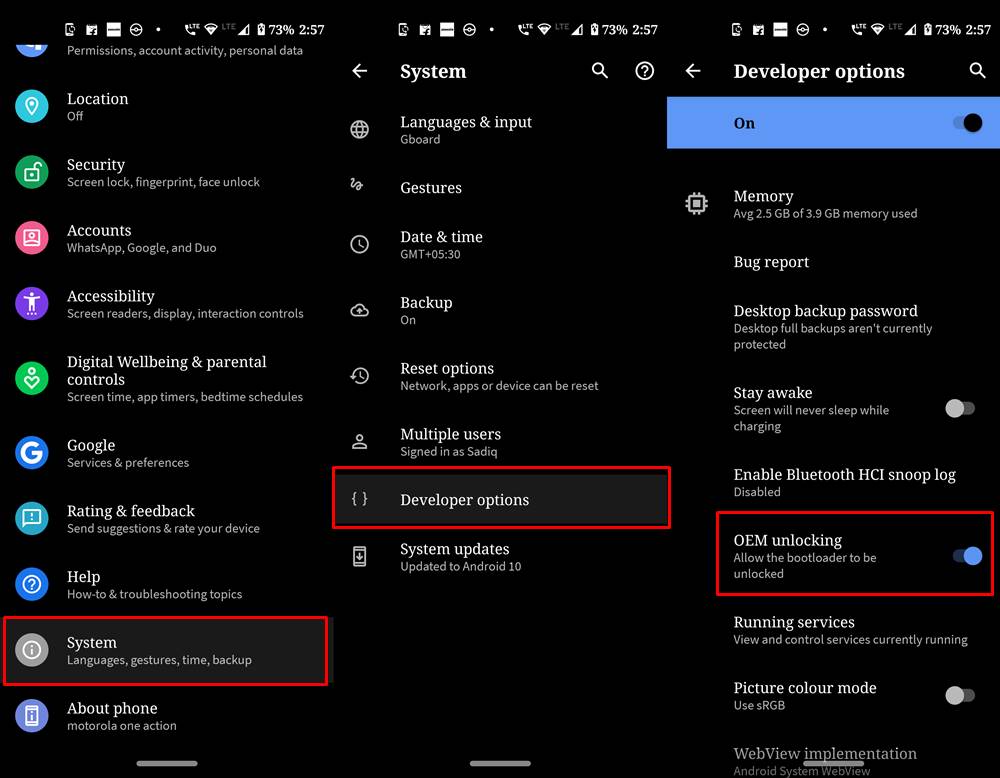
- Head over to Settings on your device
- Go to About Phone > Tap on Build Number 7 times.
- Navigate back to Settings > System > Advanced > Developer Options > Enable the OEM toggle.
- Already enabled, but still getting the FAILED (remote: unknown command) Error? Please refer to the next fix mentioned below.
Don’t Miss: [Update: Added Magisk 20.4] Everything About Magisk- Manager, Modules and More
Case 2
It might also be the case that you are using the wrong command to unlock the bootloader. A very common cause of this error happened with the Nexus 6P users. Unknowingly they were using the fastboot oem unlock command and getting greeted with the said error. The thing was the correct command had been changed now and they had to enter fastboot flashing unlock and in some cases, fastboot flashing unlock critical .
FAILED (remote: unknown command) by u/FL1GH7L355 in Nexus6P
