How to Fix fastboot: error: Couldn’t parse partition size ‘0x’
In this guide, we will show you how to fix the fastboot: error: Couldn’t parse partition size ‘0x’ issue. So recently I covered an article on how to Root any Android device without using TWRP Recovery , wherein one of the users commented about this issue. After, going through that comment, I started an in-depth coverage about this issue and managed to find a fix. For the unawares, the process to root Android without TWRP requires you to get hold of the stock boot.img file from your device’s stock firmware. After this, this boot.img file is patched via Magisk Manager. Finally, we flash this patched boot.img file via Fastboot Commands.
Everything is all well and good up to the point of patching the stock boot.img via Magisk. However, once you proceed to flash this file on your device via Fastboot Commands, you will instead get this error message. As a result, your device stands unrooted. Furthermore, this issue isn’t just related to flashing the magisk_patched.img file. Some users are also facing this issue just by flashing the stock boot.img file as well. So how could this fastboot: error: Couldn’t parse partition size ‘0x’ issue be fixed? Well, here’s the fix!
How to fix ADB Device not found [List of Devices Attached is blank]
Detailed Steps to Fix adb is not recognized Error
Fix Unauthorized Device with ADB Commands [3 methods]
How to Fix Android Device stuck in Fastboot Mode
How to Fix fastboot: error: Couldn’t parse partition size ‘0x’ Prerequisites Fix fastboot: error: Couldn’t parse partition size ‘0x’
How to Fix fastboot: error: Couldn’t parse partition size ‘0x’
Before moving on with the fix, make sure you check-mark the following prerequisites.
Prerequisites
- You should be running the latest version of Android SDK Platform Tools on your PC. If not, then download and install it right away. Furthermore, stay away from any other third-party tools and only stick with this official one provided by Google.
- Likewise, all the other root requirements should also have been met. These include the unlocking of the bootloader, getting the stock boot.img and patching it via Magisk. If you haven’t done any of these, then the below resources shall help you out: Unlock Bootloader on Any Android Device | Samsung Device [New VaultKeeper Method] | Motorola Device | Realme Device How to Extract payload.bin and get the stock boot image file Patch Stock Boot Image via Magisk
- You should move the boot.img file to the platform-tools folder (where the ADB and Fastboot files are installed).
- Along the same lines, your device should be booted to Fastboot Mode and connected to the PC via USB cable. If that is not the case, then enable USB Debugging and use the adb reboot bootloader command. Fastboot Mode OnePlus [Reference Image]
- Finally, you should be completely aware of the risks of rooting. Droidwin and its members wouldn’t be held responsible in case of a thermonuclear war, your alarm doesn’t wake you up, or if anything happens to your device by performing the below steps.
Fix fastboot: error: Couldn’t parse partition size ‘0x’
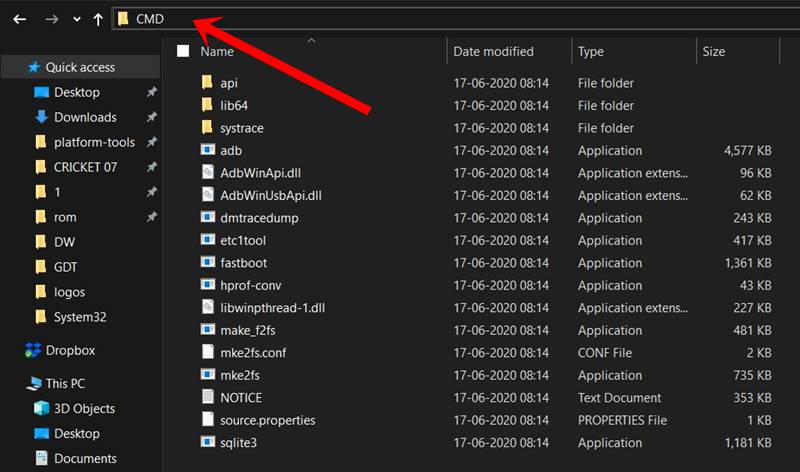
First and foremost, head over to the platform-tools folder, type in CMD in the address bar, and hit Enter (see below image). This will launch the Command Prompt window. Make sure you execute the below-given command inside this window itself. Furthermore, reverify that you have moved the boot.img inside this platform-tools folder. Also, double-check that the device is booted to Fastboot Mode and connected to PC via USB cable.
- Now here’s the thing. While flashing the boot.img file onto your device, till now you would have used the following fastboot command: fastboot flash boot boot.img
- However, things have now changed. You will now have to add the :raw modifier keyword to this command from now on. Hence the above command will now change to: fastboot flash:raw boot boot.img
- Similarly, if you are using a dual A/B partition device , then the command will be modified as (use either of the two, as per the slot) fastboot flash:raw boot_a boot.img fastboot flash:raw boot_b boot.img
- Likewise, if you are facing this error while rooting your device , then use the below command (where magisk_patched.img is the name of the patched boot.img file via Magisk) fastboot flash:raw boot magisk_patched.img
- Similarly flashing this patched boot image to either of the two slots will take the form of: fastboot flash:raw boot_a magisk_patched.img fastboot flash:raw boot_b magisk_patched.img
- Root Android 11 via Magisk Patched boot.img (without TWRP)
- Fix Magisk patched boot.img issue while Rooting Android 11
- Run ADB Fastboot Commands directly on Android without Root
- Fix Magisk Module Bootloop without TWRP Recovery

- sant 2 years ago Reply Hey, I recently installed TWRP recovery in my device to install custom rom. And after that, I installed lineagesos on my device (Lenovo A6020a46) but it got stuck in the boot loop (it never completely opens) so I decided to change rom. Note: my phone’s volume down button is broken and to boot in recovery, First I boot into fastboot mode and then “
fastboot reboot recovery“But recently it stoped working. Device just connects to fastboot once a day (I don’t know why). So it is my only chance to boot into recovery but when I type “fastboot boot twrp.img“command finshes in pc but device doesn’t boot to recovery it just stayes at fastboot without any reboot and disconnects itself from fastboot. And if i try to flash twrp.img in device it skips the process saying partition size is zero. What should I do please help me. - Ömer Faruk Ç. 5 years ago Reply FAILED (remote: ‘This partition doesn’t exist’) fastboot: error: Command failed at last part 4th part complete but 5th no 🙁 Sadique Hassan 5 years ago Reply Hi Omer, your error FAILED (remote: ‘This partition doesn’t exist’) is somewhat different from the one that I had covered. If you are looking to root your device without TWRP, then you may refer to this guide and let me know the results: How to Flash Stock and Magisk Patched Boot.img via TWRP
(Cancel Reply)
Δ
