How to Fix Gboard Voice Typing not working
In this guide, we will show you various methods to fix the issue of voice typing not working in Gboard. As per my personal preference, Voice Typing has really been quite a powerful tool from the multitasking point of view. On one hand, I keep on continuing with my content writing and at the same time, reply to the message via this functionality or ask Google Assistant to do the same. And this isn’t just a one-off instance, it could come in handy in a plethora of situations.
However, some users have voiced their concern that voice typing is not working along the expected lines in Gboard. Whether they tap on the microphone icon or ask the Silicon Valley giant’s virtual assistant to get the job done, it tends to fail in both these cases. If you are also facing any of these issues, then this guide is here to help you out. Follow along for the fixes.
- How to Fix Gboard Voice Typing not working FIX 1: Toggle Voice Typing FIX 2: Force Stop Gboard FIX 3: Remove Other Languages FIX 4: Delete Data Gboard FIX 5: Downgrade Gboard
How to Fix Gboard Voice Typing not working
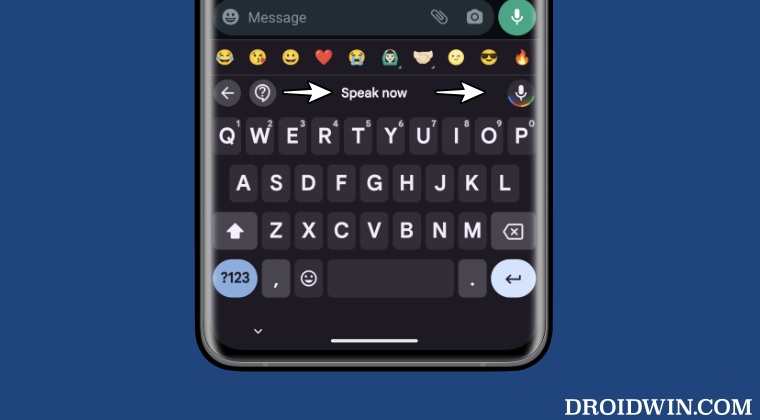
It is recommended that you try out each of the below-mentioned workarounds and then see which one spells out success. So with that in mind, let’s get started.
FIX 1: Toggle Voice Typing
First off, you should disable and then re-enable this feature. This will refresh its underlying settings and could well rectify the issue that we are currently dealing with. So give it a try using the below-listed steps and check out the results:
- To begin with, bring up Gboard by tapping on a text field.
- Then go to Voice Typing and turn off Use Voice Typing.
- Now restart your device and re-enable Use Voice Typing.
- Check if voice typing is now working in Gboard or not.
FIX 2: Force Stop Gboard
Next up, you should consider stopping Gboard and its processes and let them start off afresh. Here’s how it could be done:
- Head over to Settings > Apps > All Apps > Gboard.
- Then tap on Force Stop > OK in the confirmation.
- Now launch Gboard and check if voice typing is working.
FIX 3: Remove Other Languages
In some instances, having a multilingual setup could conflict with this voice typing. Therefore, you should keep only the primary language and check if the feature is up and running or not. Here’s how it could be done:
- To begin with, bring up Gboard by tapping on a text field.
- Then go to Languages and remove the secondary languages.
- Now launch Gboard and check if voice typing is working.
FIX 4: Delete Data Gboard
You might also get bugged by this issue if the app data gets corrupted. Therefore, you should delete its data and then let the app repopulate a fresh instance of the same from scratch. Here’s how it could be done:
- Head over to Settings > Apps > All Apps > Gboard.
- Then go to Storage and Cache and tap on Delete Data.
- Again tap on Delete in the confirmation prompt.
- Now launch Gboard and check if voice typing is working.
FIX 5: Downgrade Gboard
The issue might also occur if Google has rolled out a buggy update to its app. While it will roll out a subsequent patch, but that might end up taking days or even weeks. Therefore, instead of waiting for that time frame, your best bet is to downgrade the app to its earlier stable version. Here’s how it could be done:
- Head over to Settings > Apps > All Apps > Gboard.
- Then tap on the overflow icon and select Uninstall Updates > Uninstall.
- Now go to Play Store, search Gboard, and tap on the overflow icon.
- Finally, uncheck Enable Auto Update and check out the results.
- How to Revert to Old Gboard Layout on Tablet
- How to Turn off Spell Check in Gboard Android
- Force 120Hz Refresh Rate when Gboard is opened
- How to Hide Gboard Down Arrow on Android without Root

- Martin 2 years ago Reply Wonder why nobody ever mentions u have to have the typing suggestion panel enabled… It sux, would use it but suggestins are useless and I dont want the whole panel there just for occasional voice typing.
(Cancel Reply)
Δ
