How to Fix Gmail Delayed or No Email Notifications
In this guide, we will make you aware of some workarounds that shall help you fix the delayed or no Gmail notification while receiving an email. If we create a list of some of the most important apps that have made a permanent abode on our smartphones, this email client from Google would be right there at the top. But in spite of occupying such a high position in the pecking order, it isn’t free from its fair share of issues.
What is even more infuriating is the fact that there’s just one issue that is plaguing all of us for ages, and is yet to be fixed. And it is related to receiving delayed or rather no notifications via the Gmail app. Only when we manually open the app we would get an idea that an email had actually arrived. Not replying to an email on time can have disastrous consequences, especially in the professional workspace.
Unfortunately, we are engrossed so deep into the Google ecosystem, that it’s quite difficult to bid adieu to its services, especially the Gmail app. So this is where we have to look out for workarounds that might work out in our favor. What about official fixes? Well, this is where things turn out to be all the weirder. A user recently raised this issue on the Google Support Forum and this is what the Platinum Product Expert had to say in return :
“I think you need to contact the phone seller/mobile service provider. That’s usually the throttle.”
Well, let’s not go deep into what’s wrong with this statement, otherwise, I may have to write a separate article on the same. Keeping all that aside, let’s turn our attention towards the various methods to fix the Gmail delayed or no email notification issue.
- How to Fix Gmail Delayed/No Email Notifications FIX 1: Check your Gmail Notification Settings FIX 2: Disable Gmail Battery Optimization FIX 3: Disable Battery Saver FIX 4: Disable Sleep Standby Optimization FIX 5: Disable Adaptive Notifications/Enhanced Notifications FIX 6: Verify Gmail Sync Settings FIX 7: Enable Unrestricted Data/Background Data FIX 8: Disable Adaptive Battery FIX 9: Doze via ADB FIX 10: Delete Gmail Data
- Concluding Remarks: Fix Gmail Delayed/No Email Notifications
How to Fix Gmail Delayed/No Email Notifications
Just keep in mind that there’s no official fix as such. So you may have to try all these below-mentioned workarounds until it spells out success in your case. Without any further ado, let’s get started.
FIX 1: Check your Gmail Notification Settings
Before moving ahead, let’s start with the basics and re-verify that all the Gmail account settings are in order.
- Head over to Settings > App and Notifications > App Info.
- Scroll to the Gmail app and go to its Notifications section.
- Now make sure that All Gmail Notification toggle is enabled.
- If that’s not the case, then do so right away.
- If they are already enabled, then disable and re-enable them.
- Likewise, tap on each notification to access its sub-category.
- Then toggle each of these notifications as well.
- See if it fixes the Gmail delayed or no email notification issue.
FIX 2: Disable Gmail Battery Optimization
Different OEMs like to give it a different name, but the underlying functionality remains the same. To optimize the battery usage for each app depending on how much battery does it need and consumes. However, when it comes to the most important apps such as Gmail, Slack, and the likes, I don’t leave it to the behest of my smartphone, rather I fine-tuned it according to my use case scenario. When it comes to Gmail, I have disabled this feature completely for this app. Here’s how you could do the same:
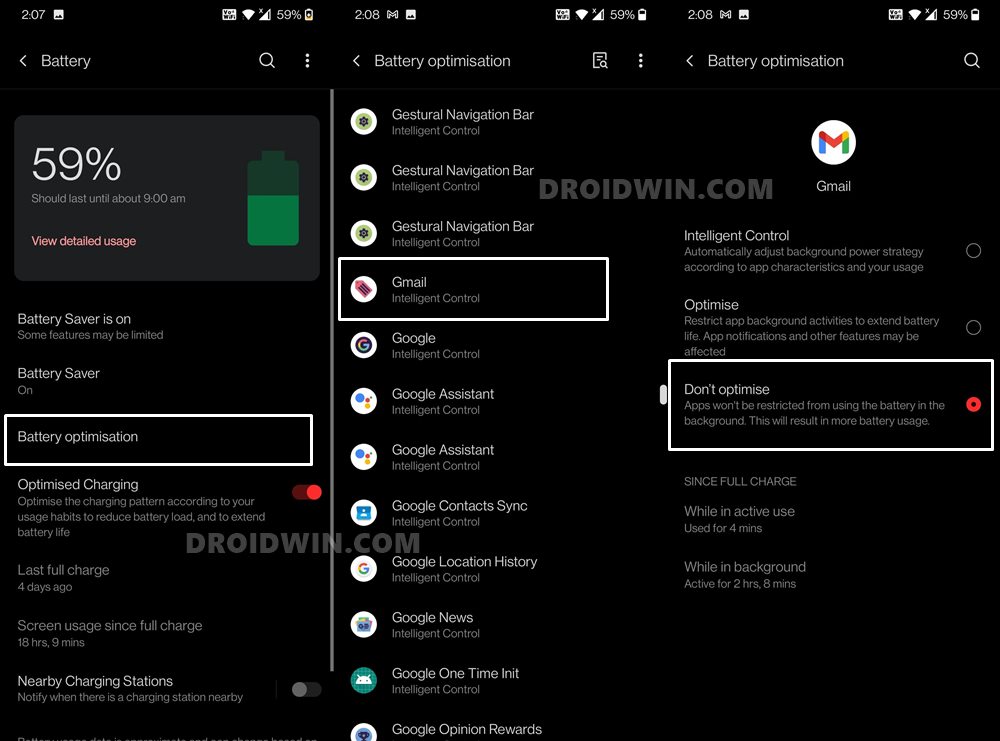
- Head over to Settings followed by Battery.
- Within that, head over to the Battery optimizations option.
- Scroll to the Gmail app and select the Don’t Optimize option.
- Verify if it is able to fix the Gmail delayed or no email notification.
On Pixel Phones
- Head over to Settings > Apps > All Apps > Gmail.
- Then go to App Battery Usage > Enable Allow Background Usage.
- Now tap on Allow Background Usage and select Unrestricted.
FIX 3: Disable Battery Saver
As is evident from its name, Battery Saver tends to minimize and restrict most of the background activities, including sync. This in turn could definitely lead to getting delayed email prompts. So it is recommended to disable this battery saver feature, at least during office hours.
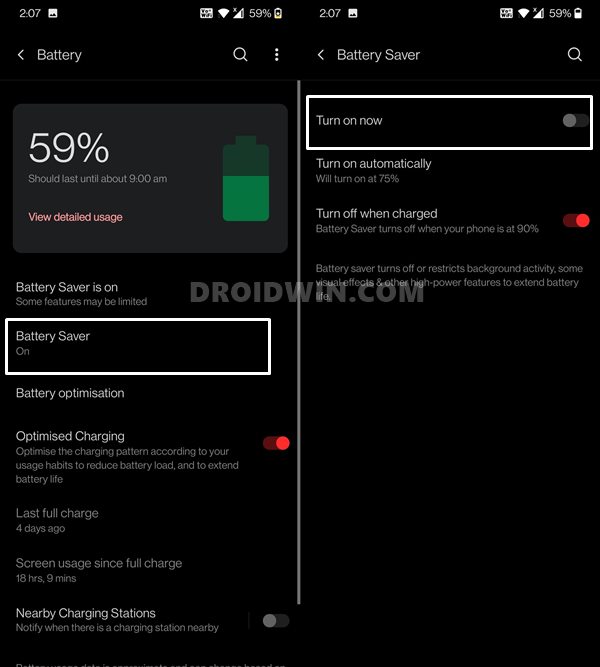
Doing so is pretty easy, just head over to Settings > Battery and make sure that the option is turned off. See if it does any good in fixing the Gmail delayed or no email notification issue.
FIX 4: Disable Sleep Standby Optimization
When your device is in standby mode or not in use, then this feature will tend to reduce the notifications in order to preserve battery life. What is even more infuriating is the fact that this feature has been enabled by default across all the OnePlus devices. So let’s turn it off right away and then test out the results.
- Head over to the Settings menu on your device.
- Then go to Battery and tap on Advanced Settings.
- Now disable the toggle next to Sleep Standby Optimization.
- Check if it fixes the Gmail delayed or no email notification issue.
FIX 5: Disable Adaptive Notifications/Enhanced Notifications
Adaptive Notifications (in Android 10/11) or Enhanced Notifications (in Android 12+) use Artificial Intelligence to analyze and determine which apps we interact with the most. And based on this test result, it prioritizes the notification order accordingly. However, it seems the AI still has a lot of work left to do, and until that happens, you should instead consider disabling this feature. Here’s how:
Android 11
- Head over to the Settings menu on your device.
- Then go to Apps and Notifications > Special App Access.
- Now go to Android Adaptive Notifications and select None from the list.
- Verify if it fixes the Gmail delayed or no email notification issue.
Pixel
- Head over to the Settings menu on your device.
- Then go to Notifications and scroll to the end.
- Finally, disable the toggle next to Enhanced Notifications.
FIX 6: Verify Gmail Sync Settings
You should also make sure that the Gmail sync option associated with your Google ID is enabled right from your device itself.
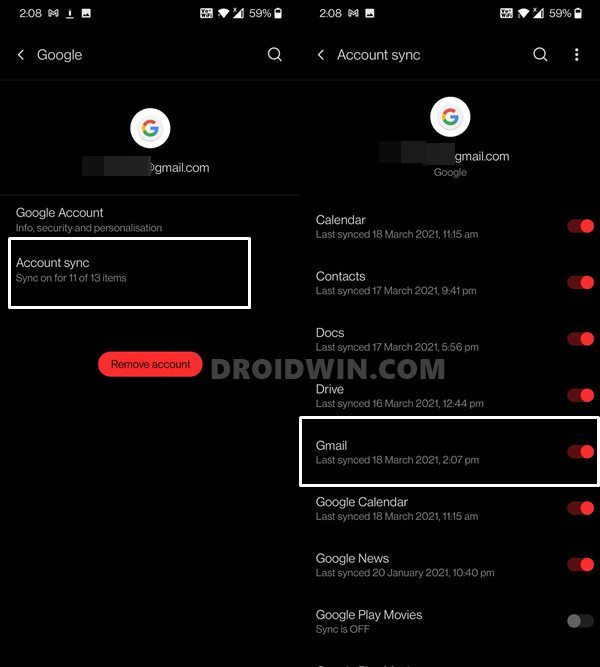
- Head over to Settings > Accounts.
- Then select your Google ID from the list, the one associated with Gmail.
- After this, select the Account Sync option.
- Now turn off the Gmail toggle and turn it back on. Check if it fixes the issue.
FIX 7: Enable Unrestricted Data/Background Data
It is also recommended that let Gmail have access to unrestricted data. While this option sometimes might exhaust your entire data pack, but that shouldn’t be the case right now. This is because we are only enabling this option for an email app, which isn’t known to be a hefty consumer of network bandwidth. Likewise, enabling background Data will allow the Gmail app to continue using the data even when it is in a minimized state (which is usually the case).
- So on that note, go to Settings > Apps and Notifications.
- Select App Info and scroll to the Gmail app.
- Then go to Mobile Data and WiFi section.
- Enable the toggle next to Background Data.
- After this, enable the Unrestricted Data Usage.
- Check if it fixes the Gmail delayed or no email notification issue.
FIX 8: Disable Adaptive Battery
As is evident by its name, this feature optimizes how apps use the battery which in turn will give you a longer battery juice. To carry out this task, it may reduce performance and delay the notifications as well. So refer to the below steps to get this job done and check out the results
- Head over to Settings > Battery > Battery Saver.
- Now expand Adaptive Battery and turn off its toggle.
FIX 9: Doze via ADB
This feature was first introduced with Android 6.0 Marshmallow and is still touted as one of the most battery-restrictive measures to date. It forces the system to use only a minimal amount of resources and battery, even if it might not be in sync with the actual requirements. This restricted environment more often than not causes disruption to an app’s background services, including the way it delivers notifications.
So the straightforward approach would be to disable this option, but there’s no single toggle through which this task could be performed. But we still have the ADB Commands at our disposal, and using them, we will be disabling the Doze Mode on your device. Follow along.
- To begin with, enable USB Debugging so that your device is recognizable by the PC in ADB mode and hence it allows us to execute the desired ADB Commands.
- So head over to Settings > About Phone > Tap on Build Number 7 times > Go back to Settings > System > Advanced > Developer Options > Enable USB Debugging.
- After that install the Android SDK Platform Tool and extract it on your PC. This shall give you the platform-tools folder, which we will now be using.
- So head over to the platform-tools folder, type in CMD in the address bar, and hit Enter. This will launch the Command Prompt.
- Now connect your device to PC via USB cable and type in the following command in this CMD window to verify the ADB Connection adb devices
- Finally, execute the below ADB Command to disable the Doze Mode on your device adb shell dumpsys deviceidle disable
FIX 10: Delete Gmail Data
You might also face this issue if the app data gets corrupted. Therefore, you should consider deleting the data and let the app repopulate a fresh instance of the same from scratch. Here’s how it can be done:
- Head over to Settings > Apps > All Apps > Gmail.
- Then go to Storage & Cache and tap Delete Data.
- Tap OK in the confirmation prompt that appears.
- Now launch Gmail, sign in to your account, and check out the result.
Concluding Remarks: Fix Gmail Delayed/No Email Notifications
It has been a week since doing so, and there hasn’t been any considerable battery drainage. Furthermore, since I am working from home, I’m connected with the WiFi network, hence the unrestricted data didn’t come to the fore in my case. Well, even if there would have been some loss of battery juice or network bandwidth, I would have readily accepted this sacrifice, in return for the benefit that I would have accrued (on-time Gmail notifications).
- How to Disable System Notifications on Android
- How to Take Screenshots in Restricted Apps on Android
- Stop Samsung Find My Device Offline Finding Notifications!
- How to Stop Random Notification Sounds on OnePlus

- Jody 3 years ago Reply Nothing worked. Still can go days without alerts
- Paul 4 years ago Reply I have implemented all these and the issue is fixed. Thanks a lot.
- Tomat2 4 years ago Reply Finally after long searching on the Internet and trying common advices as a disabling battery optimizations, Adaptive Notifications and all those features that didn’t help at all, I found the XDA Developers forum where I finally got to the bottom of this issue. This problem is caused by functionality called as “DOZE”, which is implemented in the Android core since Android 6. https://developer.android.com/training/monitoring-device-state/doze-standby Basically what is does is that it tries to preserve the phone battery life in a very aggressive way that basically puts all applications and network activity to standby until the maintenance window occurs. The maintenance window is a very short time period where all events from applications waiting in the queue are processed at once and then it puts all apps to standby again until next maintenance window occurs. Problem is that with every next maintenance window the intervals between those windows are increasing every time up to some long limit. So if you haven’t touched your phone for a longer time, like half an hour and the event happens, you will get the notification in the next maintenance window that may be tens of minutes from that moment. I don’t know how Google can act as this is OK. It is NOT!! For me it was causing serious problems with my Forex trading app that didn’t display price alerts on time when the event happened but like 5, 15, 30 minutes or even almost 1 hour later !! which is not useful for me because the opportunity for the trade was already gone… So solution is to disable the “DOZE” in your phone manually using ADB commands. I did it and it works, now I get instant notifications. Unfortunately this has to be done every time after phone reboot as it turns itself the DOZE back on again. Here is a page with more details: https://stackoverflow.com/questions/40204605/android-completely-disabling-deviceidle-doze-in-android-m Basically you just issue this ADB command: dumpsys deviceidle disable You can also put the application to the Doze whitelist but not sure if it works, when I displayed the list, I found out my trading app was already there, maybe because I removed it from the Battery saving policy but the Doze was probably still suspending everything so it worked only in those maintenance windows. I guess it doesn’t use those “high-priority FCM messages” described in the DOZE description to force the notifications instantly. If you are not familiar with ADB, here is some info: https://developer.android.com/studio/command-line/adb I used a paid app that allows local ADB connection from the phone directly, so I can disable DOZE after every restart. More info here: https://forum.xda-developers.com/t/say-hello-to-ladb-a-local-adb-shell-without-needing-root-or-a-computer.4204855/ It is very sad that this basic feature as an instant notifications have to be fixed via the developer debug interface by user instead of Google who could fix it in the OS itself…shame on Google… More forums on this topic: https://forum.xda-developers.com/t/psa-how-to-fix-the-notification-delay-or-non-receipt-issue-truly-pathetic-of-google-and-samsung.4276505/ https://forum.xda-developers.com/t/delayed-notification-problems-s21-ultra.4243105/page-5 Sadique Hassan 1 year ago Reply Stumbled upon your comments a few years too late but damn, this is a gem of content that you have written! Thanks for sharing it with us, really;y appreciated
- Hans Horsten 4 years ago Reply 1. Disable Gmail app. 2. Install Outlook or Spark or any other email client. Notifications are instant (under 5 seconds). Sadique Hassan 4 years ago Reply Well, that’s one way of rectifying this issue!!!
- Hans Horsten 4 years ago Reply 1. Disable Gmail app. 2. Install Outlook or Spark or any other email client. Notifications are instant (under 5 seconds). Gmail is maladjusted bloatware.
(Cancel Reply)
Δ
