How to Fix Non Themed Icons on Samsung One UI
Google’s Material Design 3 [M3 Expressive Design] has completely revamped the UI and UX of its OS. All in all, it has been incorporated into around 14 elements of Android, including the icon designs. Talking about which, the Themed Icons feature has been in Beta for ages [started in Android 12 and is still in Beta with Android 16], but still, the feature is not able to theme some of the icons.

The app developers do take a major share of the blame, as they have yet to add support for it. Fortunately, many OEMs have taken it upon themselves and have added this functionality to force the implementation of the Material design on all the icons. And Samsung is one of them; however, its implementation requires more than enabling a toggle. Therefore, I decided to write a separate guide for it, outlining all the required steps. So without any further ado, let’s check it out.
How to Fix Non Themed Icons on Samsung One UI
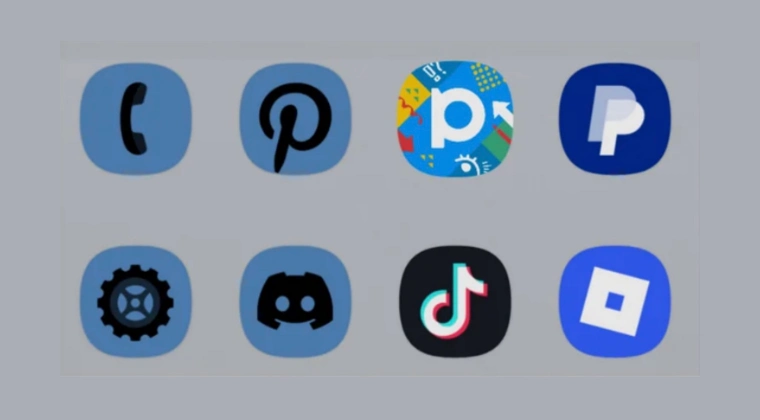
- To begin with, download and install Themed Park from Good Lock .
- Let’s now create a new icon pack using Themed Park.
- So launch it and go to the Effect tab. Then enter the following details: Effect: Gradient Angle: 90 degrees Shadow: 0% Strength: 0% Edge: 1
- Now choose the same set of colors for Start and End Colors.
- Next, head to the Icon tab and choose Monochrome.
- Finally, save this icon pack and apply it.
- How to Enable Material 3 Expressive Design in Chrome
- Get Back the Old Google Phone UI: Remove Material 3 Expressive
- How to Enable Material You Theme in Gboard Android 12
- All New Features in Android 16 QPR 1 Based Custom ROMs

(Cancel Reply)
Δ
