How to Fix OnePlus Bootloop/Soft Brick [5 Methods] [Video]
In this guide, we will show you various methods to fix the OnePlus bootloop or soft brick issue. When it comes to custom development, then there’s hardly an iota of a doubt that the offering from OnePlus is among the most active players in this domain [with the 10th series being the sole exception]. From custom ROMs to recoveries, and a plethora of mods, there’s a truckload of goodies to welcome abode onto your device. However, this is just one side of the coin.
Carrying out these tweaks could prove to be a risky approach. Just a slight deviation from the instructions and there’s every chance that your OnePlus device could end up in a bootloop or soft brick state. Fortunately, even if that happens, you could easily rectify this issue and bring your device back to life, irrespective of the extent to which your device has been corrupted! So without any further ado, let’s show you how this could be carried out.
- How to Fix OnePlus Bootloop or Soft Brick [5 Methods] [Video] Prerequisites Download Android SDK Platform Tools Boot Bootlooped OnePlus to Fastboot Mode Install Fastboot Drivers FIX 1: Change Slots FIX 2: Fix Corrupt Boot Partition FIX 3: Format Data FIX 4: Flash Fastboot ROM FIX 5: Flash OFP Firmware via MSM Download Tool
How to Fix OnePlus Bootloop or Soft Brick [5 Methods] [Video]

It is recommended that you go through all these fixes once [as well as their perks and drawbacks] and then try out the one which is in sync with your requirement. With that said, we are listing the fixes starting with the easiest ones to the most complicated ones, so it’s better to follow the same order. [However, if you are not willing to try out each of these approaches and want to fix the issue in one go, then directly go to the last fix- MSM Tool].
With that said, some of the below methods will erase all the data on your device [not that you could do anything at this stage, but still, it’s our job to make you aware of this beforehand]. Droidwin and its members wouldn’t be held responsible in case of a thermonuclear war, your alarm doesn’t wake you up, or if anything happens to your device and data by performing the below steps.
Prerequisites
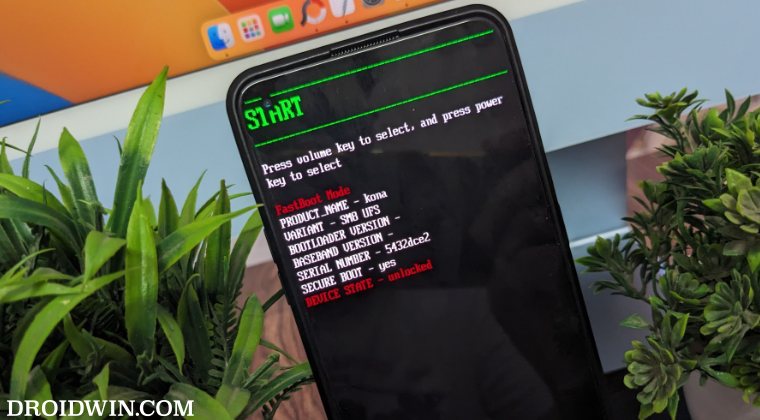
There are a couple of requirements that you need to checkmark before you could carry out these fixes. All of them have been listed below, make sure to checkmark all of them.
Download Android SDK Platform Tools
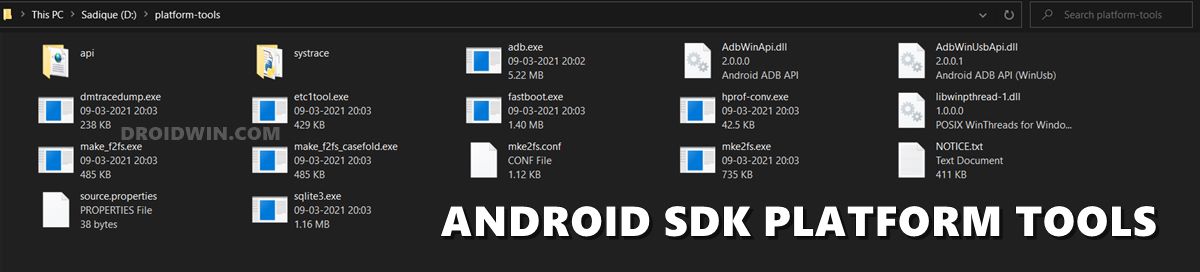
You might also need the Android SDK Platform Tools . So download and extract it onto your PC.
Boot Bootlooped OnePlus to Fastboot Mode
For the first four fixes, you’ll have to boot your bootlooped OnePlus device to the Fastboot Mode. So proceed with the below steps to get this job done:
- Long press the power key to power off your device. If you cannot do so, then during bootloop your device will power off for a second or two, you could make use of that as well.
- Once it is in a powered-off state, press and hold the Power, Volume Up, and Volume Down keys for a few seconds. Your device will now boot to Fastboot Mode.
Install Fastboot Drivers
- For your PC to identify your device in Fastboot Mode, you’ll also have to install Fastboot Drivers.
- Once installed, go to the platform-tools folder address bar, type in CMD, and hit Enter.
- Then type in the below command in the CMD window and make sure that you are getting a serial ID. fastboot devices
- Moroever, keep this CMD window inside the platform-tools folder opened as it will be used throughout this guide.
FIX 1: Change Slots
In some cases, it might just be the case of the current slot being corrupted and the inactive slot would still be up and running. So your first course of action should be to switch slots using our detailed guide or the below shorter steps:
- From the Fastboot Mode, type in the below command to change the current active slot fastboot set_active other
- Then use the below command and check if your device boots to the OS or not fastboot reboot
FIX 2: Fix Corrupt Boot Partition
If your OnePlus device is stuck in a bootloop/soft brick while you were trying to root it via Magisk patched boot, then it’s just the case of boot partition getting corrupted. So to fix this issue, you need to simply flash the stock boot.img. However, you’ll have to use the same firmware version [Build Number] which is currently installed on your device. If you don’t remember it, then there’s no point in carrying out this fix as it would be futile. However, if you do know the firmware version ,teh let’s get started.
- First off, download the Fastboot ROM which is currently installed on your device.
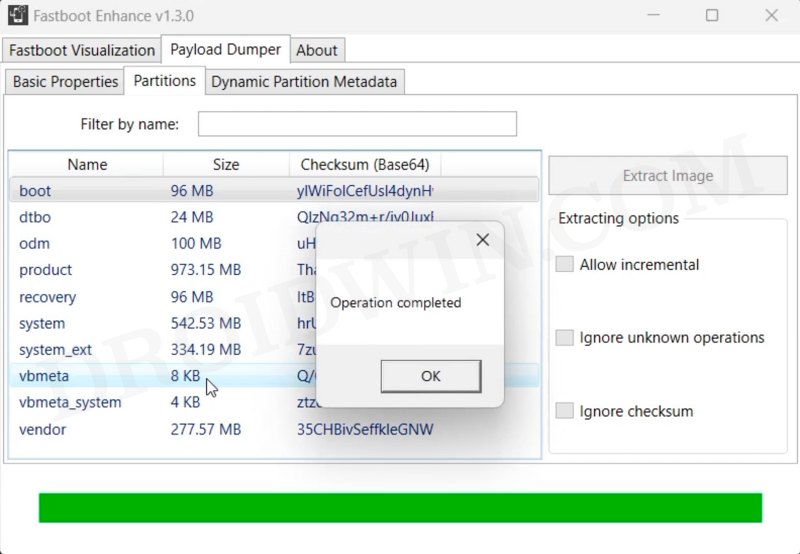
- Then extract its payload.bin via Fastboot Enhance Tool .
- Now transfer the boot.img to the platform-tools folder.
- Then type in the below command in the CMD window: fastboot flash boot boot.img
- Finally, type in the below command and check out the result: fastboot reboot
FIX 3: Format Data
In some cases, the data getting corrupted or encrypted could also result in your OnePlus device going into a bootloop or soft brick state. In such cases, the best bet is to do a format data and then check if it works out for you.
- To do a factory reset, execute the below command fastboot -w
- Once done, type in the below command and check out the result: fastboot reboot
FIX 4: Flash Fastboot ROM
Your next course of action should be to flash the Fastboot ROM onto your device. For that, you could refer to our detailed guide and video on How to Flash ROM Unbrick OnePlus via Fastboot Enhance Tool [Video] .
FIX 5: Flash OFP Firmware via MSM Download Tool
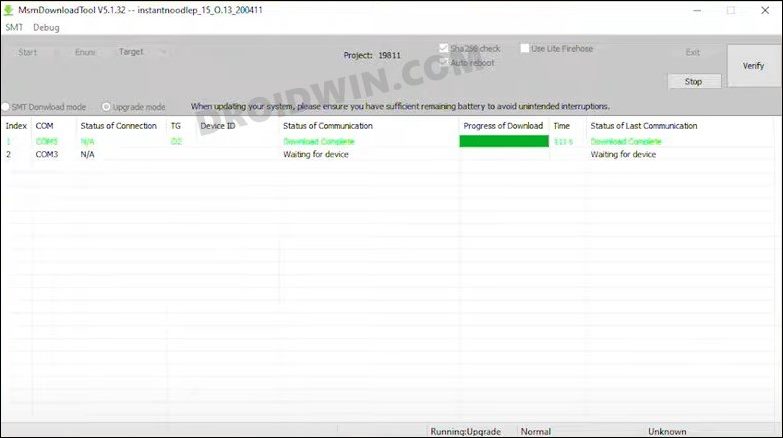
If none of the methods spelled out success, then your last course of action should be to flash the OFP firmware via MSM Download Tool. Out of all the fixes out there, this comes with the highest success rate and will surely rectify the underlying issue. The only reason why we have listed it at the end is because it is the lengthiest of all the methods listed here. With that said, do check out our guide on How to Unbrick any OnePlus Device via MSM Download Tool [Video] .
- How to Check DDR RAM Type on OnePlus [3 Methods]
- How to Flash OxygenOS Firmware on any OnePlus [Video]
- Fix OnePlus OEM Unlocking greyed out: Connect to the Internet
- How to Install Custom Boot Logo Splash Screen on OnePlus 11

- Mario 2 years ago Reply Hi Team, Thanks for all the great work that you do. I have a OnePlus 7T, that would not boot. The device attempts to boot, but during the boot process after the Android logo and the OnePlus logo, the screen freezes with a lot of multicolour pixels on the screen. I ran the MSM tool, and the phone seemed to work for a bit, but the same issue returned. I reran the MSM tool successfully, and now the phone is just booting to the FastBoot menu without my input. I tried to drain the battery and see if that would wipe any cache, no luck still. None of the FastBoot tools work as Dev options is not enabled on the new install. Is there anything that I can do? Thanks.
- Akansh 2 years ago Reply I got a qualcomm crashdump mode : Attempted to kill init! exitcode=0x00007f00 do.exit
- Justin 2 years ago Reply I’m having a bootloop, do to failed root procedure. I can’t seem to get into fastboot mode. Oneplus N30 5G
(Cancel Reply)
Δ
