How to Fix Unauthorized Device with ADB Commands [3 methods]
So you are executing an ADB command, most probably ‘adb devices’, and while you get the device-specific code, you also end up getting the unauthorized message next to it. In this guide, we will explain why this error is happening and more importantly how you could fix it. Follow along for the complete instructions to fix unauthorized device error while executing ADB Commands.
There are literally a plethora of reasons as to why you need to execute the ADB commands. Among the most important ones is the ability to boot your device to Fastboot/Bootloader Mode. Apart from that, you might also use it for sideloading purposes or even boot your device to stock recovery or even a custom one like TWRP.
Well, most of these could easily be carried out by your device’s hardware key combinations as well, but it is no easy task to remember the key combinations. This is because there is no fixed combination, different OEMs have their own set of keys to boot to Fastboot or Recovery Mode. But with ADB commands, things are different, and for good.
The thing with these commands is they are universal, i.e. same for all Android devices. Furthermore, it is independent of Android versions and hence is the preferred mode of communication for many. However, while executing the commands, some users might encounter an unauthorized device error. In this guide, we will let you know why you are facing the unauthorized device error while executing ADB Commands as well as the steps to fix it. Follow along.
Fix Magisk Module Bootloop without TWRP Recovery
How to Fix TWRP Error 20 GApps after flashing LineageOS
Fix Mi Account Authorization | Unbrick Xiaomi | EDL Mode
How to Fix Error: Cannot load recovery.img
Reason for Unauthorized Device Error
Prerequisites to Fix Unauthorized Devices with ADB Commands STEP 1: Download and Install Android SDK Platform Tools STEP 2: Enable USB Debugging
How to Fix Unauthorized Devices with ADB Commands FIX 1: Establish Connection with PC via Debugging FIX 2: Manually Invoke Debugging Prompt FIX 3: Revoke USB Debugging Authorization
Reason for Unauthorized Device Error
While there could be a couple of reasons why you might get this error, the major reason is that you haven’t authorized your PC to recognize your device in ADB Mode. See, you have enabled the USB Debugging on your device and that is why you are getting the alphanumeric code. The unauthorized message is because you haven’t given your permission to authorize this connection.
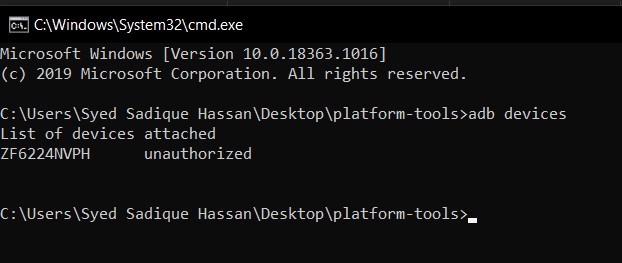
Hence your Mac or Windows PC isn’t able to recognize the connected device. It has nothing to do with missing ADB or Fastboot files or even the USB drivers. It’s just that the authorization is missing from your end. With that said, let’s now check out the steps to fix unauthorized device error while executing ADB Commands.
Prerequisites to Fix Unauthorized Devices with ADB Commands

To begin with, we always advise our readers to keep a safe distance from various third-party ADB and Fastboot tools. When it comes to dealing with these binary files, you should always stick to the package provided officially by Google. And in this guide, we will be dealing with just that. So let’s get on with the instructions set beginning with the correct ADB and Fastboot files provided by the Silicon Valley giants.
STEP 1: Download and Install Android SDK Platform Tools
Download and install the Android SDK Platform Tools binary packages from Google. Once downloaded, extract it to any location on your PC. With this, you now have all the required ADB and Fastboot files. You could also refer to Google’s Official Documentation to gain technical knowledge about the Command Line Tools.
STEP 2: Enable USB Debugging
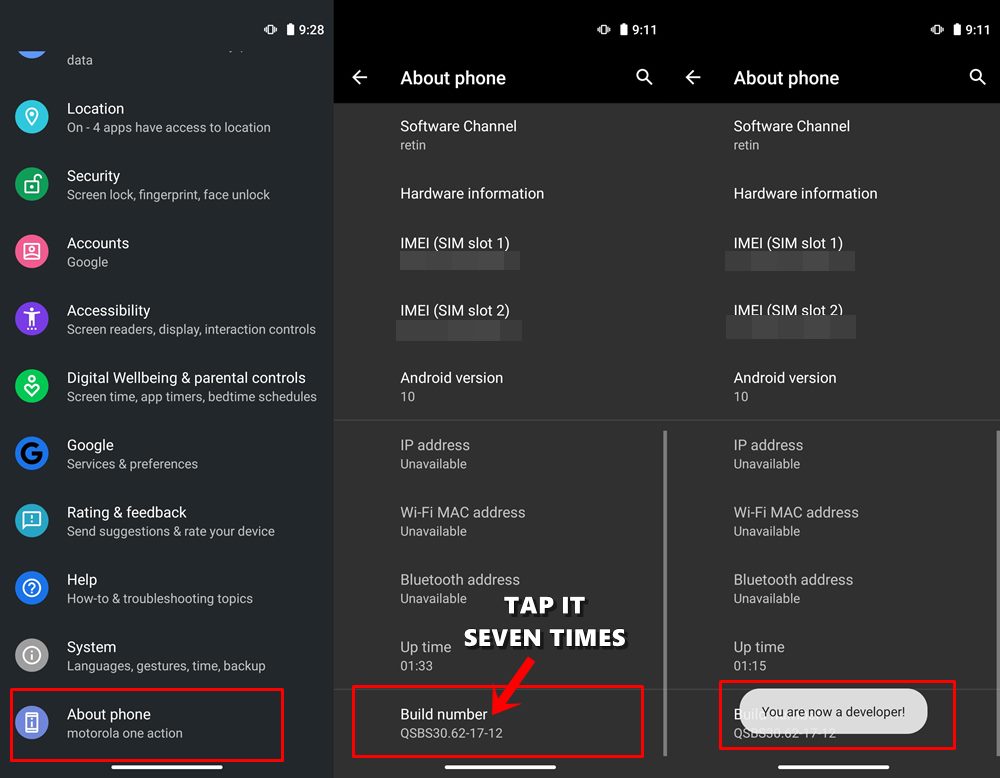
Now its time to enable USB Debugging on your device. For that, head over to Settings > About Phone > Tap on Build Number 7 times (Xiaomi users should tap on MIUI version 7 times) > You will get a toast message that You are now a developer.
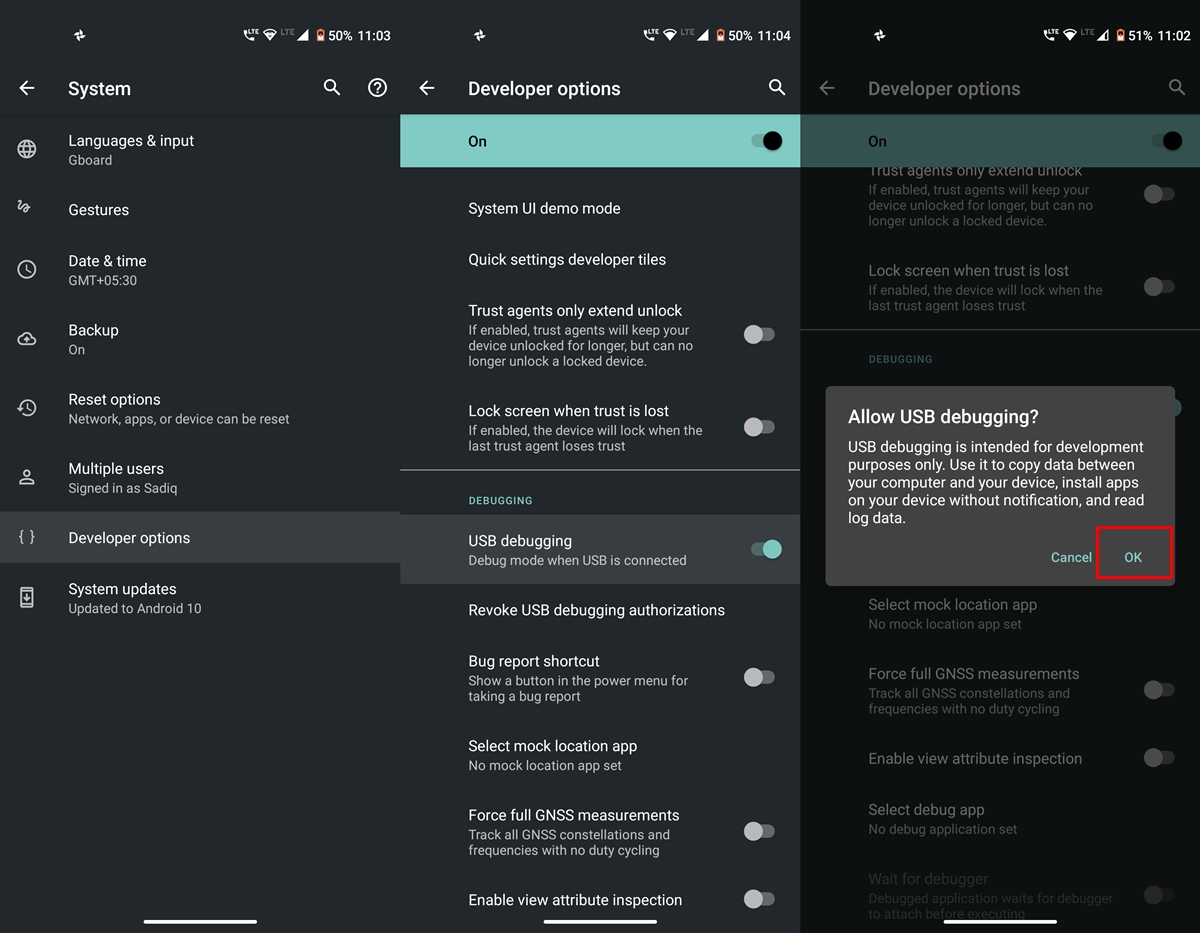
Head back to Settings > System > Advanced (or Additional Settings) > You should now see the Developer Options. Tap on it and scroll to the USB Debugging option and enable the toggle next to it. You will now get a popup to Allow USB Debugging, tap on OK. Also, check out our guide on Enable USB Debugging on a Broken Android Device’s Screen? Here’s a Workaround .
- How to Boot into Recovery (TWRP/Stock) from Fastboot Mode
- Fix TWRP Error 7 (While Flashing Custom ROM via TWRP)
- How to Fix FAILED (remote: unknown command) Error
- Mi Unlock Tool Errors and their Fixes
How to Fix Unauthorized Devices with ADB Commands
Given below are three different methods that should help you address this issue. Try out each of these three methods and then see which one works out in your favor.
FIX 1: Establish Connection with PC via Debugging
- Connect your device to your PC via a USB cable. Make sure USB Debugging is enabled.
- As soon as the device is connected to the PC, you will get an Allow USB Debugging with your PC’s RSA Fingerprint key.
- Tap on Allow and if it is your own PC, then you could also tick mark the “Always Allow from this computer”.
- Now type in the adb devices command in the CMD window and you will no longer get the unauthorized error.
FIX 2: Manually Invoke Debugging Prompt
In some cases, you might not get a prompt after connecting your device to a PC via USB. So in those cases, you’ll have to manually invoke this prompt. Here’s how it could be done:
- Go to the platform tools folder (where you have installed/extracted the Android SDK).
- Inside that folder’s address bar, type in CMD and hit Enter. This will launch the Command Prompt.
- Now type in the following command in the CMD window: adb devices
- You should now get the prompt with the “Allow USB Debugging” option and your PC’s RSA Fingerprint key.
- Tap on Allow and if it is your own PC, then you could also tick mark the “Always Allow from this computer”.
- Now type in the adb devices command in the CMD window and you will no longer get the unauthorized error.
FIX 3: Revoke USB Debugging Authorization
If none of the aforementioned methods spelled out success, then your last course of action should be to revoke the USB Debugging Authorization and then re-set it up from scratch. However, there’s a major drawback to it- it will end up revoking te authorization from all the previously connected PCs. So you’ll have to tap on Allow for the Debugging connection to be successfully established across all the PCs that you connect after carrying out this tweak.
In my case, this is hardly an issue because I mostly have a work PC wherein all these commands are executed so it’s not that the Debugging is established across multiple PCs. Even if it was, then giving it re-access just requires tapping on the OK/Allow, which would hardly take a second or two. So on that note, let’s make you aware of the steps to implement this fix.
- Go to Settings > System > Advanced > Developer Options and head over to the Debugging section.
- Within that, tap on Revoke USB Debugging Authorization. Then tap on OK in the dialog box that appears.
- Now again connect your device to your PC via a USB cable [make sure USB Debugging is enabled].
- Then Head over to the platform-tools folder, type in CMD in the address bar, and hit Enter.
- Now execute the below command in the CMD window that you have just opened: adb devices
- You will now get the prompt on your device, tap on Allow, and your device will be recognized.
- To check it, simply re-execute the adb devices command, and this time you will get the authorized keyword next to the device ID.
- How to Install OTA Updates in Rooted Android Device
- How to Install Substratum Themes on any Android (Oreo 8.0 and above)
- Permanently Install TWRP without TWRP ZIP File (only using TWRP.img file)
- Root Android Devices Without TWRP Recovery

- Ramon 3 years ago Reply I have a broken screen. Only a small lightstrip is seen on my Samsung Galaxy S8+. I have turned developer mode on with USB debugging before this happened. though I get “Device unauthorized”. Also no Android ADB device seen in system devices (running windows 11 VM)
- Danny 4 years ago Reply It worked on Galaxy Z Flip 3. I tried all the steps with no success and kept getting device unauthorized. I unplugged my phone and removed device by tapping the Revoke USB Debugging Authorization. Turned off and on USB debugging. Plugged my phone in and it showed the RSA fingerprint. I am on Android 11. Thanks for the help. Sadique Hassan 4 years ago Reply Please try stopping the ADB Server via adb kill-server command, then restart it via adb start-server , then Revoke the USB Debugging on your device and finally check out the results via adb devices command.
- JOSE GUEVARA 5 years ago Reply And what about when your OS is not working and you dont have a screen to accept USB debugging? My androis system is not working so how can I accept something that does not appear in a screen? Can it be done only with commands? A better question: can I usb debugg without a screen? Is the only way to unauthorized or you don´t know how? Sadique Hassan 5 years ago Reply Hi Jose, unfortunately, there’s no other way around to enable USB Debugging. You may try powering off your device (if it can’t be done, then leave it aside until the battery drains out). Then press and hold the Power and Volume Down Keys for 8-10 seconds and it shall be booted to Fastboot Mode. After that, you may unbrick your device by flashing the stock firmware via fastboot commands.
- Caleb Sandersier 5 years ago Reply I am having the unauthorized device error. Also, I am not getting the window to accept coming up when i plug in USB cable. I believe it may be because I don’t have usb drivers for my device. Is there a way to authorize my device without needing the usb drivers? Sadique Hassan 5 years ago Reply Apologies for the late reply. Well, missing Drivers has nothing to do with this error. This is because your device is getting recognized by your PC, it is just that it is in an unauthorized state (missing drivers would have shown waiting for device or no device found errors). As far as the fix for unauthorized device error is concerned, go to Settings > System > Advanced > Developer Options and head over to the USB Debugging section. Within that, tap on Revoke USB Debugging Authorization. Then tap on OK in the dialog box that appears. Now again connect your device to PC via USB cable and execute the adb devices command, you shouldn’t get the error message this time. In any case, do let me know the result.
- Gavan 5 years ago Reply i found out that it was Magisk root that was causing issues with the adb popup Sadique Hassan 5 years ago Reply Hi Gavan, could you please elaborate further. Are you suggesting that Magisk was blocking the Revoke USB Debugging Authorization popup? Because this usually doesn’t happen, if you could throw more light on this issue then it would be highly appreciable.
- Gavan 5 years ago Reply I am on Android 10 LineageOS and there is no Revoke USB authorizations option
(Cancel Reply)
Δ
