How to Fix WhatsApp FFMPEG.DLL Not Found Error
In this guide, we will show you the steps to fix the WhatsApp FFMPEG.DLL not found error. It seems to be having quite a rough few days at the office for the social media giants and their products. A few days back, the server of Facebook, Instagram and WhatsApp all went down and it remained in that state for around six hours, which is quite unprecedented considering the parties involved. However, this isn’t a one-off incident, with a similar incident happening a few months back (though that was only for around an hour).
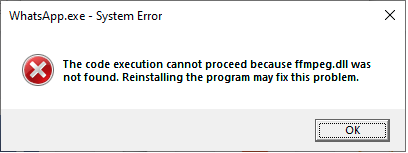
And in between all this, users are getting bugged with the WhatsApp FFMPEG.DLL not found error while using the app’s desktop client. So what’s the reason behind this issue? Well, WhatsApp rolled out a new update version 2.2138.13 for the Windows PC. But in that update, they forgot to pack in the FFMPEG.DLL file! Well, at this point in time, all these hardly sound surprising. On a serious note, there do exist a couple of workarounds that did manage to fix the WhatsApp FFMPEG.DLL not found error. So without any further ado, let’s check them out.
- How to Fix WhatsApp FFMPEG.DLL Not Found Error
- FIX 1: Use Old WhatsApp EXE file FIX 2: Copy Old Version WhatsApp Files to New Version
How to Fix WhatsApp FFMPEG.DLL Not Found Error
There exist two different methods to fix this issue, and we have listed both of them below. Proceed ahead with the instructions.
FIX 1: Use Old WhatsApp EXE file
Even though you would have installed WhatsApp version 2.2138.13 onto your PC, the older version 2.2134.10 would still be present as well. So all you need to do is head over to the older (2.2134.10 ) WhatsApp folder [ C:\Users<USER>\AppData\Local\WhatsApp ] and launch the app via its EXE file. Doing so should fix the WhatsApp FFMPEG.DLL not found error.
FIX 2: Copy Old Version WhatsApp Files to New Version
As is evident from the title of this fix, all you need to do is just copy all the contents from the old WhatsApp folder (version 2.2134.10) and paste the contents to the WhatsApp folder version 2.2138.13, which is located in:
C:\Users\<USER>\AppData\Local\WhatsApp
You would get a message asking if you wish to overwrite existing files, it is recommended you skip it. This will make sure that only the files that are missing in the new build are getting copied from the older version. Once done, launch WhatsApp from the new app folder version 2.2138.13 (where the old version contents have just been copied) and the issue would have been rectified.
- Fix: YouTube preview not showing in WhatsApp [Android, iOS]
- How to Restore an Old WhatsApp Chats Backup
- How to Send Fake Live Location on WhatsApp
- Edit any Webpage, Website or even WhatsApp Chats (Both Sent and Received)!

(Cancel Reply)
Δ
