How to Flash a Custom Recovery Without Recovery Partition
Generally, if a device has a recovery partition, then it’s quite an easy way out, simply use the fastboot flash recovery twrp.img to install the recovery and then use the fastboot reboot recovery to boot to the newly flashed recovery. But what if your device isn’t blessed with this partition?
Well, it’s no issue at all, infact I usually call these users more blessed than the ones who have a recovery partition. This is because if your device has a recovery slot and you end up flashing a recovery that isn’t working along the expected lines, then in most likely scenarios, your device will end up in a softbrick or bootloop state.
You’ll then have to download the entire firmware [the same one that is installed on your device], extract the recovery.img file and then flash it in Fastboot Mode. But, on the other hand, if your device doesn’t have a recovery partition and you mistakenly end up flashing a corrupt custom recovery, then you just need to do a reboot, and your device will be up and running again. Anyways, enough of the discussions, let’s now shift our attention towards the elephant in the room.
- How to Flash a Custom Recovery Without a Recovery Partition STEP 1: Reverify Absence of Recovery Partition STEP 2: Flash Recovery
How to Flash a Custom Recovery Without a Recovery Partition
Before starting, please take a complete device backup, just to be on the safer side. Droidwin and its members wouldn’t be held responsible in case of a thermonuclear war, your alarm doesn’t wake you up, or if anything happens to your device, and data by performing the below steps.
STEP 1: Reverify Absence of Recovery Partition
While most of you would already be aware of the absence of the recovery partition on your device, let’s still be double sure of this fact. Here’s how it can be done:
- Download and extract Android SDK Platform Tools on your PC.
- Then enable USB Debugging and connect your device to your PC.
- Now open Command Prompt inside the platform-tools folder.
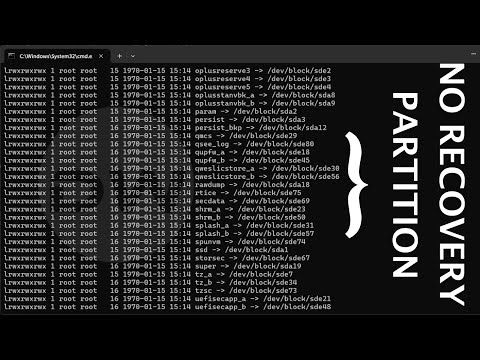
- Finally, type in the following three commands in the CMD window: adb shell cd /dev/block/platform ls -la /dev/block/bootdevice/by-name
- It will bring up a list of all the partitions on your device.
- Check if the output has recovery or recovery_a or recovery_b keywords.
- If it doesn’t, then this guide is exactly tailor-made for you.
- But if your device has a recovery partition, then you should check this guide instead.
STEP 2: Flash Recovery
- To begin with, download the recovery file for your device from the official site [ TWRP | OrangeFox ] or any other trusted site of your choice.
- Most devices only have an IMG file, but if yours has a ZIP file as well, then download it too.
- Now, rename the IMG file to recovery.img [no need to rename the ZIP file].
- Then transfer the recovery.img file to the platform-tools folder, whereas transfer the recovery ZIP to your device.
- Now boot your device to the Fastboot Mode via the below command: adb reboot bootloader
- Then type in the below command to temporarily boot to the recovery: fastboot boot recovery.img
- TIP: At this instance, if you do a reboot, then the custom recovery will be replaced with the stock one.
- Now, if your device has a recovery ZIP file, then flash it from the Install section.
- But if you don’t have a ZIP file, then go to Advanced and select Flash Current TWRP to permanently flash the recovery.
- TIP: You can use this “Flash Current TWRP” option even if your device has a recovery ZIP file.
- Moving on, once you have flashed the recovery, go to Reboot and select Recovery. This will remount the data partition.
- You may now transfer the desired file onto your device and flash it. Finally, select Reboot > System to boot to the OS.
- TWRP: Size of Image is Larger than Target Device [Fixed]
- Can You Decrypt Data in TWRP without Formatting Data?
- How to Change File Permissions without Root [via TWRP]
- Fix TWRP Data Error: E: Unable to check the merge status

(Cancel Reply)
Δ
