How to Flash Android 16 Custom ROMs on Galaxy S20 FE
In this guide, we will show you the steps to flash various Android 16 custom ROMs on your Galaxy S20 FE. While the device has reached its EOL as far as the official software update is concerned [Android 13 was the last one that it has received], but owing to its exceptional performance in the custom development, it has just been blessed with the sixteenth iteration of the OS build.

As a result of this, you’re about to welcome the much-anticipated Material 3 Expressive Design onto your device. The likes of Quick Settings, Notifications, Settings menu, and even sliders and toggles are all beneficiaries of this change. Likewise, there are some new ways to tweak the clock style as well. So without any further ado, let’s make you aware of the steps to welcome abode the Android 16 based ROMs onto your Galaxy S20 FE.
- Download Android 16 Custom ROMs for Galaxy S20 FE One UI 8 ColorOS 16 [NEW] ColorOS 16 AlphaDroid OrionOS Project Matrixx Avium UI [QPR 2] RisingOS LunarisOS LineageOS 23 LMODroid/LibreMobileOS ColorOS 15 VoltageOS DerpFest [QPR 2] WitAqua Axion crDroid Evolution X [QPR1] Project Infinity X Other Useful Files
- How to Flash One UI 8 Android 16 on Galaxy S20 FE
- How to Flash ColorOS 16 Android 16 on Galaxy S20 FE
- How to Flash AlphaDroid Android 16 on Galaxy S20 FE
- How to Flash OrionOS Android 16 on Galaxy S20 FE
- Flash Evolution X Android 16 Custom ROM on Galaxy S20 FE
- How to Flash Project Matrixx Android 16 on Galaxy S20 FE
- How to Flash Avium UI Android 16 on Galaxy S20 FE [QPR 2]
- How to Install RisingOS Android 16 on Galaxy S20 FE
- How to Flash LunarisAOSP Android 16 on Galaxy S20 FE
- How to Install LineageOS 23 Android 16 on Galaxy S20 FE
- Flash ColorOS 15 OnePlus 13T Port on Galaxy S20 FE
- How to Install LibreOS LMODroid on Galaxy S20 FE
- Flash VoltageOS Android 16 ROM on Galaxy S20 FE
- Flash DerpFest Android 16 ROM on Galaxy S20 FE
- Flash WitAqua Android 16 ROM on Galaxy S20 FE
- Flash AxionOS Android 16 ROM on Galaxy S20 FE
- Flash crDroid Android 16 ROM on Galaxy S20 FE
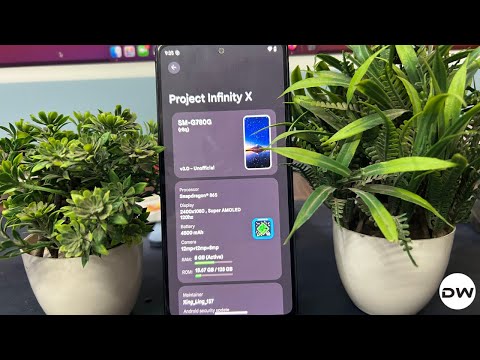
- Flash Project Infinity X Android 16 ROM on Galaxy S20 FE
- Flash Evolution X Android 16 Custom ROM on Galaxy S20 FE
Download Android 16 Custom ROMs for Galaxy S20 FE

Before starting, please take a complete device backup. Droidwin and its members wouldn’t be held responsible in case of a thermonuclear war, your alarm doesn’t wake you up, or if anything happens to your device, and data, by performing the below steps. NOTE: All the ROMs have been uploaded to a Google Drive account. There’s every chance that the link might expire or the owner decides to remove the ROM from there. In that case, you may get the required file from this backup link , created by Aurora The Warhammer, so all thanks go to him. In that backup link, there might only be one AOSP Recovery [maybe the Evolution X Recovery]. You can use that recovery to flash any and every AOSP ROM without any issue.
One UI 8
Download Links, Flashing Steps, and Video are all here.
ColorOS 16 [NEW]
DOWNLOAD:

LINK


CREDIT:

AdrianTachyon


BUGS:

Fingerprint

Face Unlock

AOD

NFC

SMS

VOLTE

BT
NOTES:

Based on OnePlus Ace 6T (ColorOS 16.0.1)

Aurora Store and Via Browser are integrated

Not_Kernel by default

Selinux Permissive
ColorOS 16
DOWNLOAD:

LINK


CREDIT:

AdrianTachyon


BUGS:

Fingerprint

Face Unlock

Nfc (Nuked)

Bluetooth Audio

SMS

VoLTE

Partially working AOD

Overlays


NOTES:

The first boot will take 3-5 minutes

Ported from Oneplus Ace 3 Pro

Not_Kernel by default

System is EROFS

SElinux Permissive
AlphaDroid
ROM | RECOVERY | VBMETA

Credit: XDA Member maveNN2k
OrionOS
📱 Device: S20 FE
📟 Codename: r8q
📅 Date: 2026/01/05
🔄 Android: 16 QPR0
🔐 SELinux: Enforcing
📀 GApps: Included
🔒 Security Patch: December 2025
👨💻 Maintainer: @Torquato1k
📲 Download: ROM | Recovery | Vbmeta
Project Matrixx
📱 Device: S 20 FE
📟 Codename: r8q
📅 Date: 2025/11/27
🔄 Android: 16
🔐 SELinux: Enforcing
📀 GApps: Included
🔒 Security Patch: November 2025
👨💻 Maintainer: @xingling_157
📲 Download: ROM
🛠 For Root: KernelSU
Avium UI [QPR 2]
📱 Device: S 20 FE
📟 Codename: r8q
📅 Date: 2026/02/06
🔄 Android: 16
🔐 SELinux: Enforcing
📀 GApps: Included
🔒 Security Patch: January 2026
👨💻 Maintainer: @maveNN2k
📲 Download: ROM | Recovery | Vbmeta
RisingOS
📱 Device: S 20 FE
📟 Codename: r8q
📅 Date: 2025/11/04
🔄 Android: 16
🔐 SELinux: Enforcing
📀 GApps: Included
🔒 Security Patch: October 2025
👨💻 Maintainer: @yanzihan
📲 Download: ROM | Recovery | Vbmeta | Mirror
LunarisOS
📱 Device: S 20 FE
📟 Codename: r8q
📅 Date: 2025/11/04
🔄 Android: 16
🔐 SELinux: Enforcing
📀 GApps: Included
🔒 Security Patch: November 2025
👨💻 Maintainer: @xingling_157
📲 Download: ROM | PARTITION FILES
LineageOS 23
📱 Device: S20 FE
📟 Codename: r8q
📅 Date: 2025/10/13
🔄 Android: 16
👨💻 Maintainer: @LineageOS Team
📲 Download: ROM | PARTITION FILES
LMODroid/LibreMobileOS
📱 Device: S 20 FE
📟 Codename: r8q
📅 Date: 2025/10/10
🔄 Android: 16
🔒 Security Patch: September 2025
👨💻 Maintainer: @LMODroid Team
📲 Download: ROM | PARTITION FILES
ColorOS 15
📱 Device: S 20 FE
📟 Codename: r8q
📅 Date: 2025/09/14
🔄 Android: 15
📀 Ported From: OnePlus 13T
🔒 Security Patch: September 2025
👨💻 Maintainer: @skye_pa1n
📲 Download: ROM
🔐 IMP: Read Notes Before Flashing
VoltageOS
📱 Device: S 20 FE
📟 Codename: r8q
📅 Date: 2025/09/12
🔄 Android: 16
🔐 SELinux: Enforcing
📀 GApps: Not Included [DOWNLOAD]
🔒 Security Patch: September 2025
👨💻 Maintainer: @xingling_157
📲 Download: ROM | PARTITION FILES
DerpFest [QPR 2]
📱 Device: S20 FE
📟 Codename: r8q
📅 Date: 03/02/2026
🔄 Android: 16
🔐 SELinux: Enforcing
📀 GApps: Included
🔒 Security Patch: January 2026
👨💻 Maintainer: @xingling_157
📲 Download: ROM
🛠 For Root: KernelSU Next
WitAqua
📱 Device: S 20 FE
📟 Codename: r8q
📅 Date: 2025/08/16
🔄 Android: 16
🔐 SELinux: Enforcing
📀 GApps: Included
🔒 Security Patch: January 2026
👨💻 Maintainer: @xingling_157
📲 Download: ROM
🛠 For Root: Use RKSU
Axion
📱 Device: S20 FE
📟 Codename: r8q
📅 Date: 2025/08/12
🔄 Android: 16
🔐 SELinux: Enforcing
📀 GApps: Included
🔒 Security Patch: August 2025
👨💻 Maintainer: @xingling_157
📲 Download: ROM
🛠 For Root: KernelSU Next
crDroid
📱 Device: S 20 FE
📟 Codename: r8q
📅 Date: 2026/01/07
🔄 Android: 16
🔐 SELinux: Enforcing
📀 GApps: Not Included [DOWNLOAD]
🔒 Security Patch: December 2025
👨💻 Maintainer: @xingling_157
📲 Download: ROM
🛠 Root: Use RKSU
Evolution X [QPR1]
ROM INFORMATION
📱 Device: S 20 FE
📟 Codename: r8q
📅 Date: 2025/10/08
🔄 Android: 16
🔐 SELinux: Enforcing
📀 GApps: Included
🔒 Security Patch: November 2025
👨💻 Maintainer: @xingling_157
📲 Download: ROM
Project Infinity X
ROM INFORMATION
📱 Device: S 20 FE
📟 Codename: r8q
📅 Date: 2025/07/16
🔄 Android: 16
🔐 SELinux: Enforcing
📀 GApps: Included
🔒 Security Patch: November 2025
👨💻 Maintainer: @xingling_157
DOWNLOAD LINK
DOWNLOAD ROM: ROM

DOWNLOAD OTHER FILES: VBMETA | RECOVERY

FOR ROOT: KernelSU Next
Other Useful Files
GAPPS

TWRP | VBMETA | EVOX Recovery

STOCK FIRMWARE

KernelSU | KernelSU Next

SUSFS | Magisk | APatch
How to Flash One UI 8 Android 16 on Galaxy S20 FE
How to Flash One UI 8 Android 16 on Galaxy S20 FE [Video]
How to Flash ColorOS 16 Android 16 on Galaxy S20 FE

- Download and extract the Android SDK Platform Tools.
- After that, enable USB Debugging and OEM Unlocking.
- Next up, unlock the bootloader on your Samsung device.
- Now, download and extract the Odin Tool on your PC.
- Now boot your device to Download Mode for flashing.
- Launch Odin and make sure your device is listed there.
- Now go to its Options tab and uncheck the Auto Reboot.
- Then, click on AP, navigate to recovery.tar, and select it.
- Then load the vbmeta_patched.tar file to the Userdata slot.
- Now hit Start. The recovery will be flashed onto the device.
- Then reboot your device directly to newly flashed recovery .
- Now, go to Wipe > Advanced Wipe > Format data > YES.
- Once that’s done, transfer the ROM ZIP file to your device.
- Then, go to Install, select ROM ZIP, and swipe to flash it.
- Next, go to Wipe > Advanced Wipe > Format data > YES.
- Finally, go to Reboot > System to boot S20 FE to ColorOS 15.
How to Flash AlphaDroid Android 16 on Galaxy S20 FE

- Download and extract the Android SDK Platform Tools.
- Next up, unlock the bootloader on your Samsung device.
- Now, download and extract the Odin Tool on your PC.
- Now, boot your device to Download Mode for flashing.
- Launch Odin and make sure your device is listed there.
- Now go to its Options tab and uncheck the Auto Reboot.
- Then, click on AP, navigate to recovery.tar, and select it.
- Then load the vbmeta_patched.tar file to the Userdata slot.
- Now hit Start. The recovery will be flashed onto the device.
- Then reboot your device directly to newly flashed recovery .
- From the recovery, do a Factory Reset/Format Data.
- Once done, transfer the ROM ZIP file to the platform-tools folder and rename it to rom.zip.
- Then select ADB Sideload from the recovery.
- Now type the below command in the CMD window to flash the ROM: adb sideload rom.zip
- Once done, again do a Factory Reset/Format Data.
- Finally, select Reboot System Now to boot to the newly flashed OS.
How to Flash OrionOS Android 16 on Galaxy S20 FE

- Download and extract the Android SDK Platform Tools.
- Next up, unlock the bootloader on your Samsung device.
- Now, download and extract the Odin Tool on your PC.
- Now, boot your device to Download Mode for flashing.
- Launch Odin and make sure your device is listed there.
- Now go to its Options tab and uncheck the Auto Reboot.
- Then, click on AP, navigate to recovery.tar, and select it.
- Then load the vbmeta_patched.tar file to the Userdata slot.
- Now hit Start. The recovery will be flashed onto the device.
- Then reboot your device directly to newly flashed recovery .
- From the recovery, do a Factory Reset/Format Data.
- Once done, transfer the ROM ZIP file to the platform-tools folder and rename it to rom.zip.
- Then select ADB Sideload from the recovery.
- Now type the below command in the CMD window to flash the ROM: adb sideload rom.zip
- Once done, again do a Factory Reset/Format Data.
- Finally, select Reboot System Now to boot to the newly flashed OS.
Flash Evolution X Android 16 Custom ROM on Galaxy S20 FE

- First off, extract the ZIP file to get the ROM ZIP file.
- Download and extract the Android SDK Platform Tools.
- Next up, unlock the bootloader on your Samsung device.
- Now, download and extract the Odin Tool on your PC.
- Now, boot your device to Download Mode for flashing.
- Launch Odin and make sure your device is listed there.
- Now go to its Options tab and uncheck the Auto Reboot.
- Now convert the recovery and vbmeta IMG to TAR via: tar –format=ustar -cvf recovery.tar recovery.img tar –format=ustar -cvf vbmeta.tar vbmeta.img
- Then click on AP, navigate to recovery.tar, and select it.
- Then load the vbmeta_patched.tar file to the Userdata slot.
- Now hit Start. The recovery will be flashed to your device.
- Then reboot your device directly to newly flashed recovery .
- Now, from the recovery, go to Factory Reset > Format data.
- Once done, select Apply Update > Apply from ADB option.
- Rename the file to rom.zip and transfer it to platform tools.
- After that, type in the below command in the CMD window adb sideload rom.zip
- The flashing will now start. Once done, you will get a prompt.
- Tap Yes if you wish to sideload any other ZIP file [it’s optional]
- Or else, tap on No if you don’t want to sideload any other ZIP file.
- Once done, head to Factory Reset > Format data and do the reset.
- Finally, tap Reboot System Now to boot to the newly flashed OS.
How to Flash Project Matrixx Android 16 on Galaxy S20 FE

- Download and extract the Android SDK Platform Tools.
- Next up, unlock the bootloader on your Samsung device.
- Now, download and extract the Odin Tool on your PC.
- Now, boot your device to Download Mode for flashing.
- Launch Odin and make sure your device is listed there.
- Now go to its Options tab and uncheck the Auto Reboot.
- Then, click on AP, navigate to recovery.tar, and select it.
- Then load the vbmeta_patched.tar file to the Userdata slot.
- Now hit Start. The recovery will be flashed onto the device.
- Then reboot your device directly to newly flashed recovery .
- Now, go to Wipe > Advanced Wipe > Format data > YES.
- Once that’s done, transfer the ROM ZIP file to your device.
- Then, go to Install, select ROM ZIP, and swipe to flash it.
- Next, go to Wipe > Advanced Wipe > Format data > YES.
- Finally, go to Reboot > System to boot S20 FE to the OS.
How to Flash Avium UI Android 16 on Galaxy S20 FE [QPR 2]

- Download and extract the Android SDK Platform Tools.
- Next up, unlock the bootloader on your Samsung device.
- Now, download and extract the Odin Tool on your PC.
- Now, boot your device to Download Mode for flashing.
- Launch Odin and make sure your device is listed there.
- Now go to its Options tab and uncheck the Auto Reboot.
- Then, click on AP, navigate to recovery.tar, and select it.
- Then load the vbmeta_patched.tar file to the Userdata slot.
- Now hit Start. The recovery will be flashed onto the device.
- Then reboot your device directly to newly flashed recovery .
- Now, go to Wipe > Advanced Wipe > Format data > YES.
- Once that’s done, transfer the ROM ZIP file to your device.
- Then, go to Install, select ROM ZIP, and swipe to flash it.
- Next, go to Wipe > Advanced Wipe > Format data > YES.
- Finally, go to Reboot > System to boot S20 FE to ColorOS 15.
How to Install RisingOS Android 16 on Galaxy S20 FE

- Download and extract Android SDK Platform Tools.
- Then unlock the bootloader on your Samsung device.
- Now, download and extract the Odin Tool on your PC.
- Now boot your device to Download Mode for flashing.
- Launch Odin and make sure your device is listed there.
- Now go to its Options tab and uncheck the Auto Reboot.
- Then click on AP, navigate to recovery.tar, and select it.
- Then load the vbmeta_patched.tar file to the Userdata slot.
- Now hit Start. The recovery will be flashed onto your device.
- Then, reboot your device directly to LunarisAOSP Recovery .
- Rename the ROM file to rom.zip and transfer it to the platform tools.
- From the LunarisAOSP Recovery, go to Factory Reset > Format data.
- Once done, select Apply Update > Apply from ADB option.
- After that, type in the below command in the CMD window adb sideload rom.zip
- The flashing will now start. Once done, you will get a prompt.
- Hit Yes if you wish to sideload any ZIP file like Magisk .
- Or else, tap on No if you don’t want to sideload any other ZIP file.
- Finally, tap Reboot System Now to boot to the newly flashed OS!
How to Flash LunarisAOSP Android 16 on Galaxy S20 FE

- Download and extract Android SDK Platform Tools.
- Then unlock the bootloader on your Samsung device.
- Now, download and extract the Odin Tool on your PC.
- Now boot your device to Download Mode for flashing.
- Launch Odin and make sure your device is listed there.
- Now go to its Options tab and uncheck the Auto Reboot.
- Then click on AP, navigate to recovery.tar, and select it.
- Then load the vbmeta_patched.tar file to the Userdata slot.
- Now hit Start. The recovery will be flashed onto your device.
- Then, reboot your device directly to LunarisAOSP Recovery .
- Rename the ROM file to rom.zip and transfer it to the platform tools.
- From the LunarisAOSP Recovery, go to Factory Reset > Format data.
- Once done, select Apply Update > Apply from ADB option.
- After that, type in the below command in the CMD window adb sideload rom.zip
- The flashing will now start. Once done, you will get a prompt.
- Hit Yes if you wish to sideload any ZIP file like Magisk .
- Or else, tap on No if you don’t want to sideload any other ZIP file.
- Finally, tap Reboot System Now to boot to the newly flashed OS!
How to Install LineageOS 23 Android 16 on Galaxy S20 FE

NOTE: The initial launch of LineageOS [23.0] is still based on Android 16 “QPR0” instead of QPR 1 because the latter’s source isn’t public yet. Thanks, Google :/ As a result of which, you will miss out on some goodies like the new Material 3 Expressive Design.
- Download and extract Android SDK Platform Tools.
- Then unlock the bootloader on your Samsung device.
- Now, download and extract the Odin Tool on your PC.
- Transfer recovery.img and vbmeta.img to the platform tools folder.
- Now open the Command Prompt inside this folder.
- Then type the below commands to TAR the recovery and vbmeta files: tar –format=ustar -cvf recovery.tar recovery.img tar –format=ustar -cvf vbmeta.tar vbmeta.img
- Now boot your device to Download Mode for flashing.
- Launch Odin and make sure your device is listed there.
- Now go to its Options tab and uncheck the Auto Reboot.
- Then click on AP, navigate to recovery.tar, and select it.
- Then load the vbmeta_patched.tar file to the Userdata slot.
- Now hit Start. The recovery will be flashed to your device.
- Then, reboot your device directly to LineageOS Recovery .
- Now, rename the Custom ROM to rom.zip and transfer it to the platform tools.
- From the LineageOS Recovery, go to Factory Reset > Format data.
- Once done, select Apply Update > Apply from ADB option.
- After that, type in the below command in the CMD window adb sideload rom.zip
- The flashing will now start. Once done, you will get a prompt.
- Hit Yes if you wish to sideload any ZIP file like GApps or Magisk .
- Or else, tap on No if you don’t want to sideload any other ZIP file.
- Finally, tap Reboot System Now to boot to the newly flashed OS!
Flash ColorOS 15 OnePlus 13T Port on Galaxy S20 FE

NOTES
This should not be used on your primary device, atleast not in the current state, as it has quite a lot of bugs:
- Fingerprint
- Face
- NFC
- BT Audio
- SMS
- VoLTE
- Reverse Wireless Charging
- Screen brightness is stuck at max
- And Others
- Play Store is not there, though you can install it from APK Mirror .
Still, the prospect is promising, and we should get a stable build in the near future. In the meantime, let me get my hands dirty on this ROM so that you don’t have to. Follow along.
- Download and extract the Android SDK Platform Tools.
- Next up, unlock the bootloader on your Samsung device.
- Now, download and extract the Odin Tool on your PC.
- Now, boot your device to Download Mode for flashing.
- Launch Odin and make sure your device is listed there.
- Now go to its Options tab and uncheck the Auto Reboot.
- Then, click on AP, navigate to recovery.tar, and select it.
- Then load the vbmeta_patched.tar file to the Userdata slot.
- Now hit Start. The recovery will be flashed onto the device.
- Then reboot your device directly to newly flashed recovery .
- Now, go to Wipe > Advanced Wipe > Format data > YES.
- Once that’s done, transfer the ROM ZIP file to your device.
- Then, go to Install, select ROM ZIP, and swipe to flash it.
- Next, go to Wipe > Advanced Wipe > Format data > YES.
- Finally, go to Reboot > System to boot S20 FE to ColorOS 15.
How to Install LibreOS LMODroid on Galaxy S20 FE
LMODroid is a LibreMobileOS production based on AOSP with LineageOS features.
- Download and extract Android SDK Platform Tools.
- Then unlock the bootloader on your Samsung device.
- Now, download and extract the Odin Tool on your PC.
- Transfer recovery.img and vbmeta.img to the platform tools folder.
- Now open the Command Prompt inside this folder.
- Then type the below commands to TAR the recovery and vbmeta files: tar –format=ustar -cvf recovery.tar recovery.img tar –format=ustar -cvf vbmeta.tar vbmeta.img
- Now boot your device to Download Mode for flashing.
- Launch Odin and make sure your device is listed there.
- Now go to its Options tab and uncheck the Auto Reboot.
- Then click on AP, navigate to recovery.tar, and select it.
- Then load the vbmeta_patched.tar file to the Userdata slot.
- Now hit Start. The recovery will be flashed to your device.
- Then reboot your device directly to LMODroid Recovery .
- Now, rename the Custom ROM to rom.zip and transfer it to the platform tools.
- From the LMODroid Recovery, go to Factory Reset > Format data.
- Once done, select Apply Update > Apply from ADB option.
- After that, type in the below command in the CMD window adb sideload rom.zip
- The flashing will now start. Once done, you will get a prompt.
- Hit Yes if you wish to sideload any ZIP file like GApps or Magisk .
- Or else, tap on No if you don’t want to sideload any other ZIP file.
- Finally, tap Reboot System Now to boot to the newly flashed OS!
Flash VoltageOS Android 16 ROM on Galaxy S20 FE

- Download and extract the Android SDK Platform Tools.
- Next up, unlock the bootloader on your Samsung device.
- Now, download and extract the Odin Tool on your PC.
- Now, boot your device to Download Mode for flashing.
- Launch Odin and make sure your device is listed there.
- Now go to its Options tab and uncheck the Auto Reboot.
- Then, click on AP, navigate to recovery.tar, and select it.
- Then load the vbmeta_patched.tar file to the Userdata slot.
- Now hit Start. The recovery will be flashed onto the device.
- Then reboot your device directly to newly flashed recovery .
- Now, from the recovery, go to Factory Reset > Format data.
- Once done, select Apply Update > Apply from ADB option.
- Rename the file to rom.zip and transfer it to platform tools.
- After that, type in the below command in the CMD window adb sideload rom.zip
- The flashing will now start. Once done, you will get a prompt.
- Tap Yes if you wish to sideload any other ZIP file [it’s optional]
- Or else, tap on No if you don’t want to sideload any other ZIP file.
- Once done, head to Factory Reset > Format data and do the reset.
- Finally, tap Reboot System Now to boot to the newly flashed OS.
Flash DerpFest Android 16 ROM on Galaxy S20 FE

- Download and extract the Android SDK Platform Tools.
- Next up, unlock the bootloader on your Samsung device.
- Now, download and extract the Odin Tool on your PC.
- Now, boot your device to Download Mode for flashing.
- Launch Odin and make sure your device is listed there.
- Now go to its Options tab and uncheck the Auto Reboot.
- Then, click on AP, navigate to recovery.tar, and select it.
- Then load the vbmeta_patched.tar file to the Userdata slot.
- Now hit Start. The recovery will be flashed onto the device.
- Then reboot your device directly to newly flashed recovery .
- Now, from the recovery, go to Factory Reset > Format data.
- Once done, select Apply Update > Apply from ADB option.
- Rename the file to rom.zip and transfer it to platform tools.
- After that, type in the below command in the CMD window adb sideload rom.zip
- The flashing will now start. Once done, you will get a prompt.
- Tap Yes if you wish to sideload any other ZIP file [it’s optional]
- Or else, tap on No if you don’t want to sideload any other ZIP file.
- Once done, head to Factory Reset > Format data and do the reset.
- Finally, tap Reboot System Now to boot to the newly flashed OS.
Flash WitAqua Android 16 ROM on Galaxy S20 FE

- Download and extract the Android SDK Platform Tools.
- Next up, unlock the bootloader on your Samsung device.
- Now, download and extract the Odin Tool on your PC.
- Now, boot your device to Download Mode for flashing.
- Launch Odin and make sure your device is listed there.
- Now go to its Options tab and uncheck the Auto Reboot.
- Then, click on AP, navigate to recovery.tar, and select it.
- Then load the vbmeta_patched.tar file to the Userdata slot.
- Now hit Start. The recovery will be flashed onto the device.
- Then reboot your device directly to newly flashed recovery .
- Now, from the recovery, go to Factory Reset > Format data.
- Once done, select Apply Update > Apply from ADB option.
- Rename the file to rom.zip and transfer it to platform tools.
- After that, type in the below command in the CMD window adb sideload rom.zip
- The flashing will now start. Once done, you will get a prompt.
- Tap Yes if you wish to sideload any other ZIP file [it’s optional]
- Or else, tap on No if you don’t want to sideload any other ZIP file.
- Once done, head to Factory Reset > Format data and do the reset.
- Finally, tap Reboot System Now to boot to the newly flashed OS.
Flash AxionOS Android 16 ROM on Galaxy S20 FE
- Download and extract the Android SDK Platform Tools.
- Next up, unlock the bootloader on your Samsung device.
- Now, download and extract the Odin Tool on your PC.
- Now, boot your device to Download Mode for flashing.
- Launch Odin and make sure your device is listed there.
- Now go to its Options tab and uncheck the Auto Reboot.
- Then, click on AP, navigate to recovery.tar, and select it.
- Then load the vbmeta_patched.tar file to the Userdata slot.
- Now hit Start. The recovery will be flashed onto the device.
- Then reboot your device directly to newly flashed recovery .
- Now, from the recovery, go to Factory Reset > Format data.
- Once done, select Apply Update > Apply from ADB option.
- Rename the file to rom.zip and transfer it to platform tools.
- After that, type in the below command in the CMD window adb sideload rom.zip
- The flashing will now start. Once done, you will get a prompt.
- Tap Yes if you wish to sideload any other ZIP file [it’s optional]
- Or else, tap on No if you don’t want to sideload any other ZIP file.
- Once done, head to Factory Reset > Format data and do the reset.
- Finally, tap Reboot System Now to boot to the newly flashed OS.
Flash crDroid Android 16 ROM on Galaxy S20 FE

- Download and extract the Android SDK Platform Tools.
- Next up, unlock the bootloader on your Samsung device.
- Now, download and extract the Odin Tool on your PC.
- Now, boot your device to Download Mode for flashing.
- Launch Odin and make sure your device is listed there.
- Now go to its Options tab and uncheck the Auto Reboot.
- Then, click on AP, navigate to recovery.tar, and select it.
- Then load the vbmeta_patched.tar file to the Userdata slot.
- Now hit Start. The recovery will be flashed onto the device.
- Then reboot your device directly to newly flashed recovery .
- Now, from the recovery, go to Factory Reset > Format data.
- Once done, select Apply Update > Apply from ADB option.
- Rename the file to rom.zip and transfer it to platform tools.
- After that, type in the below command in the CMD window adb sideload rom.zip
- The flashing will now start. Once done, you will get a prompt.
- Tap Yes if you wish to sideload any other ZIP file [it’s optional]
- Or else, tap on No if you don’t want to sideload any other ZIP file.
- Once done, head to Factory Reset > Format data and do the reset.
- Finally, tap Reboot System Now to boot to the newly flashed OS.
Flash Project Infinity X Android 16 ROM on Galaxy S20 FE
- Download and extract the Android SDK Platform Tools.
- Next up, unlock the bootloader on your Samsung device.
- Now, download and extract the Odin Tool on your PC.
- Now, boot your device to Download Mode for flashing.
- Launch Odin and make sure your device is listed there.
- Now go to its Options tab and uncheck the Auto Reboot.
- Then click on AP, navigate to recovery.tar, and select it.
- Then load the vbmeta_patched.tar file to the Userdata slot.
- Now hit Start. The recovery will be flashed to your device.
- Then reboot your device directly to newly flashed recovery .
- Now, from the recovery, go to Factory Reset > Format data.
- Once done, select Apply Update > Apply from ADB option.
- Rename the file to rom.zip and transfer it to platform tools.
- After that, type in the below command in the CMD window adb sideload rom.zip
- The flashing will now start. Once done, you will get a prompt.
- Tap Yes if you wish to sideload any other ZIP file [it’s optional]
- Or else, tap on No if you don’t want to sideload any other ZIP file.
- Once done, head to Factory Reset > Format data and do the reset.
- Finally, tap Reboot System Now to boot to the newly flashed OS.
Flash Evolution X Android 16 Custom ROM on Galaxy S20 FE

- Download and extract the Android SDK Platform Tools.
- Next up, unlock the bootloader on your Samsung device.
- Now, download and extract the Odin Tool on your PC.
- Now, boot your device to Download Mode for flashing.
- Launch Odin and make sure your device is listed there.
- Now go to its Options tab and uncheck the Auto Reboot.
- Then click on AP, navigate to recovery.tar, and select it.
- Then load the vbmeta_patched.tar file to the Userdata slot.
- Now hit Start. The recovery will be flashed to your device.
- Then reboot your device directly to newly flashed recovery .
- Now, from the recovery, go to Factory Reset > Format data.
- Once done, select Apply Update > Apply from ADB option.
- Rename the file to rom.zip and transfer it to platform tools.
- After that, type in the below command in the CMD window adb sideload rom.zip
- The flashing will now start. Once done, you will get a prompt.
- Tap Yes if you wish to sideload any other ZIP file [it’s optional]
- Or else, tap on No if you don’t want to sideload any other ZIP file.
- Once done, head to Factory Reset > Format data and do the reset.
- Finally, tap Reboot System Now to boot to the newly flashed OS.
- Install Kali Linux Nethunter Kernel on Galaxy S20 FE
- How to Install TWRP and Root Samsung Galaxy S20 FE (Exynos)
- Remove Unlock Bootloader Warning on Samsung Galaxy S20/S20+/Ultra/FE
- How to Install TWRP and Root Samsung Galaxy S20 FE 5G (Snapdragon)

- Lucho 6 months ago Reply Please send me the xml file to this email.
- Jeet 7 months ago Reply Keybox file for Project Infinity X v2.9 plz
- Not important 7 months ago Reply Please do a reupload, the links are broken
- ange 7 months ago Reply je veux savoir pour la rotation de l écran je peux l activer ou c est pas possible
(Cancel Reply)
Δ
