How to Flash Android 16/15 Custom ROMs on OnePlus 13
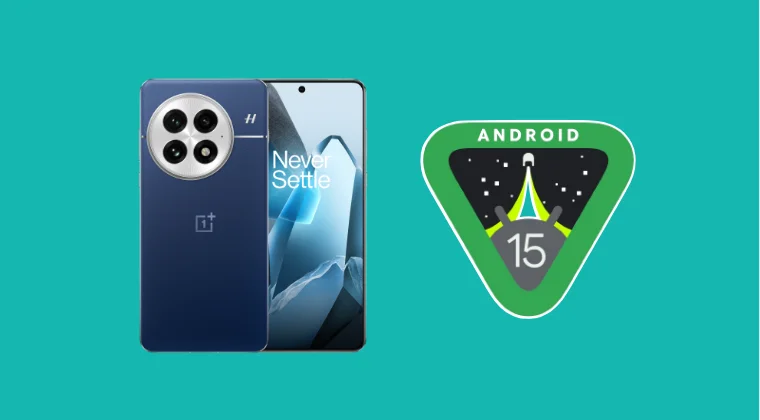
In this guide, we will show you the steps to flash numerous Android 16/15 Custom ROMs onto your OnePlus 13. OnePlus devices were always known to be the most active players in the custom development, however, that is no longer the case, beginning with the tenth series, all thanks to the takeover from Oppo, which ended up dismantling the unbrick tool.
While we did get the Oppo Flash Tool and OPlus Tool , however, they now seem to be patched as well. Therefore, not many devs are willing to come forward and develop ROMs for newer OnePlus devices. And that is the reason why this device is also facing a scarcity of ROMs.
But thankfully, one party came forward [Nameless] and has blessed our device with an AOSP ROM, offering a clean stock UI experience with just the right amount of Google goodies. And now, many other players will definitely come forward and join this bandwagon sooner rather than later. So, on that optimistic note, let’s get started with the steps to flash Android 16/15 Custom ROMs onto your OnePlus 13.
- How to Flash Android 16/15 Custom ROMs on OnePlus 13 Prerequisites Download Android 16/15 Custom ROMs for OnePlus 13 Install WatchDogs Android 16 on OnePlus 13 Fastboot ROM Recovery ROM Install PixelOS Android 16 on OnePlus 13 Flash RisingOS Android 16 on OnePlus 13 Flash LineageOS Android 16 on OnePlus 13 Flash DerpFest Android 16 on OnePlus 13 Flash Evolution X Android 16 on OnePlus 13 Flash crDroid Android 16 on OnePlus 13 Flash BlissROMs Android 16 on OnePlus 13 Via Fastboot Via Recovery Install Nameless AOSP Android 15 on OnePlus 13 Flash SunOS Android 15 on OnePlus 13
How to Flash Android 16/15 Custom ROMs on OnePlus 13
Before starting, please take a complete device backup. Droidwin and its members wouldn’t be held responsible in case of a thermonuclear war, your alarm doesn’t wake you up, or if anything happens to your device, and data by performing the below steps.
Prerequisites
- Download and extract Android SDK Platform Tools on your PC.
- Then enable USB Debugging & OEM Unlocking on your device.
- Now unlock the bootloader on your device and connect it to PC.
- Then open Command Prompt inside platform-tools and type in: adb reboot bootloader
- Type in the below command and verify the Fastboot connection: fastboot devices
- If you are not getting any serial ID, then install Fastboot Drivers .
Download Android 16/15 Custom ROMs for OnePlus 13
- You may now download the desired ROM for your device from below.
- Make sure to transfer the ROM and its partition files to platform tool.
- Also, rename the custom ROM to rom.zip for the ease of convenience. ANDROID 16 WatchDogs: RECOVERY | FASTBOOT PixelOS: DOWNLOAD LINK RisingOS Revived: DOWNLOAD LINK LineageOS: DOWNLOAD LINK Evolution X: DOWNLOAD LINK DerpFest: DOWNLOAD LINK crDroid: ROM | PARTITION FILES BlissROMs: DOWNLOAD LINK ANDROID 15 Nameless AOSP: ROM | Partition IMG Files SunOS: DOWNLOAD LINK
Install WatchDogs Android 16 on OnePlus 13
The ROM comes in Fastboot and Recovery versions. You may try out the one that is in sync with your requirement.
Fastboot ROM
- First off, do a reset via the below command: fastboot -w
- Then flash the ROM via the below command fastboot update rom.zip
- Once again do a reset via the below command: fastboot -w
- You may now boot to the OS via the below command fastboot reboot
Recovery ROM
- First off, flash TWRP Recovery on your device.
- Next up, boot your device to the recovery using: adb reboot recovery //From the OS fastboot reboot recovery //From Fastboot Mode
- Then go to Wipe > Format Data > Type in YES.
- Now, transfer the ROM ZIP file to your device.
- Then, go to Install > select ROM ZIP > flash it.
- Then go to Wipe > Format Data > Type in YES.
- Finally, select Reboot > System to boot to the OS.
Install PixelOS Android 16 on OnePlus 13
- To begin with, download & extract the ROM ZIP file on your PC.
- Now launch the superhybrid_flasher.bat file to start the flashing.
- Proceed with the on-screen instructions and reply accordingly.
- Once complete, your OnePlus 13 will then boot to the PixelOS.
Flash RisingOS Android 16 on OnePlus 13
- First off, flash the IMG files to their respective partitions: fastboot flash boot boot.img fastboot flash dtbo dtbo.img fastboot flash vendor_boot vendor_boot.img fastboot flash recovery recovery.img
- Then reboot your device to the newly flashed recovery: fastboot reboot recovery
- Now do a Factory Reset > Format data.
- After that, go to Apply Update > Apply from ADB and type the below command adb sideload rom.zip
- Once the flashing is complete, do a Factory Reset > Format data.
- Finally, select Reboot System Now to boot your OnePlus 13 to the newly flashed RisingOS.
Flash LineageOS Android 16 on OnePlus 13
- First off, flash the IMG files to their respective partitions: fastboot flash boot boot.img fastboot flash dtbo dtbo.img fastboot flash init_boot init_boot.img fastboot flash vbmeta vbmeta.img fastboot flash vendor_boot vendor_boot.img fastboot flash recovery recovery.img
- Then reboot your device to the newly flashed recovery: fastboot reboot recovery
- Now do a Factory Reset > Format data.
- After that, go to Apply Update > Apply from ADB and type the below command adb sideload rom.zip
- If you want to flash any other ZIP file, then hit YES in the prompt that appears.
- Now do an ADB Sideload of the required ZIP file.
- Once done, do a Factory Reset > Format data once again.
- Finally, select Reboot System Now to boot your OnePlus 13 to the newly flashed LineageOS.
Flash DerpFest Android 16 on OnePlus 13
- First off, extract the ROM ZIP file on the PC.
- Then launch the .bat file to start the flashing.
- Once done, do a formatting via the below command: fastboot -w
- Finally, boot to the OS via the below command: fastboot reboot
Flash Evolution X Android 16 on OnePlus 13
This ROM is hybrid- it supports flashing via recovery as well as Fastboot Commands. So go through both these methods once and then try out the one that is in sync with your requirements.
Fastboot Method:
- To begin with, download and extract the Evolution X ROM file.
- Then, run the SUPERHYBRID_EvolutionX_FLASHER.bat file.
- Now, proceed with the on-screen instructions to flash the ROM.
- Likewise, do the factory reset when asked by the script. That’s it.
Recovery Method:
- First off, transfer the ROM ZIP file to your device.
- Then install the OrangeFox Recovery on your device.
- Now boot your device to the recovery via the below command: adb reboot recovery
- Then go to Install, select the ROM ZIP file, and swipe to flash it.
- Now go to Wipe > Format Data > Type Yes > hit check to confirm.
- Finally, select Reboot > System to boot your OnePlus 13 to Evolution X.
Flash crDroid Android 16 on OnePlus 13
- To begin with, flash the partition files via the below commands: fastboot flash boot boot.img fastboot flash dtbo dtbo.img fastboot flash vbmeta vbmeta.img fastboot flash vendor_boot vendor_boot.img fastboot flash recovery recovery.img
- Then reboot your device to the crDroid Recovery via the below command: fastboot reboot recovery
- Now do a Factory Reset > Format data.
- After that, go to Apply Update > Apply from ADB and type the below command adb sideload rom.zip
- If you want to flash any other ZIP file, then hit YES in the prompt that appears.
- Now do an ADB Sideload of the required ZIP file.
- Once done, do a Factory Reset > Format data once again.
- Finally, select Reboot System Now to boot your OnePlus 13 to the newly flashed crDroid.
Flash BlissROMs Android 16 on OnePlus 13
Via Fastboot
- Extract the ROM ZIP file and launch the .bat file.
- The flashing will now start and could take a while.
- Once done, the device will boot to the OS, or else: fastboot reboot
Via Recovery
- First, install the OrangeFox Recovery on your device.
- Then boot your device into it via the below command adb reboot recovery
- Now go to Wipe > Format Data > Yes > hit checkmark.
- Once it’s done, transfer the ROM ZIP file to your device .
- Then, go to Install, select the ROM ZIP file, and flash it.
- Now, go to Wipe > Format Data > Yes > hit checkmark.
- Finally, go to Reboot > System to boot to the BlissROM.
Install Nameless AOSP Android 15 on OnePlus 13
- First, wipe the super partition via the command: fastboot wipe-super super_empty.img
- Flash the partition files via the below commands: fastboot flash boot boot.img fastboot flash vendor_boot vendor_boot.img fastboot flash init_boot init_boot.img fastboot flash recovery recovery.img
- After that, reboot to the newly flashed recovery via: fastboot reboot recovery
- Now go to Factory Reset > Format Data > do a reset.
- Next up, head to “Install Update” > “ADB Sideload”.
- Then type the below command in the CMD window: adb sideload rom.zip
- Finally, select Reboot System Now to boot to the OS.
For Chinese variant users [who were on ColorOS before flashing Nameless], if your SIM isn’t detected after flashing the ROM, then you need to flash the Chinese variant (COS) images in the FastbootD mode. Here’s how it can be done:
- To begin with, boot your device to the FastbootD Mode using the below command: adb reboot fastboot
- Once that’s done, you’ll have to download the latest ColorOS firmware on your PC.
- Now extract the oplusstanvbk.img and modem.img files via the Fastboot Enhance .
- Transfer the files to the platform-tools folder and flash them via below commands: fastboot flash oplusstanvbk oplusstanvbk.img fastboot flash modem modem.img
- Once the files have been flashed, boot the device to the OS via the below command: fastboot reboot
Flash SunOS Android 15 on OnePlus 13
- Extract the SunOS ROM and run SUPER_SUNOS_FLASHER.bat.
- It will flash a few files in Fastboot before moving over to FastbootD.
- You’ll now be prompted to press any key to continue flashing. Do so.
- Once the flashing is done, it will ask if your device is Chinese [Y/N].
- If you choose yes [Y], the script will then flash a few additional files.
- Finally, perform a reset from the recovery, and the task is complete.
- Downgrade OnePlus 13 from Android 16 to 15/OxygenOS 16 to 15
- How to Install Android 16/OxygenOS 16 on OnePlus 13
- How to Debloat/Remove Bloatware from OnePlus 13
- Guide to Root OnePlus 13 via KernelSU Next and SUSFS

(Cancel Reply)
Δ
How to Root OnePlus 13 via KernelSU Next and SUSFS
In this guide, we will show you the steps to root your OnePlus 13 via KernelSU Next and SUSFS. There exist quite a few ways using which you can root your Android device, with Magisk reigning supreme at the top. However, we are seeing a slight change in the priority among the tech enthusiasts. There has been a minuscule yet noticeable shift among the users from Magisk to its counterparts.
These include the likes of unofficial forks of Magisk like Kitsune or Delta, or other third-party alternatives like KernelSU, APatch, and KernelSU Next. So why this change all of a sudden? Well, it has now become quite a challenging task to hide root as banking and payment apps have put in place numerous checks for the Magisk binary.
However, they are yt to do so for the aforementioned apps. Hence, if you rooted via any of those apps, then there’s a high chance that you can easily bypass the root checks on your device and use payment apps without any issues. So due to all these reasons, this guide will show you the steps to root your OnePlus 13 via KernelSU Next and SUSFS. Follow along,
- How to Root OnePlus 13 via KernelSU Next and SUSFS METHOD 1 [Shorter Method] METHOD 2 [Longer Method]
How to Root OnePlus 13 via KernelSU Next and SUSFS

Before starting, please take a backup of all the data on your device. Droidwin and its members wouldn’t be held responsible in case of a thermonuclear war, your alarm doesn’t wake you up, or if anything happens to your device and data by performing the below steps.
METHOD 1 [Shorter Method]
How to Root any OnePlus via KernelSU Next and SUSFS
METHOD 2 [Longer Method]
- To begin with, download the same firmware that is installed on your device.
- You may verify the same from the device’s Version Number.
- Now extract it, get the payload.bin file, and load it into the Fastboot Enhance Tool . Then extract the init_boot.img file from it.
- Next up, download and extract the Android SDK Platform Tools on your PC.
- Then enable USB Debugging and OEM Unlocking, and connect your device to PC via USB.
- Now unlock the bootloader on your device via the fastboot flashing unlock command.
- Then install the KSU Next app > patch the init_boot.img file via it.
- Now transfer this patched file to platform-tools and rename it to patched_init_boot.img
- Next up, download and install the Key Attestation app on your device.
- Then download the 6.6.66 kernelsu next boot.img (or more than .66 if available) from here .
- Now boot your device to the Fastboot Mode via: adb reboot bootloader
- Then flash the patched init_boot via: fastboot flash init_boot patched_init_boot.img
- Now restart your device, launch KernelSU Next, and make sure it is working in LKM Mode.
- Then get the vbmeta.img file from the same firmware version that is installed on your device.
- Now transfer the file to the platform-tools folder. Then boot your device to the Fastboot Mode adb reboot bootloader
- Now disable Android Verified Boot by flashing vbmeta.img as follows: fastboot –disable-verification flash vbmeta vbmeta.img
- Now flash the boot.img as follows: fastboot flash boot boot.img
- Then flash the SUSFS module from here . Now copy the verified boot hash under “root of trust”
- Go to /data/adb/VerifiedBootHash and put the string you copied in the text file
- Finally, restart your device for the changes to take place.
- How to Switch from Magisk to KernelSU
- How to Hide Root via KernelSU on Rooted Android
- Rooting via Magisk/KernelSU/APatch: Boot or Init Boot
- How to Flash Kernel with Integrated KernelSU on Galaxy S24 Ultra
- Freddy 2 months ago Reply Your instructions don’t make sense Longer method 4.Then install the KSU Next app > patch the init_boot.img file via it. Okay explain where to get this init_boot.img Sadique Hassan 2 months ago Reply sorry mate for the confusion. I have updated the guide with more clarity..
- Muji 11 months ago Reply Please give a susfs img for one plus 13r
(Cancel Reply)
Δ
