How to Flash Files via EDL Tool [Supports Locked Bootloader]
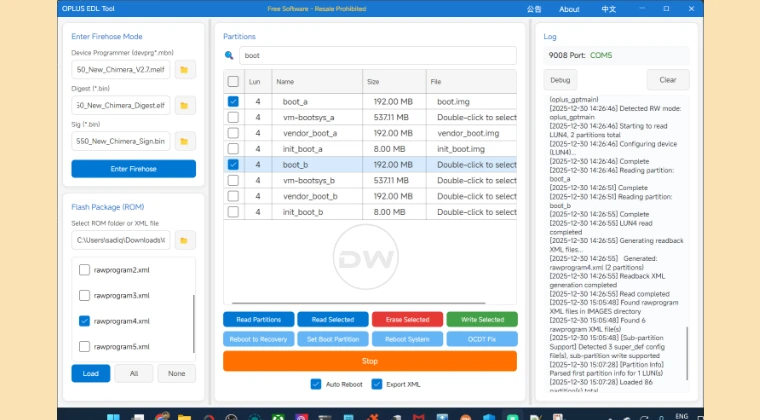
Before flashing firmware in the EDL Mode, it’s always recommended to back up a few partitions, if not the entire device. For example, on my OnePlus 11, I have taken a backup of the Fingerprint and IMEI partitions . However, a user reached out to me with an intriguing issue [well, intriguing for me but extremely infuriating for him!].
After taking a backup, he flashed the entire firmware and then relocked the bootloader [as opposed to MSM, the OPLUS EDL Tool does not automatically relock the bootloader]. However, he then saw that the device’s fingerprint was no longer working [the persist partition got corrupted]. The good news was that he already had a backup of the said partition.
Unfortunately, since the bootloader was locked, he wasn’t able to flash the file, and unlocking the bootloader wasn’t a possibility either[since the device was bricked]! So what can be done? Well, you can always flash the files in the EDL Mode even if the device’s bootloader is locked and the device is bricked. And in this guide, we will show you how to do just that. So without any further ado, let’s get started.
How to Flash Partition Files via EDL Tool

If you are not interacting with the userdata partition, then your data “might” remain intact. Still, it is always recommended to take a backup beforehand [unfortunately, this wouldn’t be a possibility for most of you]. Droidwin and its members wouldn’t be held responsible in case of a thermonuclear war, your alarm doesn’t wake you up, or if anything happens to your device and data by performing the below steps.
- To begin with, download and extract the OPLUS EDL Tool on your PC.
- Now get the EDL firmware for your device and extract it if it’s a ZIP file.
- Next, place the file that you want to flash in the ROM’s Images folder. It will ask if you want to replace the existing file; click YES [make sure to take a backup of the original one].
- Now open the rawprogram.xml file where your file/partition is listed. The rawprogram04.xml has the maximum number of partitions, so start with that. If that doesn’t have your partition, then open the other ones [0,1,2,3,5].
- NOTE: Before dealing with these rawprogram files, take their backup and place it somewhere else.
- Once you have got your partition, verify that the file name is also listed. For most of the partitions, the file name will already be there. If yours is not, then type it in the double quotes next to the filename keyword. Moreover, the filename will be missing for all the ‘B’ partitions. So if you want to flash your backup file in the B slot as well, then make sure to type in your filename there.
- Once you have made the required changes to the rawprogram.xml file, save it via Ctrl+S.
- Now launch the OPLUS EDL Tool and go to the Flash Package section. Then load the EDL firmware by clicking on the folder icon > Choose Folder in the pop-up dialog box.
- All the rawprogrammer.xml files will be loaded into the tool. Just keep that one check, which has your file/partition, and uncheck all the other ones. Then click on Load.
- It will load all the partitions present in that rawprogram.xml file. Keep only that one checked which needs to be flashed on your device, and uncheck all the other ones.
- With this, we are now ready for the flashing. So load the Device Programmer, Digest, and Sign files to their fields [at the top left of the tool].
- Once done, boot the device to the EDL Mode. For that, power it off. Then press and hold the Volume Up and Down keys, and while holding both keys, connect your device to the USB cable.
- Open Device Manager and verify your device is shown as Qualcomm HS-USB QDLoaders 9008. If that’s not the case, then please install the EDL Drivers on your PC.
- Once that’s done, click on Enter Firehose and verify your device is in the Firehose mode from the log section of the tool [it’s on the right-hand side].
- Finally, verify if the correct partition is checked [the one which you want to flash] and the said file is present in the ROM’s Images folder.
- Also, if you want the device to boot automatically once the flashing is done, check the Auto Reboot option.
- Now just click on Read Selected. You’ll get a confirmation prompt, click YES. The flashing will start and will take some time, depending on the number of partitions and the file size.
- Once done, the device will boot to the OS [if you choose Auto Reboot]. Or press the Power key for 10-15 seconds to manually power on the device.
- How to Unbrick OnePlus/Oppo/Realme via OPLUS EDL Tool
- How to Flash EDL Firmware on OnePlus: MSM & Oppo Flash Tool
- Download MSM Download Tool: Unbrick any OnePlus Device [Video]
- How to Flash ROM and Unbrick OnePlus via Fastboot Enhance Tool
- How I Unbricked My OnePlus Free of Cost!
- Unbrick OnePlus via OPLUS Flash Tool
- How to Access EDL Test Point on various Android Devices [Images]

- Smartgears 1 month ago Reply I am glad that there are still websites like droidwin that keep providing valid info with detailed steps. With so much AI generated articles which I find are just click bait most of the time. With everything thing being more locked down than ever it is essential that such information is preserved. I have been part of the android community for more than a decade now and I appreciate the effort from the bottom of my heart. These are difficult times in terms of search discoverability with AI results flooding google search results and I hope more people appreciate such content. Sadique Hassan 1 month ago Reply Thanks mate for these encouraging words, means a lot…
- Jay 1 month ago Reply Can I unbrick with this tool the phone Oneplus 13?
(Cancel Reply)
Δ
