How to Flash Motorola Firmware via Flashfile.xml or Servicefile.xml
In this guide, we will show you the steps to flash the firmware on your Motorola device using flashfile.xml or servicefile.xml. If we talk about manually flashing a firmware, then there are quite a few ways out, including the Lenovo Rescue and Smart Assistant, and a Fastboot Flashing Script.
So why then is there a need to use the XML file to get this job done, when infact this is the most complicated and lengthy method? Well, the Lenovo Rescue and Smart Assistant doesn’t come in handy in numerous cases, such as when the device is in a bootloop/bricked state or if you are trying to go back to stock from a custom ROM. What about the fastbot flashing script?
While it does the job without any issues, however, not many are ready to run a third-party script on their PC. So this then leaves us with only the flashfile.xml or servicefile.xml for firmware flashing. And in this guide, we will show you how to use these XML files. So without further ado, let’s get started.
- How to Flash Motorola Firmware via Flashfile.xml or Servicefile.xml STEP 1: Create a Flashing Script STEP 2: Flash Firmware
- Sample Command Sheet
How to Flash Motorola Firmware via Flashfile.xml or Servicefile.xml
Before starting, please take a complete device backup. Droidwin and its members wouldn’t be held responsible in case of a thermonuclear war, your alarm doesn’t wake you up, or if anything happens to your device and data by performing the below steps.
Benefit: Gives you complete granular control over the flashing process. No third-party tool required.

Drawback: Quite a risky process. One single wrong command and the device might get bricked. Moreover, requires quite a lot of time and effort as well.
STEP 1: Create a Flashing Script
- Create a new text file and name it flash.bat. You’ll get a prompt, hit OK.
- Download the stock firmware corresponding to your region from here.
- Then extract it and you’ll get the servicefile.xml as well as flashfile.xml.
- Open either of the two via Notepad++ [flashfile.xml is recommended].
- Now copy all the contents between
and tags. - Paste it into the flash.bat file. Now, the first line of flashing PGPT will be our third line.
- The second and third lines of the file [given below] will be our first two lines:
- Convert them to a flashing command, which will look like: fastboot getvar max-sparse-size fastboot oem fb_mode_set
- Now, our third and fourth lines are:
- Change them such that they become a flashing command. For instance, the above two commands will become: fastboot flash gpt pgpt fastboot flash preloader preloader.img
- Modify the remaining commands accordingly. The only difference being they should be flashed across both the slots a & b. So, for example, the command:
- Will convert to: fastboot flash lk_a lk.img fastboot flash lk_b lk.img
- However, not every file should be flashed to both partitions. These files should only be flashed to the active partition: md1img logo vbmeta vbmeta_system boot vendor_boot
- On the other hand, the super.img_sparsechunk file should not have any partitions associated with it. The command will simply be: fastboot flash super super.img_sparsechunk
- Moreover, in the middle of the commands, you’ll come across a command for the erasing of nvdata; we will do so at the end.
- Once you reach the end, we will have 3 erase commands, plus one from earlier [of nvdata]. So the four commands will be:
- These four commands will become: fastboot erase userdata fastboot erase metadata fastboot erase debug_token fastboot erase nvdata
- The final command of the file will be
- Which will transform to fastboot oem fb_mode_clear
- It’s recommended not to add the reboot command because once the flashing is done, we will manually go through the command sheet to verify if there’s any error or not.
STEP 2: Flash Firmware
- Download and extract Android SDK Platform Tools on your PC.
- Then, enable USB Debugging & OEM Unlocking on your device.
- Next up, unlock the device’s bootloader using our detailed guide.
- Now open Command Prompt inside platform-tools and type in: adb reboot bootloader
- Then transfer the flash.bat file inside the platform-tools folder.
- Likewise, also transfer all the firmware files inside that folder.
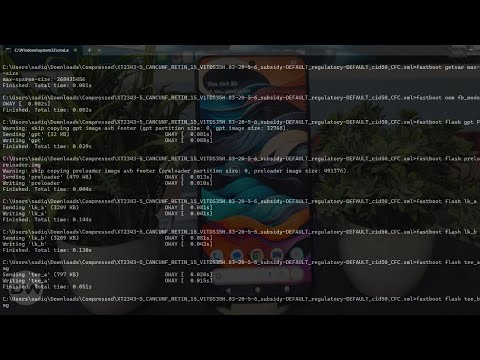
- Finally launch this flash.bat file and the flashing will now start.
- Once complete, go through the CMD window once and check for errors.
- If there isn’t any, then you may now boot your device to the OS: fastboot reboot
Sample Command Sheet
I have a Moto G54 5G running Android 15 Indian firmware [RETIN]. So the command sheet, in my case, is as follows:
fastboot getvar max-sparse-size

fastboot oem fb_mode_set


fastboot flash gpt PGPT

fastboot flash preloader preloader.img


fastboot flash lk_a lk.img

fastboot flash lk_b lk.img


fastboot flash tee_a tee.img

fastboot flash tee_b tee.img


fastboot flash mcupm_a mcupm.img

fastboot flash mcupm_b mcupm.img


fastboot flash pi_img_a pi_img.img

fastboot flash pi_img_b pi_img.img


fastboot flash sspm_a sspm.img

fastboot flash sspm_b sspm.img


fastboot flash dtbo_a dtbo.img

fastboot flash dtbo_b dtbo.img


fastboot flash logo_a logo.img

fastboot flash logo_b logo.img


fastboot flash spmfw_a spmfw.img

fastboot flash spmfw_b spmfw.img


fastboot flash scp_a scp.img

fastboot flash scp_b scp.img


fastboot flash vbmeta_a vbmeta.img

fastboot flash vbmeta_b vbmeta.img


fastboot flash vbmeta_system_a vbmeta_system.img

fastboot flash vbmeta_system_b vbmeta_system.img


fastboot flash md1img_a md1img.img

fastboot flash md1img_b md1img.img


fastboot flash dpm_a dpm.img

fastboot flash dpm_b dpm.img


fastboot flash gz_a gz.img

fastboot flash gz_b gz.img


fastboot flash vcp_a vcp.img

fastboot flash vcp_b vcp.img


fastboot flash gpueb_a gpueb.img

fastboot flash gpueb_b gpueb.img


fastboot flash efuseBackup efuse.img


fastboot flash boot_a boot.img

fastboot flash boot_b boot.img


fastboot flash vendor_boot_a vendor_boot.img

fastboot flash vendor_boot_b vendor_boot.img


fastboot flash super super.img_sparsechunk.0

fastboot flash super super.img_sparsechunk.1

fastboot flash super super.img_sparsechunk.2

fastboot flash super super.img_sparsechunk.3

fastboot flash super super.img_sparsechunk.4


fastboot flash super super.img_sparsechunk.5

fastboot flash super super.img_sparsechunk.6

fastboot flash super super.img_sparsechunk.7

fastboot flash super super.img_sparsechunk.8

fastboot flash super super.img_sparsechunk.9


fastboot flash super super.img_sparsechunk.10

fastboot flash super super.img_sparsechunk.11

fastboot flash super super.img_sparsechunk.12

fastboot flash super super.img_sparsechunk.13

fastboot flash super super.img_sparsechunk.14


fastboot flash super super.img_sparsechunk.15

fastboot flash super super.img_sparsechunk.16

fastboot flash super super.img_sparsechunk.17

fastboot flash super super.img_sparsechunk.18

fastboot flash super super.img_sparsechunk.19


fastboot flash super super.img_sparsechunk.20

fastboot flash super super.img_sparsechunk.21


fastboot erase userdata

fastboot erase metadata

fastboot erase debug_token

fastboot erase nvdata


fastboot oem fb_mode_clear

pause
- How to Go Back to Stock ROM From a Custom ROM on Motorola
- How to Flash Stock Firmware on Motorola [3 Methods]
- Cannot Unlock Motorola Bootloader: How to Fix
- How to Disable Ads on Lock Screen on Motorola

(Cancel Reply)
Δ
