How to Flash One UI 8 Android 16 on Galaxy S20 FE [Video]
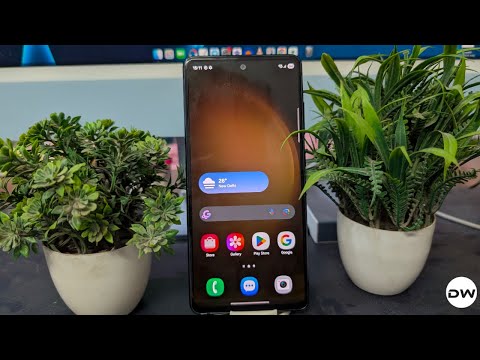
In this guide, we will show you the steps to flash the latest One UI 8 based on Android 16 onto your Galaxy S20 FE. The device is quite an active player in the custom development and has already been blessed with over 10+ custom ROMs based on the latest OS release . However, all of these ROMs are AOSP-based.
There is a growing list of users who were looking for Samsung’s One UI on top of the sixteenth iteration of the OS. While the wait for UN1CA is growing ever louder, another developer [XDA Recognized Developer pascua28] came forward and has created an excellent Galaxy S23+ port for our S20 FE, which offers all the new goodies that One UI 8 has in store.
So without any further ado, let’s make you aware of the flashing steps, which, trust me, are so unique that you wouldn’t have tried out to date. But what’s so peculiar about flashing a ROM? Well, you’ll have to take the help of two custom recoveries in flashing a ROM, which is a first for me, and I guess would be the same for you as well! So on that note, let’s get started.
- How to Flash One UI 8 Android 16 on Galaxy S20 FE: Galaxy S23+ Port ROM Information Bugs Download Flashing Instructions
- How to Flash UN1CA One UI 8 Android 16 on Galaxy S20 FE
How to Flash One UI 8 Android 16 on Galaxy S20 FE: Galaxy S23+ Port

Before starting, please take a complete device backup. Droidwin and its members wouldn’t be held responsible in case of a thermonuclear war, your alarm doesn’t wake you up, or if anything happens to your device and data by performing the below steps.
ROM Information
- Version: 1.0.0 (Beta) for S20 FE [Snapdragon] only
- Android version: OneUI 8.0 based on Android 16
- ROM Base: Galaxy S23+ (S916BXXU8EYI5)
- Security patch: 2025-09-01
- Credits: XDA Recognized Developer pascua28
Bugs
- SmartView won’t connect
- HDR10+
- Camera crashes when taking ultrawide picture (use pro mode to take ultrawide photos)
- Calls on Speaker in WhatsApp, Discord, etc. (always maximum volume)
Download
You have to download both the TWRP and OrangeFox Recovery; it’s compulsory, not optional.
- ROM | Mirror
- TWRP
- OrangeFox
- Vbmeta: G780G | G781B
Flashing Instructions
- Download and extract the Android SDK Platform Tools.
- Next up, unlock the bootloader on your Samsung device.
- Now, download and extract the Odin Tool on your PC.
- Now, boot your device to Download Mode for flashing.
- Launch Odin and make sure your device is listed there.
- Now go to its Options tab and uncheck the Auto Reboot.
- Then, click on AP, navigate to recovery.tar, and select it.
- Then load the vbmeta_patched.tar file to the Userdata slot.
- Now hit Start. The recovery will be flashed onto the device.
- Then reboot your device directly to newly flashed recovery .
- Now, go to Wipe > Advanced Wipe > Format data > YES.
- Once that’s done, transfer the ROM ZIP file to your device.
- Then, go to Install, select ROM ZIP, and swipe to flash it.
- Next, go to Wipe > Advanced Wipe > Format data > YES.
- Then, go to Reboot > System to boot S20 FE to One UI 8.
- Once you reach the One UI 8 setup screen, reboot back to TWRP Recovery.
- Now transfer the OrangeFox Recovery IMG file to your device.
- Then go to Install, tap on Install Image, and select the OrangeFox Recovery IMG file.
- Now choose the Recovery partition and swipe to flash it.
- Then, Reboot to Recovery.
- Now, do a Format Data.
- Finally, Reboot to System.
How to Flash UN1CA One UI 8 Android 16 on Galaxy S20 FE
How to Install UN1CA One UI 8 Android 16 on Galaxy S20 FE
- How to Flash Android 16 Custom ROMs on Galaxy S20 FE
- How to Root Galaxy S20 FE via KernelSU and SUSFS
- Install Kali Linux Nethunter Kernel on Galaxy S20 FE
- How to Flash Pitch Black Recovery Project on Galaxy S20 FE

(Cancel Reply)
Δ
