How to Flash or Install Stock Firmware on Motorola One Hyper via Fastboot Commands
In this guide, we will be listing the instructions to install stock firmware on Motorola One Hyper via the fastboot commands.
The device, launched in December 2019, has a 6.5-inch display and 1080 x 2340 pixels. Furthermore, it runs on Android 10 out of the box and comes with Snapdragon 675 under the hood. The device is part of the Android one program. However, Motorola seems to be making a mockery of this initiative by Google, as many of One Action and Oner Hyper users have yet to receive the Android 10 update.
But since the device runs on Snapdragon chipset, expect it to be having tons of custom development in the form of Custom ROMs, Recovery and others. But while doing so, you might brick your device every now and then. And considering the shady record of the Lenovo Motorola Smart Assistant, it more often than not fails to rescue your device.
- Don’t Miss: How to Install Stock Firmware on Motorola One Vision via Fastboot Commands
In that note, the fastboot commands will definitely come in handy. Therefore, in this guide, we will be sharing with you all the steps to Flash Stock Firmware on Motorola One Hyper via Fastboot Commands.
- Requirements
- Motorola One Hyper Stock Firmware Collection
- How to Install Stock Firmware on Motorola One Hyper via Fastboot
- Fastboot commands to flash stock firmware on Motorola One Hyper
Requirements
- Unlocked Bootloader , if flashing some other region’s firmware.
- Download and install Android SDK and Platform-Tools on your PC.
- Also, make sure to enable Developer Option and henceforth USB Debugging. Enable USB Debugging Motorola One Hyper
- Complete Backup of your Moto device.
- Finally, download the firmware for Moto One Hyper for your region from below.
Motorola One Hyper Stock Firmware Collection
- ALTMX ATTMX OPENCL OPENMX RETAPAC RETAR RETBR RETEU RETLA RETUS TEFMX TIGCA
How to Install Stock Firmware on Motorola One Hyper via Fastboot
With the firmware now downloaded, here are the steps to Install Stock Firmware on Motorola One Hyper via Fastboot commands.
- Extract the downloaded stock firmware inside the platform-tools folder on your PC.
- Connect your device to PC via USB Cable. Make sure USB Debugging has been enabled.
- Now boot your device to Fastboot Mode. For that, use the hardware key combinations or inside the platform tool folder, type cmd in the address bar. This should open Command Prompt. Enter the below command to boot Motorola One Hyper to fastboot: adb reboot bootloader Fastboot Mode in Motorola
- Once your device boots to fastboot/bootloader mode, enter the below commands in the CMD window (make sure to open it from the platform-tools folder only) Also, make sure to enter each command individually. That is, copy-paste one command, hit Enter, copy-paste the second one and so on. Here are the required fastboot commands to flash stock firmware on Motorola One Hyper.
- Furthermore, the below fastboot erase userdata command wipes your data device’s data. If you want to, you could skip the said command, but it is always recommended for a fresh install. Hence make a backup beforehand and let the erase userdata command do its job
Don’t Miss: How to Install Stock Firmware via Fastboot Commands on Motorola One Action
Fastboot commands to flash stock firmware on Motorola One Hyper
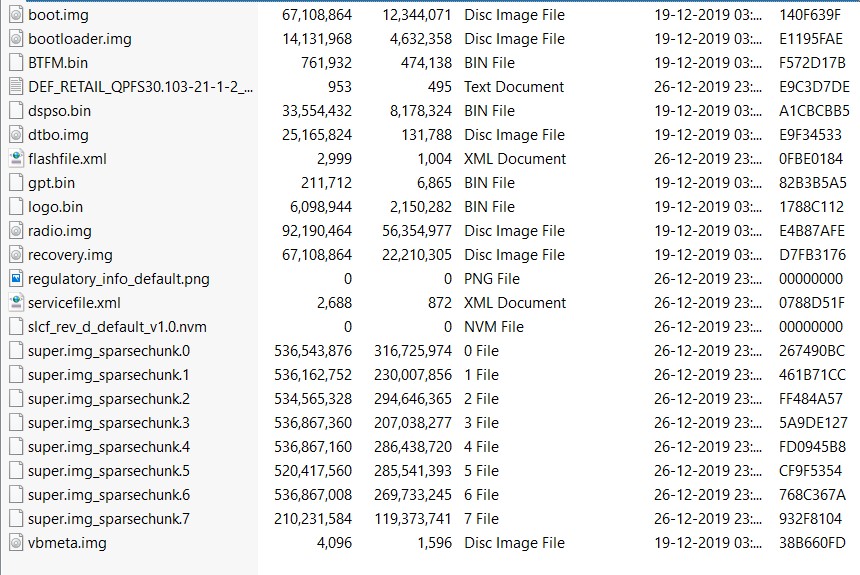
Motorola One Hyper stock firmware files
fastboot flash partition gpt.bin fastboot flash bootloader bootloader.img fastboot flash vbmeta vbmeta.img fastboot flash radio radio.img fastboot flash bluetooth BTFM.bin fastboot flash dsp dspso.bin fastboot flash logo logo.bin fastboot flash boot boot.img fastboot flash dtbo dtbo.img fastboot flash recovery recovery.img fastboot flash super super.img_sparsechunk.0 fastboot flash super super.img_sparsechunk.1 fastboot flash super super.img_sparsechunk.2 fastboot flash super super.img_sparsechunk.3 fastboot flash super super.img_sparsechunk.4 fastboot flash super super.img_sparsechunk.5 fastboot flash super super.img_sparsechunk.6 fastboot flash super super.img_sparsechunk.7 fastboot erase carrier fastboot erase userdata fastboot erase metadata fastboot erase ddr fastboot reboot bootloader
The entire flashing shouldn’t take more than 5-6 minutes. Only the sparse chunk files take some time to flash. Furthermore, once all the commands are executed, your device will be booted to fastboot. To boot it to Android OS, either do so via the power key or use the fastboot reboot command.

- Read next: Everything About Magisk- Manager, Modules and More

(Cancel Reply)
Δ
