How to Flash OxygenOS Firmware on any OnePlus [Video]
In this guide, we will show you the steps to flash the OxygenOS firmware on your OnePlus device. Most custom ROMs nowadays require you to be on the latest firmware [apart from the obvious latest OS build]. For instance, if you own a OnePlus 8T and are planning to flash the Nameless AOSP ROM’s latest build, then apart from being on OxygenOS 13.1, it is also recommended that you be on the latest F.67 firmware version as well. But what happens if you don’t flash the firmware?
Well, in such cases, your device will end up in a bootloop , and you will then have to use either Fastboot Enhance or MSM Tool to unbrick it . So, to avoid that from happening, you could take two approaches: either take a longer route and manually flash the custom ROM to both slots, which would take quite a lot of time and could end up further complicating the matter, or simply flash the OxygenOS firmware on your OnePlus device. In this guide, we will be taking the latter approach. Follow along.
If you are planning to remove the OrangeState Warning on your OnePlus device, then refer to the second method.
- Flash OnePlus Stock ROM via Fastboot Firmware Flasher Tool [New] Features of this Tool Flashing Instructions
- How to Flash OxygenOS Firmware on OnePlus via TWRP/OrangeFox
- How to “Manually” Flash OxygenOS Firmware on OnePlus For DDR Type 0 (DDR4) For DDR Type 1 (DDR5) Flashing the Rest of the Firmware Files OnePlus 8 Firmware Flashing Commands OnePlus 8 Pro Firmware Flashing Commands OnePlus 8T Firmware Flashing Commands OnePlus 9R Firmware Flashing Commands
Flash OnePlus Stock ROM via Fastboot Firmware Flasher Tool [New]
It had been a rough few months for the OnePlus device owners. Due to the absence of a Fastboot ROM, users were left with no choice but to take the EDL approach for flashing stock firmware. In this regard, the MSM Tool only works till the 9 series. So, for newer devices, we had to use the Oppo Flash Tool, which unfortunately got patched. Then came the OPlus Flash Tool, which seems to be going the same route as its counterpart.
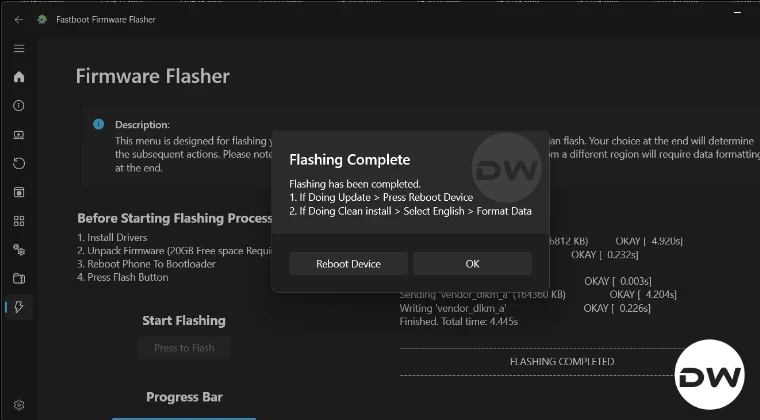
Well, all that is about to change now, thanks to the Fastboot Firmware Flasher Tool, which will allow you to flash the entire firmware [the payload.bin file] to your device across both the Fastboot and FastbootD Modes without any manual intervention from your end. So without any further ado, let’s list out the benefits of its tool, after which we will make you aware of its usage instructions as well.
NOTE: This method will come in handy if you want to fix bootloop or softbrick, go from custom to stock ROM, or manually update your ROM. However, it will not help you remove the OrangeState warning on your OnePlus; for that, you’ll have to refer to the next method.
Features of this Tool
- It is an automated flashing of the firmware files, no need to enter any Fastboot Commands.
- It can flash the entire payload.bin in just a few clicks.
- It does not require EDL Mode, everything will be carried out in the Fastboot/FastbootD Modes only.
- The tool also beholds a slew of other useful features as well, including the ability to install drivers, execute ADB Fastboot Commands, open Terminal Window inside platform-tools, obtain root via KernelSU, flash image in the boot, init_boot, and recovery partitions, firmware unpacked to extract payload.bin, and finally the option to flash the extracted payload.bin to their respective partitions.
Flashing Instructions

If you are currently booted to a custom ROM, then take a backup of all the data on your device. However, if your device is currently in the softbrick or bootloop, then you’ll have to force reboot to Fastboot Mode and start from STEP 5. Droidwin and its members wouldn’t be held responsible in case of a thermonuclear war, your alarm doesn’t wake you up, or if anything happens to your device and data by performing the below steps.
- First off, download and extract the Android SDK Platform Tools .
- Then enable USB Debugging and OEM Unlocking on your device.
- Once done, unlock the bootloader on your device using our tutorial.
- Now open Command Prompt inside the platform-tools and type in: adb reboot bootloader
- Then type in the below command to verify the Fastboot Connection fastboot devices
- If you are not getting any serial ID, then install the Fastboot Driver .
- Now download the firmware for your device via Oxygen Updater or using any third-party site.
- Next up, download and extract the Fastboot Firmware Flasher Tool . [Credits – NeFeroN]
- Then install it via its EXE file. Now launch it and go to the Firmware Unpacker tab [the second last option].
- Click on File Picker and select the entire firmware ZIP. Then select Full under Mode.
- Now click Press to Unpack. It will extract the payload.bin file.
- Once done, you’ll be notified of the same.
- Now go to the Flashing tab and click Press to Flash. The flashing will now start in Fastboot Mode.
- You’ll then get a prompt that the tool wants to boot the device to FastbootD Mode. Click OK and your device will boot to FastbootD.
- It will warn you not to interact with the device while flashing, click OK. The flashing will then start in FastbootD Mode.
- Once done, you’ll be notified of the same. Hit Reboot Device and your device will boot to the OS.
That’s it. These were the steps to flash the OxygenOS firmware on your OnePlus device using the Fastboot Firmware Flasher Tool.
How to Flash OxygenOS Firmware on OnePlus via TWRP/OrangeFox

While the process might not wipe off any data, but still, take a backup just to be on the safer side. Droidwin and its members wouldn’t be held responsible in case of a thermonuclear war, your alarm doesn’t wake you up, or if anything happens to your device and data by performing the below steps.
NOTE: A firmware is not the entire ROM; it only contains a few partition files for your device and weighs around 200-300MB, as opposed to 4- 5 GBs [or even more] for a stock ROM. So if you want to fix bootloop or softbrick, go from custom to stock ROM, or manually update your ROM, then this method will not work; instead, please try the first method above. But if you want to remove the OrangeState warning on your OnePlus device, then you have come to the right place.
- To begin with, download and extract Android SDK Platform Tools on your PC.
- Then enable USB Debugging and OEM Unlocking on your device.
- Now unlock the bootloader on your device [it will wipe off all the data].
- Once done, boot your device to Fastboot Mode via the below command adb reboot bootloader
- Then type in the below command and make sure that you are getting a serial ID. If not, then please install Fastboot Drivers . fastboot devices
- Now download the firmware ZIP File [Source: GitHub ] and transfer it to your device.
- Then install a custom recovery like TWRP or temporary boot to it using the below command: fastboot boot twrp.img
- From TWRP, go to Install, select the firmware ZIP file, and perform a right swipe to flash it.
- It will list out the firmware details, press the Vol Up key to Continue.
- Then it will ask for a modem update, again press the Vol Up key to Continue.
- The flashing will now start and would take a few seconds. Once done, select Reboot > System.
How to “Manually” Flash OxygenOS Firmware on OnePlus
If for some reason you wish to manually flash the firmware [note: it is way more complicated, difficult, and lengthier than the automated method discussed above], then here’s what you need to do:
- First off, check the DDR version for your device: How to Check DDR Version on OnePlus .
- Then download the Fastboot ROM corresponding to your device’s Build Number
- Now extract it and you’ll get payload.bin. Extract that file via Fastboot Enhance Tool .
- This will give you the required files. Transfer them to the platform-tools folder.
- Now boot your device to FastbootD Mode and type in the commands corresponding to the DDR type:
For DDR Type 0 (DDR4)
fastboot flash --slot=all xbl_config xbl_config.img

fastboot flash --slot=all xbl xbl.img
For DDR Type 1 (DDR5)
fastboot flash --slot=all xbl_config xbl_config_lp5.img

fastboot flash --slot=all xbl xbl_lp5.img
Flashing the Rest of the Firmware Files
Once you have flashed the required DDR4 or DDR5 XBL file, it is also recommended that you flash the rest of the partition files. All these files should be flashed in FastbootD Mode itself. I have listed the commands for OnePlus 8/8 Pro/8T/9R, you should verify the files for your OnePlus firmware, and modify it accordingly, if needed:
OnePlus 8 Firmware Flashing Commands
fastboot flash --slot=all abl abl.img

fastboot flash --slot=all aop aop.img

fastboot flash --slot=all bluetooth bluetooth.img

fastboot flash --slot=all cmnlib64 cmnlib64.img

fastboot flash --slot=all cmnlib cmnlib.img

fastboot flash --slot=all devcfg devcfg.img

fastboot flash --slot=all dsp dsp.img

fastboot flash --slot=all featenabler featenabler.img

fastboot flash --slot=all hyp hyp.img

fastboot flash --slot=all imagefv imagefv.img

fastboot flash --slot=all keymaster keymaster.img

fastboot flash --slot=all logo logo.img

fastboot flash --slot=all mdm_oem_stanvbk mdm_oem_stanvbk.img

fastboot flash --slot=all modem modem.img

fastboot flash --slot=all multiimgoem multiimgoem.img

fastboot flash --slot=all qupfw qupfw.img

fastboot flash --slot=all spunvm spunvm.img

fastboot flash --slot=all storsec storsec.img

fastboot flash --slot=all tz tz.img

fastboot flash --slot=all uefisecapp uefisecapp.img
OnePlus 8 Pro Firmware Flashing Commands
fastboot flash --slot=all abl abl.img

fastboot flash --slot=all aop aop.img

fastboot flash --slot=all bluetooth bluetooth.img

fastboot flash --slot=all cmnlib64 cmnlib64.img

fastboot flash --slot=all cmnlib cmnlib.img

fastboot flash --slot=all devcfg devcfg.img

fastboot flash --slot=all dsp dsp.img

fastboot flash --slot=all featenabler featenabler.img

fastboot flash --slot=all hyp hyp.img

fastboot flash --slot=all imagefv imagefv.img

fastboot flash --slot=all keymaster keymaster.img

fastboot flash --slot=all logo logo.img

fastboot flash --slot=all mdm_oem_stanvbk mdm_oem_stanvbk.img

fastboot flash --slot=all modem modem.img

fastboot flash --slot=all multiimgoem multiimgoem.img

fastboot flash --slot=all qupfw qupfw.img

fastboot flash --slot=all spunvm spunvm.img

fastboot flash --slot=all storsec storsec.img

fastboot flash --slot=all tz tz.img

fastboot flash --slot=all uefisecapp uefisecapp.img
OnePlus 8T Firmware Flashing Commands
fastboot flash --slot=all abl abl.img

fastboot flash --slot=all aop aop.img

fastboot flash --slot=all bluetooth bluetooth.img

fastboot flash --slot=all cmnlib64 cmnlib64.img

fastboot flash --slot=all cmnlib cmnlib.img

fastboot flash --slot=all devcfg devcfg.img

fastboot flash --slot=all dsp dsp.img

fastboot flash --slot=all featenabler featenabler.img

fastboot flash --slot=all hyp hyp.img

fastboot flash --slot=all imagefv imagefv.img

fastboot flash --slot=all keymaster keymaster.img

fastboot flash --slot=all logo logo.img

fastboot flash --slot=all mdm_oem_stanvbk mdm_oem_stanvbk.img

fastboot flash --slot=all modem modem.img

fastboot flash --slot=all multiimgoem multiimgoem.img

fastboot flash --slot=all qupfw qupfw.img

fastboot flash --slot=all spunvm spunvm.img

fastboot flash --slot=all storsec storsec.img

fastboot flash --slot=all tz tz.img

fastboot flash --slot=all uefisecapp uefisecapp.img
OnePlus 9R Firmware Flashing Commands
fastboot flash --slot=all abl abl.img

fastboot flash --slot=all aop aop.img

fastboot flash --slot=all bluetooth bluetooth.img

fastboot flash --slot=all cmnlib64 cmnlib64.img

fastboot flash --slot=all cmnlib cmnlib.img

fastboot flash --slot=all devcfg devcfg.img

fastboot flash --slot=all dsp dsp.img

fastboot flash --slot=all featenabler featenabler.img

fastboot flash --slot=all hyp hyp.img

fastboot flash --slot=all imagefv imagefv.img

fastboot flash --slot=all keymaster keymaster.img

fastboot flash --slot=all logo logo.img

fastboot flash --slot=all mdm_oem_stanvbk mdm_oem_stanvbk.img

fastboot flash --slot=all modem modem.img

fastboot flash --slot=all multiimgoem multiimgoem.img

fastboot flash --slot=all qupfw qupfw.img

fastboot flash --slot=all spunvm spunvm.img

fastboot flash --slot=all storsec storsec.img

fastboot flash --slot=all tz tz.img

fastboot flash --slot=all uefisecapp uefisecapp.img
- How to Directly Update OnePlus from Android 11 to Android 13
- How to Check DDR RAM Type on OnePlus [3 Methods]
- MSM Download Tool Read Back Mode: Create OnePlus Backup!
- Download MSM Download Tool: Unbrick any OnePlus Device [Video]

- Fahad 6 months ago Reply Is there any other way to revive hard-bricked OnePlus 11? I was on Android 15 with android 13 abl.img, I tried to reset the phone which took me to twpr, from there i wiped everything thing and the error android rescue party was triggered, then I tried to install the firmware using the above tool in the article which Gave some errors which I didn’t noticed and after the flashing I pressed on the reboot now since then I haven’t been able to use my phone, the issue is it shows fastboot mode screen for a second and then powers off, another screen that it shows is the orange stare screen which also shows for a second or two then powers off.
- Nitin 11 months ago Reply Many, many thanks! You made my day. I successfully recovered my OnePlus Nord CE3 Lite 5G from Evolution-X to the stock OnePlus ROM by following your clear, step-by-step instructions and using the provided ROM file. You’re truly a genius! You always help others by generously spending your valuable time without expecting any profit. Thanks a lot! Regards Nitin (All ManKind)
- Moussa 1 year ago Reply When I turn on the phone it boots in mode fastboot Knowing that I tried to install recovery
- Deepak 2 years ago Reply Hello sir how to remove nameless os from my one plus 9r and install Oxygen os 13 please give details
- abir 2 years ago Reply how can i go from one custom rom to another custom rom in one plus 8
- Bilal 2 years ago Reply Asalam-o-Alaekum hope you are doing fine. I have one plus 10 pro with Orange State. please share a solution to fix this error. Thank you
(Cancel Reply)
Δ
