How to Force Enable Themed Icons for Unsupported Apps
In this guide, we will show you the steps to force enable themed icons for all unsupported apps on your Android device. Back in Android 13, Google introduced the Themed Icons, which would theme the icons based on the dominant colors of the home-screen wallpapers. Unfortunately, many app developers [even the most famous ones] didn’t want to incorporate this feature into their apps. As a result, the home screen looked completely distorted.
While there were a few workarounds to address this issue, such as using a rooted module or switching over to a different launcher, however, none of them was the most feasible approach. Fortunately, we can now put all these issues to rest. With the latest Android 16 QPR2 Beta 1 update, Google has introduced a slew of intriguing changes, one among which is the full implementation of the themed icons for all Android apps, even the ones that don’t support it.
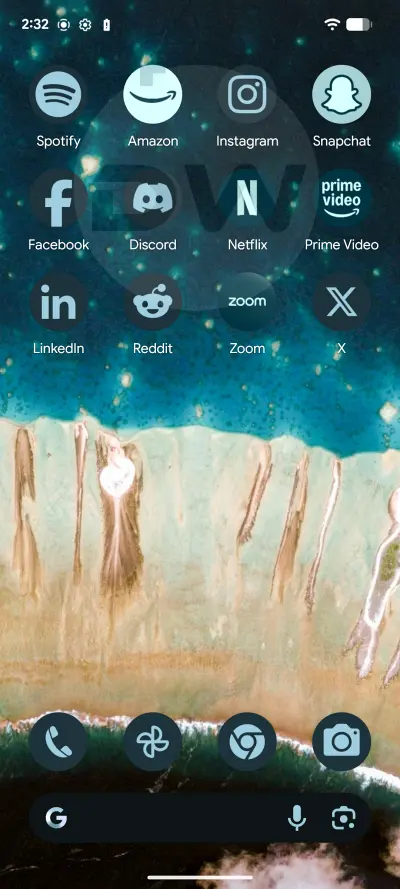
Generally, when we force-implement a feature, it doesn’t give the best results. But surprisingly, the Silicon Valley giant has done an amazing job this time around. It will be extremely hard to distinguish between the apps that natively support theming and the ones on which we have manually implemented this feature.
How to Force Enable Themed Icons for All Android Apps [No Root]

- To begin with, update your device to the latest Android 16 QPR2 Beta 1 update. Here are a few ways of doing so: Enroll your Pixel device for Beta Updates Flash via Android Flash Tool Manually Install Factory Image
- Then long-press on an empty region on the home screen and select Wallpaper and Style.
- Now scroll down, select Icons, and choose Minimal. That’s it.
- Pixel 9 Pro XL Random Reboot on Android 16 QPR1 Beta 3
- How to Install Android 16 Custom ROMs on Pixel 6/7/8/9/Fold/Tablet
- How to Download & Install Android 16 GSI [With & Without TWRP]
- Here’s Everything New in Android 16 QPR 1 [Video]

(Cancel Reply)
Δ
