How to Get Android Device Partition Name, Size and Location
In this guide, we will show you the steps to get your Android device’s partition name, size, and location. With the introduction of the A/B partition scheme , there was a complete overhaul of the underlying partition schemes. The major talking point was the removal of the recovery partition (hence we have to use the boot partition for TWRP ). Apart from that, users were also inclined to know whether the partitions would now end up taking more storage space because most of the partitions were now doubled.
Turns out, that wasn’t necessarily the case. While there was a somewhat increase in storage consumption by A/B devices than compared with A-only, it wasn’t anything worth documenting. However, with all that changes, many tech enthusiasts were keen to know how they could get hold of their Android device’s partition name, size, and location. If you are also in the same boat, then this guide shall help you out. Follow along for the complete instructions.
- How to Get Android Device Partition Name, Size, and Location Install Android SDK Enable USB Debugging Launch CMD inside ADB Root for SU Commands [Optional]
- Get Android File System, Mount Location, Blocks Used, Free Blocks Available Command [Non-Root] Output
- Get Android Partition By Name and Location Command [Non-Root] Output
- Find Android Block Partition Command [Root] Output
How to Get Android Device Partition Name, Size, and Location
There are a few prerequisites that you need to checkmark before proceeding with the below steps to get your Android device’s partition name, size, and location. These are as follows:
Install Android SDK

First and foremost, you will have to install the Android SDK Platform Tools on your PC. This is the official ADB and Fastboot binary provided by Google and is the only recommended one. So download it and then extract it to any convenient location on your PC. Doing so will give you the platform tools folder, which will be used throughout this guide.
Enable USB Debugging
Next up, you will have to enable USB Debugging on your device. The former will make your device recognizable by the PC in ADB mode. So h ead over to Settings > About Phone > Tap on Build Number 7 times > Go back to Settings > System > Advanced > Developer Options > Enable USB Debugging.
Launch CMD inside ADB
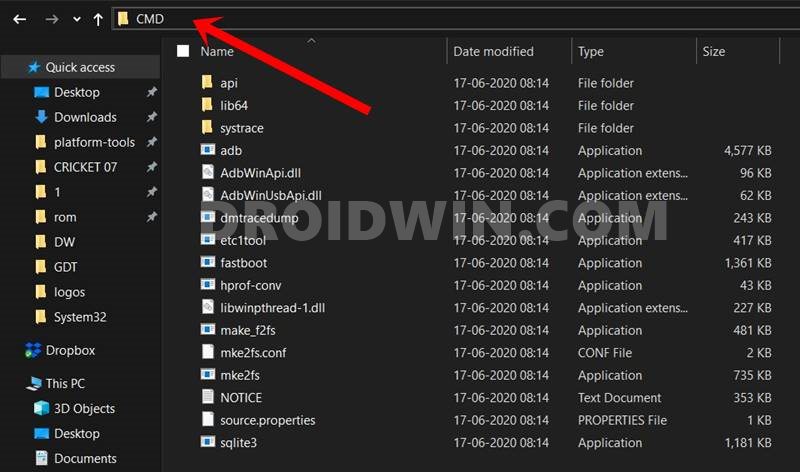
- Connect your device to the PC via USB cable. Make sure USB Debugging is enabled.
- Then head over to the platform tools folder, type in CMD in the address bar, and hit Enter.
- This will launch the Command Prompt. We will now be entering commands inside this Command window.
Root for SU Commands [Optional]
Furthermore, some commands to get your Android device’s partition name, size, and location might require the need for SuperUser access (aka root). If you haven’t rooted your device yet, then you may refer to our guide:
How to Root Android Devices via Magisk Patched Init_Boot/Boot
Get Android File System, Mount Location, Blocks Used, Free Blocks Available
Type in the following commands in the CMD window:
Command [Non-Root]
adb shell

df
Output
Here’ the output for my device, whose codename is troika_sprout. The first value is File System, then is the 1K-Blocks, after that is the used number of blocks, then is the available blocks, after that is the percentage of used blocks. The final value is the mount location.
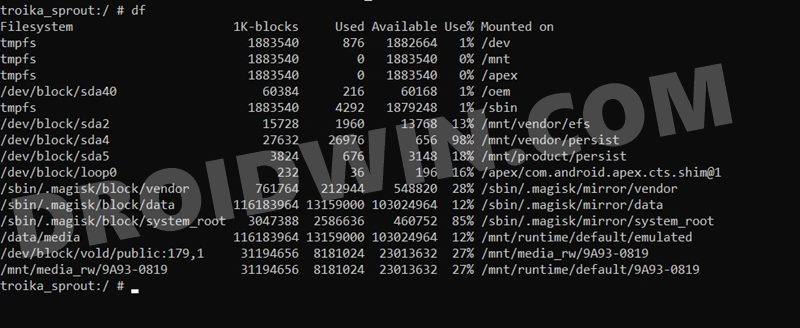
troika_sprout:/ # df

Filesystem 1K-blocks Used Available Use% Mounted on

tmpfs 1883540 876 1882664 1% /dev

tmpfs 1883540 0 1883540 0% /mnt

tmpfs 1883540 0 1883540 0% /apex

/dev/block/sda40 60384 216 60168 1% /oem

tmpfs 1883540 4292 1879248 1% /sbin

/dev/block/sda2 15728 1960 13768 13% /mnt/vendor/efs

/dev/block/sda4 27632 26976 656 98% /mnt/vendor/persist

/dev/block/sda5 3824 676 3148 18% /mnt/product/persist

/dev/block/loop0 232 36 196 16% /apex/com.android.apex.cts.shim@1

/sbin/.magisk/block/vendor 761764 212944 548820 28% /sbin/.magisk/mirror/vendor

/sbin/.magisk/block/data 116183964 13159000 103024964 12% /sbin/.magisk/mirror/data

/sbin/.magisk/block/system_root 3047388 2586636 460752 85% /sbin/.magisk/mirror/system_root

/data/media 116183964 13159000 103024964 12% /mnt/runtime/default/emulated

/dev/block/vold/public:179,1 31194656 8181024 23013632 27% /mnt/media_rw/9A93-0819

/mnt/media_rw/9A93-0819 31194656 8181024 23013632 27% /mnt/runtime/default/9A93-0819
Get Android Partition By Name and Location
Type the following command:
Command [Non-Root]
adb shell

cd /dev/block/platform

ls -la /dev/block/bootdevice/by-name
Output
I have a dual partition A/B device, hence slots A and B for most of the partitions.
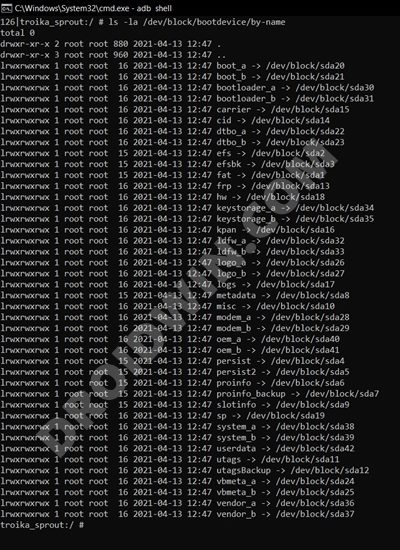
drwxr-xr-x 2 root root 880 2021-04-13 12:47

drwxr-xr-x 3 root root 960 2021-04-13 12:47

lrwxrwxrwx 1 root root 16 2021-04-13 12:47 boot_a -> /dev/block/sda20

lrwxrwxrwx 1 root root 16 2021-04-13 12:47 boot_b -> /dev/block/sda21

lrwxrwxrwx 1 root root 16 2021-04-13 12:47 bootloader_a -> /dev/block/sda30

lrwxrwxrwx 1 root root 16 2021-04-13 12:47 bootloader_b -> /dev/block/sda31

lrwxrwxrwx 1 root root 16 2021-04-13 12:47 carrier -> /dev/block/sda15

lrwxrwxrwx 1 root root 16 2021-04-13 12:47 cid -> /dev/block/sda14

lrwxrwxrwx 1 root root 16 2021-04-13 12:47 dtbo_a -> /dev/block/sda22

lrwxrwxrwx 1 root root 16 2021-04-13 12:47 dtbo_b -> /dev/block/sda23

lrwxrwxrwx 1 root root 15 2021-04-13 12:47 efs -> /dev/block/sda2

lrwxrwxrwx 1 root root 15 2021-04-13 12:47 efsbk -> /dev/block/sda3

lrwxrwxrwx 1 root root 15 2021-04-13 12:47 fat -> /dev/block/sda1

lrwxrwxrwx 1 root root 16 2021-04-13 12:47 frp -> /dev/block/sda13

lrwxrwxrwx 1 root root 16 2021-04-13 12:47 hw -> /dev/block/sda18

lrwxrwxrwx 1 root root 16 2021-04-13 12:47 keystorage_a -> /dev/block/sda34

lrwxrwxrwx 1 root root 16 2021-04-13 12:47 keystorage_b -> /dev/block/sda35

lrwxrwxrwx 1 root root 16 2021-04-13 12:47 kpan -> /dev/block/sda16

lrwxrwxrwx 1 root root 16 2021-04-13 12:47 ldfw_a -> /dev/block/sda32

lrwxrwxrwx 1 root root 16 2021-04-13 12:47 ldfw_b -> /dev/block/sda33

lrwxrwxrwx 1 root root 16 2021-04-13 12:47 logo_a -> /dev/block/sda26

lrwxrwxrwx 1 root root 16 2021-04-13 12:47 logo_b -> /dev/block/sda27

lrwxrwxrwx 1 root root 16 2021-04-13 12:47 logs -> /dev/block/sda17

lrwxrwxrwx 1 root root 15 2021-04-13 12:47 metadata -> /dev/block/sda8

lrwxrwxrwx 1 root root 16 2021-04-13 12:47 misc -> /dev/block/sda10

lrwxrwxrwx 1 root root 16 2021-04-13 12:47 modem_a -> /dev/block/sda28

lrwxrwxrwx 1 root root 16 2021-04-13 12:47 modem_b -> /dev/block/sda29

lrwxrwxrwx 1 root root 16 2021-04-13 12:47 oem_a -> /dev/block/sda40

lrwxrwxrwx 1 root root 16 2021-04-13 12:47 oem_b -> /dev/block/sda41

lrwxrwxrwx 1 root root 15 2021-04-13 12:47 persist -> /dev/block/sda4

lrwxrwxrwx 1 root root 15 2021-04-13 12:47 persist2 -> /dev/block/sda5

lrwxrwxrwx 1 root root 15 2021-04-13 12:47 proinfo -> /dev/block/sda6

lrwxrwxrwx 1 root root 15 2021-04-13 12:47 proinfo_backup -> /dev/block/sda7

lrwxrwxrwx 1 root root 15 2021-04-13 12:47 slotinfo -> /dev/block/sda9

lrwxrwxrwx 1 root root 16 2021-04-13 12:47 sp -> /dev/block/sda19

lrwxrwxrwx 1 root root 16 2021-04-13 12:47 system_a -> /dev/block/sda38

lrwxrwxrwx 1 root root 16 2021-04-13 12:47 system_b -> /dev/block/sda39

lrwxrwxrwx 1 root root 16 2021-04-13 12:47 userdata -> /dev/block/sda42

lrwxrwxrwx 1 root root 16 2021-04-13 12:47 utags -> /dev/block/sda11

lrwxrwxrwx 1 root root 16 2021-04-13 12:47 utagsBackup -> /dev/block/sda12

lrwxrwxrwx 1 root root 16 2021-04-13 12:47 vbmeta_a -> /dev/block/sda24

lrwxrwxrwx 1 root root 16 2021-04-13 12:47 vbmeta_b -> /dev/block/sda25

lrwxrwxrwx 1 root root 16 2021-04-13 12:47 vendor_a -> /dev/block/sda36

lrwxrwxrwx 1 root root 16 2021-04-13 12:47 vendor_b -> /dev/block/sda37
Find Android Block Partition
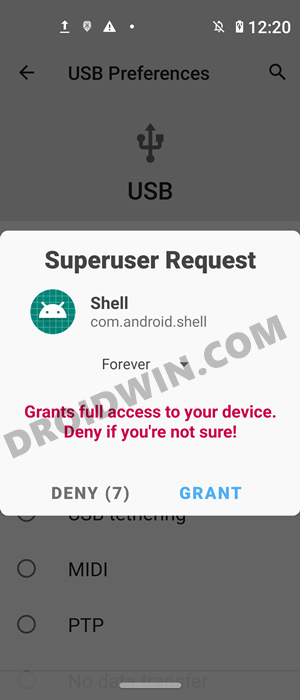
For this command to get the Android Block Partition, you will need SuperUser Access, which could be achieved via the su command. And when you enter su, you would get a Magisk Prompt on your device, make sure to Allow (Grant) it.
Command [Root]
adb shell

su

cat /proc/partitions
Output
Here’s the output, with the first column being Major, second minor, third is the block number and fourth is the block name.
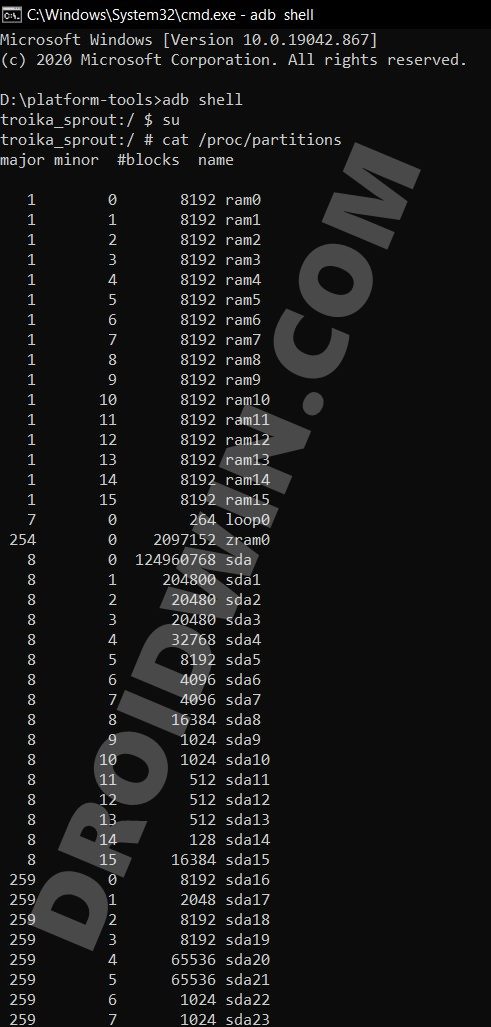
major minor #blocks name


1 0 8192 ram0

1 1 8192 ram1

1 2 8192 ram2

1 3 8192 ram3

1 4 8192 ram4

1 5 8192 ram5

1 6 8192 ram6

1 7 8192 ram7

1 8 8192 ram8

1 9 8192 ram9

1 10 8192 ram10

1 11 8192 ram11

1 12 8192 ram12

1 13 8192 ram13

1 14 8192 ram14

1 15 8192 ram15

7 0 264 loop0

254 0 2097152 zram0

8 0 124960768 sda

8 1 204800 sda1

8 2 20480 sda2

8 3 20480 sda3

8 4 32768 sda4

8 5 8192 sda5

8 6 4096 sda6

8 7 4096 sda7

8 8 16384 sda8

8 9 1024 sda9

8 10 1024 sda10

8 11 512 sda11

8 12 512 sda12

8 13 512 sda13

8 14 128 sda14

8 15 16384 sda15

259 0 8192 sda16

259 1 2048 sda17

259 2 8192 sda18

259 3 8192 sda19

259 4 65536 sda20

259 5 65536 sda21

259 6 1024 sda22

259 7 1024 sda23

259 8 64 sda24

259 9 64 sda25

259 10 33424 sda26

259 11 33424 sda27

259 12 102400 sda28

259 13 102400 sda29

259 14 4096 sda30

259 15 4096 sda31

259 16 4096 sda32

259 17 4096 sda33

259 18 8 sda34

259 19 8 sda35

259 20 786432 sda36

259 21 786432 sda37

259 22 3145728 sda38

259 23 3145728 sda39

259 24 65536 sda40

259 25 65536 sda41

259 26 116186012 sda42

8 16 4096 sdb

8 32 4096 sdc

179 0 31203328 mmcblk0

179 1 31202304 mmcblk0p1

- Dipak 4 years ago Reply How I can get data partition image dump from this for recovery purpose ?
(Cancel Reply)
Δ
