How to Go Back to the Old Wikipedia Theme/UI/Layout [3 Methods]
In this guide, we will show you the steps to go back to the old Wikipedia theme/UI/layout. If there’s any website that hardly needs an introduction or two, it’s got to be this popular free online encyclopedia. It has always stood out as a simple minimalistic website that does its job quite effectively. So when it carried out its site redesign and it’s fair to assume that it hasn’t gone down with many users.
In the new layout, you now get a fixed menu bar at the left that is static with respect to the scroll. Add. to it, there are now white margins across both sides, thereby giving it a more cluttered and sophisticated look, something that one would like to refrain from when interacting with an encyclopedia. Fortunately, this change is easily reversible and you could go back to the old Wikipedia theme/UI/layout. Here’s how.
- Go Back to the Old Wikipedia Theme UI Layout [Video] Using Preferences Menu Using URL Tweak Using Browser Extension
- How to Revert to New Wikipedia Theme
Go Back to the Old Wikipedia Theme UI Layout [Video]
There exist three different methods to get this job done: using the Wikipedia Settings menu, via a URL tweak, and using browser extensions. We have listed all these three approaches as well as their perks and drawbacks. Go through each of them below and try out the one which is in sync with your requirement.
Using Preferences Menu

It is the most straightforward way of getting the job done but on the flip side, you will need to have a Wikipedia account.
- First off, log in or create a new Wikipedia account.
- Then click on the drop-down arrow next to your avatar and select Preferences.
- Now go to the Appearance tab and select Vector legacy (2010).
- Then scroll to the bottom and click Save.
That’s it. These were the steps to go back to the old Wikipedia theme/UI/layout by logging into your account. Since you have carried out this task after logging in, the changes will be applicable across the devices on which you have signed in vis this ID. If you don’t want the changes to be synced, then you will have to browse anonymously on that device or sign in using a different ID.
Using URL Tweak
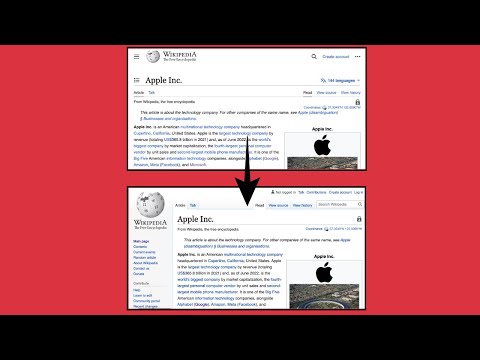
It is the shortest of the three workarounds but requires you to manually carry out the process every time. In this regard, whenever you open any Wikipedia page, then just add the ?useskin=vector parameter at the end.
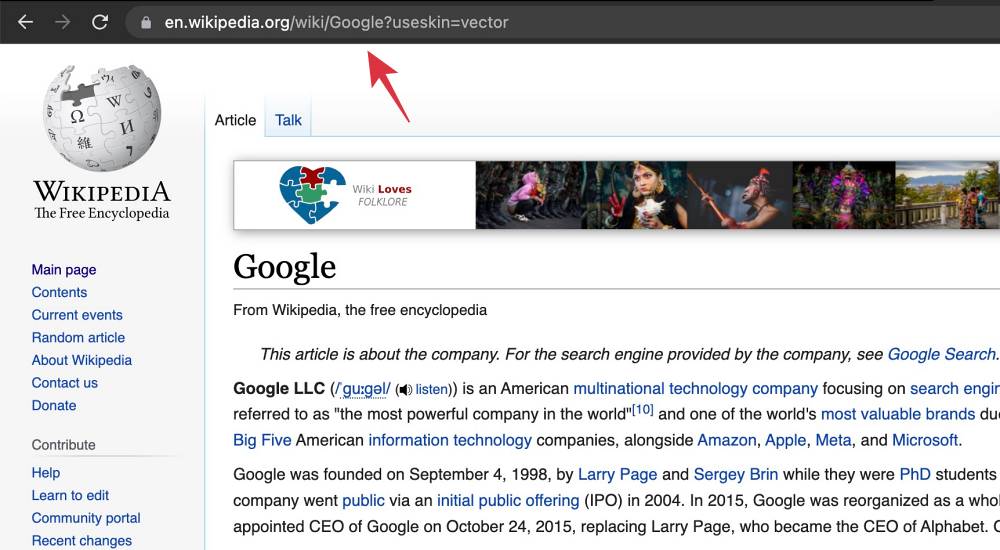
Say, for example, you opened the Google page of Wikipedia having the URL https://en.wikipedia.org/wiki/Google. So add the ?useskin=vector parameter at the end and the modified URL will look like: https://en.wikipedia.org/wiki/Google?useskin=vector. If you now open via the second URL, then you will back to the old Wikipedia theme/UI/layout.
Using Browser Extension
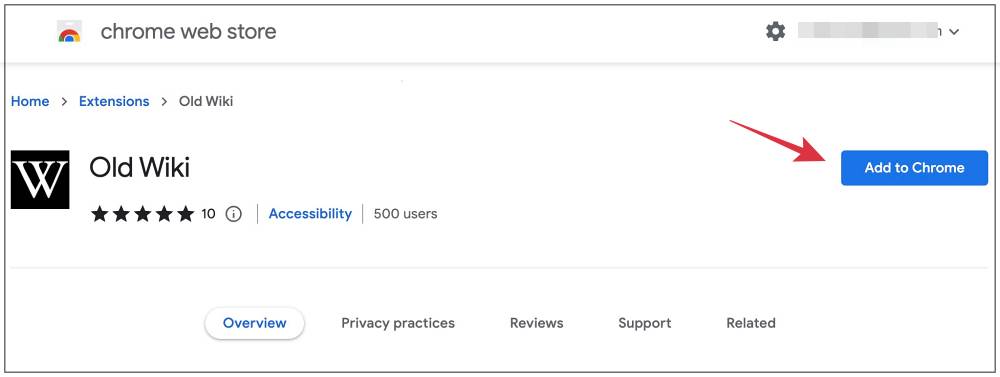
While this is a one-time easy process, but not everyone might be comfortable with adding a third-party extension to their browser. But if that isn’t the problem with you, then you could use the Old Wiki extension for Google Chrome [and other Chromium browsers]. On the other hand, Firefox users could use the Wikipedia Vector Skin or Classic mode for Wikipedia .
How to Revert to New Wikipedia Theme
If for some reason, you wish to revert to the new theme, then it’s quiet to do so as well. Here’s how:
- Click on the notice icon and select Preferences.
- Then go to the Appearance tab and select Vector (2022) default.
- Now scroll to the bottom and click Save. You’ll be back to the new theme.
- Apple tvOS 16.2 new Up Next layout is terrible: Here’s how to fix it
- How to Bring Back the Old Duolingo Tree UI
- Google Pixel manual Screen Call UI/UX is a mess! Here’s how to fix it
- How to Bring Back the Old Duolingo Tree UI

- C 3 years ago Reply So the only way to get back to the old (better in my opinion) layout is to create/log into an account & change it through Preferences? Sadique Hassan 3 years ago Reply Hi mate. Yes, you’re right. As of now, the only way to get back to the old UI is to create an account.
(Cancel Reply)
Δ
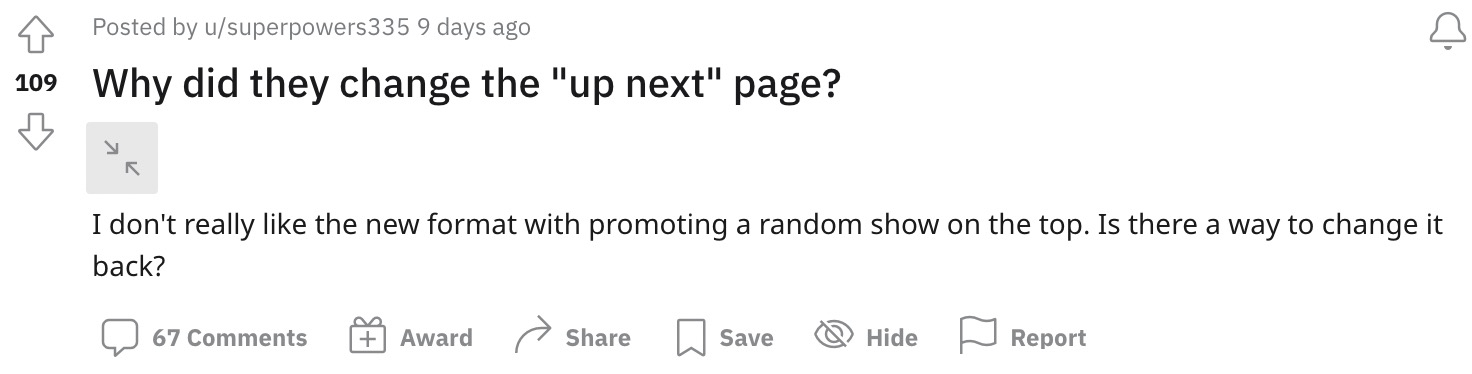
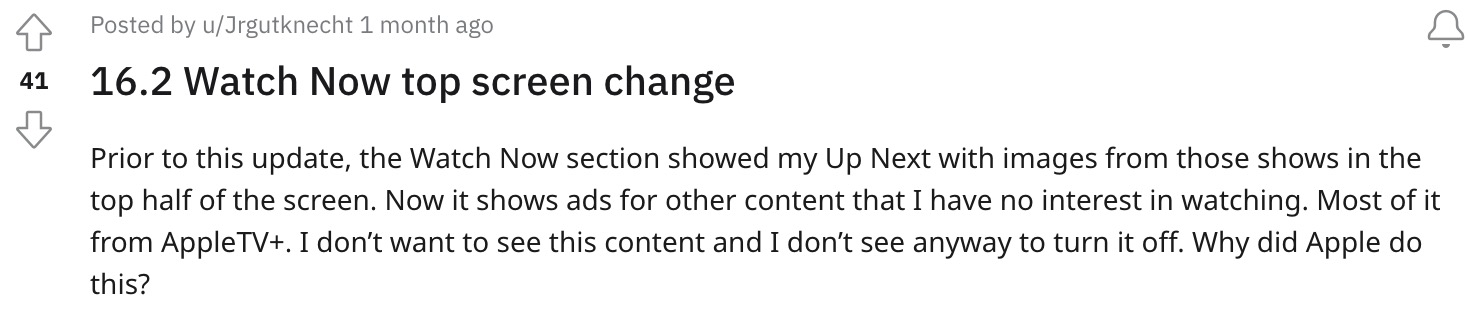
Not to mention the fact that all these ads have auto-playing audio so as to guarantee the worst experience. But wait, there’s more. The top section is now filled with random recommendations , most of which might never be in sync with your watch history. All in all, this update has been nothing short of a disaster for the end users. With that said, there does exist a few handy tips that should help you mitigate these issues up to an extent. So without further ado, let’s check them out.
- Apple tvOS 16.2 new ‘Up Next’ layout is terrible: Here’s how to ‘fix’ it FIX 1: Disable AutoPlay Previews FIX 2: Tweak the Controls FIX 3: Enable Restrictions FIX 4: Make your voices heard!
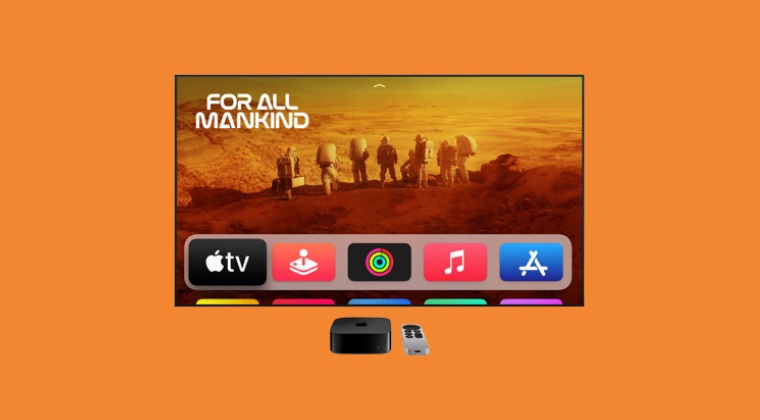
It is recommended that you try out each of the below-mentioned workarounds and then see which one spells out success for you. So with that in mind, let’s get started.
FIX 1: Disable AutoPlay Previews
First off, you should consider disabling the autoplay preview feature of Apple TV so as to make the top section “slightly less annoying”. So head over to Accessibility > Motion > Settings and turn off that feature right away.
FIX 2: Tweak the Controls
FIX 3: Enable Restrictions
FIX 4: Make your voices heard!
It is highly recommended that you file a bug report on the Apple TV hardware form and the Apple TV App form and make the Cupertino giant aware of the dreadful UI/UX tweaks that they have carried out. Likewise, request them to reconsider this change and instead revert to the older interface [how about the subject line: Dear Apple: if it ain’t broke, don’t fix it!].
- Plex Audio Sync Issue on Apple TV: How to Fix
- Plex for Apple TV Frame Drops in 4K [Fix]
- Apple TV Siri Remote not working: How to Fix
- Apple TV Remote shortcut not working on iPhone iOS 16 [Fix]
(Cancel Reply)
Δ
