How to Hide Developer Options on Android [Without Root]
In this guide, we will show you a nifty method using which you can hide the Developer Options on your Android device. Security issues with regard to banking and payment apps are at an all-time high. One major reason for the same is when users end up gaining administrative access over their device, in other words, when they root their phones.
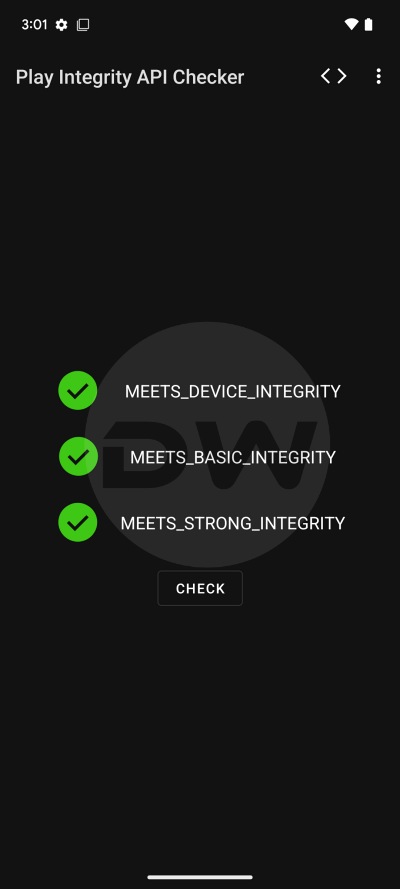
While this lays down the platform for them to carry out a plethora of customizations, on the flip side, it also makes the system vulnerable and hence more prone to attacks. To counter this, these baking apps have put in place some stringent criteria- such as your device should pass the SafetyNet Test as well as the Play Integrity .
However, in recent months, they have further upped the ante and are even causing issues on non-rooted devices just due to a certain feature being enabled- Developer Options. As you might be aware, this functionality houses tons of advanced-level tweaks within itself, including but not limited to USB Debugging, Networking, Bluetooth, NFC, Monitoring, Animations, and Hardware Accelerated Rendering, just to name a few.
So to address this concern- can’t you simply disable Developer Options and then use the desired banking/payment apps? Well, you can but the next time you re-enable Developer Options all the settings will have been reset to their default state. So you’ll have to re-set them to your custom preferences, which calls for additional time and effort.

And this wouldn’t be just a one-time effort, instead, it’s a continuous phenomenon that would happen every time you launch a banking app of your choice. So what else can be done? Well, in this guide, we will show you a nifty method using which you can hide/spoof/fake the Developer Options on your Android device. So without any further ado, let’s get started.
How to Hide Developer Options on Android [Without Root]
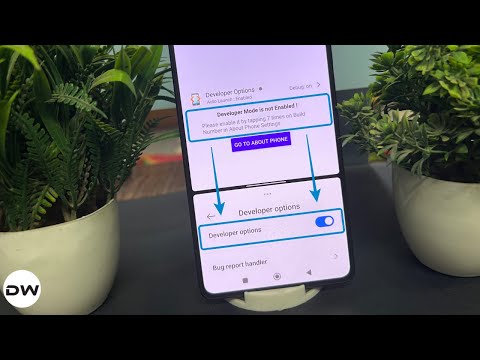
Do note that the Developer Options would still be enabled on your device, it’s just that the tweak that we will be performing will fake its settings to disabled and hence trick the baking app into thinking the same. SO on that note, let’s show you how this could be carried out.
- To begin with, download, install, and set up Shizuku on your device.
- Then download and install the Geto app on your device from GitHub.
- Next up, download and install aShell on your device. Now, launch it.
- Then tap on “Allow all the time” in the Shizuku prompt that appears.
- Now hit Start and type in the below command in the space provided: pm grant com.android.geto android.permission.WRITE_SECURE_SETTINGS
- If the output is blank [there’s no error message], then you’re good to go.
- Now launch the Geto app and select the desired app from the list.
- Then tap on the Settings icon at the bottom to bring Add App Setting.
- Now type in the below values in their respective fields: Global Settings Label: Hide Developer Options Settings key: development_settings_enabled Settings value on launch: 0 Settings value on revert: 0
- Finally, hit Add and the said settings will be applied to that app.
How to Hide Developer Options on Android [Using Root]

If the non-root method didn’t work on your device, then you are left with no choice but to opt for the non-root method. For the sake of reference, I am using the Developer Options app, whose sole motive is to determine whether Developer Options is enabled on your device or not. So I’ll be carrying out this tweak on this app, which would result in the app stating that the Developer Options is turned off when in reality it will still be enabled!
- To begin with, root your device using Magisk / KernelSU / APatch .
- Then download and install LSPosed Framework on your device.
- Now launch LSPosed, go to Modules, and search SettingsFirewall .
- Then go to its Asset section and download the SettingsFirewall APK. Now install it but do not launch it.
- Instead, tap on the LSPosed notification, select SettingsFirewall, and enable the toggle next to it.
- Now, launch the SettingsFirewall and select the app from which you want to hide Developer Options.
- Then tap on that app name, scroll to development_settings_enabled, change its value to 0, and hit Save.
- Relaunch the app from which you have hidden Developer Options, and it should now work without any issue.
- How to Hide USB Debugging from Fortnite
- How to Hide USB Debugging from the ICICI iMobile Pay App
- Guide to Remove USB Debugging Notification on Android [Video]
- How to Hide USB Debugging from Apps on Android

- FAKEFAKEFAKEFAKEFAKE 5 months ago Reply This Toturial is fake because geto does just turn the developing Opstions off thats it! There is no hidding shit! and the logic behind the geto app is fully shit, because it let enter an loop!
- Asheell 6 months ago Reply For better https://pay.mypaylink.in/?q=ptzmia catch me here
- Suraj watawanekar 7 months ago Reply MobiKwik app detecting developer option Im using Root method plz help?
- Anand 9 months ago Reply Please make an video on how to bypass mock location detact
- Uzair 9 months ago Reply Sir Make any video how to fix WhatsApp business issue with unlocked bootloader?. That issue is very highlighting. Sadique Hassan 9 months ago Reply Let me know if this guide helps you or not.
- mehran 1 year ago Reply thank you so much for such great posts keep up a good job God Bless you Sadique Hassan 9 months ago Reply Thansk mate for these encouraging words, means a lot
- mehran 1 year ago Reply hello i have a Galaxy S24 Ultra and unfortunately cannot find development_settings_enabled in GETO where is the problem? i followed the steps one by one as you said Sadique Hassan 9 months ago Reply Currently, I don’t have an S24 Ultra for testing out this bug. As soon as I get hold of it, I’ll let you know. In the meantime, if possible, do check out the non-root method.
(Cancel Reply)
Δ
