How to Hide Root from Apps via Magisk [Android 14]
In this guide, we will show you the steps to hide root from apps and games using Magisk DenyList. The benefits of getting administrative privileges over an open-source OS like Android stand aplenty. Among them, it’s the ability to flash modules and tweaks that are at the top of the priority queue, However, this is just one side of the coin. Rooting has its own downsides as well, the primary among them is the fact that SafetyNet getting triggered.
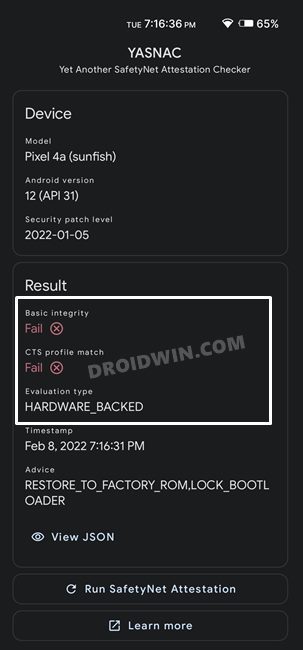
Before Applying SafetyNet Fix
When that happens, some of the apps installed on your device will detect that the device is now rooted and hence will refuse to function. The majority of these apps belong to the payment and banking domain. Along the same lines, games like Pokemon Go wouldn’t function either (because you will then be easily able to spoof the location). To counter this, Magisk came with a MagiskHide that allowed you to hide root from all these apps.
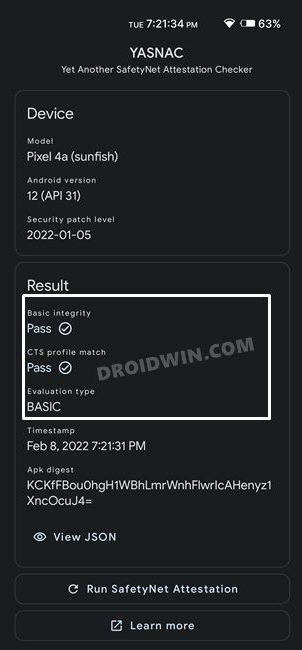
After Applying SafetyNet Fix
But now, the developer of Magisk has joined the Android Security Team, and this feature (along with a few others) has been removed from the app, and that is completely understandable. However, this is where open source comes in handy. Various developers picked up that task and with the introduction of Zygis in Magisk, you once again have the option to hide root from apps and games using its DenyList feature. And in this guide, we will show you how to do just that. So without any further ado, let’s get started.
- How to Hide Root from Apps via Magisk DenyList STEP 1: Hide Magisk App STEP 2: Enable Zygisk and Enforce DenyList STEP 3: Configure DenyList STEP 4: Delete Play Service and Play Store Data
- UPDATE: Pass Play Integrity Test
- How to Hide Root via Zygisk Assistant (FOSS Root Hider)
How to Hide Root from Apps via Magisk DenyList

Before we start off with the instructions, make sure your device checkmarks all the prerequisites that we have listed below. If it doesn’t qualify one [or all] of the requirements, then refer to the attached reference guide next to it and get that work done first [compulsory]. After that, you may come back to this guide to hide the root from your device.
Moreover, the below process will not wipe the data, but it is still recommended to be on the safer side and take a complete device backup beforehand. Droidwin and its members wouldn’t be held responsible in case of a thermonuclear war, your alarm doesn’t wake you up, or if anything happens to your device and data by performing the below steps.
STEP 1: Hide Magisk App
- Launch Magisk, go to its settings menu, and tap on Hide the Magisk App.
- Then give it the desired name of your choice and tap OK.
- The hiding process will now begin. Once done, it will ask whether you wish to have the app shortcut on the home screen.
- For ease of convenience, you may select Yes and then tap on the Add to Home Screen button.
STEP 2: Enable Zygisk and Enforce DenyList
- Launch the Magisk App on your device and tap on the Settings icon situated at the top right.
- After that, scroll to the Magisk section and enable the toggle next to Zygisk and Enforce Deny List.
- Now restart the device for the changes to take place. Also, verify that Zygisk’s status is YES under Magisk.
STEP 3: Configure DenyList
- Under the Magisk Settings menu, tap on Configure DenyList.
- Now checkmark the apps from which you need to hide the root.
- After that, tap on the overflow icon situated at the top right and select Show System App.
- Now checkmark Google Play Protect Services, Google Play Services, Google Play Store, and Google Service Framework.
- Make sure to expand each of these apps and checkmark all their associated services.
STEP 4: Delete Play Service and Play Store Data
- Head over to Settings > Apps > See All Apps.
- Then select Google Play Service and go to its Storage and Cache section.
- After that, tap on Manage Space > Clear All Data.
- Once that is done, go back and select Google Play Store.
- Then go to the Storage and Cache section and tap on Clear Storage > OK.
- Finally, restart your device for the changes to take place.
UPDATE: Pass Play Integrity Test
Apart from hiding root via Magisk DenyList, it is also recommended that you pass the Play Integrity Test. This is because simply hiding the root/passing SafetyNet might not get the job done. Moreover, many banking/payment apps have already moved over to the Play Integrity API from the current SafetyNet. So do carry out the steps listed in our guide on How to pass ‘Meets Device and Basic Integrity’ via Play Integrity Fix .
How to Hide Root via Zygisk Assistant (FOSS Root Hider)

You can now hide the root from numerous apps on your Android device via the Zygisk Assistant (FOSS Root Hider) as well. It’s compatible with all the popular rooting methods, including Magisk , KernelSU , and APatch . While its root hiding mechanism works similarly to Shamiko, however, it has two major advantages over the latter.
First off, as opposed to Shamiko, Zygisk Assistant is open source. Moreover, Shamiko doesn’t seem to be maintained, whereas Zygisk Assistant is actively maintained, so you might expect much quicker updates and bug fixes. With that said, let’s now make you aware of the steps to out this new module to the test right away.
- Launch Magisk, go to Settings, and Hide the Magisk App .
- Give it any name of your choice and tap on Okay.
- Again go to Magisk settings, enable Zygisk, and turn off Enforce Denylist.
- We have turned off Magisk’s Denylist feature because we will be using the one from Zygisk Assistant.
- Now go to Configure Denylist and add the following apps to that list. Google Play Store Google Play Service Google Service Framework Google Play Protect Service [If Present] Desired Banking and Payment Apps
- Once done, download Zygisk Assistant (FOSS Root Hider) .
- Now go to Modules, tap on Install from Storage, select the ZygiskAssistant module, and flash it.
- Once done, delete the data from all the aforementioned apps.
- Finally, restart the device and check out the results.
- Magisk root is now hidden and you’ll be able to use the apps without any issues,
- How to Install or Update Magisk to version 24- Welcome Zygisk!
- Fix Google Pay rooted or running uncertified software on Android 12L
- How to Remove Navigation Bar Gesture Pill on Android 12 Without Root
- How to Install OTA Updates in Rooted Android Device

- 999 game 5 months ago Reply Great guide! This method of hiding root access with Magisk is incredibly helpful, especially for apps with strict root detection. I’ve been looking for a straightforward way to use my favorite banking app without issues. Thanks for sharing!
- d06 7 months ago Reply Great tutorial! I’ve been looking for a way to hide root from certain apps, and this guide made it so easy to follow. Thanks for breaking it down step by step!
- A1 LOTTERY 10 months ago Reply Great post! I really appreciate the detailed steps on hiding root access from apps using Magisk. It’s super helpful for those of us who love using rooted features but want to maintain app functionality. Thanks for breaking it down so clearly!
- Convert and download 1 year ago Reply This is a really helpful guide! Hiding root can definitely enhance my experience with certain apps. I appreciate the step-by-step instructions for Magisk. Can’t wait to try it out on my Android 14 device!
- John Blaze 2 years ago Reply Worked for Magisk 27 and LineageOS 21 with my banking app, Thanks!
- Vjekoslav 2 years ago Reply A much better way to hide root is with Shamiko. This needs DenyList not to be enforced, but apps still need to be added to the DenyList. Enforce DenyList doesn’t hide root or Zygisk, it simply doesm’t load modules or Zygisk for the app (as far as I know). Shamiko, meanwhile, hides root as best as it can, and still loads modules, a much better way IMO. If Shamiko is working properly, it should say it’s running in blacklist mode in the module list. It works for my banking app. You can download Shamiko from here: https://github.com/LSPosed/LSPosed.github.io/releases
- Kris 2 years ago Reply Works for all my apps except uber driver app, Thank you!
- Moorish 2 years ago Reply Does this work on emulators as well?
- Tim02130 2 years ago Reply This isn’t working for me. At first I couldn’t add the card I wanted to Gpay (which insisted I put it in Wallet, which it didn’t do before I rooted the phone), apparently because my bank wouldn’t let me add that card. I was, however, able to add another card (that I don’t really use to it). Then when I tried the first card again, I started getting the “This phone can’t be set up to tap to pay”. That is when I found this site, and I’ve followed the instructions on it pretty carefully, but the error has not gone away: Gpay won’t even let me try to contact my bank for permission. Is it possible that Google has flagged my phone in its own databases and now it wouldn’t even help to revert to an unrooted phone? I’m using Google Fi on a Pixel 4a, so they probably could if they wanted to … Vjekoslav 2 years ago Reply Use Shamiko + Play Integrity Fix for that.
- Jill 2 years ago Reply Hello, This seems to be great data well explained. I just wanted to shut down the shutter camera sound in my pixel 7a. That’s basically why I wanted to root it and install the magisk module to force the sound off. But of course I need some banking apps to work and it seems to be necessary to get trough all of this. I wonder if all these changes of shutting camera sound by a magisk module and hiding the root from all these apps will rest in time or if any system upgrade will erase it off?
- Faisal Hossain 2 years ago Reply Applied on android 13, applications complained about rooting are now working fine. The pictorial explanation eased up the process a lot. Thank you very much.
- Dario 3 years ago Reply Android 13, MIUI 14 working! Thanks!
- NeonS 3 years ago Reply Doesn’t seem to work for Android 11 for me with these instructions. I stole the following from reddit though which did work (Credit to OP!) https://github.com/xeddmc/terminal_systemizer/releases/tag/17.4.1 The module from the link above should work on Android 11 according to the information below (answer 1295): https://forum.xda-developers.com/t/module-terminal-app-systemizer-v17-3-1.3585851/page-65 You also need to install Busybox for Android NDK module to work.
- Minette 3 years ago Reply Hello, I do not have the option for Zygisk and Enforce DenyList on Magisk 25.2 Can soneone please help me?
- PokeGamer 4 years ago Reply In my case it does not work for Pokemon Go. Short time after the app-start the app crashes. Is there a solution?
- Kyle 4 years ago Reply Doesn’t work with Microsoft teams
- Feroze 4 years ago Reply I did everything yet icici app and gPay app detect root. Both YASNAC and RootBeer apps pass security. But bank apps detect the root. I am on android 12.1 Evolution X rom on OnePlus 8. Any suggestions? Hasbunallahu Wa Ni’mal Wakeel 3 years ago Reply SADIQUE HASSAN is nowhere to know the solution to solve on this issue. The reason why gPay app/bank apps detect root is because gPay app/bank apps are detect the bootloader is unlocked, and Magisk is did not hide the fact that bootloader is unlocked. The fact is gPay app/bank apps is refuse to working when the bootloader is unlocked, or gPay app/bank apps is accept to working when the bootloader is locked. However, do not lock the bootloader when your device is rooted, because locking the bootloader when your device is rooted will cause the device to bootloop. I wonder if SADIQUE HASSAN is ever available to be present to suggest you to not locking the bootloader when your device is rooted? Yeah, in fact that SADIQUE HASSAN is always unavailable when you need him.
- BSP98 4 years ago Reply Thank’s sir, This is work
- Ivan 4 years ago Reply I put a check mark on “google services framework” I restart the application and the check mark disappears, what to do? The same situation with “Google play service” Mukam 2 years ago Reply me to. Android version 9.
- Nah 4 years ago Reply Worked like charm on Android 11 Sadique Hassan 4 years ago Reply Glad that it worked out for you mate.
- steps parku 4 years ago Reply After rooting and configuring denylist and everything, my banking apps works perfectly, however when I try to take screenshots it blocks me, then I went ahead to to download and configure disable flag secure module in LSposed. but disable flag secure doesn’t work because because the banking apps in zygist deny list. Hect 4 years ago Reply Use shamiko module, then switch off enforced deny list on magisk.
- JonathanB503 4 years ago Reply Thank you so much for all the guides! From unlocking the bootloader to rooting and hiding root! All worked pretty well. Magisk changed how modules are loaded. I didn’t see any download button to get the required modules installed. I had to manually download them and install it from storage. It was the only option Magisk app gave me. However, I now have a successful hidden rooted Google Pixel 5a 5G phone!
- HuskyDG 4 years ago Reply why do you and everyone think denylist is hiding instead of opt-out feature?
- D 4 years ago Reply Thanks. Worked for Android 7, Magisk 24.1 :)) Aaron 4 years ago Reply Same Here. Thank you!
(Cancel Reply)
Δ
