How to Increase AOD Time Limit Beyond 10 Seconds on Xiaomi
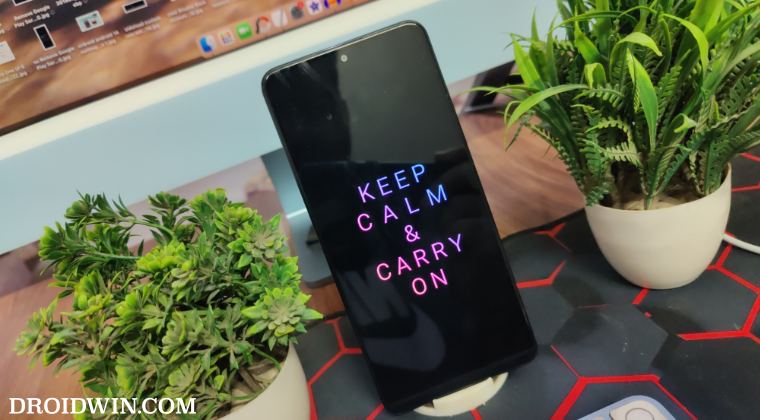
In this guide, we will show you a nifty method to increase the AOD time limit beyond 10 seconds on your Xiaomi device. When it comes to customizations, then it’s quite challenging to come into the ring with this Chinese OEM and emerge victorious. beholding a slew of tweaks in its arsenal, it has checkmarked all the plausible domains, including the Always On Display.
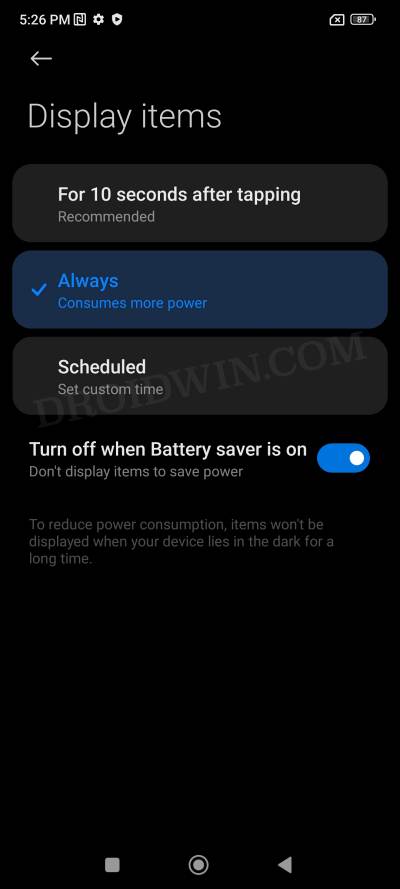
If we talk about AOD, then you could add c ustom images, change text colors and clock positions, and choose from tons of clock styles. As far as the duration of this AOD is concerned, then you could select either ‘for 5 seconds after tapping’, ‘always’, or ‘when scheduled’. However, that isn’t the case with every Xiaomi device.
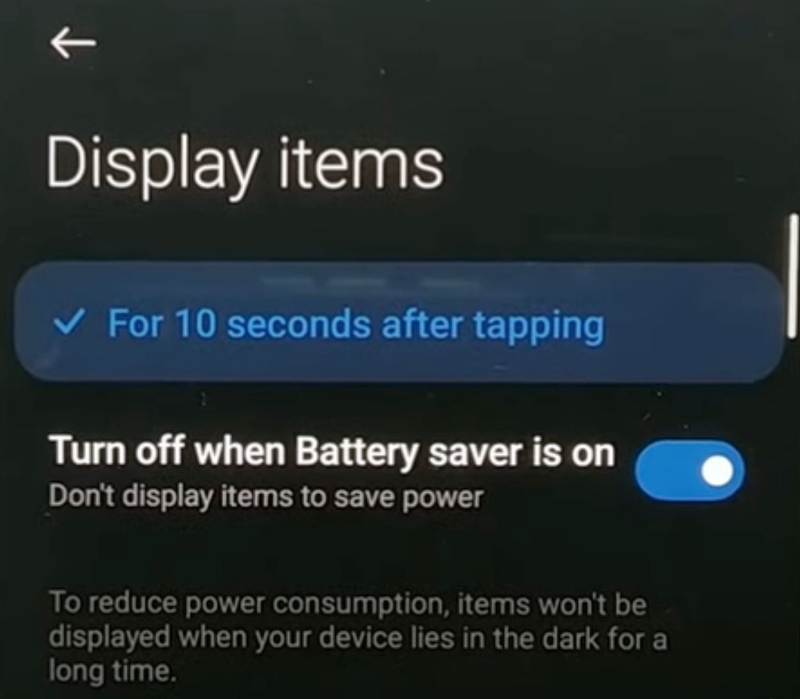
Some of them only have the ‘For 10 seconds after tapping’ option. As a result of this, users have to manually tap on the screen every 10 seconds to invoke the Always On Display, which proves to be of great inconvenience. Well, not anymore! In this guide, we will show you the steps to increase the AOD time limit beyond 10 seconds on your Xiaomi device.
How to Increase AOD Time Limit Beyond 10 Seconds on Xiaomi
- Head over to Settings > About Phone > Tap on MIUI Version 7 times.
- After that, go to Settings > Additional Settings > Developer Options.
- Now scroll to the bottom and tap on Reset to Default Values 5-6 times.
- This will bring up the Turn on MIUI optimization [enabled by default].
- Disable its toggle. You’ll get a prompt, wait for 5 seconds, and tap Accept.
Video Guide
- Download and Install HyperOS on Xiaomi [Fastboot and Recovery]
- Fix Xiaomi Theme Store Couldn’t download:300008 error
- Calls not working on Xiaomi EU ROM [Fixed]
- Xiaomi HyperOS Unlock Bootloader? Forget about it!

(Cancel Reply)
Δ
