How to Install and Run Swype + Dragon Keyboard on Android 14
In this guide, we will show you the steps to install and run Swype + Dragon Keyboard on your device running Android 14. When it comes to third-party keyboards, then the offering from Swipe was the best in this domain. While there were quite a few players in the market that supported the swipe style typing, however, none could come close to the precision and efficiency that it offered. This when combined with the Dragon Dictation proved to be the perfect recipe for success.
However, all good things do come to an end. And same was the case with this keyboard as well. But even after its demise around 6 years ago, its APK file is still doing the rounds, and for many, it is still acting as the defacto keyboard app. However, if you are among those set of users who are planning to install it on your device right now, then you might be in for tough luck, especially if you are on the latest OS build.
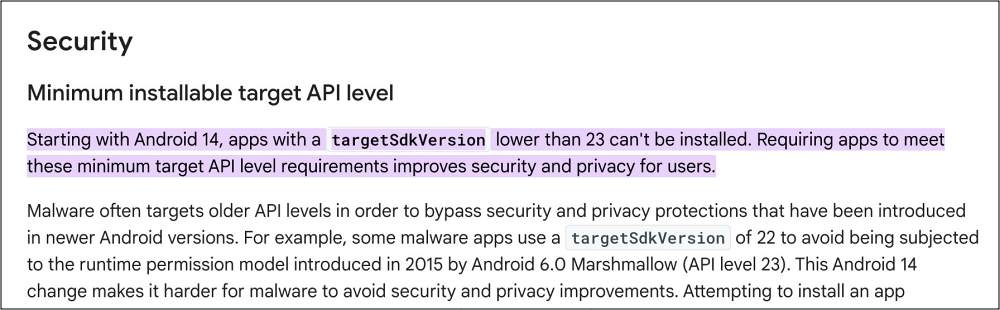
This is because beginning with Android 14, you can no longer install apps with a Target SDK Version lower than 23, which corresponds to API 23/Android 6.0. Moreover, 32-bit apps are also no longer supported across numerous devices nowadays [such as the Pixel series].
So owing to these reasons, installing and running the Swype + Dragon Keyboard on your device running Android 14 might be a tough nut to crack. Well, not anymore! In this guide, we will show you a couple of nifty methods that will help you get this job done. So without further ado, let’s check them out.
- How to Install and Run Swype + Dragon Keyboard on Android 14 FIX 1: Try This Re-Compiled APK FIX 2: Via ADB Command FIX 3: Via Root FIX 4: Run 32-Bit Apps
How to Install and Run Swype + Dragon Keyboard on Android 14
It is recommended that you try out each of the below-mentioned workarounds and then see which one spells out success. So with that in mind, let’s get started.
FIX 1: Try This Re-Compiled APK
XDA Member KillaMD has done all the necessary tweaks in the app and then re-compiled it. So just install it as you do so for any other app and check if it works out for you or not [enable Installation from Unknown Sources beforehand].
DOWNLOAD LINK
FIX 2: Via ADB Command
- Download and extract Android SDK Platform Tools on your PC.
- Then enable USB Debugging and connect your device to the PC.
- Now, open Command Prompt inside this platform-tools folder.
- Then rename the APK to app.apk and place it inside this folder.
- Finally, type in the below command to install the older APK file: adb install –bypass-low-target-sdk-block app.apk
- Swype + Dragon Keyboard should now be installed on Android 14.
FIX 3: Via Root
- To begin with, root your device via Magisk.
- Then install and set up the LSPosed Framework .
- Now download and install Disable Target API Block.
- Then launch LSPosed and go to the Modules section.
- Now enable the toggle next to Disable Target API Block.
- Then restart your device for the module to be activated.
- You may now install the Swype APK without any issues.
FIX 4: Run 32-Bit Apps
If the app version is for the 32-bit architecture, then you could refer to our guide on How to Install 32-bit Apps on 64-bit Devices .


- Dartanyan 1 year ago Reply It’s ok but how can I add and install other languages different than English
(Cancel Reply)
Δ
