How to Install Android 12 AOSP ROM on Realme 6 Pro
In this guide, we will show you the steps to install the latest Android 12 AOSP ROM onto your Realme 6 Pro device. This OEM has seen a tremendous rise in its popularity in the last couple of years. Talking about which, it’s the sixth iteration in this lineup that quickly became the crowd’s favorites. With Snapdragon 720G chipset, up to 8GB RAM, a 4300mAh battery, and the Realme UI 2.0 based on Android 11 as its underlying OS, it has managed to checkmark most of the prerequisites that we could have asked for.
If we turn our attention towards the pro variant, then it has managed to carve out a rich name for itself in custom development. Be it for flashing custom ROMs or installing a custom recovery like TWRP, there’s a lot to look forward to. Along the same lines, you could also gain administrative privileges by rooting your device via Magisk. Moreover, this lineup has just been blessed with the latest iteration of the OS. You could now install the Android 12 AOSP ROM onto your Realme 6 Pro device. Follow along for the instructions.
- What’s New in Android 12?
- How to Install Android 12 AOSP ROM on Realme 6 Pro STEP 1: Install Android SDK STEP 2: Enable USB Debugging and OEM Unlocking STEP 3: Unlock Bootloader on Realme 6 Pro STEP 4: Install TWRP Recovery on Realme 6 Pro STEP 5: Download Android 12 ROM Bugs Screenshots Download ROM STEP 6: Boot to TWRP Recovery STEP 7: Flash Android 12 ROM on Realme 6 Pro
What’s New in Android 12?
Just to recap, the Silicon Valley giants have introduced a plethora of new and interesting features in the twelfth iteration of the OS. These include the massive UI revamp thanks to the Material You design. Likewise, there’s a Wallpaper-based UX Theming that will pick up the major color from the wallpaper and theme it across various device components (such as the Notifications panel and Settings menu). Then there is an addition of the Privacy Dashboard as well.

This will tell you the date and time when an app asked for the location, camera, and microphone permissions. Moreover, there are some new accessibility features as well. These include the likes of Camera Switch that allows you to take full control of your device via your facial gestures. And you could now welcome all these features onto your device. Given here are the detailed instructions to install Android 12 AOSP ROM on the Realme 6 Pro.
How to Install Android 12 AOSP ROM on Realme 6 Pro

Before proceeding with the below steps, make sure to take a backup of all the data on your device. Droidwin and its members wouldn’t be held responsible in case of a thermonuclear war, your alarm doesn’t wake you up, or if anything happens to your device and data by performing the below steps.
STEP 1: Install Android SDK

First and foremost, you will have to install the Android SDK Platform Tools on your PC. This is the official ADB and Fastboot binary provided by Google and is the only recommended one. So download it and then extract it to any convenient location on your PC. Doing so will give you the platform-tools folder, which will be used throughout this guide.
STEP 2: Enable USB Debugging and OEM Unlocking
Next up, you will also have to enable USB Debugging and OEM Unlocking on your device. The former will make your device recognizable by the PC in ADB mode. This will then allow you to boot your device to Fastboot Mode. On the other hand, OEM Unlocking is required to carry out the bootloader unlocking process.
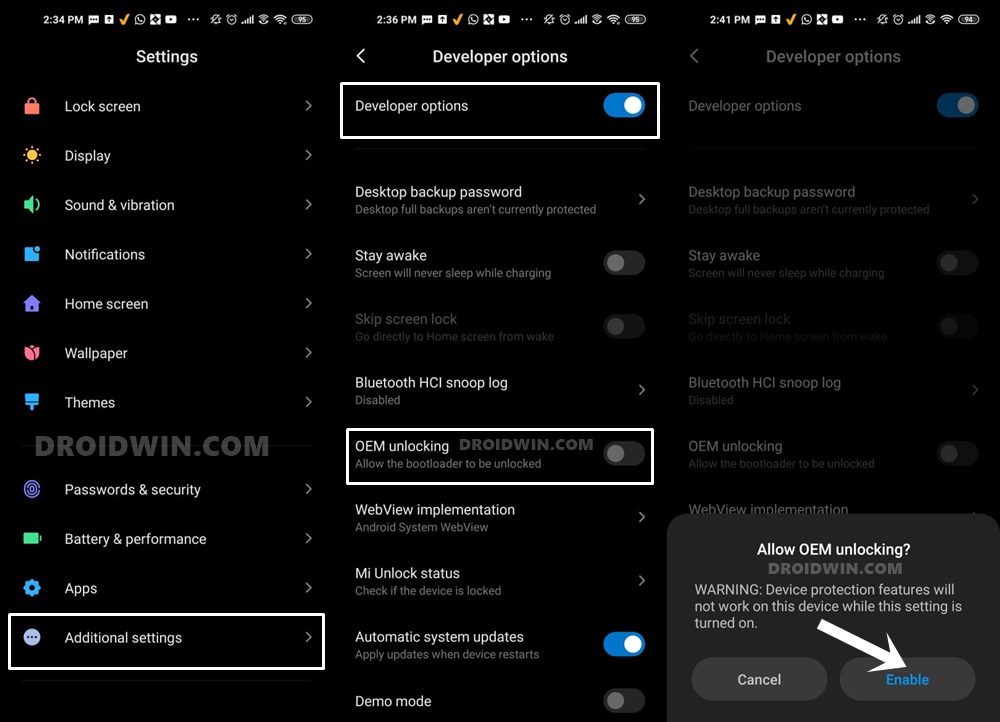
So head over to Settings > About Phone > Tap on Build Number 7 times > Go back to Settings > System > Advanced > Developer Options > Enable USB Debugging and OEM Unlocking.
STEP 3: Unlock Bootloader on Realme 6 Pro
Next up, you will also have to unlock the device’s bootloader. Do keep in mind that doing so will wipe off all the data from your device and could nullify its warranty as well. So if that’s all well and good, then please refer to our detailed guide: A Universal Guide to Unlock Bootloader on any Realme Device [In-Depth Test APK is attached in the linked guide itself].
STEP 4: Install TWRP Recovery on Realme 6 Pro
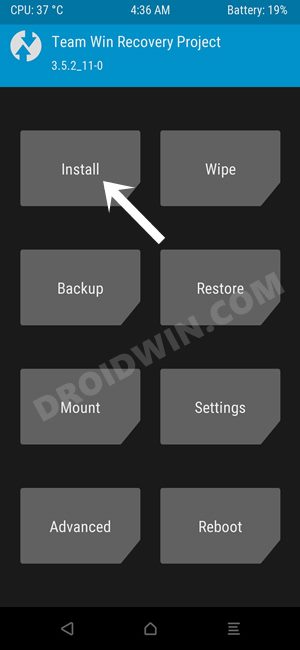
In order to flash the Android 12 AOSP Custom ROM onto your Realme 6 Pro device, you will have to install the TWRP Recovery. So refer to our guide on How to Install TWRP Recovery on Realme 6 Pro .
STEP 5: Download Android 12 ROM
First off, let’s make you aware of the bugs that this ROM is having. Go through them and then make your installation decision accordingly.
Bugs
- SELinux is Permissive.
- Encryption is disabled.
- CTS Fails.
Screenshots
Click to expand the screenshots
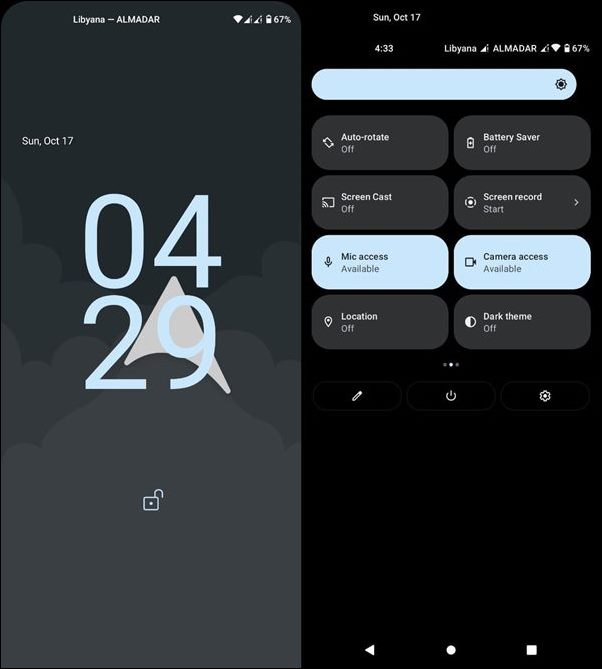
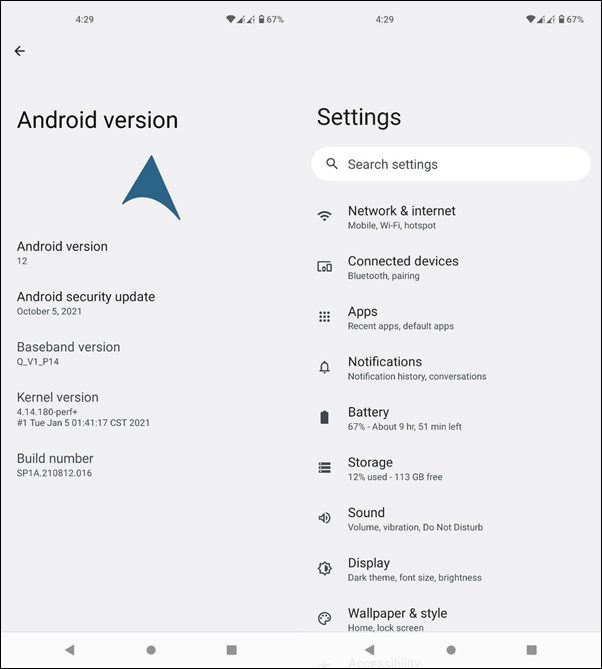
Download ROM
You may now grab hold of the latest Android 12 ROM from the below link [Credits: XDA Senior Member: debdeep98 ]. There are two different builds of this ROM: Vanilla and GApps. Vanilla builds are the one that doesn’t have any Google Apps, Services and Frameworks installed. So if you wish to keep a distance from the Google ecosystem, then this should be your go-to choice. On the other hand, GApps build comes built-in with all the required Google Apps and Services. So download the one that meets your requirement.
Android 12 AOSP ROM for Realme 6 Pro: Download Link
STEP 6: Boot to TWRP Recovery
- Connect your device to the PC via USB cable. Make sure USB Debugging is enabled.
- Then head over to the platform-tools folder, type in CMD in the address bar, and hit Enter. This will launch the Command Prompt.
- Type in the following command in the CMD window: adb reboot recovery
- Your device will now boot to the TWRP Recovery.
STEP 7: Flash Android 12 ROM on Realme 6 Pro
- To begin with, go to the Wipe section of TWRP and tap on the Format Data button.
- Now type in YES in the space provided and tap on the checkmark situated at the bottom right.
- Once that is done, go to the Install section of TWRP.
- Then select the Android 12 ROM ZIP file and perform a right swipe to flash it.
- That’s it. You may now reboot your device to the newly installed OS via Reboot > System.

(Cancel Reply)
Δ
