How to Install Android 12 on Mi 11 via Fastboot Commands
In this guide, we will show you the steps to install Android 12 on Xiaomi Mi 11 via Fastboot Commands. As soon as Google announced the twelfth iteration of the OS, many OEMs came forward and announced the OS upgrade for their flagships. And Xiaomi did the same with its Mi 11 series. Since these are the top-level offerings from the Chinese OEM, it came as no surprise that these devices were chosen to be the flag bearer.
So if you own any of the devices from the Mi 11 lineup, then get ready to welcome a plethora of new and intriguing features onto your device. From a complete major UI overhaul to privacy improvements and a plethora of new additions to the OS, there’s a lot to look forward to. And you could now enjoy all these goodies on your device as well. Given here are the detailed instructions steps to install Android 12 on Xiaomi Mi 11 via Fastboot Commands.
- What’s New in Android 12? Material You Design Privacy Dashboard Scrolling Screenshots On-Device Search Camera Switches
- How to Install Android 12 on Mi 11 via Fastboot Commands STEP 1: Install Android SDK STEP 2: Enable USB Debugging and OEM Unlocking STEP 3: Unlock Mi 11 Bootloader STEP 4: Download Android 12 Firmware for Xiaomi Mi 11 STEP 5: Transfer ROM files to Platform Tools STEP 6: Boot Mi 11 to Fastboot Mode STEP 7: Flash Android 12 Firmware on Mi 11 via Fastboot Commands
What’s New in Android 12?
With the twelfth major release of the OS, there have been quite a few new features that will cross your paths. Let’s check out some of the noteworthy ones.
Material You Design
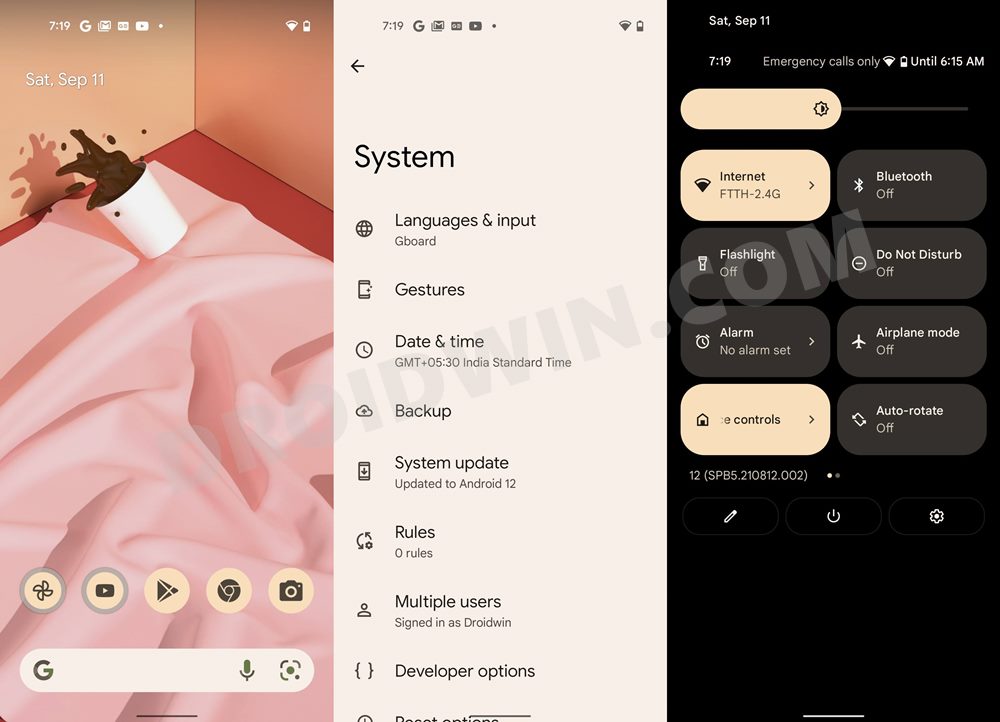
The User Interface has been completely redesigned, keeping in mind its new Material You theming system. One of the biggest takeaways from this is the Wallpaper-based UX Theming. Using this feature, your device will pick up the color from the currently set wallpaper and assign it throughout the device. Be it the lock screen, quick settings, or even the notifications panel, all will now respect the new color theme.
Privacy Dashboard
Some major improvements to Privacy have always been made. To begin with, there’s a new dashboard that gives you detailed information as to which apps have asked for what kind of permission and when. Likewise, there are new indicators that will pop up as soon as any app is using the device’s camera or microphone. Moreover, you now also have the option to share your approximate location rather than the precise one.
Scrolling Screenshots
with Android 12, you now get the much-requested Scrolling Screenshot feature. As is evident from its name, it allows you to take the screenshots of much wider and longer content, such as that of WhatsApp chats.
On-Device Search
Google has finally added an On Device Search feature that will allow you to search for any app, settings, messages, or online content, all from one place.
Camera Switches
Camera Switch is an accessibility feature that will allow you to have full control of your device right via your facial gestures, For example, just turn your face right to perform the next gesture, laugh to pause a playing song, or just raise your eyebrows to select content on your display. [ Using a workaround, you could now enable this feature on Android 11 as well !].
Well, these were just some of the noteworthy features, there is a plentitude of other ‘under the hood’ changes that would leave you impressed. And it’s time that you welcome them onto your device. So without any further ado, let’s get started with the steps to install Android 12 on Xiaomi Mi 11 via Fastboot Commands.
How to Install Android 12 on Mi 11 via Fastboot Commands

The below instructions are listed under separate sections for ease of understanding. Make sure to follow in the exact same sequence as mentioned. Droidwin and its members wouldn’t be held responsible in case of a thermonuclear war, your alarm doesn’t wake you up, or if anything happens to your device and data by performing the below steps.
STEP 1: Install Android SDK

First and foremost, you will have to install the Android SDK Platform Tools on your PC. This is the official ADB and Fastboot binary provided by Google and is the only recommended one. So download it and then extract it to any convenient location on your PC. Doing so will give you the platform-tools folder, which will be used throughout this guide.
STEP 2: Enable USB Debugging and OEM Unlocking
Next up, you will also have to enable USB Debugging and OEM Unlocking on your device. The former will make your device recognizable by the PC in ADB mode. This will then allow you to boot your device to Fastboot Mode. On the other hand, OEM Unlocking is required to carry out the bootloader unlocking process.
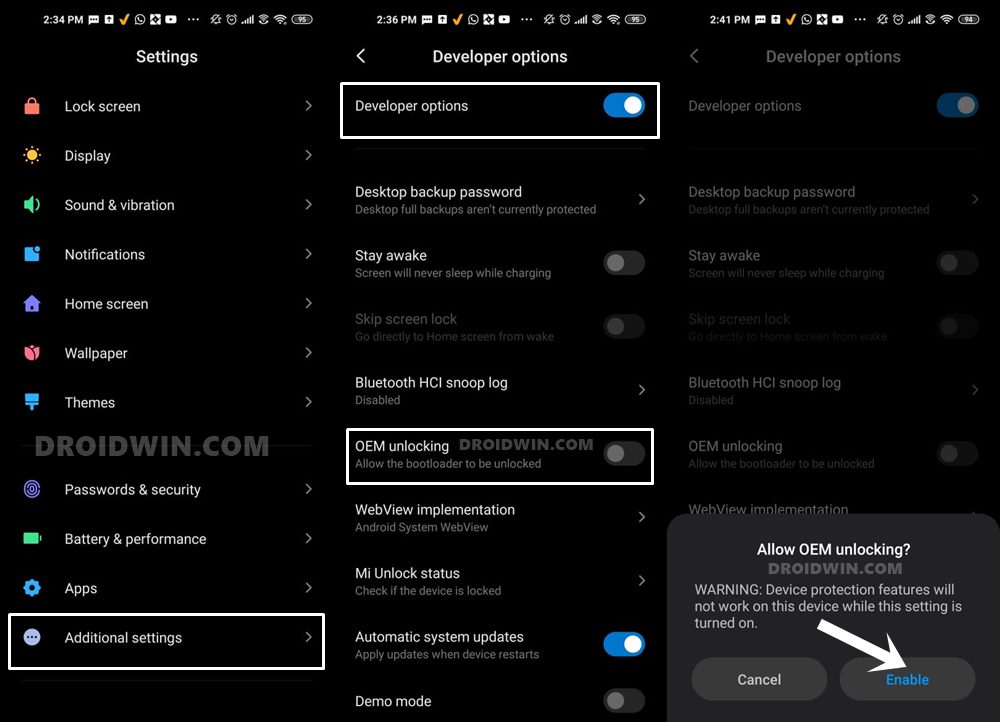
So head over to Settings > About Phone > Tap on Build Number 7 times > Go back to Settings > System > Advanced > Developer Options > Enable USB Debugging and OEM Unlocking.
STEP 3: Unlock Mi 11 Bootloader
The Android 12 Update Package for your Mi 11 is basically a Fastboot ROM. And flashing a Fastboot ROM on Xiaomi requires an unlocked bootloader. So if you haven’t done so yet, then please refer to our detailed guide on How to Unlock Bootloader on any Xiaomi Device .
STEP 4: Download Android 12 Firmware for Xiaomi Mi 11
You may now grab hold of the Android 12 firmware for your device from the below official links:
- Mi 11
- Mi 11 Ultra
- Mi 11i / Mi 11X Pro
STEP 5: Transfer ROM files to Platform Tools
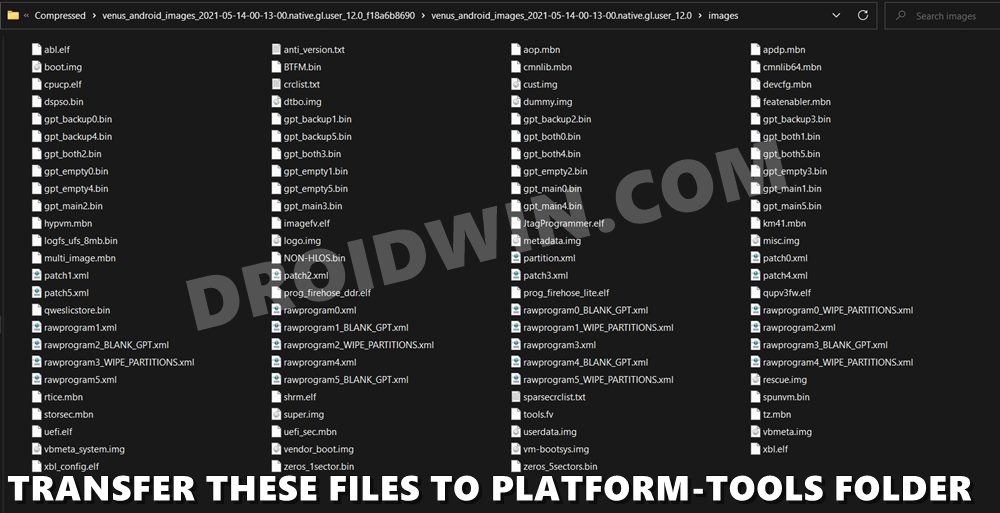
- Once you have downloaded the firmware, change its extension from GZ to TGZ.
- After that, extract the contents of that firmware to any convenient location on your PC.
- Then go to the Images folder and copy all the files from there.
- Then paste those files inside the platform-tools folder on your PC.
STEP 6: Boot Mi 11 to Fastboot Mode
- Connect your device to the PC via USB cable. Make sure USB Debugging is enabled.
- Then head over to the platform-tools folder, type in CMD in the address bar, and hit Enter. This will launch the Command Prompt.
- Type in the following command in the CMD window to boot your device to Fastboot Mode adb reboot bootloader
- To verify the Fastboot connection, type in the below command and you should get back the device ID. fastboot devices
STEP 7: Flash Android 12 Firmware on Mi 11 via Fastboot Commands
Now just execute the below fastboot commands to install the Android 12 onto your Mi 11 device. Make sure to execute one command at a time. Moreover, these commands should be entered inside the command prompt window that you have opened in the platform-tools folder.
fastboot erase boot_ab

fastboot flash xbl_ab xbl.elf

fastboot flash xbl_config_ab xbl_config.elf

fastboot flash abl_ab abl.elf

fastboot flash aop_ab aop.mbn

fastboot flash tz_ab tz.mbn

fastboot flash featenabler_ab featenabler.mbn

fastboot flash hyp_ab hypvm.mbn

fastboot flash modem_ab NON-HLOS.bin

fastboot flash bluetooth_ab BTFM.bin

fastboot flash dsp_ab dspso.bin

fastboot flash keymaster_ab km41.mbn

fastboot flash devcfg_ab devcfg.mbn

fastboot flash qupfw_ab qupv3fw.elf

fastboot flash uefisecapp_ab uefi_sec.mbn

fastboot erase imagefv_ab

fastboot flash imagefv_ab imagefv.elf

fastboot flash shrm_ab shrm.elf

fastboot flash multiimgoem_ab multi_image.mbn

fastboot flash cpucp_ab cpucp.elf

fastboot flash qweslicstore_ab qweslicstore.bin

fastboot flash logfs logfs_ufs_8mb.bin

fastboot flash rescue rescue.img

fastboot flash storsec storsec.mbn

fastboot flash spunvm spunvm.bin

fastboot flash rtice rtice.mbn

fastboot flash vendor_boot_ab vendor_boot.img

fastboot flash vm-bootsys_ab vm-bootsys.img

fastboot flash super super.img

fastboot flash cust cust.img

fastboot flash dtbo_ab dtbo.img

fastboot flash vbmeta_ab vbmeta.img

fastboot flash vbmeta_system_ab vbmeta_system.img

fastboot erase metadata

fastboot flash metadata metadata.img

fastboot erase userdata

fastboot flash userdata userdata.img

fastboot flash boot_ab boot.img

fastboot flash logo logo.img

fastboot set_active a

fastboot reboot
The second last command will set the A slot as the active partition. Then the last command shall boot your device to the newly updated OS.
- How to Flash Xiaomi Fastboot ROM without Mi Flash Tool
- Install MIUI Recovery ROM on Xiaomi/Redmi/Poco [2 Methods]
- Fix MIUI Optimization missing in Developer Options in Xiaomi
- Switch Xiaomi ROM from EEA to Global Stable/Developer on Locked Bootloader

- R Kapoor 4 years ago Reply On reboot (the last command) the phone reboots but comes back to fastboot During giving the command listed in the post, I got an error on – fastboot flash vm-bootsys_ab vm-bootsys.img fastboot: error: cannot load ‘vm-bootsys.img’: No such file or directory Pl. advise how to procced. I am stuck in the fastboot loop. Sadique Hassan 4 years ago Reply Hi Kapoor, sorry that you had to face this issue, Could you please verify if the vm-bootsys.img file is indeed present inside the Fastboot ROM and also that you have transferred it to the platform-tools folder on your PC? Likewise, please double-check that the file name matches exactly as vm-bootsys.img
(Cancel Reply)
Δ
