How to Install Android 15 Custom ROMs on Galaxy A52s 5G
In this guide, we will show you the steps to install various Android 15 custom ROMs onto your Galaxy A52s 5G. When it comes to custom development, this device has managed to carve out a niche segment of loyal fanbase for itself, all thanks to some impressive work done by the developers. As soon as the custom recovery went live, we were blessed with a plethora of AOSP ROMs.
So if you want to break free from the shackles of the stock One UI and welcome abode a clean stock usage experience with a few goodies, then now is the right time for that. And the icing on the cake? Even though the device’s official update cycle is all but over with Android 14 One UI 6, you can still get a taste of the latest Android 15, all thanks to these ROMs. So, without any further ado, let’s make you aware of the steps to flash these ROMs onto your device right away.
- How to Install Android 15 Custom ROMs on Galaxy A52s 5G
- How to Flash LMODroid/LibreMobileOS on Galaxy A52s 5G
- How to Flash Project Matrixx Android 15 on Galaxy A52s 5G
- How to Flash Nerv Paradigm Android 15 on Galaxy A52s
- How to Flash Project Infinity X Android 15 on Galaxy A52s 5G
- How to Install RisingOS Android 15 on Galaxy A52s 5G
- How to Install PixelOS Android 15 on Galaxy A52s 5G
- How to Install AmeOS Android 15 on Galaxy A52s 5G
- How to Install OrionOS Android 15 on Galaxy A52s 5G
- How to Install One UI 7 Android 15 on Galaxy A52s 5G
- How to Install ColorOS Android 15 on Galaxy A52s 5G
- Install Project Blaze Android 15 on Galaxy A52s 5G
- Install crDroid Android 15 on Galaxy A52s 5G [Official]
- Install crDroid Android 15 on Galaxy A52s 5G [Unofficial]
- Install LineageOS 22 Android 15 on Galaxy A52s 5G
- Flash Evolution X Android 15 on Galaxy A52s 5G
- Flash Derpfest Android 15 on Galaxy A52s 5G
- How to Install Android 14 Custom ROMs on Galaxy A52s 5G Install Pixel Experience on Galaxy A52s 5G Install Project Matrixx on Galaxy A52s 5G Install PixelOS on Galaxy A52s 5G
How to Install Android 15 Custom ROMs on Galaxy A52s 5G
Before starting, please back up all the data on your device just to be on the safe side. Droidwin and its members wouldn’t be held responsible in case of a thermonuclear war, your alarm doesn’t wake you up, or if anything happens to your device, and data by performing the below steps.
NOTE 1: After flashing most of the AOSP ROMS given below, WiFi might not work on your device. Worry not! Just flash this fix in the TWRP Recovery and the WiFi will be up and running right away. NOTE 2: If you have flashed a TWRP Recovery and are proceeding to flash a ROM, then you have two options- -Reboot to system and then reboot back to recovery: this way you’ll be able to rtransfer the ROM ZIP file to your device. The only drawback is that it will take quite a lot of time. -Reboot to Recovery. You wouldn’t be able to access the device’s storage on your PC and you wouldn’t be able to transfer the ROM to your device’s Internal Memory via ADB Push as well, though you can easily do an ADB Push to the /data directory of your device. This is the method that I usually go for becuase it saves quite a lot of time when compared with its counterpart.
How to Flash LMODroid/LibreMobileOS on Galaxy A52s 5G

- Make sure that you are on the latest available firmware.
- Now download and extract Android SDK Platform Tools.
- Then unlock the bootloader on your Galaxy A52s device.
- Now download and extract the Odin Tool on the PC.
- Next up, download the required files for your device: ROM | Recovery | vbmeta
- Now transfer these files to the platform tools folder.
- Then, open the Command Prompt inside this folder.
- Next, type the below commands to TAR these files: tar –format=ustar -cvf recovery.tar recovery.img tar –format=ustar -cvf vbmeta.tar vbmeta.img
- Now, boot your device to Download Mode for flashing.
- Launch Odin and make sure your device is listed there.
- Now go to its Options tab and uncheck the Auto Reboot.
- Then click on AP, navigate to recovery.tar, and select it.
- Now click Userdata, load the vbmeta_patched, and load it.
- Now hit Start. The recovery will be flashed to your device.
- Then reboot your device directly to LineageOS Recovery .
- From Lineage Recovery, go to Factory Reset > Format data.
- Once done, select Apply Update > Apply from ADB option.
- After that, type in the below command in the CMD window adb sideload rom.zip
- The flashing will now start. Once done, you will get a prompt.
- Hit Yes if you wish to sideload any ZIP file like GApps or Magisk .
- Or else tap on No if you don’t want to sideload any other ZIP file.
- Finally, tap Reboot System Now to boot to the newly flashed OS!
How to Flash Project Matrixx Android 15 on Galaxy A52s 5G

- Download and extract Android SDK Platform Tools on the PC.
- Now, download Project Matrixx for the Galaxy A52s 5G from below: VANILLA | GAPPS
- Then enable USB Debugging and OEM Unlocking on your device.
- Once that is done, you should now unlock the bootloader of your device.
- Now install the TWRP Recovery on your device and then boot to it using: adb reboot recovery
- From the recovery, head to Install, select the ROM ZIP file, and flash it.
- If you want to flash any other ZIP file , then first do a reboot to the recovery.
- Now go to Format Data > Type YES > Hit the blue checkmark at the bottom.
- Now go to “Wipe” > “Advanced Wipe” > wipe Metadata and Cache partitions.
- Finally, go to Reboot > System. Your device will boot to the newly flashed OS.
How to Flash Nerv Paradigm Android 15 on Galaxy A52s

- Download and extract Android SDK Platform Tools on the PC.
- Now, download Nerv Paradigm for the Galaxy A52s 5G from below: DOWNLOAD LINK
- Then enable USB Debugging and OEM Unlocking on your device.
- Once that is done, unlock the bootloader of your device.
- Now install the TWRP Recovery on your device and then boot to it using: adb reboot recovery
- From the recovery, head to Install, select the ROM ZIP file, and flash it.
- If you want to flash any other ZIP file , then first do a reboot to the recovery.
- Now go to Format Data > Type YES > Hit the blue checkmark at the bottom.
- Now go to “Wipe” > “Advanced Wipe” > wipe Metadata and Cache partitions.
- Finally, go to Reboot > System. Your device will boot to the newly flashed OS.
How to Flash Project Infinity X Android 15 on Galaxy A52s 5G

- Download and extract Android SDK Platform Tools on the PC.
- Now, download Project Infinity X for the Galaxy A52s 5G from below: VANILLA | GAPPS
- Then enable USB Debugging and OEM Unlocking on your device.
- Once that is done, unlock the bootloader of your device.
- Now install the TWRP Recovery on your device and then boot to it using: adb reboot recovery
- From the recovery, head to Install, select the ROM ZIP file, and flash it.
- If you want to flash any other ZIP file , then first do a reboot to the recovery.
- Now go to Format Data > Type YES > Hit the blue checkmark at the bottom.
- Now go to “Wipe” > “Advanced Wipe” > wipe Metadata and Cache partitions.
- Finally, go to Reboot > System. Your device will boot to the newly flashed OS.
How to Install RisingOS Android 15 on Galaxy A52s 5G

- Download and extract Android SDK Platform Tools on the PC.
- Next up, download RisingOS Revived for the Galaxy A52s 5G. Credits: XDA Member waffleowo
- Then enable USB Debugging and OEM Unlocking on your device.
- Once that is done, unlock the bootloader of your device.
- Now install the TWRP Recovery on your device and then boot to it using: adb reboot recovery
- From the recovery, head to Install, select the ROM ZIP file, and flash it.
- If you want to flash any other ZIP file , then first do a reboot to the recovery.
- Now go to Format Data > Type YES > Hit the blue checkmark at the bottom.
- Now go to “Wipe” > “Advanced Wipe” > wipe Metadata and Cache partitions.
- Finally, go to Reboot > System. Your device will boot to the newly flashed OS.
How to Install PixelOS Android 15 on Galaxy A52s 5G

- Download and extract Android SDK Platform Tools on the PC.
- Next up, download the PixelOS ROM for your Galaxy A52s 5G. Credits: XDA Member waffleowo
- Then enable USB Debugging and OEM Unlocking on your device.
- Once that is done, unlock the bootloader of your device.
- Now install the TWRP Recovery on your device and then boot to it using: adb reboot recovery
- From the recovery, head to Install, select the ROM ZIP file, and flash it.
- If you want to flash any other ZIP file , then first do a reboot to the recovery.
- Now go to Format Data > Type YES > Hit the blue checkmark at the bottom.
- Now go to “Wipe” > “Advanced Wipe” > wipe Metadata and Cache partitions.
- Finally, go to Reboot > System. Your device will boot to the newly flashed OS.
How to Install AmeOS Android 15 on Galaxy A52s 5G

- To begin with, download the AmeOS ROM file for the Galaxy A52s 5G. Credits: wafelyes and officialmaksieku
- Next up, download and extract Android SDK Platform Tools on the PC.
- Once that is done, unlock the bootloader of your device using our guide.
- Now install the TWRP Recovery on your device and then boot to it using: adb reboot recovery
- From the recovery, head to Install, select the ROM ZIP file, and flash it.
- If you want to flash any other ZIP file , then first do a reboot to the recovery.
- Now go to Format Data > Type YES > Hit the blue checkmark at the bottom.
- Now go to “Wipe” > “Advanced Wipe” > wipe Metadata and Cache partitions.
- Finally, go to Reboot > System. Your device will boot to the newly flashed OS.
How to Install OrionOS Android 15 on Galaxy A52s 5G

- To begin with, download the OrionOS ROM file for the Galaxy A52s 5G.
- Next up, download and extract Android SDK Platform Tools on the PC.
- Once that is done, unlock the bootloader of your device using our guide.
- Now install the TWRP Recovery on your device and then boot to it using: adb reboot recovery
- From the recovery, head to Install, select the ROM ZIP file, and flash it.
- If you want to flash any other ZIP file , then first do a reboot to the recovery.
- Now go to Format Data > Type YES > Hit the blue checkmark at the bottom.
- Now go to “Wipe” > “Advanced Wipe” > wipe Metadata and Cache partitions.
- Finally, go to Reboot > System. Your device will boot to the newly flashed OS.
How to Install One UI 7 Android 15 on Galaxy A52s 5G
How to Install One UI 7 Android 15 on Galaxy A52s 5G
How to Install ColorOS Android 15 on Galaxy A52s 5G
How to Install ColorOS 15 Android 15 on Galaxy A52s 5G
Install Project Blaze Android 15 on Galaxy A52s 5G
- To begin with, download Project Blaze ROM ZIP for the Galaxy A52s 5G.
- Next up, download and extract Android SDK Platform Tools on your PC.
- Then, unlock the bootloader of your device using our detailed guide.
- Now install the TWRP Recovery on your device and then boot to it using: adb reboot recovery
- From the recovery, head to Install, select the ROM ZIP file, and flash it.
- If you want to flash any other ZIP file, then first do a reboot to the recovery.
- Now go to Format Data > Type YES > Hit the blue checkmark at the bottom.
- Now go to “Wipe” > “Advanced Wipe” > wipe Metadata and Cache partitions.
- Finally, go to Reboot > System. Your device will boot to the newly flashed OS.
Install crDroid Android 15 on Galaxy A52s 5G [Official]

- Download crDroid ROM, Recovery , & disabled_vbmeta for your device.
- Next up, download and extract Android SDK Platform Tools on your PC.
- Now enable USB Debugging and OEM Unlocking on your device as well.
- Then, unlock the bootloader on your device [take a backup beforehand].
- After that, download Odin from here and extract it onto your PC.
- Now, boot your Samsung Device to Download Mode via below command adb reboot download
- Open Odin via its EXE file, click on AP, and load the recovery file.
- After that, click on Userdata and load the disabled_vbmeta file.
- Now go to Options, uncheck Auto Reboot, and then tap on Start.
- The flashing will now begin. Once done, you’ll have to reboot to the recovery.
- For that, press and hold the Power and Volume Down keys for around 7 seconds.
- As soon as your device powers off [while in the process of rebooting], let go of the pressed keys.
- Now press and hold the Power and Volume Up keys for a few seconds. Your device will boot to the crDroid recovery.
- In crDroid recovery, select Factory reset, then Format data/factory reset. Then click Advanced > Reboot Recovery.
- Then click Apply Update > Apply from ADB and type in the below command in the CMD: adb sideload rom.zip
- Once done, sideload any other ZIP file if you want. Finally, select Reboot System Now to boot to the newly flashed OS.
Install crDroid Android 15 on Galaxy A52s 5G [Unofficial]

Initially, we only had the unofficial build of crDroid. But now, an official build is live and you should use that only [given above].
- To begin with, download the cDroid ROM ZIP for your Galaxy A52s 5G.
- Next up, download and extract Android SDK Platform Tools on your PC.
- After that, unlock the bootloader on your device using our detailed guide.
- Next up, install the TWRP Recovery on your device and then boot to it via: adb reboot recovery
- From the recovery, head to Install, select the ROM ZIP file, and flash it.
- If you want to flash any other ZIP file, then first do a reboot to the recovery.
- Now go to Format Data > Type YES > Hit the blue checkmark at the bottom.
- Now go to “Wipe” > “Advanced Wipe” > wipe Metadata and Cache partitions.
- Finally, go to Reboot > System. Your device will boot to the newly flashed OS.
Install LineageOS 22 Android 15 on Galaxy A52s 5G
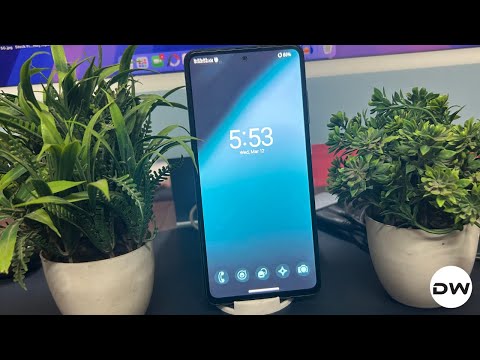
- Make sure that you are on the latest [One UI 6] firmware.
- Now download and extract Android SDK Platform Tools.
- Then unlock the bootloader on your Galaxy A52s device.
- Now download and extract the Odin Tool on the PC.
- Next up, download the required files for your device: ROM | Recovery | vbmeta
- Now transfer these files to the platform tools folder.
- Then open the Command Prompt inside this folder.
- Next, type the below commands to TAR these files: tar –format=ustar -cvf recovery.tar recovery.img tar –format=ustar -cvf vbmeta.tar vbmeta.img
- Now boot your device to Download Mode for flashing.
- Launch Odin and make sure your device is listed there.
- Now go to its Options tab and uncheck the Auto Reboot.
- Then click on AP, navigate to recovery.tar, and select it.
- Now click Userdata, load the vbmeta_patched, and load it.
- Now hit Start. The recovery will be flashed to your device.
- Then reboot your device directly to LineageOS Recovery .
- From Lineage Recovery, go to Factory Reset > Format data.
- Once done, select Apply Update > Apply from ADB option.
- After that, type in the below command in the CMD window adb sideload rom.zip
- The flashing will now start. Once done, you will get a prompt.
- Hit Yes if you wish to sideload any ZIP file like GApps or Magisk .
- Or else tap on No if you don’t want to sideload any other ZIP file.
- Finally, tap Reboot System Now to boot to the newly flashed OS!
Flash Evolution X Android 15 on Galaxy A52s 5G
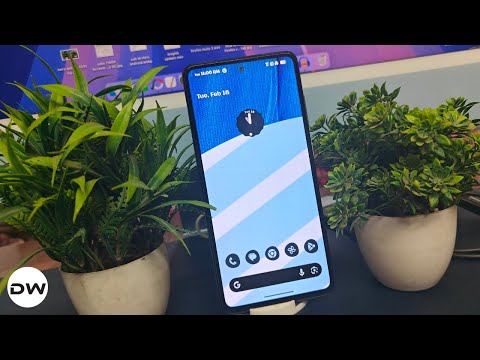
- To begin with, download the Evolution X ROM for your Galaxy A52s 5G.
- Next up, download and extract Android SDK Platform Tools on your PC.
- Now install the TWRP Recovery on your device and then boot to it using: adb reboot recovery
- Now go to Wipe and wipe the Cache, Dalvik Cache, and Metadata partitions.
- Then go to Format Data > Type YES > Hit the blue checkmark at the bottom.
- Now go to Reboot and select Recovery. Then transfer the ROM to your device .
- Next, head to Install, select the ROM file and perform a right swipe to flash it.
- [Optional] If you want to flash any other ZIP file, then first reboot to recovery.
- Finally, go to Reboot > System. Your device will boot to the newly flashed OS.
Flash Derpfest Android 15 on Galaxy A52s 5G

- To begin with, download the Derpfest ROM ZIP for the Galaxy A52s 5G.
- Next up, download and extract Android SDK Platform Tools on your PC.
- Now install the TWRP Recovery on your device and then boot to it using: adb reboot recovery
- From the recovery, go to Install, select the Derpfest ROM, and then flash it.
- If you want to flash any other ZIP file, then first do a reboot to the recovery.
- Now go to Format Data > Type YES > Hit the blue checkmark at the bottom.
- Now go to “Wipe” > “Advanced Wipe” > wipe Metadata and Cache partitions.
- Finally, go to Reboot > System. Your device will boot to the newly flashed OS.
How to Install Android 14 Custom ROMs on Galaxy A52s 5G
While the latest Android 15-based custom ROMs are now live for our device, however, there are a few that are still based on the Android 14 builds. Until those ROMs are updated to the latest OS, you will find them in this section.
Install Pixel Experience on Galaxy A52s 5G
- To begin with, download the required files from below: vbmeta.tar | ROM | Recovery
- Now, download and extract Android SDK Platform Tools .
- Once done, unlock the bootloader of your device.
- After that, reboot your device to Download Mode .
- Now, download and extract Odin on your PC.
- Then launch Odin, go to Options, and uncheck Auto Reboot.
- Now load the recovery.tar to the AP slot and vbmeta.tar to the Userdata slot.
- Then hit Start and the files will be flashed. Once done, boot your device to the recovery mode.
- For that, press and hold the Power and Volume Down keys for around 7 seconds.
- Then, as soon as the device is about to restart, press and hold the Power and Volume Up keys.
- The device will now boot to recovery. From there, go to Factory reset -> Format Data/factory reset.
- Once done, go to Apply update -> Apply from ADB to boot the device to sideload mode.
- Now type in the below command in the CMD window to start the sideload: adb sideload rom.zip
- The flashing will now start. Once done, do a format data once again, just to be on the safer side.
- Finally, select Reboot System Now. Your device will boot to the newly flashed OS.
Install Project Matrixx on Galaxy A52s 5G
- First off, download the Project Matrixx ROM for your Galaxy A52s 5G.
- Then, download and extract Android SDK Platform Tools on your PC.
- Next up unlock the bootloader on your device using our detailed guide.
- Now install the TWRP Recovery on your device and then boot to it via: adb reboot recovery
- From the recovery, head to Install, select the ROM ZIP file, and flash it.
- If you want to flash any other ZIP file, then first do a reboot to the recovery.
- Now go to Format Data > Type YES > Hit the blue checkmark at the bottom.
- Now go to “Wipe” > “Advanced Wipe” > wipe Metadata and Cache partitions.
- Finally, go to Reboot > System. Your device will boot to the newly flashed OS.
Install PixelOS on Galaxy A52s 5G
- First, download and extract Android SDK Platform Tools.
- Then, unlock the bootloader on your Galaxy A52s device.
- Now, download and extract the Odin Tool on the PC.
- Next up, download the required files for your device: ROM | Recovery | vbmeta
- Now transfer these files to the platform tools folder.
- Then open the Command Prompt inside this folder.
- Now type the following commands to TAR the files: tar –format=ustar -cvf recovery.tar recovery.img tar –format=ustar -cvf vbmeta.tar vbmeta.img
- Next up, boot your device to Download Mode .
- Launch Odin and make sure your device is listed there.
- Now go to its Options tab and uncheck the Auto Reboot.
- Then click on AP, navigate to recovery.tar, and select it.
- Click Userdata, load the vbmeta_patched.tar, and load it.
- Now hit Start. The recovery will be flashed to your device.
- Then reboot your device directly to LineageOS Recovery .
- From Lineage Recovery, go to Factory Reset > Format data.
- Once done, select Apply Update > Apply from ADB option.
- After that, type in the below command in the CMD window adb sideload rom.zip
- The flashing will now start. Once done, you will get a prompt.
- Hit Yes if you wish to sideload any ZIP file like GApps or Magisk .
- Or else tap on No if you don’t want to sideload any other ZIP file.
- Finally, tap Reboot System Now to boot to the newly flashed OS!

- Lucho 6 months ago Reply Please send me the file. keybox
- Lucho 6 months ago Reply Please send me the xml file.
- Lucho 6 months ago Reply Please send me the xml file. I’ll wait for it.
- Sharky20 8 months ago Reply Hi, Can someone actually tell me if its going to destroy your phone? I want to flash it on my primary device and i need VoLTE-VoWIFI, fingerprint BASICALLY EVERYTHING I HAD BEFORE FLASHING ONE UI7!! Can someone actually RESPOND please?
- Hameed 11 months ago Reply Nothameed16@gmail.com sir please send me the fileeeee🥲😭
- Hameed 11 months ago Reply Sir please send me xml file i have sended you trxt on youtube you send send me email please send me sajidn9911@gmail.com
- Hameed 11 months ago Reply Nothameed16@gmail.com sir please me right now xml file i will be really thank to you
- Hameed 11 months ago Reply Sir please give me xml file i telling you from 2 weaks please sir give me🥺😭😭😭🤌🏻
(Cancel Reply)
Δ
