How to Install Android 15 Custom ROMs on Poco F5
This guide lists the steps to install the latest Android 15 Custom ROMs on your Poco F5. The fifteenth iteration of devices from the Chinese OEM has proven to be quite a noteworthy name among tech enthusiasts, so much so that within weeks of Google releasing the Android 15 builds , the developers managed to roll out their corresponding ROMs as well!
As a result of this, the likes of Partial Screen Sharing, Notification Cooldown, Lockscreen widgets, Battery Health percentage, App Archive, revamped Bluetooth menu, Private Space, the ability to save App Pair, and Privacy Sandbox are about to make a permanent abode on your device. So what are we waiting for? Let’s get started with the steps to flash all the Android 15-based custom ROMs on your Poco F5 right away!
- How to Install Android 15 Custom ROMs on Poco F5 STEP 1: Install Android SDK STEP 2: Enable USB Debugging and OEM Unlocking STEP 3: Unlock Bootloader on Poco F5/Redmi Note 12 Turbo STEP 4: Download Android 15 ROM for Poco F5/Redmi Note 12 Turbo STEP 5: Boot to Fastboot Mode
- How to Install Android One on Poco F5
- How to Install LibreOS/LMODroid on Poco F5
- How to Flash Flyme OS Meizu Port on Poco F5
- How to Flash HydraOS Android 15 on Poco F5 Via Fastboot Method Via Recovery Method
- How to Install Project ASCP Android 15 ROM on Poco F5
- How to Install LineageOS 22 Android 15 Official on Poco F5
- How to Flash WitAqua Android 15 on Poco F5
- How to Flash OriginOS Port on Poco F5
- How to Flash KomodoOS Android 15 on Poco F5
- How to Flash HyperMint Android 15 on Poco F5
- How to Install The Clover Project Android 15 on Poco F5
- Flash Paranoid Android 15 on Poco F5 NEW VIDEO OLD VIDEO Changelog Fastboot ROM Recovery ROM How to Update Paranoid Android 14 to 15
- Install HorizonDroid Android 15 on Poco F5
- Install ColorOS Android 15 on Poco F5 [OnePlus Ace 2 Port]
- How to Flash The Pixel Project Android 15 on Poco F5
- How to Flash HorizonDroid Android 15 on Poco F5
- How to Install Xiaomi EU HyperOS 2 Android 15 on Poco F5
- Flash Black Iron Project Android 15 on Poco F5
- Flash AxionOS Android 15 on Poco F5
- Flash OrionOS Android 15 on Poco F5
- Flash CharlieOS Android 15 on Poco F5 Via Fastboot Via Recovery
- Flash AlphaDroid Android 15 on Poco F5
- Flash Project Matrixx Android 15 on Poco F5
- How to Flash ColorOS 15 on Poco F5 [OnePlus 12 Port] Fastboot Method Recovery Method
- How to Flash OxygenOS 15 OnePlus 11 Port on Poco F5 New Video Old Video
- How to Install PixelOS Android 15 on Poco F5
- How to Flash YAAP Android 15 on Poco F5
- How to Flash Project Flare Android 15 on Poco F5
- How to Install Evolution X [Official] Android 15 ROM on Poco F5 Using TWRP Without TWRP Recovery
- How to Flash Infinity X Android 15 ROM on Poco F5
- How to Flash MistOS Android 15 on Poco F5 Via TWRP Install Method Via TWRP ADB Sideload
- How to Flash crDroid Android 15 on Poco F5
- How to Flash Evolution X Android 15 on Poco F5
- Flash BlissROM Android 15 on Poco F5
- Install GenesisOS Android 15 on Poco F5
- How to Install RisingOS Android 15 on Poco F5
- Flash LineageOS 22 Android 15 on Poco F5
- Flash OxygenOS 15 Android 15 on Poco F5
- Flash NexDroid UI Android 15 on Poco F5
- Flash VoltageOS Android 15 Poco F5
- Flash Project Pixelage Android 15 on Poco F5
- Flash HyperOS 2.0 Android 15 on Poco F5 Fix Bluetooth Not Working Fix Launcher Crashing Fix Device Not Certified
- How to Flash Derpfest Android 15 on Poco F5
- Flash Project Blaze Android 15 ROM on Poco F5
How to Install Android 15 Custom ROMs on Poco F5

The below process will wipe off all the data from your device, so take a complete device backup beforehand. Droidwin and its members wouldn’t be held responsible in case of a thermonuclear war, your alarm doesn’t wake you up, or if anything happens to your device and data by performing the below steps.
STEP 1: Install Android SDK

First and foremost, you will have to install the Android SDK Platform Tools on your PC. This is the official ADB and Fastboot binary provided by Google and is the only recommended one. So download it and then extract it to any convenient location on your PC. Doing so will give you the platform-tools folder, which will be used in this guide to install custom ROMs on Poco F5/Pro/Redmi Note 12 Turbo/K60
STEP 2: Enable USB Debugging and OEM Unlocking
Next up, you will also have to enable USB Debugging and OEM Unlocking on your device. The former will make your device recognizable by the PC in ADB mode. This will then allow you to boot your device to Fastboot Mode. On the other hand, OEM Unlocking is required to carry out the bootloader unlocking.
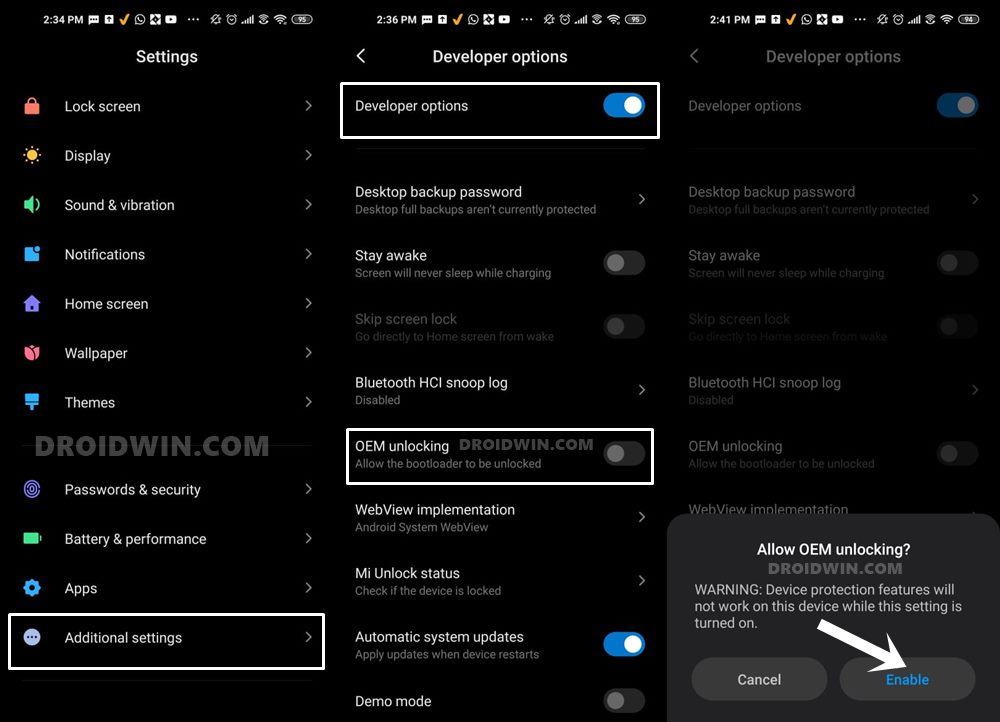
So head over to Settings > About Phone > Tap on Build Number 7 times > Go back to Settings > System > Advanced > Developer Options > Enable USB Debugging and OEM Unlocking.
STEP 3: Unlock Bootloader on Poco F5/Redmi Note 12 Turbo
Next up, you will also have to unlock the device’s bootloader. Do keep in mind that doing so will wipe off all the data from your device and could nullify its warranty as well. So if that’s all well and good, then please refer to our detailed guide on How to Unlock Bootloader on any Xiaomi Device .

STEP 4: Download Android 15 ROM for Poco F5/Redmi Note 12 Turbo
- You may now grab hold of the ROM file from the below link. DERPFEST: ROM | RECOVERY HYPEROS 2.0: ROM | BT FIX [MODULE] | LAUNCHER FIX [MODULE] | RECOVERY [Use Skkk A14] PROJECT PIXELAGE: ROM LINEAGEOS 22 [OFFICIAL]: DOWNLOAD LINK LINEAGEOS 22 [UNOFFICIAL]: DOWNLOAD LINK | RECOVERY [Use Skkk A14] RISINGOS: ROM | RECOVERY VOLTAGEOS: DOWNLOAD LINK crDroid: DOWNLOAD LINK | GApps | RECOVERY [Use Skkk A14] EVOLUTION X [OFFICIAL TWRP METHOD]: Download | Mirror EVOLUTION X [OFFICIAL NON-TWRP METHOD]: boot, dtbo, vendor_boot, recovery, ROM EVOLUTION X [UNOFFICIAL]: GAPPS BUILD | VANILLA BUILD | RECOVERY [Use Skkk A14] BLISS ROMS: DOWNLOAD LINK | RECOVERY [Use Skkk A14] INFINITY X: GAPPS BUILD | VANILLA BUILD | ORANGEFOX RECOVERY MISTOS: DOWNLOAD LINK LMODROID/LIBREOS: DOWNLOAD PROJECT MATRIXX: DOWNLOAD LINK YAAP: DOWNLOAD | MIRROR | ORANGEFOX RECOVERY PIXELOS: DOWNLOAD | MIRROR ORIONOS: DOWNLOAD CHARLIEOS: DOWNLOAD ALPHADROID: DOWNLOAD AXIONOS: DOWNLOAD BLACK IRON PROJECT: DOWNLOAD XIAOMIEU: DOWNLOAD THE PIXEL PROJECT: DOWNLOAD HORIZONDROID: DOWNLOAD PARANOID ANDROID: FASTBOOT | RECOVERY | KSU PATCHED | GKI KERNEL THE CLOVER PROJECT: DOWNLOAD HYPERMINT: DOWNLOAD PROJECT ASCP: DOWNLOAD WITAQUA: DOWNLOAD HYDRAOS: DOWNLOAD LINK [HYBRID ROM] NEXDROID UI: DOWNLOAD LINK PROJECT FLARE: DOWNLOAD | MIRROR GENESISOS: DOWNLOAD LINK KOMODO OS: DOWNLOAD PROJECT BLAZE: ROM | RECOVERY [Use Skkk A14] PORTS ANDROID ONE: ROOT | NON-ROOT OXYGENOS 15: DOWNLOAD LINK ONEPLUS 11 OXYGENOS 15 PORT: DOWNLOAD LINK | NEW: Non-NFC | NFC ONEPLUS 12 COLOROS PORT: DOWNLOAD LINK COLOROS ONEPLUS ACE 2 PORT: DOWNLOAD | MIRROR ORIGINOS [PORTED FROM iQOO NEO6 SE]: DOWNLOAD | MIRROR FLYME OS [MEIZU]: DOWNLOAD LINK FIRMWARE: DOWNLOAD LINK TWRP: DOWNLOAD LINK GAPPS: ANDROID 15 super_empty.img: DOWNLOAD LINK [Works on All AOSP ROMS] HOW TO FLASH super_empty.img: fastboot wipe-super super_empty.img WHY TO FLASH super_empty.img: It is needed to Fix “Error Applying update: 7 (ErrorCode: kInstallDeviceOpenError)”
- Rename the file to rom.zip and transfer it to the platform tools.
STEP 5: Boot to Fastboot Mode
- Connect your device to the PC via a USB cable. Make sure USB Debugging is enabled.
- Then head over to the platform-tools folder, type in CMD in the address bar, and hit Enter. This will launch the Command Prompt.
- Type in the following command in the CMD window to boot your device to Fastboot Mode adb reboot bootloader
- To verify the Fastboot connection, type in the below command and you should get back the device ID. fastboot devices
- If you are not getting any serial ID, then please install the Fastboot Drivers on your PC.
How to Install Android One on Poco F5

- Download and install the TWRP Recovery on your device.
- Then, boot your device to TWRP via the below command: adb reboot recovery
- From TWRP Recovery, go to Wipe and select Format Data.
- Now type YES in the space provided and hit the checkmark.
- Once that’s done, transfer the ROM ZIP file to your device.
- Next up, go to Install, select the ROM ZIP file, and flash it.
- Then go to Wipe and do a Format Data once again.
- Finally, head over to Reboot and tap on the System.
- Your device will now reboot to the newly flashed OS.
How to Install LibreOS/LMODroid on Poco F5
- Download and install the TWRP Recovery on your device.
- Then, boot your device to TWRP via the below command: adb reboot recovery
- From TWRP Recovery, go to Wipe and select Format Data.
- Now type YES in the space provided and hit the checkmark.
- Once that’s done, transfer the ROM ZIP file to your device.
- Next up, go to Install, select the ROM ZIP file, and flash it.
- Then go to Wipe and do a Format Data once again.
- Finally, head over to Reboot and tap on the System.
- Your device will now reboot to the newly flashed OS.
How to Flash Flyme OS Meizu Port on Poco F5
- Download and install the TWRP Recovery on your device.
- Then boot your device to TWRP via the below command: adb reboot recovery
- From TWRP Recovery, go to Wipe and select Format Data.
- Now type YES in the space provided and hit the checkmark.
- Once that’s done, transfer the ROM ZIP file to your device.
- Next up, go to Install, select the ROM ZIP file, and flash it.
- Then go to Wipe and do a Format Data once again.
- Finally, head over to Reboot and tap on the System.
- Your device will now reboot to the newly flashed OS.
How to Flash HydraOS Android 15 on Poco F5
It’s a Hybrid ROM, meaning it can be flashed both via Fastboot and Recovery methods. We have listed the steps for both types below; you may refer to the one that is in sync with your requirements.
Via Fastboot Method
- Place the images folder of the ROM in the platform-tools folder.
- Then run these commands in the CMD window, which should be opened in the platform-tools folder.
- Or you can make a new batch file having thse commands, place it in the platform-tools folder, and run it. All the commands will then be executed automatically. This is the shorter, easier, and recommended approach. fastboot set_active a fastboot flash abl_ab images\abl.img fastboot flash aop_ab images\aop.img fastboot flash aop_config_ab images\aop_config.img fastboot flash bluetooth_ab images\bluetooth.img fastboot flash boot_ab images\boot.img fastboot flash cpucp_ab images\cpucp.img fastboot flash cust_ab images\cust.img fastboot flash devcfg_ab images\devcfg.img fastboot flash dsp_ab images\dsp.img fastboot flash dtbo_ab images\dtbo.img fastboot flash featenabler_ab images\featenabler.img fastboot flash hyp_ab images\hyp.img fastboot flash imagefv_ab images\imagefv.img fastboot flash keymaster_ab images\keymaster.img fastboot flash modem_ab images\modem.img fastboot flash qupfw_ab images\qupfw.img fastboot flash recovery_ab images\recovery.img fastboot flash shrm_ab images\shrm.img fastboot flash tz_ab images\tz.img fastboot flash uefi_ab images\uefi.img fastboot flash uefisecapp_ab images\uefisecapp.img fastboot flash vbmeta_ab images\vbmeta.img fastboot flash vbmeta_system_ab images\vbmeta_system.img fastboot flash vendor_boot_ab images\vendor_boot.img fastboot flash xbl_ab images\xbl.img fastboot flash xbl_config_ab images\xbl_config.img fastboot flash xbl_ramdump_ab images\xbl_ramdump.img fastboot flash super images\super.img fastboot erase metadata fastboot erase userdata fastboot reboot
- Once the flashing is done, your device will automatically boot to the newly flashed OS.
Via Recovery Method
- Download and install the TWRP Recovery on your device.
- Then boot your device to TWRP via the below command: adb reboot recovery
- From TWRP Recovery, go to Wipe and select Format Data.
- Now type YES in the space provided and hit the checkmark.
- Once that’s done, transfer the ROM ZIP file to your device.
- Next up, go to Install, select the ROM ZIP file, and flash it.
- Then go to Wipe and do a Format Data once again.
- Finally, head over to Reboot and tap on the System.
- Your device will now reboot to the newly flashed OS.
How to Install Project ASCP Android 15 ROM on Poco F5

Its Settings menu comes with Android 16 Style Expressive UI!
- Download and install the TWRP Recovery on your device.
- Then boot your device to TWRP via the below command: adb reboot recovery
- From TWRP Recovery, go to Wipe and select Format Data.
- Now type YES in the space provided and hit the checkmark.
- Now, transfer the ROM and Firmware files to your device. NOTE: Use the latest Indian or Global Firmware
- Then, go to Install, select the firmware ZIP file, and flash it.
- Next up, go to Install, select ROM ZIP, and flash it as well.
- Once done, go to Reboot > select Recovery to boot to TWRP.
- After that, you should once again flash the ROM ZIP file.
- Then go to Wipe and do a Format Data once again.
- Finally, head over to Reboot and tap on the System.
- Your device will now reboot to the newly flashed OS.
How to Install LineageOS 22 Android 15 Official on Poco F5

Before flashing the ROM, make sure you are on Android 15/HyperOS 2. If that is not the case, then flash the Android 15 Fastboot ROM via Mi Flash Tool .
- To begin with, transfer the ROM ZIP and all the IMG files inside the platform-tools folder.
- Then flash the partition IMG files via the below commands: fastboot flash boot boot.img fastboot flash dtbo dtbo.img fastboot flash vendor_boot vendor_boot.img fastboot flash recovery recovery.img
- Then reboot the device to the LineagOS Recovery via the command below fastboot reboot recovery
- Now do a Factory Reset, then Format data/factory reset.
- Then go to “Apply Update”, then “Apply from ADB”.
- Now type the below command in the CMD window to start the installation: adb sideload rom.zip
- If you want to flash any other ZIPs [such as GApps], then sideload them right now.
- Finally, select Reboot System Now to boot your Pooc F5 to LineageOS 22 Android 15.
How to Flash WitAqua Android 15 on Poco F5
NOTE: This is an AOSP ROM based on LineageOS. Moreover, it is a Vanilla build, so if you want to flash GApps, you may use NikGApps [given in the above Downloads section].
- Download and install the TWRP Recovery on your device.
- Then boot your device to TWRP via the below command: adb reboot recovery
- From TWRP Recovery, go to Wipe and select Format Data.
- Now type YES in the space provided and hit the checkmark.
- Once that’s done, transfer the ROM ZIP file to your device.
- Next up, go to Install, select the ROM ZIP file, and flash it.
- Then go to Wipe and do a Format Data once again.
- Finally, head over to Reboot and tap on the System.
- Your device will now reboot to the newly flashed OS.
How to Flash OriginOS Port on Poco F5
This ROM has been ported from the iQOO NEO6 SE device; however, it is based on Android 14. So if that’s all well and good, then let’s get started. UPDATE: Being an initial build, this port is quite laggy and has some bugs as well. It is not recommended to be flashed on your primary device. If you have a secondary device and/or are just looking to get a taste of OriginOS, then you are more than welcome to try out this port, or else, wait for the next build.
- Download and install the TWRP Recovery on your device.
- Then boot your device to TWRP via the below command: adb reboot recovery
- From TWRP Recovery, go to Wipe and select Format Data.
- Now type YES in the space provided and hit the checkmark.
- Once that’s done, transfer the ROM ZIP file to your device.
- Next up, go to Install, select the ROM ZIP file, and flash it.
- Then go to Wipe and do a Format Data once again.
- Finally, head over to Reboot and tap on the System.
- Your device will now reboot to the newly flashed OS.
How to Flash KomodoOS Android 15 on Poco F5
NOTE: If you are using HOS2 firmware, then downgrade the firmware to HOS1 before flashing this ROM. Moreover, it’s the Vanilla build of the ROM, so you’ll have to additionally flash a GApps package, if needed.
- Download and install the TWRP Recovery on your device.
- Then boot your device to TWRP via the below command: adb reboot recovery
- From TWRP Recovery, go to Wipe and select Format Data.
- Now type YES in the space provided and hit the checkmark.
- Once that’s done, transfer the ROM ZIP file to your device.
- Next up, go to Install, select the ROM ZIP file, and flash it.
- Then go to Wipe and do a Format Data once again.
- Finally, head over to Reboot and tap on the System.
- Your device will now reboot to the newly flashed OS.
How to Flash HyperMint Android 15 on Poco F5

CHANGELOG
• RW + Decrypt by default

• Debloated some system apps

• Uses Google dialer and contacts. If you want to use Xiaomi dialer and contacts, flash this in recovery

• Added some app mods

• Added Leica cam v5.2

• Added disable signature (core patch)

• Added AOD fullscreen and DT2W/DT2S working fine

• Fixed 1000 nits

• Device encrypted

• Spoof Google

  + Unlimited Google Photos

  + Gaming gimmick

  + Bootloader Lock

  + Play Protect certification if not blocked by Google: rooted and unrooted

  Meets Device

  Meets Basic

  Meets Strong  (module/non-module)

• TWRP skkk v9.0 is included

• KSU next only is included (just install the KSU next apk)
INSTALLATION STEPS
- Download and install the TWRP Recovery on your device.
- Then boot your device to TWRP via the below command: adb reboot recovery
- From TWRP Recovery, go to Wipe and select Format Data.
- Now type YES in the space provided and hit the checkmark.
- Once that’s done, transfer the ROM ZIP file to your device.
- Next up, go to Install, select the ROM ZIP file, and flash it.
- Then go to Wipe and do a Format Data once again.
- Finally, head over to Reboot and tap on the System.
- Your device will now reboot to the newly flashed OS.
How to Install The Clover Project Android 15 on Poco F5

- Download and install the TWRP Recovery on your device.
- Then boot your device to TWRP via the below command: adb reboot recovery
- From TWRP Recovery, go to Wipe and select Format Data.
- Now type YES in the space provided and hit the checkmark.
- Once that’s done, transfer the ROM ZIP file to your device.
- Next up, go to Install, select the ROM ZIP file, and flash it.
- Then go to Wipe and do a Format Data once again.
- Finally, head over to Reboot and tap on the System.
- Your device will now reboot to the newly flashed OS.
Flash Paranoid Android 15 on Poco F5
NEW VIDEO

OLD VIDEO

There exist two different ways of flashing this ROM, based on the ROM that you end up choosing- Fastboot and Recovery. We have given the instructions for both these ROMs; you may try out the one that is in sync with your requirements.
UPDATE: The newer builds of ROM come with the HyperOS 2 firmware package, so you no longer have to download and flash it manually.
Changelog

Fastboot ROM
- To begin with, download and extract the flashing kit .
- Then transfer the ROM file to this flashing kit folder.
- Now, rename the downloaded ROM file to aospa.zip.
- Now download the firmware [February 2025 or later]
- Then, transfer the firmware to this flashing kit folder.
- Once that’s done, rename the firmware to firmware.zip.
- Next, open the following three batch files, one after another: install_google_usb_driver // to install ADB Drivers flash_firmware // to install firmware flash_aospa //to install ROM
- Then type in the below command to reboot to recovery fastboot reboot recovery
- After that, do a format data/factory reset from recovery.
- Finally, reboot to the newly flashed Paranoid Android 15.
Recovery ROM
NOTE: This method is not recommended and not supported by the developer.
- Download Paranoid Android Recovery ROM and transfer it to the platform-tools folder.
- After that, download the latest firmware and transfer it to the platform-tools folder too.
- Now, install the TWRP Recovery on your device.
- Then boot your device to TWRP Recovery via the below command: adb reboot recovery
- Now go to Wipe > Format Data > Type in YES > hit the blue check.
- Then, transfer both the firmware and ROM files to your device .
- Once done, go to Install, select the firmware.zip file and flash it.
- Again, go to Install, this time select the ROM.zip file and flash it.
- Once done, again do format the data [from Wipe] just to be on the safer side.
- Finally, select Reboot > System. The device will boot to the newly flashed OS.
How to Update Paranoid Android 14 to 15
If you are already on Paranoid Android 14 build, then you can either install the update manually using the Fastboot [recommended] or the Recovery method, skipping the Format Data and Flashing of the Firmware. Likewise, you can also install the updates from the Settings > System section, but as of now, this ROM is at an early stage, so OTA updates might not be available yet.
Install HorizonDroid Android 15 on Poco F5

- Download and install the TWRP Recovery on your device.
- Then boot your device to TWRP via the below command: adb reboot recovery
- From TWRP Recovery, go to Wipe and select Format Data.
- Now type YES in the space provided and hit the checkmark.
- Once that’s done, transfer the ROM ZIP file to your device.
- Next up, go to Install, select the ROM ZIP file, and flash it.
- Then go to Wipe and do a Format Data once again.
- Finally, head over to Reboot and tap on the System.
- Your device will now reboot to the newly flashed OS.
Install ColorOS Android 15 on Poco F5 [OnePlus Ace 2 Port]
- Download and install the TWRP Recovery on your device.
- Then boot your device to TWRP via the below command: adb reboot recovery
- From TWRP Recovery, go to Wipe and select Format Data.
- Now type YES in the space provided and hit the checkmark.
- Once that’s done, transfer the ROM ZIP file to your device.
- Next up, go to Install, select the ROM ZIP file, and flash it.
- Then go to Wipe and do a Format Data once again.
- Finally, head over to Reboot and tap on the System.
- Your device will now reboot to the newly flashed OS.
How to Flash The Pixel Project Android 15 on Poco F5

- Download and install the TWRP Recovery on your device.
- Then boot your device to TWRP via the below command: adb reboot recovery
- From TWRP Recovery, go to Wipe and select Format Data.
- Now type YES in the space provided and hit the checkmark.
- Once that’s done, transfer the ROM ZIP file to your device.
- Next up, go to Install, select the ROM ZIP file, and flash it.
- Then go to Wipe and do a Format Data once again.
- Finally, head over to Reboot and tap on the System.
- Your device will now reboot to the newly flashed OS.
How to Flash HorizonDroid Android 15 on Poco F5
- Download and install the TWRP Recovery on your device.
- Then boot your device to TWRP via the below command: adb reboot recovery
- From TWRP Recovery, go to Wipe and select Format Data.
- Now type YES in the space provided and hit the checkmark.
- Once that’s done, transfer the ROM ZIP file to your device.
- Next up, go to Install, select the ROM ZIP file, and flash it.
- Then go to Wipe and do a Format Data once again.
- Finally, head over to Reboot and tap on the System.
- Your device will now reboot to the newly flashed OS.
How to Install Xiaomi EU HyperOS 2 Android 15 on Poco F5
How to Install Xiaomi EU ROM on Poco F5/Redmi Note 12 Turbo
Flash Black Iron Project Android 15 on Poco F5

- Download and install the TWRP Recovery on your device.
- Then boot your device to TWRP via the below command: adb reboot recovery
- From TWRP Recovery, go to Wipe and select Format Data.
- Now type YES in the space provided and hit the checkmark.
- Download the latest firmware for your region from here
- Now transfer the ROM and firmware files to your device.
- Now go to Install, select the firmware ZIP file, and flash it.
- Next up, go to Install, select the ROM ZIP file, and flash it.
- Then go to Wipe and do a Format Data once again.
- Finally, head over to Reboot and tap on the System.
- Your device will now reboot to the newly flashed OS.
Flash AxionOS Android 15 on Poco F5
- Download and install the TWRP Recovery on your device.
- Then boot your device to TWRP via the below command: adb reboot recovery
- From TWRP Recovery, go to Wipe and select Format Data.
- Now type YES in the space provided and hit the checkmark.
- Download the latest firmware for your region from here
- Now transfer the ROM and firmware files to your device.
- Now go to Install, select the firmware ZIP file, and flash it.
- Next up, go to Install, select the ROM ZIP file, and flash it.
- Then go to Wipe and do a Format Data once again.
- Finally, head over to Reboot and tap on the System.
- Your device will now reboot to the newly flashed OS.
Flash OrionOS Android 15 on Poco F5

- Download and install the TWRP Recovery on your device.
- Then boot your device to TWRP via the below command: adb reboot recovery
- From TWRP Recovery, go to Wipe and select Format Data.
- Now type YES in the space provided and hit the checkmark.
- Download the latest firmware for your region from here
- Now transfer the ROM and firmware files to your device.
- Now go to Install, select the firmware ZIP file, and flash it.
- Next up, go to Install, select the ROM ZIP file, and flash it.
- Then go to Wipe and do a Format Data once again.
- Finally, head over to Reboot and tap on the System.
- Your device will now reboot to the newly flashed OS.
Flash CharlieOS Android 15 on Poco F5
Via Fastboot
- Extract the ROM ZIP and launch the FlashWindows.bat file.
- The flashing will now start. Once done, it will boot to the OS.
Via Recovery
- Download and install the TWRP Recovery on your device.
- Then boot your device to TWRP via the below command: adb reboot recovery
- From TWRP Recovery, go to Wipe and select Format Data.
- Now type YES in the space provided and hit the checkmark.
- Download the latest firmware for your region from here
- Now transfer the ROM and firmware files to your device.
- Now go to Install, select the firmware ZIP file, and flash it.
- Next up, go to Install, select the ROM ZIP file, and flash it.
- Then go to Wipe and do a Format Data once again.
- Finally, head over to Reboot and tap on the System.
- Your device will now reboot to the newly flashed OS.
Flash AlphaDroid Android 15 on Poco F5

- Download and install the TWRP Recovery on your device.
- Then boot your device to TWRP via the below command: adb reboot recovery
- From TWRP Recovery, go to Wipe and select Format Data.
- Now type YES in the space provided and hit the checkmark.
- Download the latest firmware for your region from here
- Now transfer the ROM and firmware files to your device.
- Now go to Install, select the firmware ZIP file, and flash it.
- Next up, go to Install, select the ROM ZIP file, and flash it.
- Then go to Wipe and do a Format Data once again.
- Finally, head over to Reboot and tap on the System.
- Your device will now reboot to the newly flashed OS.
Flash Project Matrixx Android 15 on Poco F5

- Download and install the TWRP Recovery on your device.
- Then boot your device to TWRP via the below command: adb reboot recovery
- From TWRP Recovery, go to Wipe and select Format Data.
- Now type YES in the space provided and hit the checkmark.
- Download the latest firmware for your region from here
- Now transfer the ROM and firmware files to your device.
- Now go to Install, select the firmware ZIP file, and flash it.
- Next up, go to Install, select the ROM ZIP file, and flash it.
- Then go to Wipe and do a Format Data once again.
- Finally, head over to Reboot and tap on the System.
- Your device will now reboot to the newly flashed OS.
How to Flash ColorOS 15 on Poco F5 [OnePlus 12 Port]

There exist two methods you can use to flash the ROM: Recovery and Fastboot. Let’s make you aware of both these methods:
Fastboot Method
- Erase Factory Reset Protection on your device via: fastboot erase frp
- Extract the ROM.ZIP and launch flash_all.bat.
- The flashing will start and could take a while.
- Once done, your device will boot to the OS.
- To install Google Play in ColorOS : Turn on Google Mobile Services in Settings -> System & update -> Google settings
- Then open the App Market, search 谷歌应用市场 or Google Play , install the first one ( 谷歌应用市场 ) of the list.
Recovery Method
- First off, erase Factory Reset Protection on your device via: fastboot erase frp
- Now download and install 7ZIP ZS on your PC.
- Then extract the super.img.zst from the ROM.ZIP file.
- Now extract this super.img.zst using 7ZIP ZS and you’ll get super.img.
- Keep this file handy as it will come in handy later on.
- Download and install the TWRP Recovery on your device.
- Then boot your device to TWRP via the below command: adb reboot recovery
- From TWRP Recovery, go to Wipe and select Format Data.
- Now type YES in the space provided and hit the checkmark.
- Now transfer the ROM and super.img files to your device .
- Then go to Install, select the ROM.ZIP file, and flash it.
- Now go to Install, tap on Install Image, select the super.img, and flash it.
- Once done, go to Wipe and do a Format Data once again.
- Finally, head over to Reboot and tap on the System.
- Your device will now reboot to the newly flashed OS.
- To install Google Play in ColorOS : Turn on Google Mobile Services in Settings -> System & update -> Google settings
- Then open the App Market, search 谷歌应用市场 or Google Play , install the first one ( 谷歌应用市场 ) of the list.
How to Flash OxygenOS 15 OnePlus 11 Port on Poco F5
New Video

Old Video

- Download and install the TWRP Recovery on your device.
- Then boot your device to TWRP via the below command: adb reboot recovery
- From TWRP Recovery, go to Wipe and select Format Data.
- Now type YES in the space provided and hit the checkmark.
- After that download the latest Global firmware from here .
- Then, transfer the ROM and firmware files to your device.
- Now go to Install, select the firmware ZIP file, and flash it.
- Next up, go to Install, select the ROM ZIP file, and flash it.
- Then go to Wipe and do a Format Data once again.
- After that, head over to the Reboot and select Slot A.
- Your device will now reboot to the newly flashed OS.
- UPDATE: The dev has fixed this issue in the latest build. If you’re not able to log into your Google account, then flash this Permissiver.zip file via TWRP.
How to Install PixelOS Android 15 on Poco F5
- Download and install the TWRP Recovery on your device.
- Then boot your device to TWRP via the below command: adb reboot recovery
- From TWRP Recovery, go to Wipe and select Format Data.
- Then type YES in the space provided and hit the checkmark.
- Download the latest firmware for your region from here
- Now transfer the ROM and firmware files to your device.
- Now go to Install, select the firmware ZIP file, and flash it.
- Next up, go to Install, select the ROM ZIP file, and flash it.
- Then go to Wipe and do a Format Data once again.
- Finally, head over to Reboot and select System.
- Your device will now reboot to the newly installed OS.
How to Flash YAAP Android 15 on Poco F5

- Install OrangeFox Recovery on your device using the below command: fastboot flash recovery_ab recovery.img
- Then boot your device to OrangeFox via the below command: fastboot reboot recovery
- From OrangeFox, go to Wipe and select Format Data.
- Then type YES in the space provided and hit the checkmark.
- Download the latest firmware for your region from here
- Now transfer the ROM and firmware files to your device.
- Now go to Install, select the firmware ZIP file, and flash it.
- Next up, go to Install, select the ROM ZIP file, and flash it.
- Then go to Wipe and do a Format Data once again.
- Finally, select Reboot > System. Your device will reboot to the newly installed OS.
How to Flash Project Flare Android 15 on Poco F5

- Download and install the TWRP Recovery on your device.
- Then boot your device to TWRP via the below command: adb reboot recovery
- From TWRP Recovery, go to Wipe and select Format Data.
- Then type YES in the space provided and hit the checkmark.
- Download the latest firmware for your region from here
- Now transfer the ROM and firmware files to your device.
- Now go to Install, select the firmware ZIP file, and flash it.
- Next up, go to Install, select the ROM ZIP file, and flash it.
- Then go to Wipe and do a Format Data once again.
- Finally, head over to Reboot and select System.
- Your device will now reboot to the newly installed OS.
How to Install Evolution X [Official] Android 15 ROM on Poco F5
Using TWRP

- Download and install the TWRP Recovery on your device.
- Then boot your device to TWRP via the below command: adb reboot recovery
- From TWRP Recovery, go to Wipe and select Format Data.
- Then type YES in the space provided and hit the checkmark.
- Download the latest firmware for your region from here
- Now transfer the ROM and firmware files to your device.
- Now go to Install, select the firmware ZIP file, and flash it.
- Next up, go to Install, select the ROM ZIP file, and flash it.
- Then go to Wipe and do a Format Data once again.
- Finally, head over to Reboot and select System.
- Your device will now reboot to the newly installed OS.
Without TWRP Recovery

- Download boot, dtbo, vendor_boot, recovery, and ROM.
- Now transfer all the files inside the platform-tools folder.
- Flash boot, dtbo, vendor_boot, recovery via commands: fastboot flash boot boot.img fastboot flash dtbo dtbo.img fastboot flash vendor_boot vendor_boot.img fastboot flash recovery recovery.img
- Then reboot to EvolutionX Recovery via the below command: fastboot reboot recovery
- From the recovery, do Factory Reset → Format Data/Factory Reset.
- Now go to Apply Update → Apply from ADB.
- Then type in the below command to start the installation process: adb sideload rom.zip
- Once done, reboot to recovery to sideload any other ZIP file [optional].
- Finally, select Reboot System Now to boot to the newly flashed OS.
How to Flash Infinity X Android 15 ROM on Poco F5

- Rename the recovery to of.img and transfer it to platform tools.
- Next, install the OrangeFox Recovery via the below command: fastboot flash recovery of.img
- Then boot your device to the recovery via the below command: fastboot reboot recovery
- From the Recovery, go to Wipe and select Format Data.
- Now type YES in the space provided and hit the checkmark.
- Once done, now transfer the ROM ZIP file to your device .
- Then, go to Install, select the ROM ZIP file, and flash it.
- Once done, head to Wipe > Format Data > Type in YES > hit the checkmark.
- NOTE: To flash any other ZIP file, do a Reboot to Recovery and then Install it.
- Finally, go to Reboot > System. The device will reboot to the newly flashed ROM.
How to Flash MistOS Android 15 on Poco F5
Via TWRP Install Method
- Download and install the TWRP Recovery on the device.
- Then boot your device to TWRP via the below command: adb reboot recovery
- From TWRP Recovery, go to Wipe and select Format Data.
- Now type YES in the space provided and hit the checkmark.
- Once done, now transfer the ROM ZIP file to your device .
- Then, go to Install, select the ROM ZIP file, and flash it.
- Once done, head to Wipe > Format Data > Type in YES > hit the blue checkmark.
- NOTE: To flash any other ZIP file, do a Reboot to Recovery and then Install it.
- Finally, go to Reboot > System. The device will reboot to the newly flashed ROM.
Via TWRP ADB Sideload
- Download and install the TWRP Recovery on the device.
- Then boot your device to TWRP via the below command: adb reboot recovery
- From TWRP Recovery, go to Wipe and select Format Data.
- Now type YES in the space provided and hit the checkmark.
- Once done, transfer the ROM ZIP file to the platform-tool folder.
- Then, go to Advanced, select ADB Sideload, and swipe to start it.
- Now type the below command in the CMD window to start the ROM installation: adb sideload rom.zip
- Once done, head to Wipe > Format Data > Type in YES > hit the blue checkmark.
- NOTE: To flash any other ZIP file, do a Reboot to Recovery and then Install it.
- Finally, go to Reboot > System. The device will reboot to the newly flashed ROM.
How to Flash crDroid Android 15 on Poco F5

- Download and install the TWRP Recovery on the device.
- Then boot your device to TWRP via the below command: adb reboot recovery
- From TWRP Recovery, go to Wipe and select Format Data.
- Now type YES in the space provided and hit the checkmark.
- Once done, now transfer the ROM ZIP file to your device .
- Then, go to Install, select the ROM ZIP file, and flash it.
- Once done, head to Wipe > Format Data > Type in YES > hit the blue checkmark.
- NOTE: To flash any other ZIP file, do a Reboot to Recovery and then Install it.
- Finally, go to Reboot > System. The device will reboot to the newly flashed ROM.
How to Flash Evolution X Android 15 on Poco F5

UPDATE 1: The Official Build is now live and could be found in this page.

The one given below is an Unofficial/Community Build
- Download and install TWRP Recovery on your device.
- Then boot your device to TWRP via the below command: adb reboot recovery
- From TWRP Recovery, go to Wipe and select Format Data.
- Then type YES in the space provided and hit the checkmark.
- Download the latest firmware for your region from here
- Now transfer the ROM and firmware files to your device.
- Now go to Install, select the firmware ZIP file, and flash it.
- Next up, go to Install, select the ROM ZIP file, and flash it.
- [Optional] If you want to flash GApps , then Reboot to Recovery and flash it.
- Once done, now go to Wipe and do a Format Data.
- Finally, go to Reboot and select System. Your device will now reboot to the newly installed OS.
Flash BlissROM Android 15 on Poco F5

- Download and install TWRP Recovery on your device.
- Then boot your device to TWRP via the below command: adb reboot recovery
- From TWRP Recovery, go to Wipe and select Format Data.
- Then type YES in the space provided and hit the checkmark.
- Download the latest firmware for your region from here
- Now transfer the ROM and firmware files to your device.
- Now go to Install, select the firmware ZIP file, and flash it.
- Then go to Install, select the ROM ZIP file, and flash it.
- [Optional] If you want to flash GApps , then Reboot to Recovery and flash it.
- Once done, now go to Wipe and do a Format Data.
- Finally, go to Reboot and select System. Your device will now reboot to the newly installed OS.
Install GenesisOS Android 15 on Poco F5

- First off, flash the boot.img fastboot flash boot boot.img
- Next up, flash the dtbo.img fastboot flash dtbo dtbo.img
- Now, flash the vendor_boot fastboot flash vendor_boot vendor_boot.img
- Finally, flash the recovery.img: fastboot flash recovery recovery.img
- Now type in the below command to boot to the Recovery. fastboot reboot recovery
- From the Recovery, go to Factory Reset > Format Data/Factory Reset > Format Data.
- Your device will now undergo a reset. Once done, you shall get the “Data wipe complete” message.
- Now from the Recovery, go to Apply Update > Apply from ADB.
- Then head over to the platform-tools folder, type in CMD in the address bar, and hit Enter.
- This will launch the Command Prompt. So type in the below command to flash the ROM file via Sideload: adb sideload rom.zip
- Once done, you’ll now get a prompt asking if you wish to flash any other ZIP file or not. If you want, then hit YES and proceed with the below steps or else. hit No and select Reboot System Now.
- If you want to install any ZIP file [such as GApps], then tap on YES in the prompt that appears. It will reboot your device to the Recovery.
- Then from recovery, go to Apply Update > Apply from ADB.
- Now type in the below command to flash the desired file file via Sideload: adb sideload filename.zip
- You will get a Signature Verification failed message because the GApps package isn’t signed by the ROM developers. That’s not an issue, just hit YES to proceed ahead.
- Finally, select Reboot System Now. Your device will boot to the newly flashed OS.
How to Install RisingOS Android 15 on Poco F5

- First off, flash the provided recovery via the below command fastboot flash recovery recovery.img
- Then reboot to recovery via the below command: fastboot reboot recovery
- Now navigate to Apply Update > Apply from ADB.
- Then type in the below command to start the sideload adb sideload rom.zip
- The installation will now begin and could take a while.
- Once done, do a Factory Reset/Format Data via the recovery.
- Finally, select Reboot System Now to boot your Poco F5 to RisingOS.
Flash LineageOS 22 Android 15 on Poco F5

- First off, flash the boot.img fastboot flash boot boot.img
- Next up, flash the dtbo.img fastboot flash dtbo dtbo.img
- Now, flash the vendor_boot fastboot flash vendor_boot vendor_boot.img
- Finally, flash the recovery.img: fastboot flash recovery recovery.img
- Now type in the below command to boot to the LineageOS Recovery. fastboot reboot recovery
- From the Recovery, go to Factory Reset > Format Data/Factory Reset > Format Data.
- Your device will now undergo a reset. Once done, you shall get the “Data wipe complete” message.
- From the LineageOS Recovery, go to Apply Update > Apply from ADB.
- Then head over to the platform-tools folder, type in CMD in the address bar, and hit Enter.
- This will launch the Command Prompt. So type in the below command to flash the ROM file via Sideload: adb sideload rom.zip
- The process will now begin and once done, you shall get the Total xfer: 1.00x message [Got an error? See FAQ below].
- Once done, you’ll now get a prompt asking if you wish to flash any other ZIP file or not. If you want, then hit YES and proceed with the below steps or else. hit No and select Reboot System Now.
- If you want to install any ZIP file [such as GApps], then tap on YES in the prompt that appears. It will reboot your device to LineageOS Recovery.
- Then from recovery, go to Apply Update > Apply from ADB.
- Now type in the below command to flash the GApps file via Sideload: adb sideload gapps.zip
- You will get a Signature Verification failed message because the GApps package isn’t signed by LineageOS. That’s not an issue, just hit YES to proceed ahead.
- Finally, select Reboot System Now. Your device will boot to the newly flashed OS.
Flash OxygenOS 15 Android 15 on Poco F5

- To begin with, download and install the TWRP Recovery on your device.
- Then download the super_empty.img file and transfer it to your device.
- After that, reboot your device to the recovery using the below command: adb reboot recovery
- Now go to Install, tap on Install Image, and select the super_empty.img.
- Then select the Super Partition and perform a right swipe to flash the file.
- Now go to Install, select ROM ZIP, and perform the right flash to install it.
- Then go to Wipe > Format Data > Type in YES > Hit the blue checkmark.
- Finally, select Reboot > System. The device will reboot to the newly flashed OS.
Flash NexDroid UI Android 15 on Poco F5

- To begin with, download and extract the ROM ZIP file on your PC.
- Then launch the windows_fastboot_first_install_with_data_format file.
- The flashing will now start and could take a while.
- Once done, your device will automatically reboot to the newly flashed OS.
Flash VoltageOS Android 15 Poco F5
- Download and install the TWRP Recovery on the device.
- Then boot your device to TWRP via the below command: adb reboot recovery
- From TWRP Recovery, go to Wipe and select Format Data.
- Now type YES in the space provided and hit the checkmark.
- Once done, now transfer the ROM ZIP file to your device .
- Then, go to Install, select the ROM ZIP file, and flash it.
- Once done, head to Wipe > Format Data > Type in YES > hit the blue checkmark.
- Finally, go to Reboot > System. The device will reboot to the newly flashed ROM.
Flash Project Pixelage Android 15 on Poco F5

- Download and install the TWRP Recovery on the device.
- Then boot your device to TWRP via the below command: adb reboot recovery
- From TWRP Recovery, go to Wipe and select Format Data.
- Now type YES in the space provided and hit the checkmark.
- Once done, now transfer the ROM ZIP file to your device .
- Then, go to Install, select the ROM ZIP file, and flash it.
- Once done, head to Wipe > Format Data > Type in YES > hit the blue checkmark.
- Finally, go to Reboot > System. The device will reboot to the newly flashed ROM.
Flash HyperOS 2.0 Android 15 on Poco F5
Before you proceed with the flashing process, there are a couple of things worth keeping in mind, namely:
- This is a CN ROM [and not Global].
- Moreover, it has been ported from the Xiaomi 15 series.
- It also passes the Play Integrity Test [when rooted]
If that’s all well and good, then take a complete device backup, and then let’s get started with the flashing process.
- Download and install the TWRP Recovery on the device.
- Then boot your device to TWRP via the below command: adb reboot recovery
- From TWRP Recovery, go to Wipe and select Format Data.
- Now type YES in the space provided and hit the checkmark.
- Once done, now transfer the ROM ZIP file to your device .
- Then, go to Install, select the ROM ZIP file, and flash it.
- Once done, head to Wipe > Format Data > Type in YES > hit the blue checkmark.
- Finally, go to Reboot > System. The device will reboot to the newly flashed ROM.
Fix Bluetooth Not Working
Download the BT Fix module from above [STEP 4] and flash it via Magisk. Then restart your device. In some cases, you might need to reset your Bluetooth device as well after flashing the module.
Fix Launcher Crashing
Download the Launcher Fix module from above [STEP 4] and flash it via Magisk. Then restart your device.
Fix Device Not Certified
- Download and install the device-id-1-1-3.apk
- Then copy the Device ID from the installed app.
- Now open this link and sign in to your Google Account.
- After signing in, scroll down and paste the Device ID in the “Google Service Framework Android ID” section.
- Then click “I’m not a robot” and hit “Register.”
- Once registration is completed, Clear Data of the Google Play Store.
- Finally, do a reboot. Your device is now Google Play Certified.
How to Flash Derpfest Android 15 on Poco F5

- Type in the below command to flash the Derpfest Recovery fastboot flash recovery recovery.img
- Then reboot to the flashed recovery via the below command fastboot reboot recovery
- Now perform a Factory reset/format data via the recovery.
- Then go to Apply Update > Apply from ADB
- Now type in the below command to sideload the ROM ZIP adb sideload rom.zip
- Once the flashing is done, do a Factory reset/format data.
- Finally, select Reboot System Now to boot to the newly flashed OS.
Flash Project Blaze Android 15 ROM on Poco F5

- Download and install the TWRP Recovery on the device.
- Then boot your device to TWRP via the below command: adb reboot recovery
- From TWRP Recovery, go to Wipe and select Format Data.
- Now type YES in the space provided and hit the checkmark.
- Once done, now transfer the ROM ZIP file to your device .
- Then, go to Install, select the ROM ZIP file, and flash it.
- Once done, head to Wipe > Format Data > Type in YES > hit the blue checkmark.
- Finally, go to Reboot > System. The device will reboot to the newly flashed ROM.
- How to Install Derpfest ROM on Poco F5 [Android 14]
- How to Install Project Elixir Android 14 on Poco F5 [Video]
- Install Pixel Experience Poco F5/Redmi Note 12 Turbo [Android 14]
- Install Paranoid Android on Poco F5/Redmi Note 12 Turbo

- shahid 12 months ago Reply hello brother please give me the latest keybox file
(Cancel Reply)
Δ
