How to Install Custom Boot Logo Splash Screen on OnePlus 11
In this guide, we will show you the steps to install a custom boot logo/splash screen on your OnePlus 11. Throughout the journey of tech enthusiasts, they tend to witness the bootup screen and boot animations an astronomical amount of times. This is because after flashing any module or custom binary, the first course of action is to reboot the device. Once they do so, they will then be greeted with the same old monotonous bootup screen that they were witnessing for ages.
Fortunately, there’s now a handy way out, at least if you are on the latest OnePlus flagship. While we have already covered in depth on how you could flash a custom boot animation on your Android, OnePlus 11 users could now even install a custom boot logo/splash screen as well. So without any further ado, let’s show you how this could be carried out.
How to Install Custom Boot Logo/Splash Screen on OnePlus 11
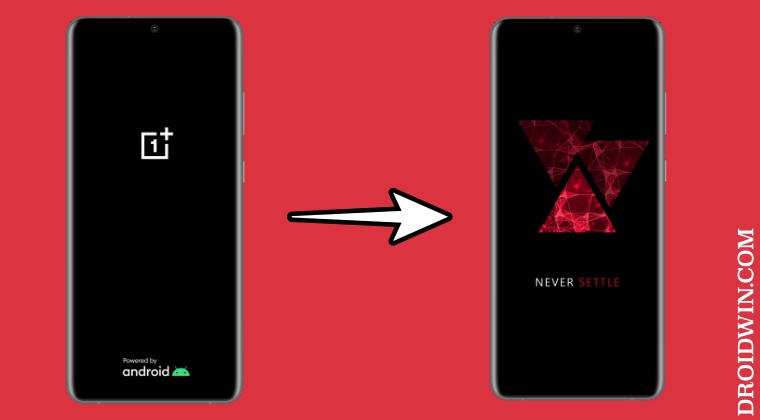
- First off, download and extract Android SDK Platform Tools on your PC.
- Then download the desired custom boot logo/splash screen from here .
- Now rename it to splash.img and transfer it to platform-tools folder.
- Then enable USB Debugging and OEM Unlocking on your device.
- Now unlock the bootloader on your device [this will wipe off all the data].
- Then type in CMD in the platform-tools folder address bar and hit Enter.
- Now type in the below command to boot your device to Fastboot Mode: adb reboot bootloader
- Then type in the below command to flash the custom boot logo/splash screen fastboot flash splash splash.img
- Finally, type in the below command to boot your device to the OS. fastboot reboot
How to Go Back to Stock Boot Logo/Splash Screen on OnePlus 11
If you wish to remove the custom boot-up and revert to the stock one, then simply download the stock OnePlus boot logo from here and flash it using the same instructions as listed above.
- How to Flash OxygenOS Firmware on any OnePlus [Video]
- How to Directly Update OnePlus from Android 11 to Android 13
- Fix OnePlus OEM Unlocking greyed out: Connect to the Internet
- How to Check DDR RAM Type on OnePlus [3 Methods]

- Chandan Kumar 10 months ago Reply Hello Droidwin, I am reading this article and also a YouTube subscriber. I also want to change my poco f4 boot logo splash screen. I looked many forums but could not find any a tool or any method that will change my bootlogo. Please help me to change the boot logo.
(Cancel Reply)
Δ
