How to Install Cyberpunk Theme on OnePlus
In this guide, we will show you the steps to flash the Cyberpunk Theme on your OnePlus device. If there’s one action role-playing game that doesn’t need an introduction of any sort. Even before the launch of the game, it managed to gather so many eyeballs that the hype mull was running beyond its capacity. And even though it did had its fair share of issues in the initial phases, however, that didn’t made any major dent in its reputation.
Moreover, just a few months after its launch, we already had quite a few crossovers with Android smartphones, with the likes of the OnePlus 8T being the best of the lot. And it soon got incorporated across numerous OS elements as well, including the likes of lock and home screen wallpapers, app icons, fingerprints, boot animation, quick settings, among others.
Now, we have a combined package in the form of a Cyberpunk Theme that you can install on your OnePlus device, which will theme all these elements at once. So without further ado, let’s show you this theme and then make you aware of its installation steps. Follow along.
- Screenshots of OnePlus Cyberpunk Theme Lock Screen Fingerprint Home Screen App Drawer Quick Settings Settings Menu
- How to Install Cyberpunk Theme on OnePlus Devices
- UPDATE 1: More Themes Added Monet SystemWide [OOS 14] PUI Theme [OOS14] Keqing Theme [OOS 14] AOSP Package Installer [OOS 14] OOS Style [OOS 13/14]
Screenshots of OnePlus Cyberpunk Theme

As already mentioned above, you’ll be able to customize the following UI elements after flashing this theme:
Lock Screen

Fingerprint

Home Screen

App Drawer

Quick Settings

Settings Menu

Liked this theme? So what are you waiting for? Let’s get started with the installation steps!
How to Install Cyberpunk Theme on OnePlus Devices

We have tested this theme on a OnePlus device running the latest OxygenOS 14 Android 14. It may or may not work on older OS versions, i.e. Oxygen 13/Android 13 and below.
- To begin with, root your device via Magisk / KernelSU / APatch .
- After that, download the Cyberpunk Theme ZIP from below: DOWNLOAD LINK [Credit: XDA Senior Member alp47470]
- Next up, download and install the MRepo app on your device. The MRepo app is required to flash this module.
- Now launch MRepo, go to Modules, and tap on the module icon.
- Then select the Cyberpunk Theme ZIP and it will be flashed.
- Once done, hit Reboot. Your device will now boot to the OS.
- Go to Settings > Wallpaper & Style > Themes > Cyberpunk 2077.
- Check the required elements that you want to theme and hit Apply.
That’s it. These are the steps to flash the Cyberpunk Theme on your OnePlus device. We will be updating this guide with more themes as and when we get hold of the same. So make sure to keep a tab on this post at regular intervals.
UPDATE 1: More Themes Added
Monet SystemWide [OOS 14]
DOWNLOAD LINK
PUI Theme [OOS14]
DOWNLOAD LINK
Keqing Theme [OOS 14]
DOWNLOAD LINK
AOSP Package Installer [OOS 14]
DOWNLOAD LINK
OOS Style [OOS 13/14]
DOWNLOAD LINK
- How to Add Genshin Fingerprint Animation on OnePlus
- How to Install Custom Boot Logo Splash Screen on OnePlus 11
- How to Flash Custom Boot Animation on OnePlus 12
- How to Customize your OnePlus Device via Oxygen Customizer

(Cancel Reply)
Δ
How to Install Cyberpunk Theme on OnePlus
In this guide, we will show you the steps to flash the Cyberpunk Theme on your OnePlus device. If there’s one action role-playing game that doesn’t need an introduction of any sort. Even before the launch of the game, it managed to gather so many eyeballs that the hype mull was running beyond its capacity. And even though it did had its fair share of issues in the initial phases, however, that didn’t made any major dent in its reputation.
Moreover, just a few months after its launch, we already had quite a few crossovers with Android smartphones, with the likes of the OnePlus 8T being the best of the lot. And it soon got incorporated across numerous OS elements as well, including the likes of lock and home screen wallpapers, app icons, fingerprints, boot animation, quick settings, among others.
Now, we have a combined package in the form of a Cyberpunk Theme that you can install on your OnePlus device, which will theme all these elements at once. So without further ado, let’s show you this theme and then make you aware of its installation steps. Follow along.
- Screenshots of OnePlus Cyberpunk Theme Lock Screen Fingerprint Home Screen App Drawer Quick Settings Settings Menu
- How to Install Cyberpunk Theme on OnePlus Devices
- UPDATE 1: More Themes Added Monet SystemWide [OOS 14] PUI Theme [OOS14] Keqing Theme [OOS 14] AOSP Package Installer [OOS 14] OOS Style [OOS 13/14]
Screenshots of OnePlus Cyberpunk Theme
As already mentioned above, you’ll be able to customize the following UI elements after flashing this theme:
Lock Screen
Fingerprint
Home Screen
App Drawer
Quick Settings
Settings Menu
Liked this theme? So what are you waiting for? Let’s get started with the installation steps!
How to Install Cyberpunk Theme on OnePlus Devices
We have tested this theme on a OnePlus device running the latest OxygenOS 14 Android 14. It may or may not work on older OS versions, i.e. Oxygen 13/Android 13 and below.
- To begin with, root your device via Magisk / KernelSU / APatch .
- After that, download the Cyberpunk Theme ZIP from below: DOWNLOAD LINK [Credit: XDA Senior Member alp47470]
- Next up, download and install the MRepo app on your device. The MRepo app is required to flash this module.
- Now launch MRepo, go to Modules, and tap on the module icon.
- Then select the Cyberpunk Theme ZIP and it will be flashed.
- Once done, hit Reboot. Your device will now boot to the OS.
- Go to Settings > Wallpaper & Style > Themes > Cyberpunk 2077.
- Check the required elements that you want to theme and hit Apply.
That’s it. These are the steps to flash the Cyberpunk Theme on your OnePlus device. We will be updating this guide with more themes as and when we get hold of the same. So make sure to keep a tab on this post at regular intervals.
UPDATE 1: More Themes Added
Monet SystemWide [OOS 14]
DOWNLOAD LINK
PUI Theme [OOS14]
DOWNLOAD LINK
Keqing Theme [OOS 14]
DOWNLOAD LINK
AOSP Package Installer [OOS 14]
DOWNLOAD LINK
OOS Style [OOS 13/14]
DOWNLOAD LINK
- How to Add Genshin Fingerprint Animation on OnePlus
- How to Install Custom Boot Logo Splash Screen on OnePlus 11
- How to Flash Custom Boot Animation on OnePlus 12
- How to Customize your OnePlus Device via Oxygen Customizer
(Cancel Reply)
Δ
How to Add Genshin Fingerprint Animation on OnePlus
In this guide, we will show you the steps to add the Genshin fingerprint animation on your OnePlus device. The devices from the Chinese OEM house the OxygenOS/ColorOS and are well known for beholding a slew of customization tweaks. From themes to icon packs and even the likes of fingerprint animations, there’s a lot to look forward to. However, if we talk about the latter one, then OnePlus already beholds a slew of animations to choose from [7 to be precise].
These include the likes of Fizz, Bubble, Stardust, Cosmos, Ripple, Strikes, and Fireworks. While there’s no built-in option to add a custom fingerprint, but for many the preset ones should be enough to checkmark their requirement. Well, except for the die-hard Genshin fans! If you are among them, then fret not as we have got you covered! From this post, you can download and install the Genshin fingerprint animation on your OnePlus 12. So without further ado, let’s get started.
How to Add Genshin Fingerprint Animation on OnePlus
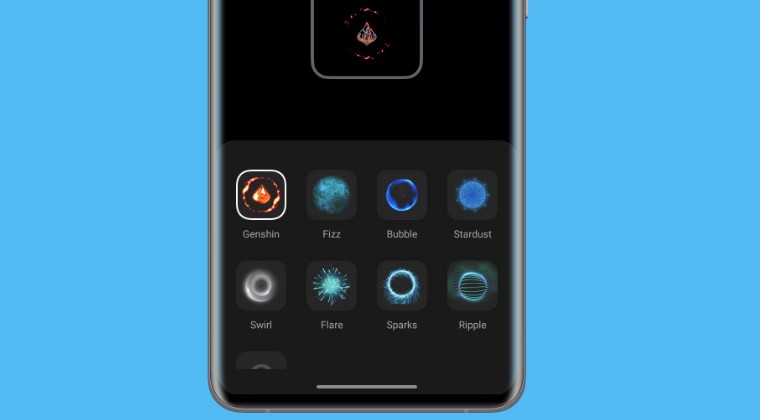
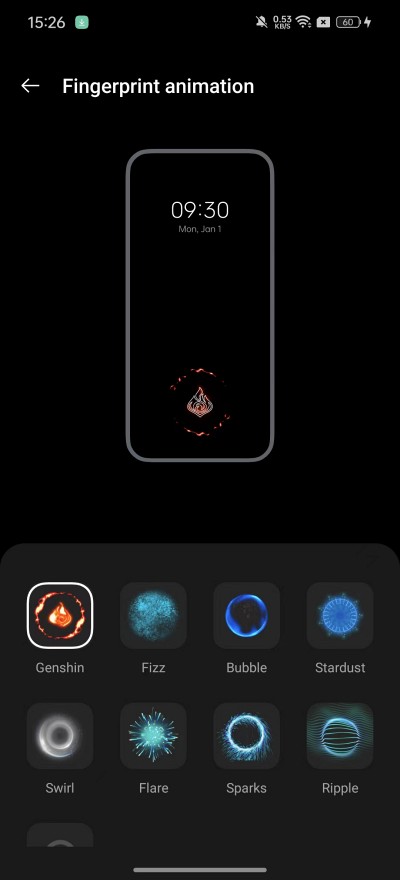
Carrying out this tweak requires a rooted device. So if you haven’t done so, then check out our guide on How to Root OnePlus 12 via Magisk Patched Init Boot [Video] . Once that is done, simply download and install the Genshin Fingerprint APK on your device. Then launch it and give it the SuperUser request. Once done, head over to the Fingerprint animation section from the Settings menu and Genshin should now be present there. Just select it and your task stands complete.
- How to Install Viper4Android on OnePlus 12
- How to Flash Custom Boot Animation on OnePlus 12
- How to Install Custom Boot Logo Splash Screen on OnePlus
- OnePlus 12 might actually be DSDS instead of DSDA!
(Cancel Reply)
Δ
