How to Install Fastboot Drivers in Windows 11
In this guide, we will show you the steps to install the Fastboot Drivers (also known as Android Bootloader Interface Drivers) onto your Windows 11 PC. When it comes to custom development, Fastboot is without the shadow of a doubt the most important mode. Right from the first step of unlocking the device’s bootloader, to installing a custom ROM, rooting the device via Magisk, or flashing custom recovery like TWRP, each of these tasks requires your interaction with the Fastboot.
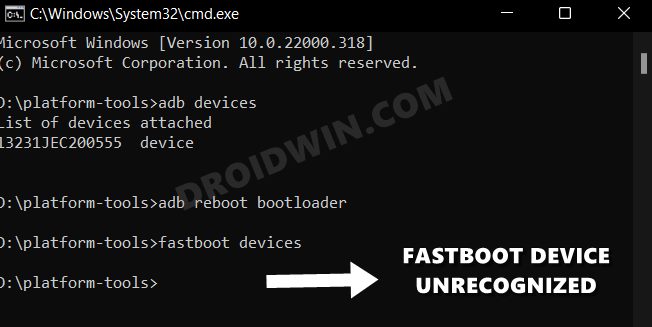
In this regard, while you could still boot your device to this mode without the use of a PC, but every other task from then onwards would require a computer. However, if your PC doesn’t have the required drivers installed, then it wouldn’t be able to identify the connected Fastboot device in the first place. And installing the Android SDK Platform Tools wouldn’t do any good either. The Platform Tool will only help you in interacting with the ADB environment. But as soon as you enter the Fastboot ecosystem, it will all come to a halt.
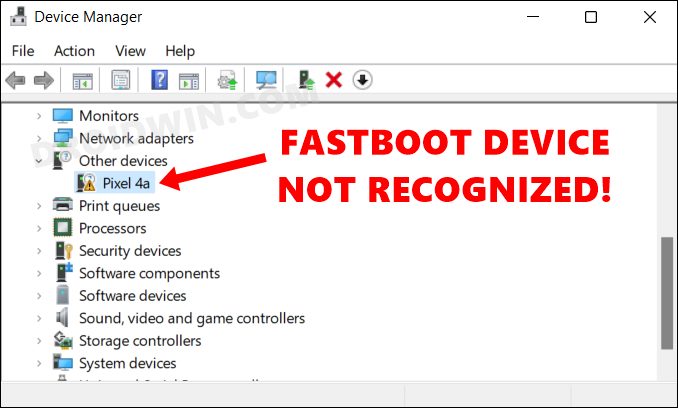
Even the CMD window will either show the “waiting for device” message or just display the blank output. What about the Device Manager? Well, it might list out your device name, but it would be under the Other Devices section with a yellow exclamation mark. All in all, you wouldn’t be able to execute any Fastboot command whatsoever. So owing to all these reasons, it becomes an absolute necessity to install the Fastboot Drivers on your Windows 11. And in this guide, we will show you how to do just that. Follow along.

How to Install Fastboot Drivers in Windows 11
- To begin with, enable USB Debugging on your device [Settings > About Phone > Tap on Build Number 7 times > Go back to Settings > System > Advanced > Developer Options > Enable USB Debugging].
- Then download the Android SDK Platform Tools and extract it to any convenient location on your PC. This shall give you the platform-tools folder.
- Go to this folder’s address bar, type in CMD, and hit Enter. This will launch the Command Prompt window.
- So type in the below command in this CMD window to boot your device to Fastboot Mode: adb reboot bootloader
- Now, download [Mirror Link: My Telegram Channel ] the Android Bootloader Interface Driver and extract it to your PC. This shall give you a couple of files, including the android_winusb.inf, which is what we will be using now.
- Next up, press the Windows+X shortcut keys and select Device Manager from the menu that appears.
- Then expand the Other Devices section and your device will be listed with an exclamation mark. So right-click on it and select Update Drivers.
- After that, select Browse my computer for drivers.
- Then select Let me pick from a list of available drivers.
- Then select Show All Devices and click Next.
- Now click on the Have Disk button.
- After that, click on the Browse button.
- Then navigate to the folder where you have extracted the Fastboot Drivers, select the android_winusb.inf file, and click Open.
- After that, click OK to load these drivers.
- Windows will now bring up the Android Bootloader Interface Drivers. Select it and click Next.
- If you get a prompt, then click Install.
- The Android Bootloader Interface drivers will now be installed and you shall be notified of the same.
- Once the installation is complete, your device will automatically from the Other Device section over to Android Device.
- That’s it. You have now successfully installed the Fastboot Drivers onto your Windows 11 PC.
Verify Fastboot Driver Installation on Windows 11
Now that the drivers have been successfully installed, let’s put them to rest right away.
- To begin with, connect your device to the PC via USB cable.
- Then open the Command Prompt inside platform tools.
- Now boot your device to Fastboot Mode via the below command adb reboot bootloader
- And now, execute the below command to verify the Fastboot Connection: fastboot devices
- You should get your device ID which signifies that the connection stands successful.

- roundrobin 3 months ago Reply Hello I’ve tried to use the Fastboot Driver downloaded by your link but my OnePlus Nord CE5 still isn’t recognized by W11…Any suggestion? Thank you
- leo 4 months ago Reply I have a OnePlus 10 Pro (model NE2210, China version) that was previously able to enter the bootloader. Recently, it stopped switching on completely. When I press Power + Volume Up, I only feel a short vibration but the screen stays black. Occasionally, the phone shows the charging icon, but it doesn’t progress further. It no longer boots into the bootloader or recovery screen. Sometimes it seems to respond to key combinations (vibration), but the display remains blank. I suspect it may be stuck in Qualcomm EDL mode or there could be a firmware corruption issue. I’m preparing to try the MSMDownloadTool with the correct NE2210 (China) firmware to recover it. Question: Has anyone faced a similar situation where the device only vibrates/charges but doesn’t show the bootloader screen? Will flashing through MSM Tool in EDL mode resolve this, or could it be a display/battery issue instead? Any specific tips for ensuring the PC recognizes the device in Qualcomm 9008 mode? Thanks in advance for your guidance.
- chathuranga 7 months ago Reply Thank you much for the guide. Very Helpful.
- ae 12 months ago Reply my oneplus 12 gets the serial as ???????????? when running on fastboot but works fine on adb
- T 2 years ago Reply Thanks a lot!!! very detailed and precise instructions. Much appreciated
- Eapyseapy 2 years ago Reply When sending the command “adb reboot bootloader” I get the following error: “error: more than one device/emulator” How do I fix this? I am using Windows 10 if that matters. Sadique Hassan 2 years ago Reply Do you have more than one device connected to your PC at once. If that is the case, then remove the other ones and only keep the primary one connected nd then retry executing the command. Apart from that, try restarting ADB server as well: adb kill-server followed by adb start-server Finally, restart your PC just to be double sure.
- Stephen 2 years ago Reply i can’t install the fastboot driver on my laptop. In the device manager, i can’t find other devices. please help
- haroon 2 years ago Reply it works in windows 11 thanks
- Anonymous 2 years ago Reply It worked !! You did a great job by posting this !! Thanks
- Khan 2 years ago Reply Hi mate, wanna why my device xiaomi mix 4 specificly when device is on fastboot mode my pc cant detect the phone even i do all the step above when my device in standby mode. do you have any solution to this mate? thanks in advance
- Nandkishor Pawar 2 years ago Reply Thank You Sir.
- Salvatore 2 years ago Reply In the instructions, you need to correct fastboot device to fastboot devices, otherwise the command doesn’t work Sadique Hassan 2 years ago Reply Fixed. Thanks mate for pointing it out.
- brokentool 2 years ago Reply Can’t complete for Pixel 7a. After following the instructions, I get: “This device cannot start. (Code 10)” when completing Step 16. Only diference I see is on Step 15., where I get 3 options to install: “Android Bootloader Interface” (as in this guide), but also “Android ADB interface” and “Android ADB composite interface”. Oh, and in the beginning, in Device Manager my phone is listed under “other devices” as “SMS/MMS”. Please help!
- Abdul Karem Seyal 2 years ago Reply When i try to update driver I get the error “The folder you specified doesn’t contain a compatible software driver for your device. If the folder contains a driver, make sure it is designed to work with windows for x64-based systems.” Can someone help me out? I’m on windows 11 and my android device is samsung galaxy tab 3, model number SM-T210
- Abdul Karem Seyal 2 years ago Reply When updating the drivers, I am getting the error “The folder you specified doesn’t contain a compatible software driver for your device. If the folder contains a driver, make sure it is designed to work with windows for x64-based systems.” I am using windows 11 and my android device is Samsung Galaxy tab 3 model SM-T210. Any advice will be greatly appreciated.
- Opan 2 years ago Reply Thank you very much bro, it works and now i can do everything for my phone 😀
- Prem 3 years ago Reply Sir in fastboot mode my device is not getting detected on device manager.
- Bingami 3 years ago Reply hello, when I try to verify the fastboot connection by typing “fastboot device” I get the following error: “unknown command device”. When I try to flash it doesn’t work. How can I fix?
- Pravin Mali 3 years ago Reply Radmi 8A
- Don Scotten 3 years ago Reply Everything has worked fine up until I try to update the driver. It’s not shown under “Other devices”, but instead it is shown 4 times under “Portable devices”. I chose the top one and followed your instructions explicitly, but when I try to update it with “android_winusb.inf” it tells me that “The folder you specified doesn’t contain a compatible software driver for your device…”, which is a Motorola G Power. Your help would be greatly appreciated. Abdul Karem Seyal 2 years ago Reply I am getting the same error, did you find a solution? Abdul Karem Seyal 2 years ago Reply I am also getting the same error, did you find a solution to this?
- yuriy 3 years ago Reply It’s the year of our Lord 2023, I’m using Windows 10 with latest updates as of March. And all steps in your article still applicable and work on my system. Thanks a lot for clear and concise advices! They are easy to read, understand an follow!
- Tyler 3 years ago Reply I’m getting an error when running the command: fastbook oem unlock FAILED (remote: ‘Device cannot be unlocked for technical reason.’) fastboot: error: Command failed Any ideas?
- Hitanshu Gaur 3 years ago Reply And now, execute the below command to verify the Fastboot Connection: fastboot device When I tried ‘fastboot device’ it did not work but when I tried ‘fastboot devices’ (as shown in the screenshot) it worked. Just a small advice to edit that command brother 🙂 shag 3 years ago Reply Thanks, very well spotted, works now.
- Manoj 3 years ago Reply fastboot: usage: unknown command device Buddy I am getting the above error even after updating the drivers successfully Manoj 3 years ago Reply Even though my phone boots to that screen where it shows whether the bootloader is locked or unlocked
- Robert 3 years ago Reply in the device manager, the phone does not appear as “other devices”, but as “portable devices” and I can not update the drivers, because I do not see the ones that I should add.
- Matt G 3 years ago Reply Also: If you don’t have an ‘Other Devices’ folder in device manager go to ‘View’ – click ‘Show Hidden Devices’ then scroll to the bottom where your device should be in the last option’s dropdown That’s what worked for me ¯_(ツ)_/¯
- Amy Blington 3 years ago Reply Would there be different instructions for doing this in Windows 10?
- Belle 3 years ago Reply Thanks so much for answering my last comment on your other article! , but when I go to type in ‘adb reboot bootloader’ in the Command Prompt space, it says “not recognized as an internal or external command, operable program or batch file” – Could it be I’m typing it in wrong? – (like do I start with a space?) or is it something else. I noticed you gave someone having the same problem the advice to “make sure the Command Prompt is opened inside the platform-tools folder.” but I’m pretty sure mine is…
- Vanessa 3 years ago Reply Hi Sadique, I’m trying to install global ROM on a Chinese phone for my mom. I’m trying to install the fastboot drivers, but when I get to the step where I update drivers for the device, I get the error “The folder you specified doesn’t contain a compatible software driver for your device. If the folder contains a driver, make sure it is designed to work with Windows for x64-based systems. I have a Windows 11 laptop. Appreciate your help! Abdul Karem Seyal 2 years ago Reply I am also getting the same error, did you find a solution to this?
- Rico 3 years ago Reply Man you don’t know how much frustation i got before i read your guide. Thanks a lot, truly a lifesaver
- Ralph 3 years ago Reply Man, you really are THE King! I am a Vassal; totally dependent on your instructions. Fortunately, they are extremely clear so that even a complete novice can follow them. After this, I will finally attempt to install the EU software onto my China version OnePlus 10 Pro. I hope that it will work as smoothly as installing these Fastboot Drivers did. a BIG THANK YOU Sadique Hassan 3 years ago Reply Thanks for the appreciation Ralph, means a lot.
- james 3 years ago Reply “‘adb’ is not recognized as an internal or external command, operable program or batch file.” this is the only message I get no matter what I try to do. Sadique Hassan 3 years ago Reply Hi James, apologise for the late response. The issue could be happening because you haven’t opened Command Prompt inside the platform-tools folder. So please do so and then let me know the results. [Also, make sure USB Debugging is enabled on your device].
- Abhinav Mishra 4 years ago Reply Is it important to have a USB 2.0 port because my laptop has only 3.0 port and i have been trying to install custom rom in my redmi note 6 pro but i am stucked at unlocking bootloader. Whenever my device is on and i connect it with usb cable my laptop shows that device is connected but when I go into fastboot mode it doesn’t detect my device I have tried many solutions to solve this but i can’t . Plzz help me anyone… Jose Angel 3 years ago Reply me pasa lo mismo en redmi note 11 pro 5G
- Camilo 4 years ago Reply OMG I’ve been trying to install a ROM for days on win11, post after post until I finally found this one and worked perfectly. Thank you so much bro Sadique Hassan 4 years ago Reply Glad that it helped you Camilo David 3 years ago Reply I got to the last part and this happened. adb.exe: unknown command fastboot Cant figure out..thanks Sadique Hassan 3 years ago Reply Once you have installed the drivers, open the COmmand Promopt inside the platform-tools folder and then retry executing the command.
- dwadwadwa 4 years ago Reply Hello, are these drivers universal? (do they work for any phone or these are just for the pixel 4a?) Sadique Hassan 4 years ago Reply Yes, they are universal fastboot drivers valid for all Android devices
- thanh 4 years ago Reply Windows 11 automatically see the Nvidia shield as Portable Devices, not an “other device” (basically means “unknown device” ) to install the usb drive as you said. Ai ya z 3 years ago Reply Code 10 occurs everytime I did everything and every trick still doesn’t work. Please help
- Jacob 4 years ago Reply The files you have for the Android Bootloader Interface Drivers aren’t signed at all, and keep coming up with an error upon attempting to install. Sadique Hassan 4 years ago Reply Hi Jacobs, this is the official driver from Google with no modifications whatsoever (you could also verify the Publisher and Name field from one of the screenshots that I have posted). Infact I have personally installed it across many PCs with no issues as such. Could you make me aware of the error that you see? As a workaround, you could disable driver signature verification as well (this isn’t recommended for unknown publishers, but since this is the official one from Google, we shouldn’t have any issues as such)
- Yang Li 4 years ago Reply Hi Sadique, I followed your exact instructions but when I type fastboot devices after, nothing shows up. Even though Android Bootloader Interface correctly shows up under Android devices. Any insights on what could be the issue? I am using a Ibasso DX160. Sadique Hassan 4 years ago Reply Could you please try a couple of other workarounds as well, namely: -Make sure to launch CMD inside the platform-tools folder only. -Use a different method to boot [hardware key combinations or adb reboot bootloader] to Fastboot and then verify the results -Try using a different USB cable. -Use USB 2.0 Port
- mel 4 years ago Reply Mate, you’re king!! Thank you 🙂
(Cancel Reply)
Δ
