How to Install HyperOS Android 14 on Poco F2 Pro/Redmi K30 Pro
In this guide, we will show you the steps to install the HyperOS based on the latest Android 14 onto your Poco F2 Pro / Redmi K30 Pro. The Chinese OEM has recently ditched its evergreen MIUI and launched a new OS skin dubbed the HperOS. It offers some key improvements in performance, AI features, connectivity, and security. Apart from that, it beholds a slew of new and noteworthy features across numerous domains.
Apart from that, it is based on the fourteenth iteration of the OS, which translates to your device getting blessed with tons of features from the latest Android OS as well. The only drawback is the fact that in terms of UI/UX, there’s not much to different between the two, still, this change is welcomed nevertheless. So on that optimistic note, let’s get started with the steps to install the HyperOS based on the latest Android 14 onto your Poco F2 Pro / Redmi K30 Pro.
- How to Install HyperOS Android 14 on Poco F2 Pro/Redmi K30 Pro STEP 1: Install Android SDK STEP 2: Enable USB Debugging and OEM Unlocking STEP 3: Unlock Bootloader on Xiaomi STEP 4: Download HyperOS Android 14 ROM STEP 5: Boot to Fastboot Mode STEP 6: Install HyperOS Android 14 ROM on Poco F2 Pro/Redmi K30 Pro
How to Install HyperOS Android 14 on Poco F2 Pro/Redmi K30 Pro
The below process will wipe off all the data from your device, so please take a backup beforehand. Droidwin and its members wouldn’t be held responsible in case of a thermonuclear war, your alarm doesn’t wake you up, or if anything happens to your device and data by performing the below steps.
STEP 1: Install Android SDK

First off, you’ll have to install the Android SDK Platform Tools on your PC. This is the official ADB and Fastboot binary provided by Google and is the only recommended one. So download it and then extract it to any convenient location on your PC. Doing so will give you the platform-tools folder, which will be used throughout this guide to flash the HyperOS ROM onto your device.
STEP 2: Enable USB Debugging and OEM Unlocking
Next up, you will also have to enable USB Debugging and OEM Unlocking on your device. The former will make your device recognizable by the PC in ADB mode. This will then allow you to boot your device to Fastboot Mode. On the other hand, OEM Unlocking is required to carry out the bootloader unlocking.
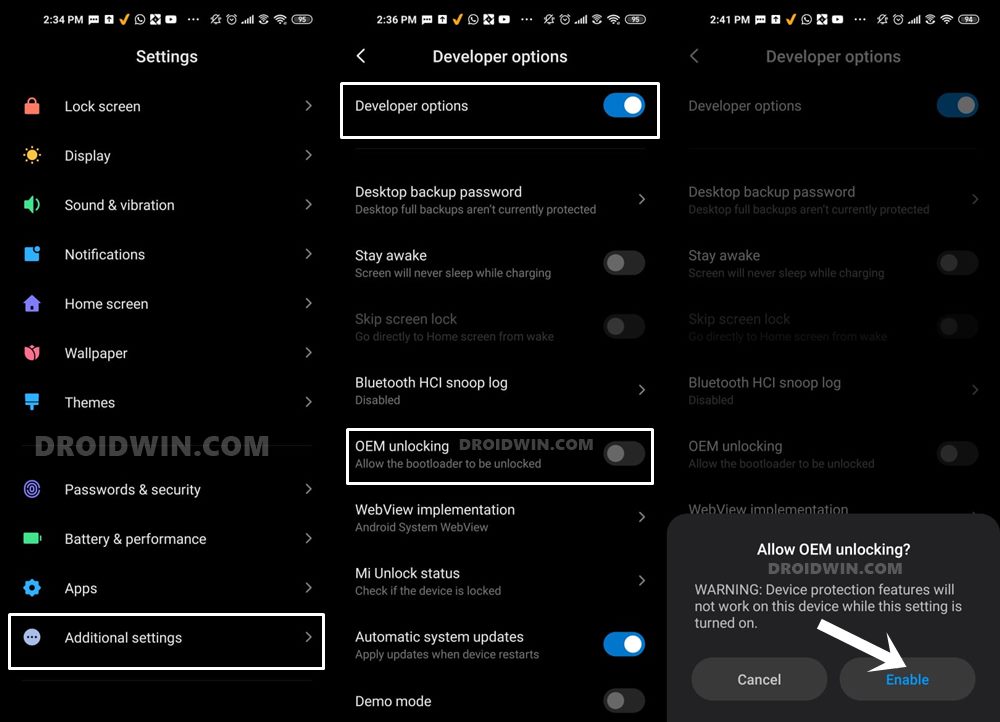
So head over to Settings > About Phone > Tap on Build Number 7 times > Go back to Settings > System > Advanced > Developer Options > Enable USB Debugging and OEM Unlocking.
STEP 3: Unlock Bootloader on Xiaomi
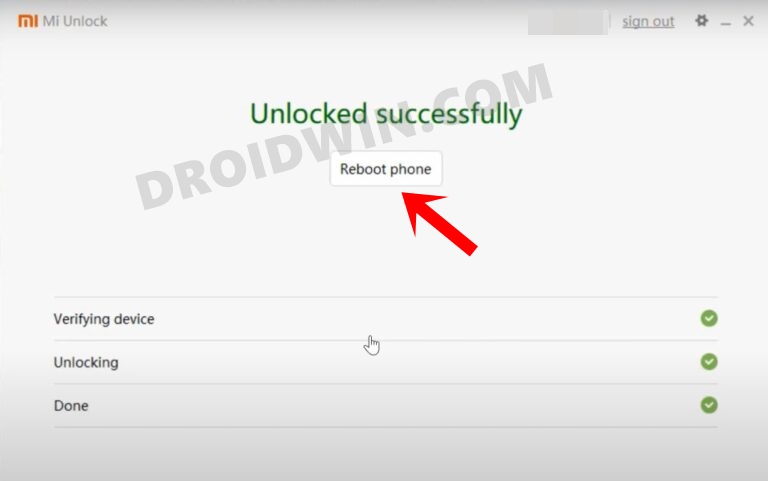
Since this is an unofficial ROM (a custom ROM to be precise), you will need to unlock the device’s bootloader. However, doing so will wipe off all the data and could nullify its warranty as well. So if that’s well and good, then please refer to our guide on How to Unlock the Bootloader on any Xiaomi Device.
STEP 4: Download HyperOS Android 14 ROM
You may now grab hold of the HyperOS ROM based on Android 14 for your device from below:
DOWNLOAD ROM: MEGA LINK | GOOGLE DRIVE LINK

ENCRYPTION KEY: B19uXnsyv6DSwAUuFpB45cWqms0iHvnSn6sK4ekf_SY

FIX FPS DROP: DOWNLOAD

FIX ENCRYPTED SD CARD: DOWNLOAD
STEP 5: Boot to Fastboot Mode
- Now connect your device to the PC via a USB cable. Make sure USB Debugging is enabled.
- Then head over to the platform-tools folder, type in CMD in the address bar, and hit Enter. This will launch the Command Prompt.
- Type in the following command in the CMD window to boot your device to Fastboot Mode adb reboot bootloader
- To verify the Fastboot connection, type in the below command and you should get back the device ID. fastboot devices
- If you are not getting any serial ID, then install Fastboot Drivers on your PC.
STEP 6: Install HyperOS Android 14 ROM on Poco F2 Pro/Redmi K30 Pro
- To begin with, extract the ROM to any convenient location on your PC.
- You’ll now get a flash-all.bat or install.bat file, double-click to open it.
- The flashing will now start. Once done, the device should boot to the OS.
- If that doesn’t happen, then use the below command to do so manually: fastboot reboot
- You can now uninstall bloatware from HyperOS without ADB Commands
- Download and Install HyperOS on Xiaomi [Fastboot and Recovery]
- Xiaomi HyperOS Unlock Bootloader? Forget about it!
- Fix Xiaomi Theme Store Couldn’t download:300008 error

(Cancel Reply)
Δ
