How to Install January 2022 OTA Update on Rooted Pixel 6/Pro
In this guide, we will show you the steps to install the January 2022 OTA Update on rooted Google Pixel 6 and its Pro variant. if you prepare a list of all the buggy updates released by major OEMs to date, then the December update from the Silicon Valley giants for its latest flagships will probably be at the top of this list (no, this isn’t an exaggeration of any sort).
The device crashing to recovery mode , Bluetooth not working , inconsistent network , screen timeout not working , system UI not responding were just some of the noteworthy “features” of the last month’s update. Such was its impact that Google ultimately decided to pull it off the shelves. So the general users had no choice but to wait for the next OTA, which has finally been delivered, after getting delayed by “just” over a month.
On the other hand, the tech enthusiasts went ahead and downgraded their device to the November OTA. Likewise, most of them also gained administrative privileges by rooting their device via Magisk. And now that a new OTA update has made its way, they are looking for a fail-safe approach to update their device. If you are also on the same page, then this tutorial shall help you out. In this guide, we will show you the steps to install the January 2022 OTA Update on rooted Pixel 6/Pro devices. Follow along.
- How to Install January 2022 OTA Update on Rooted Pixel 6/Pro STEP 1: Install Android SDK STEP 2: Enable USB Debugging STEP 3: Install January 2022 Update on Pixel 6/Pro via Android Flash Tool STEP 4: Download Pixel 6/Pro January 2022 Factory Image STEP 5: Patch Pixel 6/Pro January 2022 Boot.img File STEP 6: Boot Pixel 6/Pro via January 2022 Patched Boot.img STEP 7: Root Pixel 6/Pro via Direct Install
How to Install January 2022 OTA Update on Rooted Pixel 6/Pro
There exist three different methods to carry out this task- ADB Sideload, Fastboot Commands, and Android Flash Tool. As for this guide, we will be opting for the third method as it is the most straightforward and easy to execute. Moreover, the process will not wipe your data, but it is still highly recommended to take a complete device backup beforehand, just to be on the safer side. Droidwin and its members wouldn’t be held responsible in case of a thermonuclear war, your alarm doesn’t wake you up, or if anything happens to your device and data by performing the below steps.
STEP 1: Install Android SDK

First and foremost, you will have to install the Android SDK Platform Tools on your PC. This is the official ADB and Fastboot binary provided by Google and is the only recommended one. So download it and then extract it to any convenient location on your PC. Doing so will give you the platform-tools folder, which will be used throughout this guide.
STEP 2: Enable USB Debugging
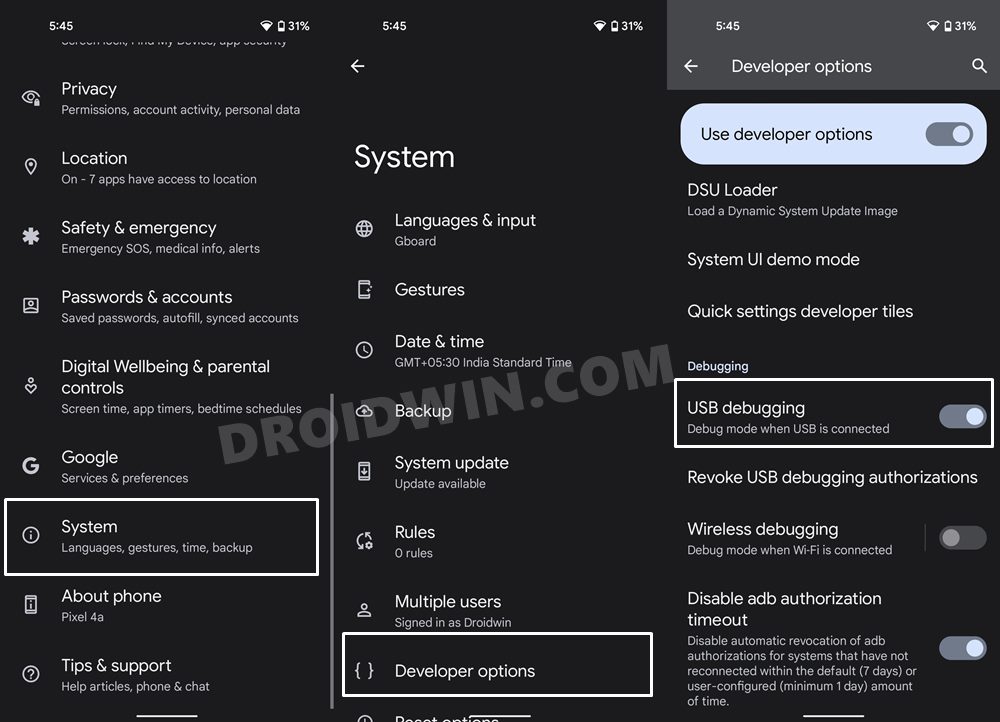
Next up, you will have to enable USB Debugging so that your device is recognizable by the PC in ADB mode. This will then allow you to boot your device to Fastboot Mode. Likewise, Debugging would also be needed by the Flash Tool. So head over to Settings > About Phone > Tap on Build Number 7 times > Go back to Settings > System > Advanced > Developer Options > Enable USB Debugging.
STEP 3: Install January 2022 Update on Pixel 6/Pro via Android Flash Tool
We will now be flashing the January 2022 update onto your rooted Pixel 6/Pro via the Android Flash Tool. Follow along.
- With USB Debugging enabled, connect your device to the PC via USB cable.
- Then head over to the Google Factory Image page [ Pixel 6 | Pixel 6 Pro ] and click on the Flash keyword next to your device’s January Update.
- Now click on the Allow ADB Access button. It will verify the ADB Connection and list your device.
- You will now be taken to the Installing Build page, make sure to uncheck the Wipe Device option.
- After that, expand the Advanced Options section. Make sure that Force Flash All Partitions is unchecked as well. There is NO need to checkmark the Disable Verity and Disable Verification options as we will be using the Magisk Canary 23016 which should automatically take care of it.
- Now click on the Install Build button and wait for the process to complete.
- Once done, your device will boot to the January 2022 OTA update.
STEP 4: Download Pixel 6/Pro January 2022 Factory Image
- Head over to the Google Factory Image page and download the January 2022 update ZIP file: For Pixel 6 For Pixel 6 Pro
- Once downloaded, extract it to any convenient location on your PC.
- After that, extract the Images folder within it. This shall give you all the partition IMG files, including the boot.img.
- Transfer this boot.img file to your device’s internal storage
STEP 5: Patch Pixel 6/Pro January 2022 Boot.img File
- To begin with, install the Magisk Canary 23016 onto your device. We are using the latest Canary build as it comes with the vbmeta header fix, meaning you wouldn’t have to manually disable the verity check.
- Then launch it and tap on the Install button next to Magisk.
- Then choose Select and Patch a File. Navigate to the boot.img file and select it.
- Then tap on the Let’s Go button situated at the top right to patch the file.
- Connect your device and transfer this patched boot.img to the platform-tools folder. Likewise, rename it to magisk_patched_boot.img.
STEP 6: Boot Pixel 6/Pro via January 2022 Patched Boot.img
- Launch the Command Prompt window inside the platform-tools folder.
- Then use the below command to boot your device to Fastboot Mode: adb reboot bootloader
- After that, execute the below command to boot your device via the rooted patched boot.img fastboot boot magisk_patched_boot.img
- With this, you have attained temporary root. Let’s now proceed ahead to permanently root your device.
STEP 7: Root Pixel 6/Pro via Direct Install
- To begin with, launch the Magisk Manager App.
- Then tap on Install > Direct Install and tap Let’s Go situated at the top-right.
- Once done, hit the Reboot button situated at the bottom right.
- That’s it, your device will now boot to the rooted January update.
- How to Root Google Pixel 6/Pro via Magisk Patched Boot.img
- How to Install OTA Updates on Rooted Pixel 6/Pro
- Unbrick Google Pixel 6/Pro via Fastboot Commands
- Pixel 6/Pro Device was locked manually: Enter PIN instead of Fingerprint

(Cancel Reply)
Δ
Pixel 6/Pro Device was locked manually: Enter PIN instead of Fingerprint
The sixth iteration of the Pixel series beholds quite a few nifty features up its sleeves. Right out of the box, you will witness completely redesigned hardware and camera modules. On the software side, you get the latest Android 12 and a ton of Pixel exclusive goodies. Moreover, these devices are the first in the lineup to have an in-display fingerprint scanner, which is itself giving quite a hard time to the end-users.
While the clouds of uncertainty regarding its inefficient optical scanner were about to settle, there has been a new entry in this list. Quite a few Pixel 6/Pro users have voiced their concern that they are getting the Device was locked manually prompt on their device. As a result, they have to use their PIN/Password instead of their fingerprint. Just to get things straight- this prompt appears on nearly every Android device.
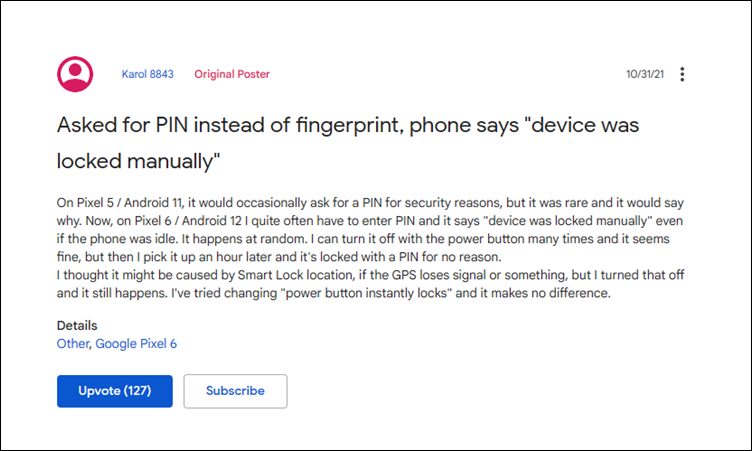
As soon as you restart your device, the OS would prevent the usage of fingerprint and would rather ask you to type in your password or pin. This is done from the security point of view. However, the thing is this only happens the first time your device boots up after a. But that isn’t the case with the latest Pixel series. All the users who are currently facing this issue have reported that they are seeing this prompt randomly after every few hours, even though their device hasn’t undergone a reboot.
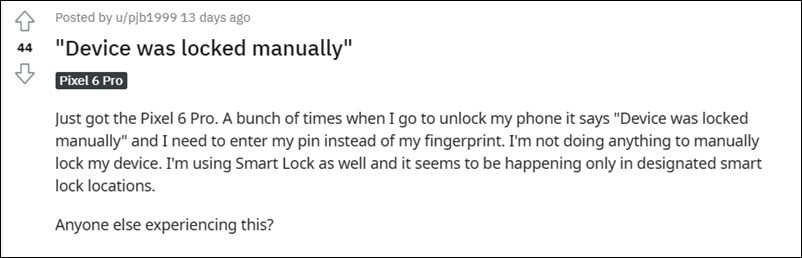
So is there any method to fix the issue of the Pixel 6/Pro “Device was locked manually” wherein you are required to manually type in your PIN/Password instead of using the fingerprint? Unfortunately, the answer is in a negative tone as of now. Though some users have reported that disabling the Smart Lock location did work out in their favor, but the majority of them spelled out a disappointment. Anyways, if you wish to try it out, then proceed ahead with the below-listed steps.
How to Fix Pixel 6/Pro Device was locked manually
- To begin with, head over to the Settings menu on your device.
- Then go to Security and select the Smart Lock option.
- After that, type in your password/pin to verify the credentials.
- Now disable the toggle next to On-body detection, Trusted Places, and Trusted devices.
- Check if it manages to fix the Pixel 6/Pro “Device was locked manually” issue.
Send Feedback to Google from your Pixel 6/Pro
If you are still getting bugged with this issue, then the only way out is to send the feedback to Google, right from your device itself. Here’s how:
- To begin with, head over to the Settings menu.
- Then scroll to the end of the page and go to Tips and Support.
- Now tap on the Send Feedback option situated at the end.
- Explain the issue in detail and then tap on the Send button situated at the top right.
The Silicon Valley giant might take a couple of days to respond to your query. In the meantime, you could also share your queries or just upvote the OP in the first and second Google Support Forums that have been made specifically for this issue.
So with this, we round off this guide on the Pixel 6/Pro “Device was locked manually” issue. As and when there’s further development regarding this issue or any related workaround makes its way, we will update this post accordingly.
- Fix: Google Assistant Quick Phrase not available in Pixel 6/Pro
- Fix: Pixel 6 Screen randomly wakes up even if AOD is Disabled
- How to Install OTA Updates on Unlocked Verizon Pixel 6/6 Pro
- Pixel 6 Fingerprint Sensor Not Working: How to Fix
- How to Use Pixel 6 Magic Eraser on older Pixels Devices
(Cancel Reply)
Δ
