How to Install One UI 6.0 via ADB Sideload on Samsung
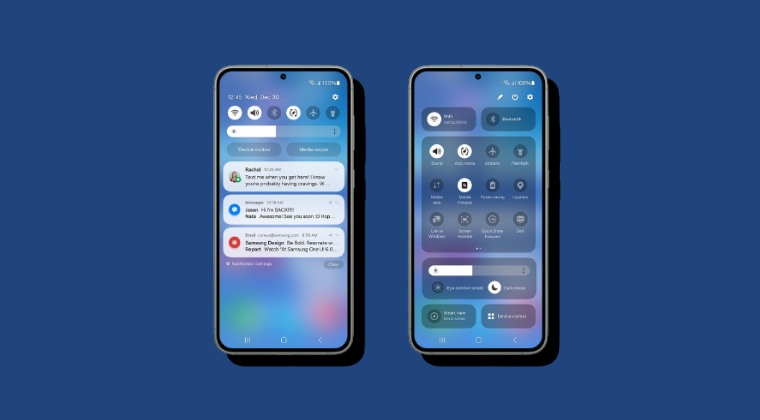
In this guide, we will show you the steps to install the latest One UI 6.0 on your Samsung device via ADB Sideload. The South Korean giant has just hopped onto the fourteenth iteration of the OS and with that, there are a plethora of intriguing developments to look forward to. Some of the noteworthy changes include the new notification design, Serif Font, Quick Settings toggle, lock screen, Battery Settings, and tweaks to the Camera, Gallery, Weather, and Reminders apps.
However, at the time of writing, the OS is still in the testing phase, so there are bound to be rough edges. However, the tech enthusiasts are ready to bypass these roadblocks in exchange for the plethora of goodies that they could welcome abode onto their devices. If you also echo the same thought process, then let’s get you acquainted with the steps to install the latest One UI 6.0 via ADB Sideload on your Samsung device.
- How to Install One UI 6.0 via ADB Sideload on Samsung NOTE: August Patch Users Should Downgrade to July Patch STEP 1: Install Android SDK STEP 2: Enable USB Debugging on Samsung STEP 3: Download One UI 6.0 Beta OTA File STEP 4: Boot Samsung to Stock Recovery STEP 5: Install One UI 6.0 Beta Android 13 via ADB Sideload
How to Install One UI 6.0 via ADB Sideload on Samsung
Before starting, please take a backup of all the data on your device, just to be on the safer side. Droidwin and its members wouldn’t be held responsible in case of a thermonuclear war, your alarm doesn’t wake you up, or if anything happens to your device and data by performing the below steps.
NOTE: August Patch Users Should Downgrade to July Patch
If you are currently on the August patch [AWGJ], then you might not be able to install the latest One UI 6.0 firmware on your device. To rectify this issue, you just need to downgrade your device to the July patch [AWF7]. To do so, please refer to our below-linked guide:
How to Downgrade Samsung from August Patch [AWGJ] to July Patch [AWF7]
STEP 1: Install Android SDK

First and foremost, you will have to install the Android SDK Platform Tools on your PC. This is the official ADB and Fastboot binary provided by Google and is the only recommended one. So download it and then extract it to any convenient location on your PC. Doing so will give you the platform-tools folder, which will be used throughout this guide.
STEP 2: Enable USB Debugging on Samsung
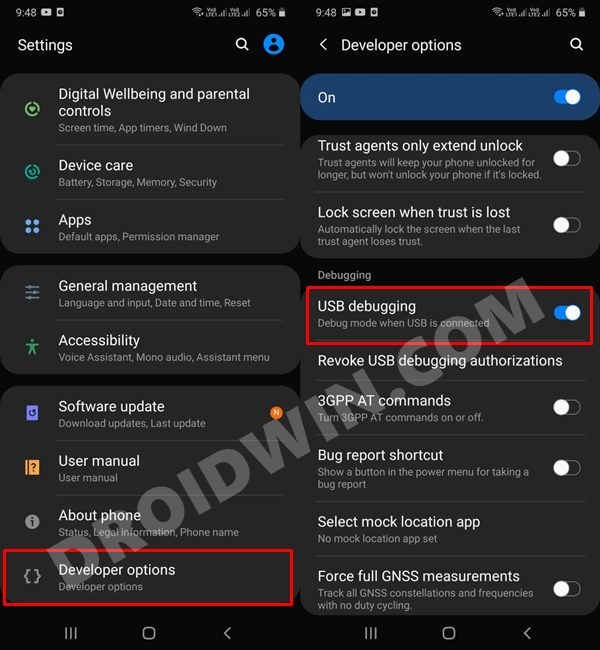
Next up, you will have to enable USB Debugging on your device so that your device is recognizable by the PC in ADB mode. This will then allow you to boot your device to Recovery Mode. So head over to Settings > About Phone > Tap on Build Number 7 times > Go back to Settings > System > Advanced > Developer Options > Enable USB Debugging.
STEP 3: Download One UI 6.0 Beta OTA File
- First off, download the One UI 6.0 Beta Firmware from the below guide: Download Samsung One UI 6 Firmwares
- Once you have downloaded the firmware, it will be in a .BIN format. Name it ‘update’ and change its extension to ZIP, so that the complete name becomes update.zip.
STEP 4: Boot Samsung to Stock Recovery
- Connect your device to the PC via USB cable. Make sure USB Debugging is enabled.
- Then head over to the platform-tools folder, type in CMD in the address bar, and hit Enter. This will launch the Command Prompt.
- Now type in the following command in the CMD window to boot your device to Recovery Mode adb reboot recovery
STEP 5: Install One UI 6.0 Beta Android 13 via ADB Sideload
- First off, transfer the update.zip file to the platform-tools folder on your PC.
- Now with your device booted to Recovery Mode, use the Volume keys to highlight the “Update via ADB” option and press the Power key to confirm it.
- Finally, execute the below command in the Command Prompt that you have opened inside the platform-tools folder adb sideload update.zip
- The One UI 6.0 Beta file will now begin flashing onto your Samsung device and could take a couple of minutes.
- Once done, you may use the below command to boot your device to the newly upgraded OS adb reboot
- How to Hide Blank Space from Settings menu in Samsung One UI
- How to Add any Third-Party Widget to Samsung Home Screen
- Fix Missing Lock Screen Clock after Debloating Samsung
- How to Disable Automatic OTA Updates on Samsung

- MrDexx 2 years ago Reply Unfortunately I updated to the patch most recent from September, and I followed the adb tutorial that I saw on XDA which basically contained the same information said here, finally there was an error in the installation due to the patch that should have been in August, unfortunately there is no way to downgrade now, could you tell me what can be done?
(Cancel Reply)
Δ
