How to Install OTA Updates on Rooted Nothing Phone 2
In this guide, we will show you a couple of methods to install OTA updates on your rooted Nothing Phone 2. When the OEM first stepped its feet into custom development, then there were a few initial hiccups regarding whether or not will it able to be an active player in this domain. Fast forward a year later, and we could cement the statement that it did manage to checkmark the prerequisites of the tech enthusiast. And there’s every reason to believe that its successor will be able to replicate the same behavior.
In this regard, the ability to gain administrative privileges has always been the preferred tweak for many. However, doing so does bring in a few issues as well. The primary among them is the inability to easily install updates. Fortunately, there does exist a couple of nifty workarounds that should help you install OTA updates on your rooted Nothing Phone 2. And in this guide, we will show you how to do just that. So without any further ado, let’s get started.
- How to Install OTA Updates on Rooted Nothing Phone 2 Prerequisites METHOD 1: Via Magisk Direct Install METHOD 2: Via Magisk Reinstall METHOD 3: Via OTA Folder Tweak
How to Install OTA Updates on Rooted Nothing Phone 2
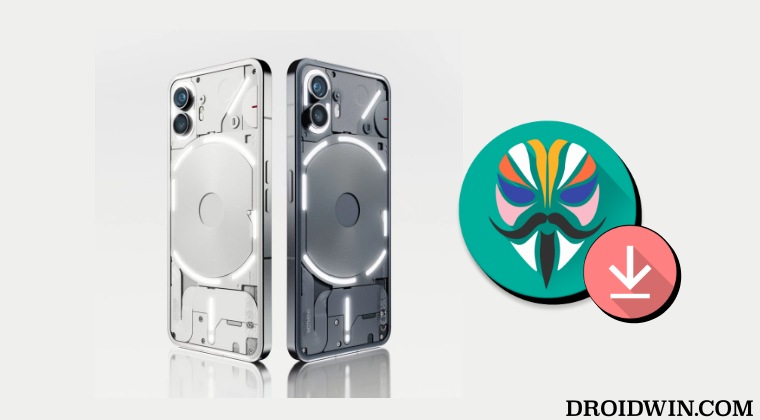
There exist two different methods that should help you get this job done. Go through the benefits and risks of both these methods once and then try out the one which is in sync with your requirement. Droidwin and its members wouldn’t be held responsible in case of a thermonuclear war, your alarm doesn’t wake you up, or if anything happens to your device and data by performing the below steps.
Prerequisites
- First off, take a backup of all the data on your device, just to be on the safer side.
- Next up, you’ll have to temporarily disable all the modules as well. So launch the Magisk App, go to Modules, and turn off the toggle next to every module.
- Finally, make sure to disable the automatic installation of updates. This could be done from the Settings menu.
METHOD 1: Via Magisk Direct Install
This is [extremely] shorter and easier of the two methods; however, there have been a few rare cases of bootloop while using this method [which could be rectified via a normal reboot or flashing the stock boot.img]. With that said, here’s how to try it out:
- Launch the Magisk app and tap on Uninstall Magisk > Restore Images.
- Then go to Settings > System > System Update and download the available update.
- Once downloaded, do not reboot your device. Rather, launch the Magisk App.
- Then tap on Install next to Magisk. After that, select Install to Inactive Slot.
- You will now get a prompt; tap OK. Magisk will now be installed in the inactive slot.
- Once done, your device will restart to the updated and rooted OS! You may now re-enable all the modules.
METHOD 2: Via Magisk Reinstall
This is the lengthier of the two methods as it will uninstall all your mods, which you will have to manually reinstall it. However, this is the safest of all the approaches out there. So if you are looking for a fail-safe approach, then this should be your go-to choice [you could take a screenshot of the Magisk Module and LSPosed Modules page so as to keep track of all the installed mods].
- Launch Magisk, tap on Uninstall Magisk, and select Complete Uninstall.
- Your device will now reboot to the non-rooted environment.
- Proceed ahead and install the OTA updates on your device.
- Once done, simply root your device once again via Magisk patched boot.img .
METHOD 3: Via OTA Folder Tweak
This is the lengthiest of all the methods [infact it is an alternate way of the second method] but proves to be the safest of them all. Here’s what you need to do:
- First off, download the current firmware that is installed on your device.
- Then, extract the boot.img from it and flash it via below command: fastboot flash boot boot.img
- Now download the OTA/full firmware of the version that you want to install.
- Create a new folder named OTA inside Internal Storage.
- Now transfer the OTA/firmware ZIP file to this folder.
- Now open Dialer and type in the below code to launch Nothing Offline OTA Updater. ##682##
- The UI may show NothingOfflineOtaUpdate or Nothing Beta OTA Update- both will work.
- Now apply the update. The updater will automatically detect the update file.
- If that doesn’t happen, manually select the OTA/Full firmware ZIP file.
- Now tap on Directly Apply OTA or Update (based on the app UI).
- Wait for the update to be installed. Once done, your device will boot to the OS.
- Now extract the boot.img from the latest firmware and patch it via Magisk / KernelSU .
- Then, boot your device to Fastboot Mode and flash this file as follows:
- fastboot flash boot boot.img
- Finally, boot your device to the rooted OS via the below command: fastboot reboot
- How to Unlock Bootloader on Nothing Phone 2
- Does Nothing Phone 2 Has HDR Capabilities in Netflix?
- How to Install OTA Updates via ADB Sideload in Nothing Phone 2
- How to Root Nothing Phone 2 via Magisk

(Cancel Reply)
Δ
