How to Install Pixel Experience on Redmi Note 10/Poco M3 Pro
In this guide, we will show you the steps to install the Pixel Experience ROM onto your Redmi Note 10 5G/Poco M3 Pro. Both these devices from the Chinese OEMs are among the most popular names in the budget domain. Beholding all the required feature sets at a price affordable by the masses, there’s not much left to ask for. However, for many users, the underlying OS skin leaves a lot to be desired.
According to them, MIUI gives a bloated usage experience and the tons of pre-installed apps only make the matter worse. If you also have the same notion, then you will be glad to know that you could now break free from the shackles of the Xiaomi ecosystem. In return, you will be able to welcome a clean stock OS with some intriguing Pixel goodies. So on that note, let’s show you the steps to install the Pixel Experience ROM onto your Redmi Note 10 5G/Poco M3 Pro.
- How to Install Pixel Experience on Redmi Note 10 5G/Poco M3 Pro STEP 1: Install Android SDK STEP 2: Download Pixel Experience for Redmi Note 10 5G/Poco M3 Pro STEP 3: Unlock Bootloader on Redmi Note 10 5G/Poco M3 Pro STEP 4: Extract Vbmeta STEP 5: Boot Redmi Note 10 5G/Poco M3 Pro to Fastboot Mode STEP 6: Make A as Active Slot STEP 7: Install Pixel Experience on Redmi Note 10 5G/Poco M3 Pro
How to Install Pixel Experience on Redmi Note 10 5G/Poco M3 Pro
The below instructions are listed under separate sections for ease of understanding. Make sure to follow the same sequence as mentioned. Droidwin and its members wouldn’t be held responsible in case of a thermonuclear war, your alarm doesn’t wake you up, or if anything happens to your device and data by performing the below steps.
STEP 1: Install Android SDK

First and foremost, you will have to install the Android SDK Platform Tools on your PC. This is the official ADB and Fastboot binary provided by Google and is the only recommended one. So download it and then extract it to any convenient location on your PC. Doing so will give you the platform-tools folder, which will be used throughout this guide to install the Pixel Experience onto your Redmi Note 10 5G/Poco M3 Pro.
STEP 2: Download Pixel Experience for Redmi Note 10 5G/Poco M3 Pro
You may now grab hold of the Pixel Experience GSI ROM for your device from below. You may find three different versions of the ROM- the normal arm64-ab, the arm64-ab-slim, and the arm64-ab-vndklite. It is recommended that you download the normal variant, i.e. arm64-ab.
Download: Pixel Experience ROM
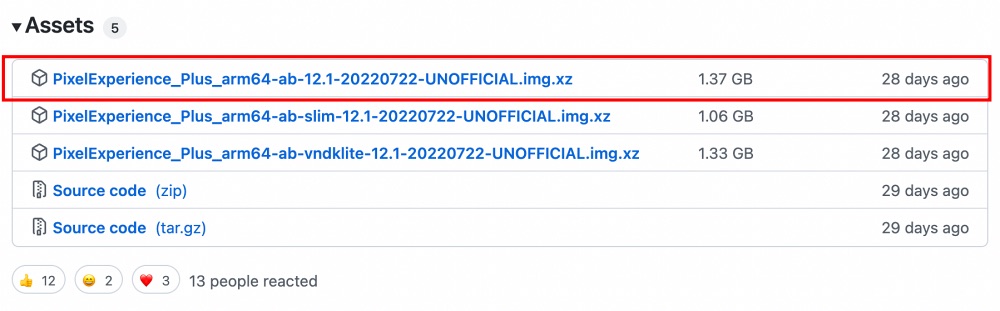
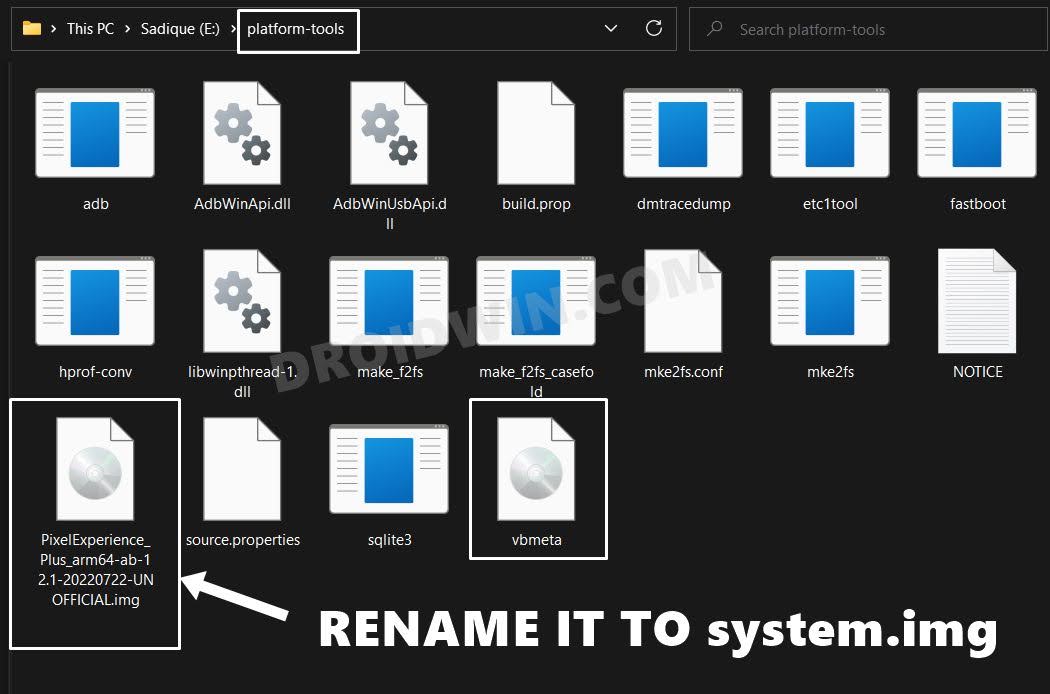
Once you have downloaded the ROM, extract it to the platform-tools folder on your PC. Likewise, rename it to system, so that the complete name becomes system.img
STEP 3: Unlock Bootloader on Redmi Note 10 5G/Poco M3 Pro
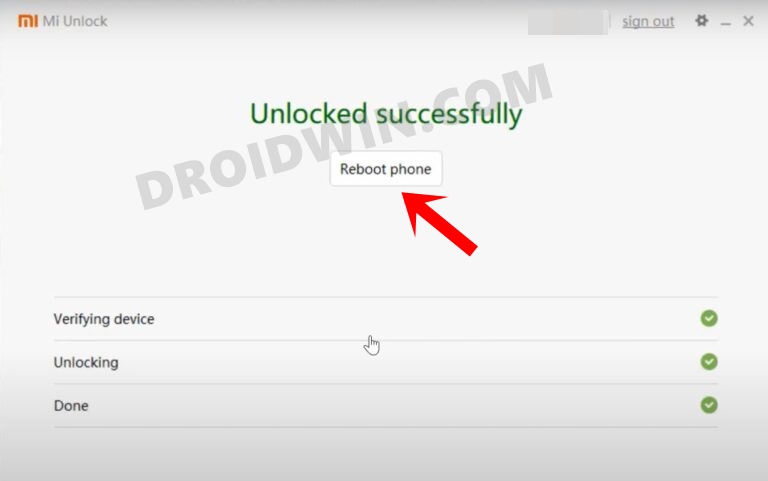
Next up, you will have to unlock the bootloader on your device. Do keep in mind that this process will wipe off all the data and might nullify the device’s warranty as well. So if that’s all well and good, then refer to our comprehensive guide on How to Unlock the Bootloader on any Xiaomi Device .
STEP 4: Extract Vbmeta
- To begin with, download the Fastboot ROM for your device.
- Then extract it to any convenient location on your PC.
- Once extracted, copy the vbmeta.img file from there.
- Then transfer it to the platform-tools folder on your PC.
STEP 5: Boot Redmi Note 10 5G/Poco M3 Pro to Fastboot Mode
- Connect your device to the PC via a USB cable. Make sure USB Debugging is enabled.
- Then head over to the platform-tools folder, type in CMD in the address bar, and hit Enter. This will launch the Command Prompt.
- Type in the following command in the CMD window to boot your device to Fastboot Mode adb reboot bootloader
- Now type in the below command to verify the Fastboot Connection fastboot devices
- If you get a device ID followed by the fastboot keyword, then the connection stands successful.
STEP 6: Make A as Active Slot
We will now be setting Partition A as the active one and then flash the GSI file in that partition. [You could do so on Partition B as well, we have just selected Partition A for the sake of uniformity throughout the guide].
- Execute the below command and check the value next to (bootloader) current-slot. fastboot getvar all
- If it is A, well and good. However, if it is B, then use the below command to switch to A: fastboot set_active a
STEP 7: Install Pixel Experience on Redmi Note 10 5G/Poco M3 Pro
- To begin with, make sure that the system.img [ROM file]and vbmeta.img are present in the platform-tools folder.
- Next up, erase the data on the system partition via the below command fastboot erase system
- Now flash the Pixel Experience ROM using the below command fastboot flash system system.img
- After that, factory reset your device via the following command fastboot -w
- Then flash vbmeta to disable verity by executing the below command fastboot –disable-verity –disable-verification flash vbmeta vbmeta.img
- Next up, reboot your device to stock recovery and reset your device [wipe data] from there. fastboot reboot recovery
- Once done, you may now reboot the device to the newly installed ROM from the recovery itself.
- How to Fix Poco M3 DeadBoot Issue [Device Not Turning On]
- Guide to Root Pixel Experience ROM via Magisk [without TWRP]
- How to Root Pixel Experience ROM via TWRP Recovery
- How to Install Pixel Experience ROM without TWRP

- Gustavo 3 years ago Reply Hello, does it work for the Poco M3 pro 5G?
(Cancel Reply)
Δ
