How to Install SuperiorOS Android 14 ROM on Pixel 7A
In this guide, we will show you the steps to flash the SuperiorOS ROM based on the latest Android 14 onto your Pixel 7A. When it comes to custom development, then Pixel devices are among the most active players in this domain. Whether it’s the ability to gain administrative privileges or welcome abode tons of modules, and rooted binaries, the possibilities stand endless. However, the same thought might not be echoed in the custom ROM segment.
This is because these devices already beholds a clean stock UI with just the required features, hence the need for a ROM diminishes even further. Except for one factor- the limited features that it has. This is in stark contrast to AOSP-based ROMs that come with a slew of intriguing features up their sleeves and at the same time, provide a fast and snappy OS. So on that note, let’s show you the steps to install the SuperiorOS ROM based on the latest Android 14 onto your Pixel 7A.
- How to Install SuperiorOS ROM Android 14 on Pixel 7A STEP 1: Install Android SDK STEP 2: Enable USB Debugging and OEM Unlocking STEP 3: Unlock Bootloader on Pixel 7A STEP 4: Download SuperiorOS Android 14 for Pixel 7A STEP 5: Boot Pixel 7A Fastboot Mode STEP 6: Install SuperiorOS Android 14 on Pixel 7A
How to Install SuperiorOS ROM Android 14 on Pixel 7A
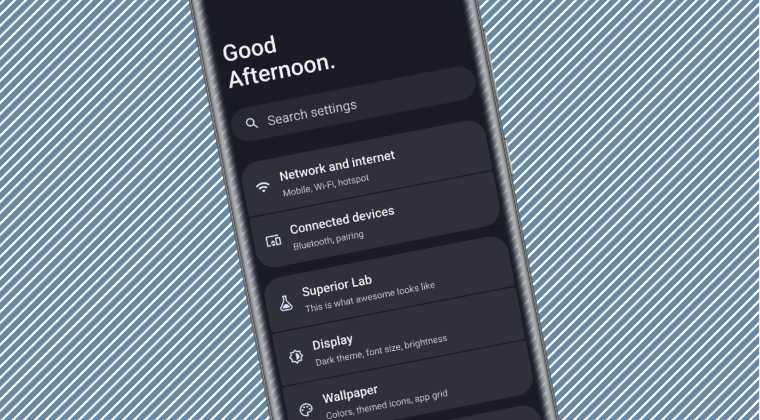
Before starting, please take a backup of all the data on your device. Droidwin and its members wouldn’t be held responsible in case of a thermonuclear war, your alarm doesn’t wake you up, or if anything happens to your device and data by performing the below steps.
STEP 1: Install Android SDK

First and foremost, you will have to install the Android SDK Platform Tools on your PC. This is the official ADB and Fastboot binary provided by Google and is the only recommended one. So download it and then extract it to any convenient location on your PC. Doing so will give you the platform-tools folder, which will be used throughout this guide.
STEP 2: Enable USB Debugging and OEM Unlocking
Next up, you will also have to enable USB Debugging and OEM Unlocking on your device. The former will make your device recognizable by the PC in ADB mode. This will then allow you to boot your device to Fastboot Mode. On the other hand, OEM Unlocking is required to carry out the bootloader unlocking.
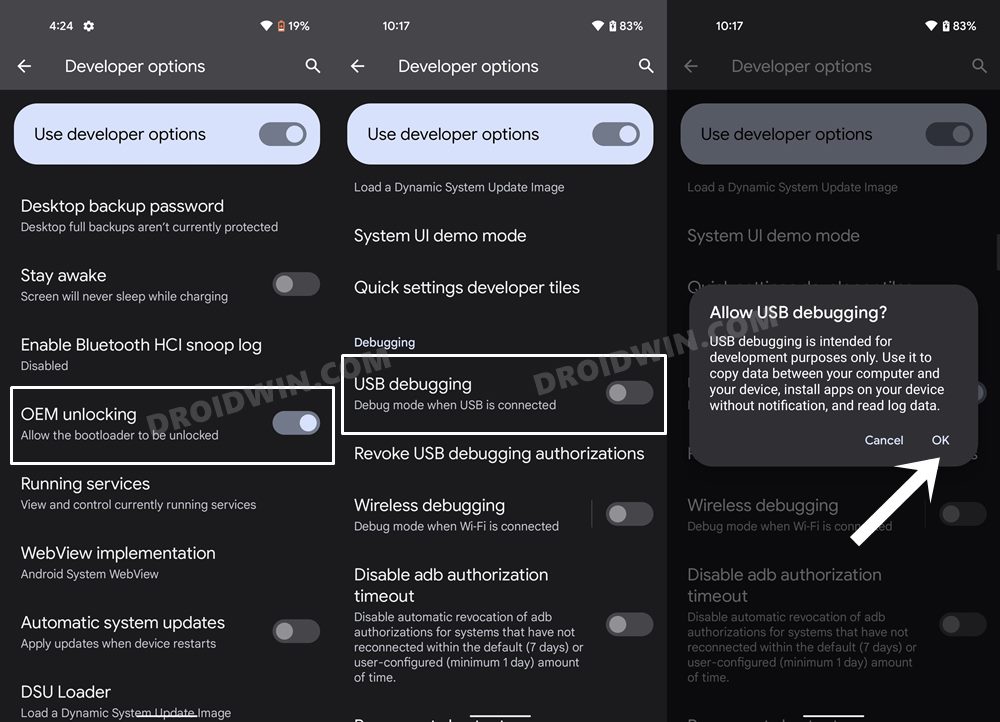
So head over to Settings > About Phone > Tap on Build Number 7 times > Go back to Settings > System > Developer Options > Enable USB Debugging and OEM Unlocking.
STEP 3: Unlock Bootloader on Pixel 7A
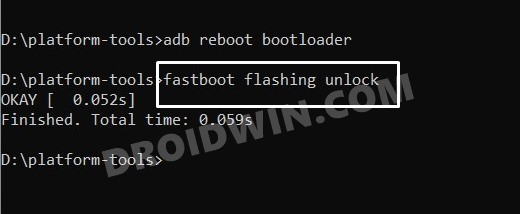
Next up, you will also have to unlock the device’s bootloader. Do keep in mind that doing so will wipe off all the data from your device and could nullify its warranty as well. So if that’s all well and good, then please refer to our detailed guide on How to Unlock the Bootloader on Pixel 7A .
STEP 4: Download SuperiorOS Android 14 for Pixel 7A
- You can now grab hold of the ROM and its associated files from the below link: SuperiorOS: ROM | RECOVERY
- Rename the ROM file to rom.zip and transfer all the files to the platform-tools folder.
STEP 5: Boot Pixel 7A Fastboot Mode
- Now connect your device to the PC via a USB cable. Make sure USB Debugging is enabled.
- Then head over to the platform-tools folder, type in CMD in the address bar, and hit Enter. This will launch the Command Prompt.
- Type in the following command in the CMD window to boot your device to Fastboot Mode adb reboot bootloader
- To verify the Fastboot connection, type in the below command and you should get back the device ID. fastboot devices
- If you are not getting any serial ID, then please install the Fastboot Drivers .
STEP 6: Install SuperiorOS Android 14 on Pixel 7A
- First off, flash the SuperiorOS Recovery via the below command: fastboot flash vendor_boot vendor_boot.img
- Then boot your device to the SuperiorOS Recovery: fastboot reboot recovery
- Then go to Advanced > Format data/factory reset > Factory Reset.
- Once done, select “Apply Update” > “Apply from ADB”.
- Now in the CMD window, type in the below command to start the sideload: adb sideload rom.zip
- Wait for the installation to complete. Once done, select Reboot System.
- Your device will now boot to the newly installed OS.
- How to SIM Unlock Pixel 7A/7/Pro without PC or any app!
- Flash Sultan Kernel on Pixel 7A/7/Pro: Overheating Fixed!
- How to Force 90Hz Refresh Rate in Pixel 7A [and why shouldn’t]
- Google Pixel 7A Fingerprint Not Working: How to Fix

(Cancel Reply)
Δ
Google Pixel 7A Fingerprint Not Working: How to Fix
In this guide, we will show you various methods to fix the issue of the fingerprint sensor not working in Google Pixel 7A. Pixel devices have always been known to offer a clean stock OS experience, the fastest OS upgrades, and the best camera that any smartphone has to offer. But on the flip side, they are never known to be the best in the hardware department, especially when it comes to the fingerprint domain.
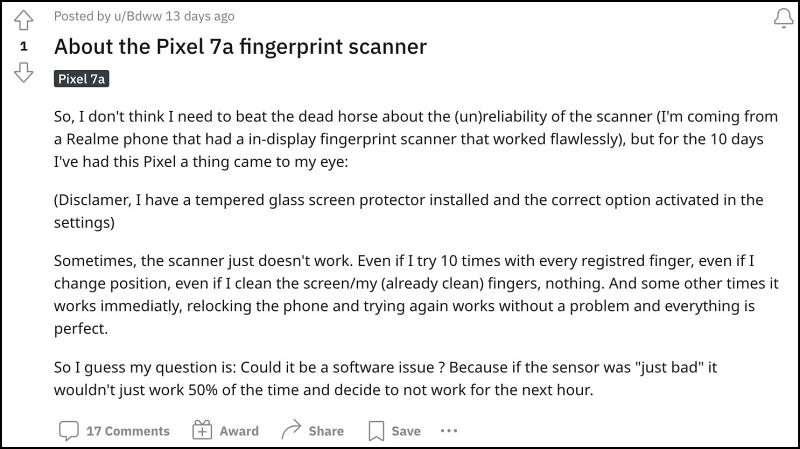
And unfortunately, the latest entry to the Pixel family is emulating the exact same behavior. While the Pixel 6 and 7 series have their fair share of fingerprint-related issues, the 7A seems to have taken a page or two from their books as well as rarely does the fingerprint tends to work in a single try. With that said, there does exist a couple of nifty workarounds that should help you rectify this issue. So without further ado, let’s check them out.
- Fix Google Pixel 7A Fingerprint Sensor Not Working Add the Same Fingerprint Twice Increase Touch Sensitivity Give it An Additional Second Apply Optimal Pressure Use Dry Hands Clean your Screen Use a compatible screen protector Re-Add Your Fingerprint Install Pending Updates Give AI some time! Send Feedback to Google
Fix Google Pixel 7A Fingerprint Sensor Not Working
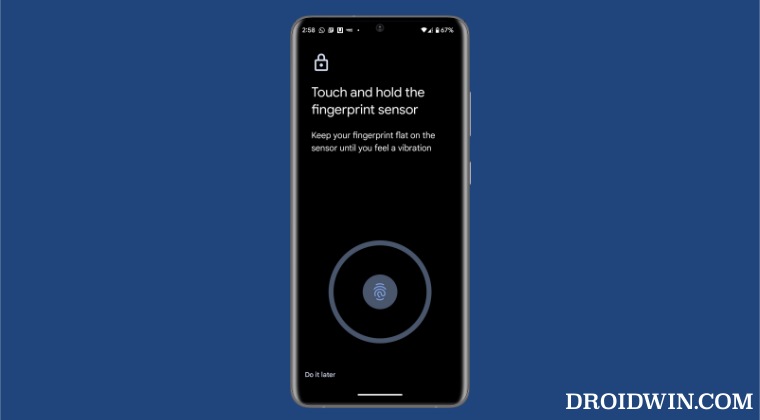
It is recommended that you try out each of the below-mentioned workarounds and then see which one spells out success. So with that in mind, let’s get started.
Add the Same Fingerprint Twice
An old trick out of the books, adding the fingerprint of the same finger twice or thrice will make the job of the scanner a little bit easier in reading those fine prints. So refer to the below steps to fill up two-three slots of fingerprints using the same finger and then check out the results.
- To begin with, head over to Settings > Security > Fingerprint Unlock.
- Then tap on Add Fingerprint and proceed with the on-screen instructions to complete the process.
- Likewise, carry out the same steps for the same finger a couple of additional times.
- Now check if it fixes the Pixel 7A fingerprint not working issue.
Increase Touch Sensitivity
If you have put a screen protector, then it might conflict with the normal interaction with the fingerprint sensor. Therefore, you should consider enabling the Pixel’s built-in feature that will increase the touch response sensitivity. Here’s how it could be done:
- To begin with, head over to the Settings menu on your device.
- Then go to Display and enable the toggle next to Increase Touch Sensitivity.
- Check if it fixes the fingerprint not working issue on your Pixel 7A.
Give it An Additional Second
Optical under-the-hood fingerprints are a tad bit slower than the ultrasonic scanner. So bearing that fact in mind, consider giving an additional second to the scanner so that it is able to efficiently scan your prints.
Apply Optimal Pressure
While it isn’t documented anywhere as such, but these in-display fingerprints (especially the 2-D ones) work best when you apply the pressure in an increasing manner. However, the increase should be done gradually and lightly. So try it out and then see if it is able to fix the Pixel 7A fingerprint sensor not working issue.
Use Dry Hands
It’s no hidden secret that the scanner wouldn’t be able to read the fingerprints if your hands are wet. This is because the moisture would end up creating an additional layer between the scanner and your fingerprints, thereby preventing a successful scan. So make sure to remove such roadblocks before proceeding ahead.
Clean your Screen
Not only your hands but the screen should be cleaned as well, especially the bottom half of the screen where the scanner is located. Even the slightest of dust particles are enough to create hurdles in successful scans. So clean your screen with a cloth or fabric and then verify if the Pixel 7/Pro fingerprint sensor not working issue has been fixed or not.
Use a compatible screen protector
Not all screen protectors are created equally! While they might cause issues in the normal usage of the device, but they sure could cause conflict with the in-display fingerprint scanner. So if you ever plan to replace your Corning Gorilla Glass Victus protection with a third-party one, make sure to go for a tried and trusted name.
Re-Add Your Fingerprint
Since the optical scanner flashes a bright light underneath to read your fingerprints, it might not have been able to register your fine prints correctly during the setup process. So consider removing the registered fingerprint and then perform a re-scan to re-add your fingerprints. Here’s how it could be done:
- Head over to Settings > Security > Fingerprint Unlock.
- Then tap on the delete icon next to your fingerprint.
- Now tap on Add Fingerprint and proceed with the on-screen instructions to complete the setup.
- Check if it fixes the Pixel 7A fingerprint not working issue.
Install Pending Updates
While the software upgrades might not necessarily add new features to your device, they surely optimize and improve the overall functioning of the OS as well as your device. Along the same lines, they also iron out all the bugs and issues. So make sure to download and install all pending updates using the instructions listed below and then verify if it ends up rectifying the issue or not.
- Head over to Settings < System > System Update.
- The OS will now search for any pending updates.
- If there is one, then download and install it right away.
- Check if it fixes the Pixel 7A fingerprint not working issue.
Give AI some time!
Well, Artificial Intelligence does take some time to adapt and adjust, after all. So on continued usage of these scanners, they will ultimately learn and optimize themselves according to the use case scenario. So consider letting go of the initial hiccups for a better journey ahead!
Send Feedback to Google
If none of the aforementioned tweaks managed to work out in your favor, then you should consider contacting Google and then chalk out the best route forward. We aren’t still implying that it’s a hardware issue, it’s just that contacting the manufacturer will give you a clearer picture. So refer to the below steps to send the feedback directly from your device:
- Head over to Settings > System > About Phone
- Then tap on Send Feedback about this device.
- Now tap on Allow one-time access in the prompt.
- Type in your concern regarding the fingerprint and hit Send.
So with this, we round off the guide on how you could fix the Pixel 7A fingerprint sensor not working issue. As far as the official stance on this matter is concerned, the developers are aware of this issue , but they haven’t given out any ETA for the rollout of a fix. As and when that happens, we will update this guide accordingly. In the meantime, the aforementioned workarounds are your best bet.
- How to Improve Sound Quality on Pixel 7/Pro
- Cannot Send or Receive SMS in Pixel 7/Pro: How to Fix
- Pixel 7/Pro lock screen media controls missing: How to Fix
- Increase Screen Saturation on Pixel 7/Pro: Fix Washed-out Display
(Cancel Reply)
Δ
