How to Install TWRP Recovery on Xiaomi Poco X3
In this guide, we will show you the steps to install TWRP Recovery on Xiaomi Poco X3. This subbrand from the Chinese OEM started its journey in a raster convincing fashion, by offering the top-end Snapdragon chipset at an extremely affordable price. And truth be told, it has continued this legacy even today. Its third iteration in this series is the perfect example of the same. Apart from managing to grab the limelight of the masses, it has become an active player in custom development.
In this regard, recently we covered an article on how you could Root Poco X3 NFC without TWRP using the stock boot.img file . Once you do so, you will be in a position to flash a plethora of mods, including the likes of Substratum Themes , Xposed Framework , Magisk Modules , etc. However, for some users the need to download stock firmware, extract the stock boot.img, patch it via Magisk and flash it via Fastboot Commands involved a lot of effort. If you are also on the same page, then there’s this guide shall help you out.
Once you install this custom recovery, you could easily root your device by flashing the Magisk Installer (which is now a part of the Magisk App, from version 22 onwards ). Apart from that, a custom recovery brings in a plethora of other goodies as well. These include the ability to install custom ROMs, flash ZIP and IMG files, create Nandroid Backup, etc. So keeping all these points in mind, let’s start off with the guide to install TWRP Recovery on Xiaomi Poco X3.
- How to Install TWRP Recovery on Xiaomi Poco X3 Install Android SDK Enable USB Debugging and OEM Unlocking Unlock Bootloader Poco X3 Boot Poco X3 to Fastboot Mode Download TWRP Recovery for Poco X3 Install TWRP Recovery on Poco X3
How to Install TWRP Recovery on Xiaomi Poco X3
The below instructions are listed under separate sections for ease of understanding. Make sure to follow in the exact same sequence as mentioned below. Droidwin and its members wouldn’t be held responsible in case of a thermonuclear war, your alarm doesn’t wake you up, or if anything happens to your device and data by performing the below steps.
Install Android SDK

First and foremost, you will have to install the Android SDK Platform Tools on your PC. This is the official ADB and Fastboot binary provided by Google and is the only recommended one. So download it and then extract it to any convenient location on your PC. Doing so will give you the platform-tools folder, which will be used throughout this guide.
Enable USB Debugging and OEM Unlocking
Next up, you will have to enable USB Debugging and OEM Unlocking on your device. The former will make your device recognizable by the PC in ADB mode. This will then allow you to boot your device to Fastboot Mode. On the other hand, OEM Unlocking is required to carry out the bootloader unlocking process.
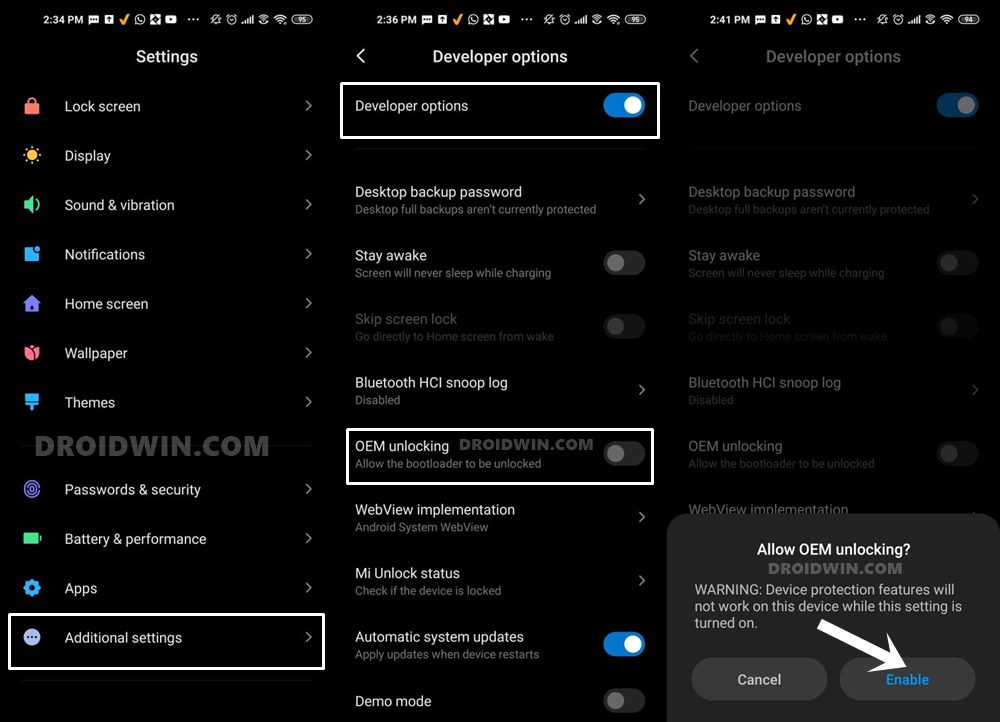
So head over to Settings > About Phone > Tap on Build Number 7 times > Go back to Settings > System > Advanced > Developer Options > Enable USB Debugging and OEM Unlocking.
Unlock Bootloader Poco X3
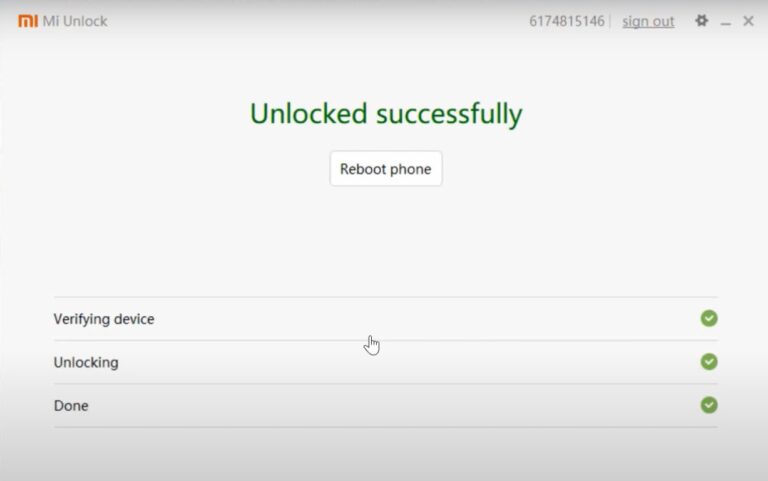
Flashing a custom recovery such as TWRP requires you to unlock the device’s bootloader. Do keep in mind that doing so will wipe off all the data and could also make the warranty null and void. So if that’s well and good, then refer to our guide to Unlock Bootloader on any Xiaomi Device .
Boot Poco X3 to Fastboot Mode
- Connect your device to the PC via USB cable. Make sure USB Debugging is enabled.
- Then head over to the platform-tools folder, type in CMD in the address bar, and hit Enter. This will launch the Command Prompt.
- Type in the following command in the CMD window to boot your device to Fastboot Mode adb reboot bootloader
- To verify the Fastboot connection, type in the below command and you should get back the device ID, as shown in the image. fastboot devices
Download TWRP Recovery for Poco X3
Changelog:


Working Features:

- Decryption works

- OTG works

- Flash Rom works

- F2FS support

- Fastboot boot command support


Not working:

- Fastbootd

- Adb sideload

- Backup restore and image flash (system-vendor-product)

- Android 11 fully support

- Touch works
Install TWRP Recovery on Poco X3
- Rename the downloaded recovery to twrp, hence the complete name becomes twrp.img.
- Now transfer this twrp.img file to the platform-tools folder on your PC.
- After this, launch CMD inside this platform-tools folder.
- Then execute the below command to flash the TWRP Recovery to the recovery partition of Poco X3: fastboot flash recovery twrp.img
- Next up, you will have to boot the device to TWRP using the below command (otherwise it will be replaced by stock): fastboot boot twrp.img
- Once the device boots to TWRP, you may now carry out the desired task. Once done, go to Reboot and tap System to boot to the OS.

- Furkan Rana 4 years ago Reply Is any way to flash twrp in edl mode My phonestuck in edl no charging no recovery no fastboot plz reply me
- Andi 5 years ago Reply does not work for me after “fastboot boot twrp.img” the phone just turns off.
(Cancel Reply)
Δ
