How to Install TWRP Recovery without PC
In this guide, we will show you the steps to install the TWRP Recovery without using any PC. Do note that the steps aren’t just limited to TWRP, but applicable across all the custom recoveries including the likes of OrangeFox and PitchBlack. But before starting with the flashing steps, please take a backup of all the data on your device. Droidwin and its members wouldn’t be held responsible in case of a thermonuclear war, your alarm doesn’t wake you up, or if anything happens to your device and data by performing the below steps.
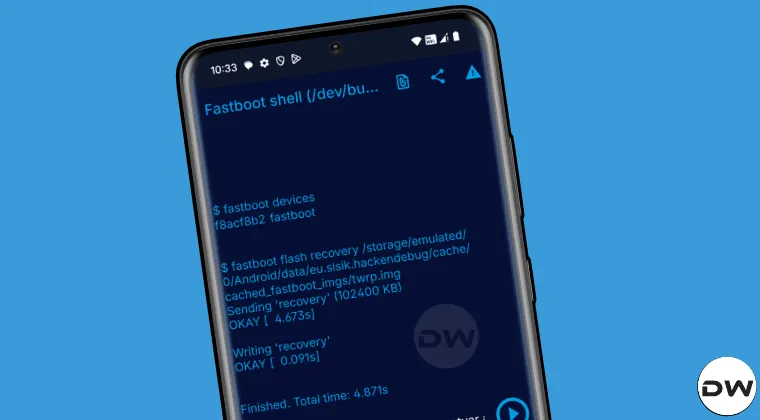
How to Install TWRP Recovery without a PC

We will be using two devices to get this job done- the primary one on which the recovery is to be flashed and the secondary one using which we will be installing the recovery. For the sake of reference, my primary device is the OnePlus 11 [as we will be installing recovery on it] and the secondary device is the Nothing Phone 2. So keeping all these points in mind, let’s get started with the steps.
- Download and install the Bugjaeger app on the secondary device.
- Correspondingly, connect the USB OTG to your secondary phone.
- Also, connect the A end of the USB cable to the secondary device.
- On the other hand, connect the USB C end to the primary device.
- Launch Bugjaeger and you’ll get a few prompts across both devices.
- Make sure you tap on YES/OK across all the prompts that appear.
- Now go to the Fastboot tab of the app and select Reboot Bootloader.
- Your primary device will now boot to the Fastboot/Bootloader Mode.
- Now unlock the bootloader without using a PC via this guide/video .
- Next up, download the TWRP Recovery on your secondary device.
- Once done, reboot your device to Fastboot Mode as discussed above.
- Now tap on the file icon and select the TWRP file. It will add the path of TWRP to the command line.
- Next up, add the following command before the path name if your device has a recovery partition . fastboot flash recovery
- However, if it doesn’t have a recovery partition, then use the below command to temporarily boot it: fastboot boot
- Now use the below command to boot to the newly flashed recovery: fastboot reboot recovery
- From subsequent times, you may simply choose Reboot Recovery from the Fastboot tab to boot to TWRP.
- ADB Sideload Without PC: Flash Firmware/OTA/Custom Rom
- How to Unlock Bootloader on any Android without PC [Video]
- Unlock Xiaomi Bootloader without using PC or Mi Unlock Tool
- How to Install any GSI ROM on Android without a PC [Video]

(Cancel Reply)
Δ
