How to Install various Custom ROMs on Pixel 7A
In this guide, we will show you the steps to install numerous custom ROMs on your Pixel 7A. The devices from the Silicon Valley giant have always been known to be among the most active players in custom development. And the latest entry to the Pixel lineup, the affordable 7A, has once again done justice to this statement, and in quite some style. Within days of its launch, a couple of custom ROMs have already made their way over to this device.
But why is there a need to ditch the Pixel ecosystem and opt for a custom ROM when the latter are themselves based on AOSP? Well, one major reason for the same is the plethora of additional mods and tweaks that these ROMs behold [while you could try out most of these features in a stock ROM as well, but then you’ll have to root your device]. So on that note, let’s get started with the steps to install numerous custom ROMs on your Pixel 7A.
- How to Install Various Custom ROMs on Pixel 7A STEP 1: Install Android SDK STEP 2: Enable USB Debugging and OEM Unlocking STEP 3: Unlock Bootloader on Pixel 7A STEP 4: Download Custom ROMs for Pixel 7A LineageOS Evolution XP Paranoid Android SuperiorOS Pixel Blaster crDroid: ROM | Recovery STEP 5: Boot Pixel 7A Fastboot Mode
- Install LineageOS on Pixel 7A
- Install Evolution X on Pixel 7A
- Install Paranoid Android on Pixel 7A
- Install crDroid Android 14 on Pixel 7A
- Install SuperiorOS on Pixel 7A
- Install Pixel Blaster on Pixel 7A
How to Install Various Custom ROMs on Pixel 7A
Irrespective of the ROM you end up flashing, each of them will wipe off all the data from your device, so please take a complete device backup beforehand. Droidwin and its members wouldn’t be held responsible in case of a thermonuclear war, your alarm doesn’t wake you up, or if anything happens to your device and data by performing the below steps.
STEP 1: Install Android SDK

First and foremost, you will have to install the Android SDK Platform Tools on your PC. This is the official ADB and Fastboot binary provided by Google and is the only recommended one. So download it and then extract it to any convenient location on your PC. Doing so will give you the platform-tools folder, which will be used throughout this guide.
STEP 2: Enable USB Debugging and OEM Unlocking
Next up, you will also have to enable USB Debugging and OEM Unlocking on your device. The former will make your device recognizable by the PC in ADB mode. This will then allow you to boot your device to Fastboot Mode. On the other hand, OEM Unlocking is required to carry out the bootloader unlocking.
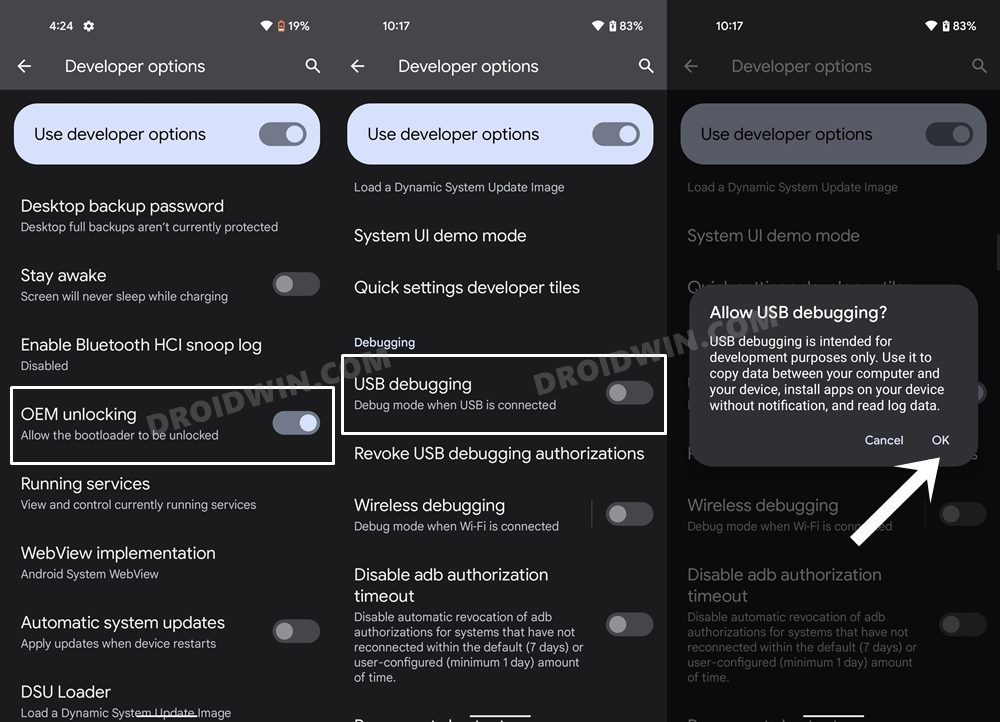
So head over to Settings > About Phone > Tap on Build Number 7 times > Go back to Settings > System > Developer Options > Enable USB Debugging and OEM Unlocking.
STEP 3: Unlock Bootloader on Pixel 7A
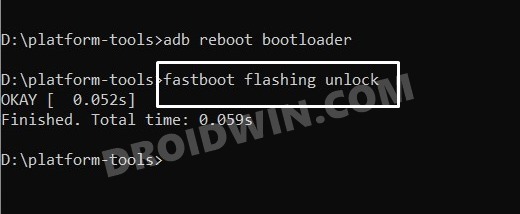
Next up, you will also have to unlock the device’s bootloader. Do keep in mind that doing so will wipe off all the data from your device and could nullify its warranty as well. So if that’s all well and good, then please refer to our detailed guide on How to Unlock the Bootloader on Pixel 7A .
STEP 4: Download Custom ROMs for Pixel 7A
- You could now grab hold of the ROM and its associated files from the below link: LineageOS Evolution XP Paranoid Android SuperiorOS Pixel Blaster crDroid: ROM | Recovery
- Rename the ROM file to rom.zip and transfer all the files to the platform-tools folder.
STEP 5: Boot Pixel 7A Fastboot Mode
- Now connect your device to the PC via a USB cable. Make sure USB Debugging is enabled.
- Then head over to the platform-tools folder, type in CMD in the address bar, and hit Enter. This will launch the Command Prompt.
- Type in the following command in the CMD window to boot your device to Fastboot Mode adb reboot bootloader
- To verify the Fastboot connection, type in the below command and you should get back the device ID. fastboot devices
- If you are not getting any serial ID, then please install the Fastboot Drivers .
Install LineageOS on Pixel 7A
To flash the latest LineageOS 20 based on Android 13 onto your Pixel 7A, you could refer to our below-linked guide:
How to Install LineageOS on Pixel 7A
Install Evolution X on Pixel 7A
- Make sure that you have transferred all the files to the platform tools folder.
- Now type in the below command to boot your device to FastbootD Mode: fastboot reboot fastboot
- Then type in the below command to flash system.img fastboot flash system system.img
- Now flash the system_ext.img via the below command fastboot flash system_ext system_ext.img
- Then flash product.img using the below-listed command fastboot flash product product.img
- Now flash vendor.img via the command shown below: fastboot flash vendor vendor.img
- After that, reboot your device to Fastboot via the command fastboot reboot-bootloader
- Then type in the below command to flash vbmeta and disable verity fastboot flash –disable-verity –disable-verification vbmeta vbmeta.img
- Now perform a factory reset via the following command fastboot -w
- Finally, execute the below command to boot your device to the newly flashed OS fastboot reboot
Install Paranoid Android on Pixel 7A
- From Fastboot Mode, execute the below command to flash the ROM: fastboot update rom.zip
- Once done, use the below command to perform a factory data reset fastboot -w
- Now use the below command to boot your device to the newly installed OS fastboot reboot
Install crDroid Android 14 on Pixel 7A
- To begin with, extract the recovery.zip to the platform-tools folder.
- Then flash the four files that you have got via the below commands: fastboot flash boot boot.img fastboot flash dtbo dtbo.img fastboot flash vendor_kernel_boot vendor_kernel_boot.img fastboot flash vendor_boot vendor_boot.img
- Once done, reboot your device to crDroid Recovery via the below command: fastboot reboot recovery
- Then go to Advanced > Format data/factory reset > Factory Reset.
- Once done, select “Apply Update” > “Apply from ADB”.
- Now in the CMD window, type in the below command to start the sideload: adb sideload rom.zip
- Wait for the installation to complete. Once done, select Reboot System.
Install SuperiorOS on Pixel 7A
- From Fastboot Mode, use the below command to perform a factory data reset fastboot -w
- Then type in the below command to flash SuperiorOS on your Pixel 7A fastboot update rom.zip
- Your device will automatically boot to FastbootD and then to the newly installed OS.
Install Pixel Blaster on Pixel 7A
- From the Fastboot Mode, type in the below commands to flash each of these files fastboot flash boot boot.img fastboot flash dtbo dtbo.img fastboot flash init_boot init_boot.img fastboot flash vendor_boot vendor_boot.img fastboot flash vendor_kernel_boot vendor_kernel_boot.img
- Once done, boot your device to custom recovery via the below command fastboot reboot recovery
- From the recovery, select Apply Update > Apply from ADB.
- Then head over to the platform-tools folder, type in CMD in the address bar, and hit Enter.
- This will launch the Command Prompt. So type in the below command to flash the ROM file via Sideload: adb sideload rom.zip
- The process will now begin and once done, you shall get the Total xfer: 1.00x message.
- Now select Factory Reset > Format Data/Factory Reset > Format Data.
- Finally, select Reboot System Now. Your Pixel 7A will now boot to the Pixel Blaster ROM.
- How to Unbrick Pixel 7A via Fastboot [2 Methods]
- How to Root Pixel 7A via Magisk Patched Init Boot
- Guide to Pass SafetyNet on Rooted Pixel 7A
- Flash Firmware on Pixel 7A/7/Pro via ADB Sideload

(Cancel Reply)
Δ
